
1. Introduction
2. Set Up Redmart Integration
3. Inventory Linking
4. Order Sync
5. Order Processing
6. Analytics
1. Introduction
RedMart, an online supermarket under Lazada, brings the traditional grocery shopping experience online. Customers in Singapore can easily purchase fresh food, specialty products, and household essentials through a single digital platform, all with the convenience of doorstep delivery. Through SiteGiant, merchants can efficiently manage RedMart orders from order processing to preparation for pickup, as RedMart handles the final collection and delivery logistics, allowing sellers to focus on preparing the items.
This feature is available to Singapore ERP Value Plus Plan and above.
2. Set Up RedMart Integration
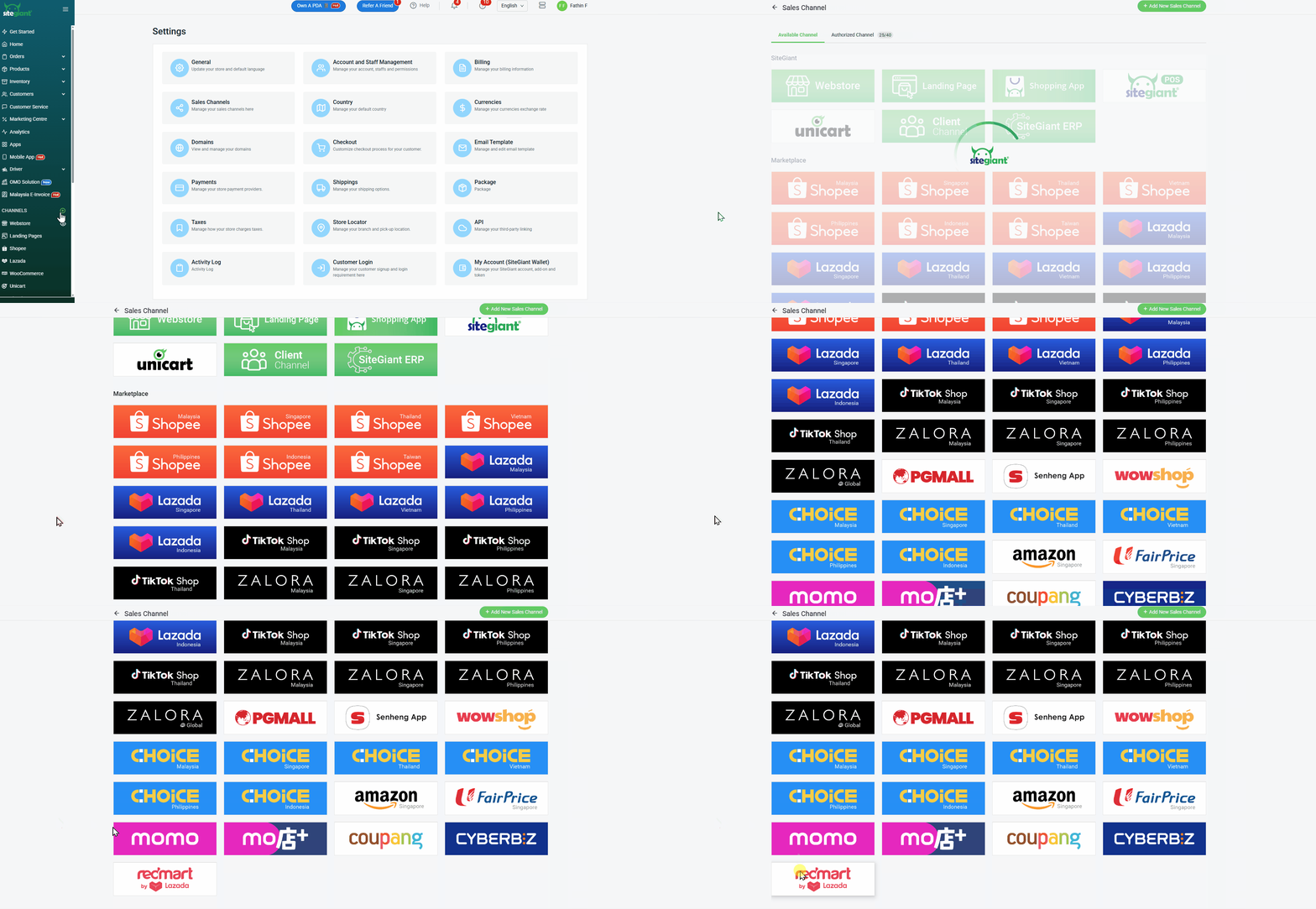
Step 1: Log in to your SiteGiant Seller Center > click add [+] channels > choose LazadaRedmartSG.
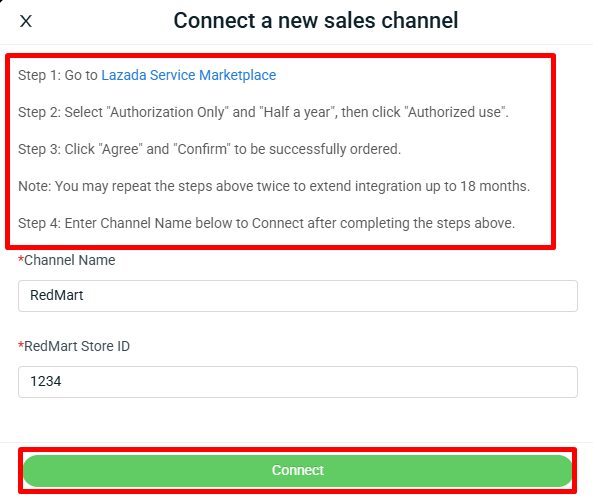
Step 2: Follow Steps 1 to 4 by clicking the Lazada Service Marketplace link in Step 1 to obtain the Authorization Service > enter Channel Name and RedMart Store ID > Connect.
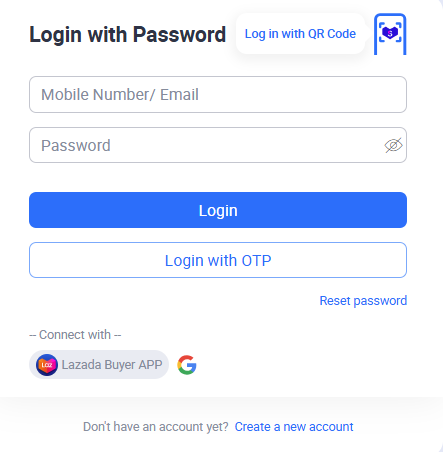
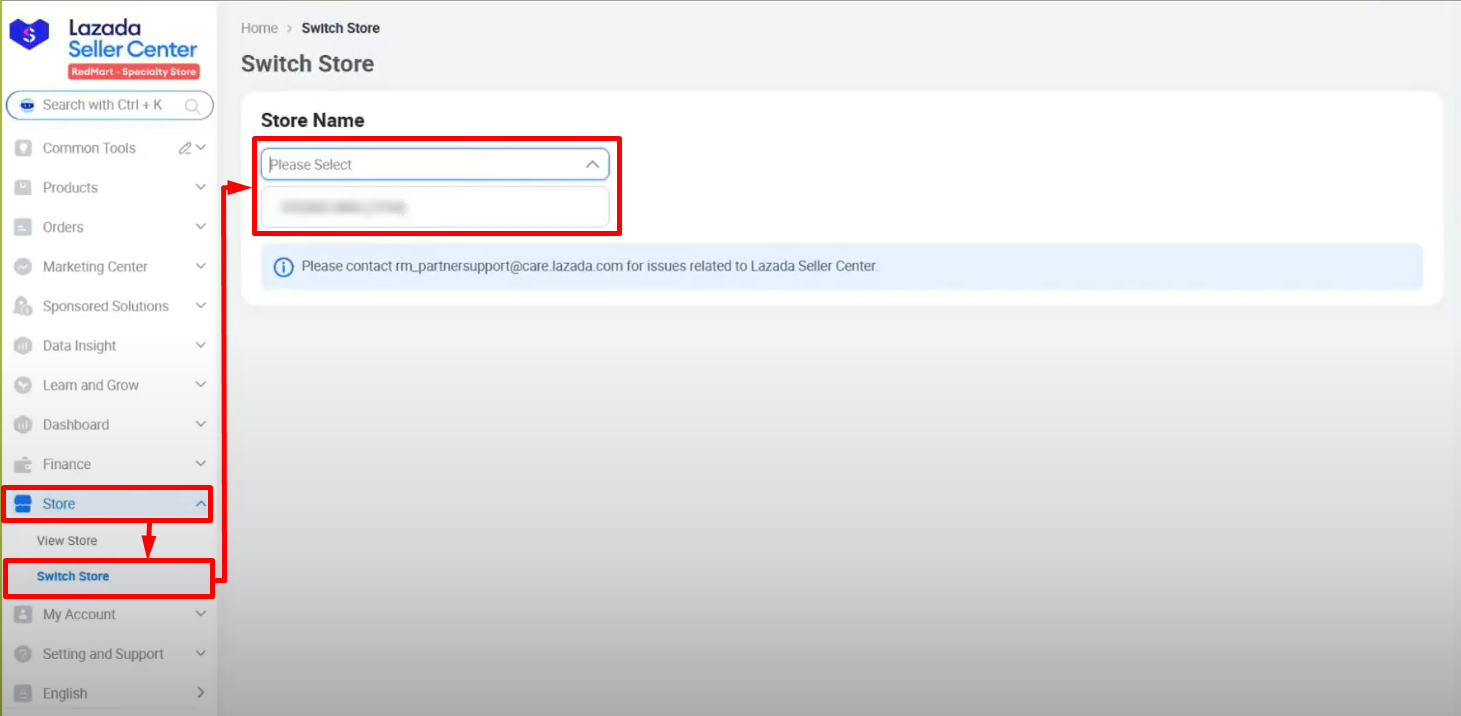
How to get RedMart Store ID? Step 1: Log in to your Lazada Seller Center > enter RedMart’s login credentials > click Login.Step 2: Navigate to Store on the sidebar menu > click Switch Store > select the Store Name > copy the RedMart Store ID.
 Step 2: Navigate to Store on the sidebar menu > click Switch Store > select the Store Name > copy the RedMart Store ID.
Step 3: On the RedMart Authorization page, ensure that the registered RedMart Login Credentials are correct > click Authorize.
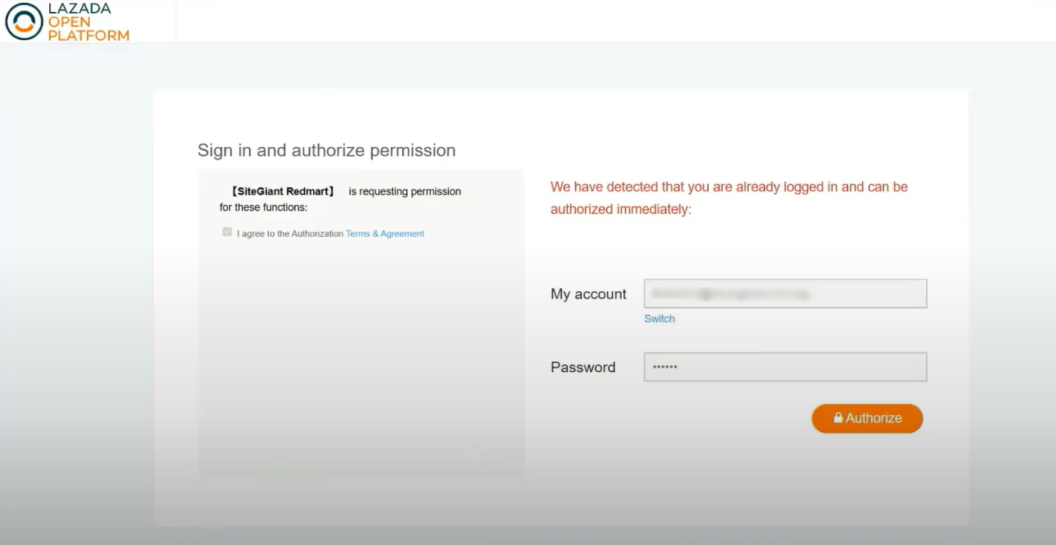
You have now successfully integrated your RedMart account with SiteGiant!
📌Note: Your existing products in Redmart will be synced back to SiteGiant’s RedMart Listing automatically.
3. Inventory Linking
Step 1: Navigate to Inventory on the sidebar menu > Inventory Linking > select Singapore Channel Store > LazadaRedMart.
💡Tips: Learn more about How To Do The Inventory Linking.
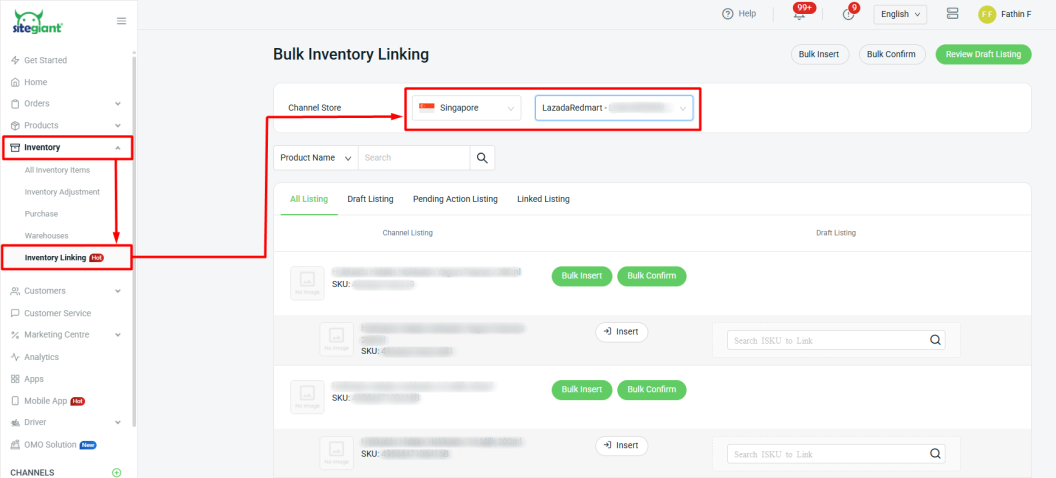
📌Note: Due to information limitations, when an item is created using the Insert Item feature, only the item name, iSKU, and sellable stock will be updated. Other item details will need to be updated manually.
4. Order Sync
Step 1: Redmart orders will automatically sync to SiteGiant. The order can be viewed under All Orders > LazadaRedMartSG.
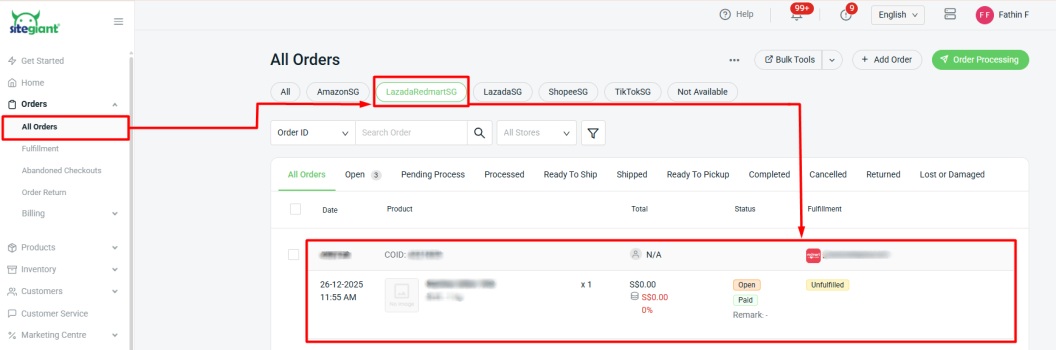
📌Note:
– Only RedMart orders support syncing of future orders, as customers can select their preferred delivery date when placing an order.
– In the RedMart Seller Center, orders placed by customers are grouped according to the Pickup date by RedMart. Once grouped, only those orders will be synced to SiteGiant with an Open status.
– Once the system reaches the cut-off pickup time set by RedMart for that day, the order status in SiteGiant will automatically update to Pending Process.
5. Order Processing
1. Configure RedMart Shipping Label Settings.
Step 1: Navigate to Orders > All Orders on the sidebar menu > click Order Processing.
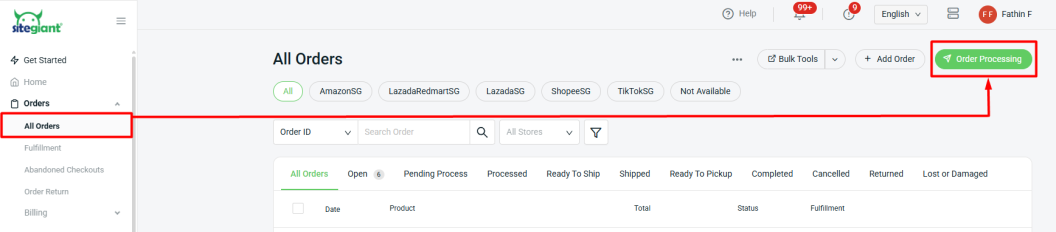
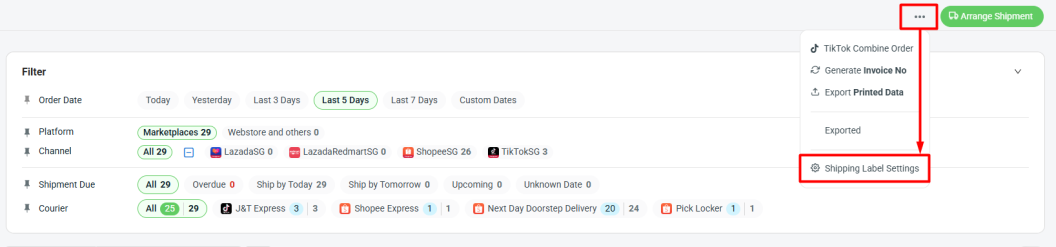
Step 2: Click More (…) > Shipping Label Settings.
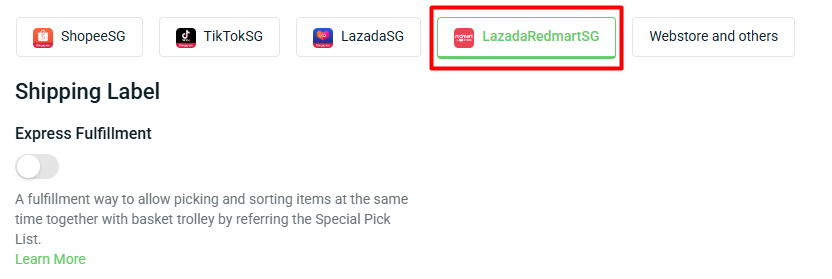
Step 3: Select LazadaRedMartSG channel > you can enable Express Fulfillment status to ease your fulfillment process.
💡Tips: Learn more about How To Process Order With Express Fulfillment
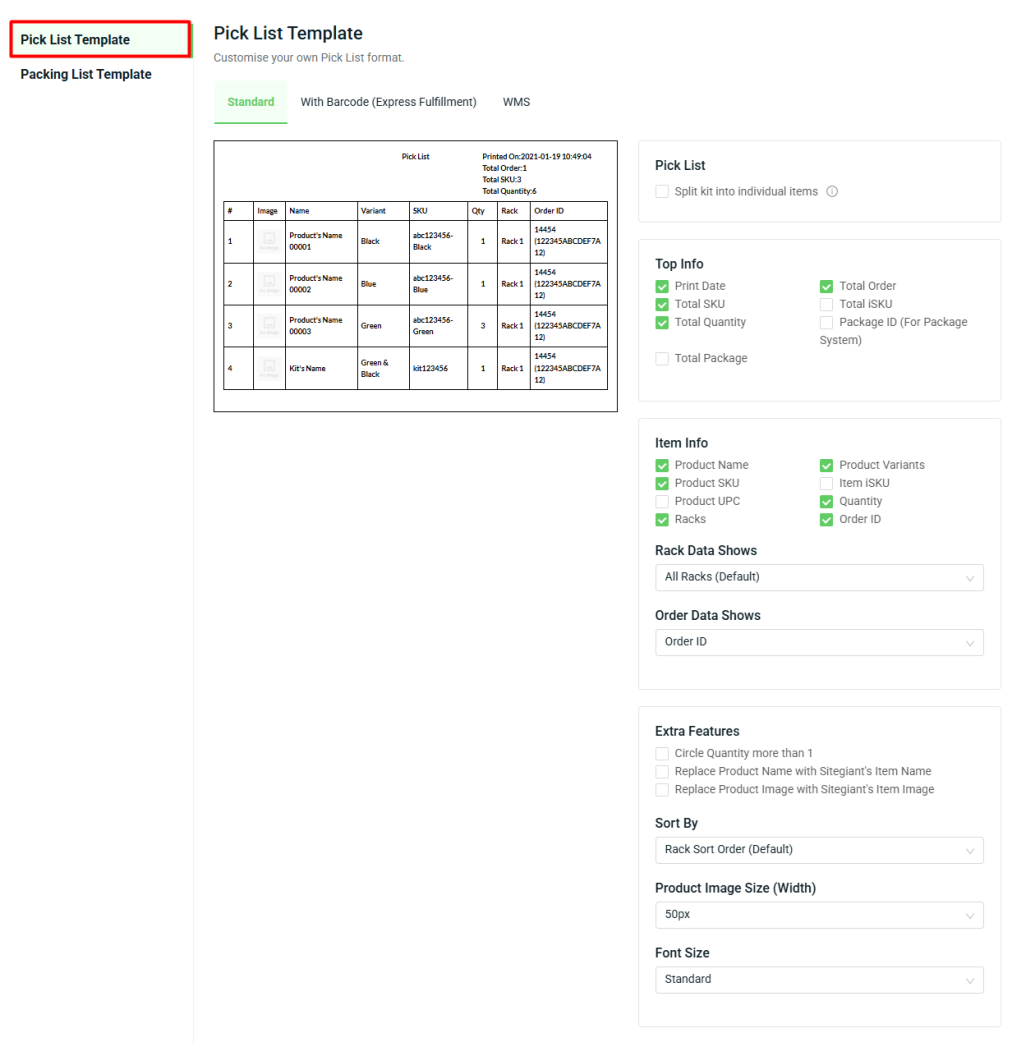
Step 4: Go to Pick List Template. A Pick List is a document used to guide your warehouse pickers during the item picking process. You can customize your own Pick List template.
Step 5: Navigate to Packing List Template. A packing List is a document that accompanies a package and provides detailed information about the contents of the package. You can customize your own Packing List template.
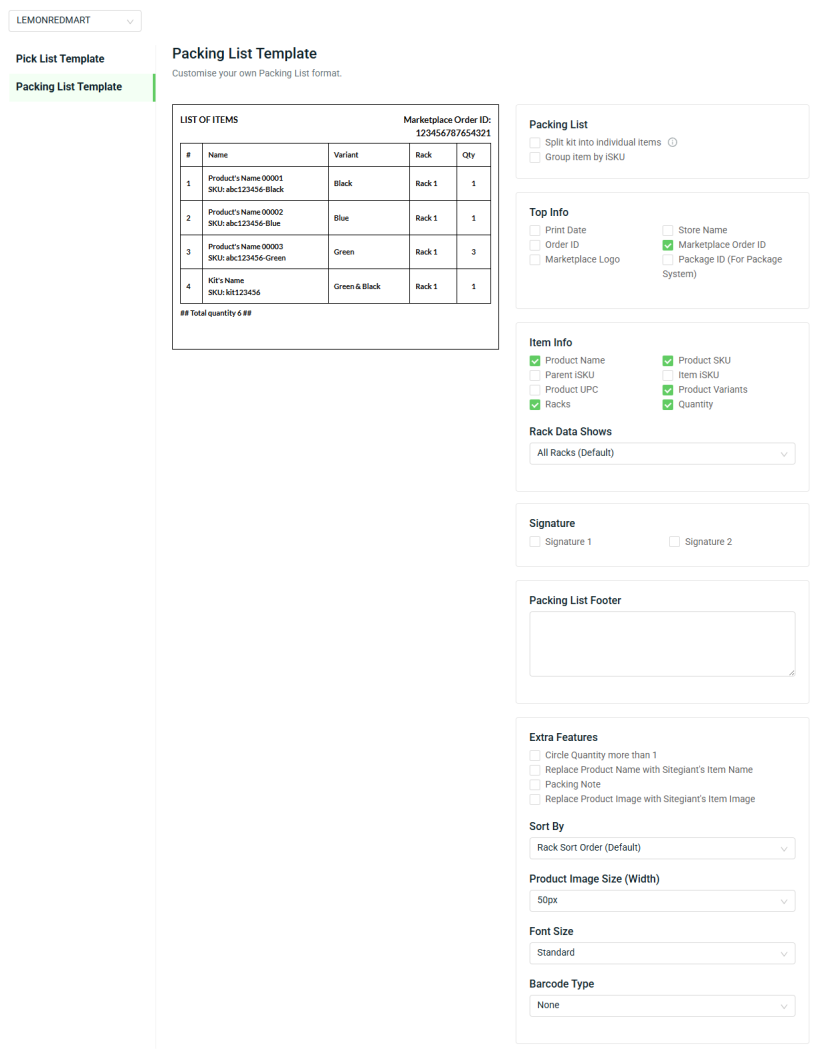
📌Note: Since the seller is only responsible for picking and packing, there is no shipping label setup required for RedMart orders.
2. Arrange Shipment
Step 1: Navigate to LazadaRedmartSG > click To Process > To Print tab > Select the order > Bulk Print.
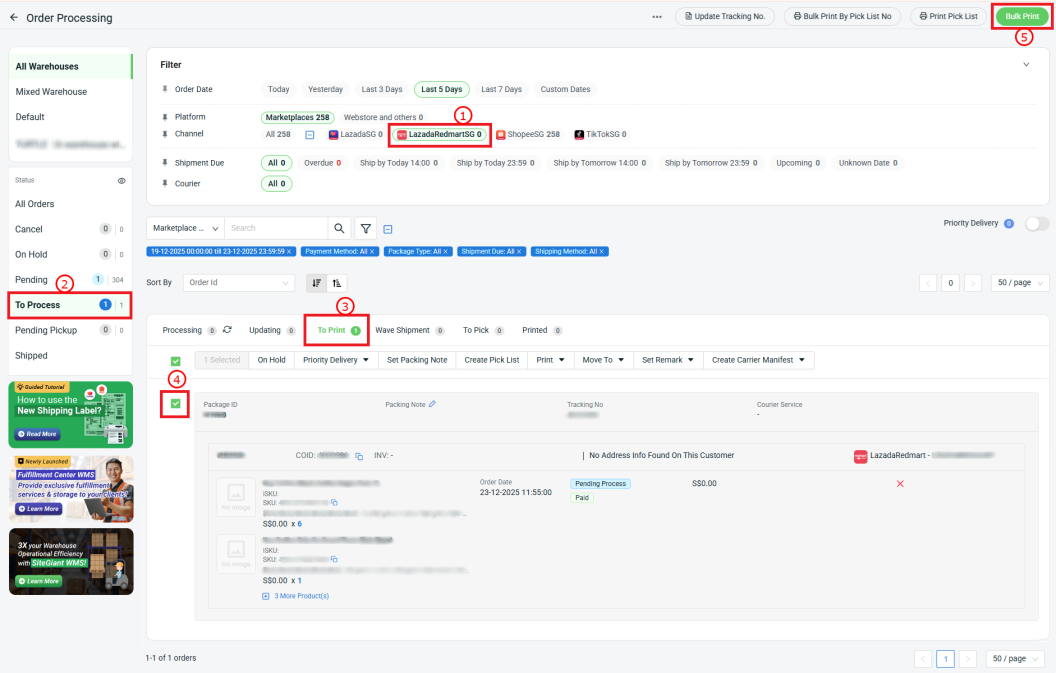
📌Note: As RedMart orders do not require shipment arrangements, once the order status changes to Pending Process, the order will automatically move directly To Print tab.
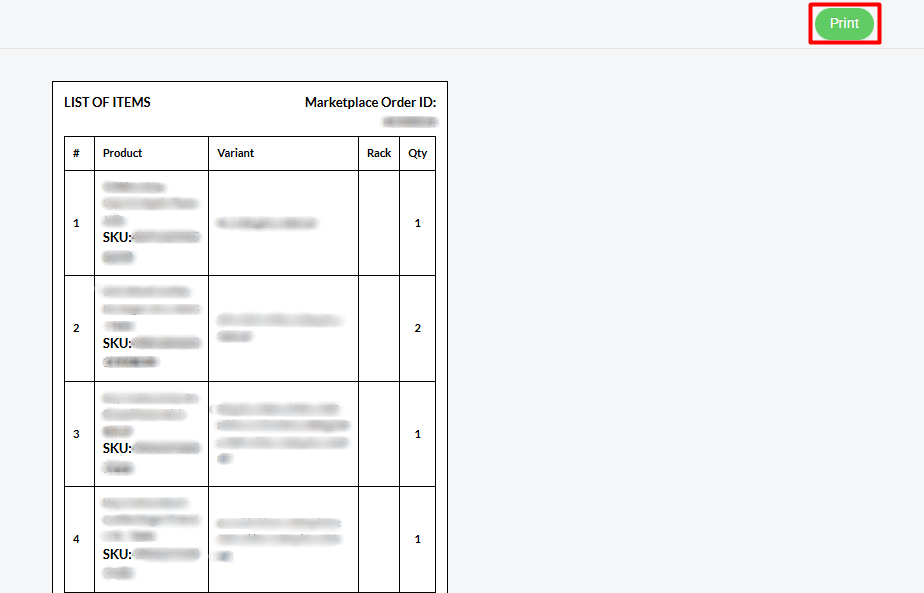
Step 3: Wait for the Packing List preview to load > click Print to proceed.
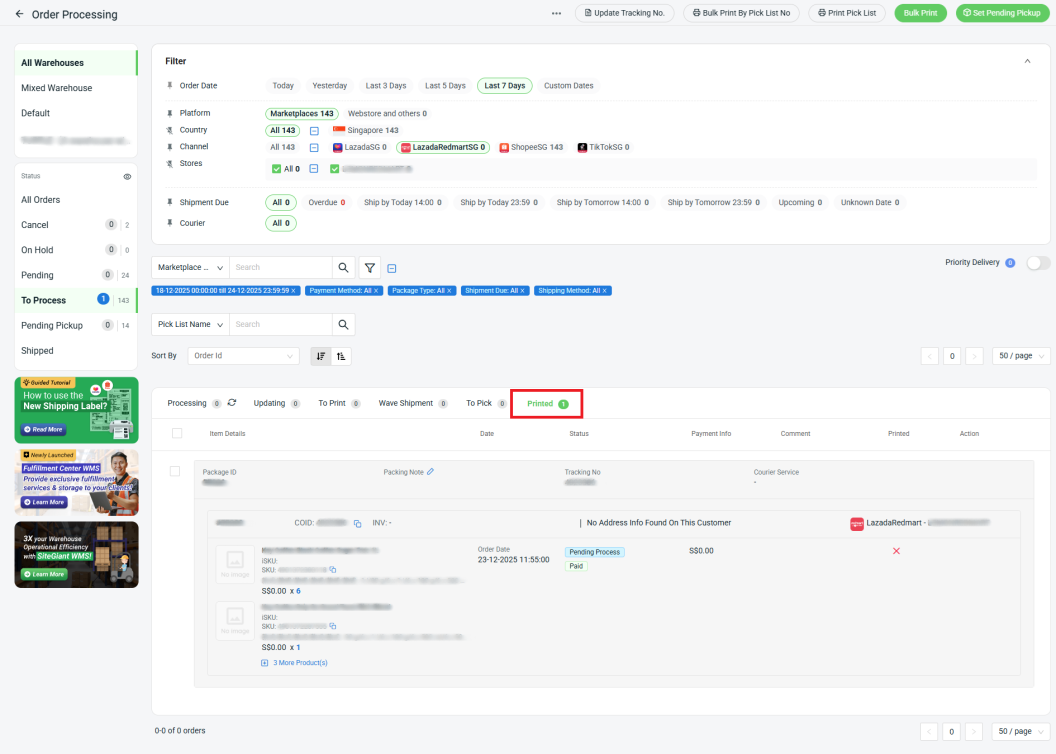
Step 4: Refresh the page. All the printed orders will move to the Printed tab.
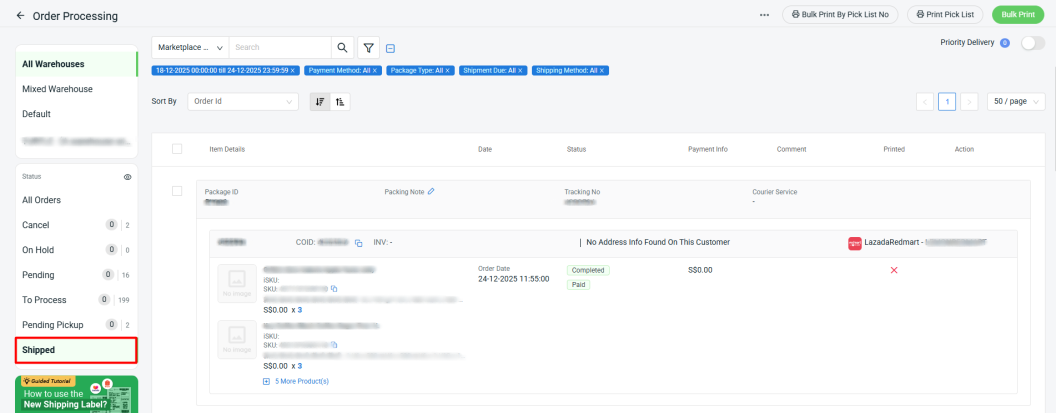
Step 5: After the pickup is done, the order status will be updated to Completed, and the order will then be moved to the Shipped tab under Order Processing.
6. Analytics
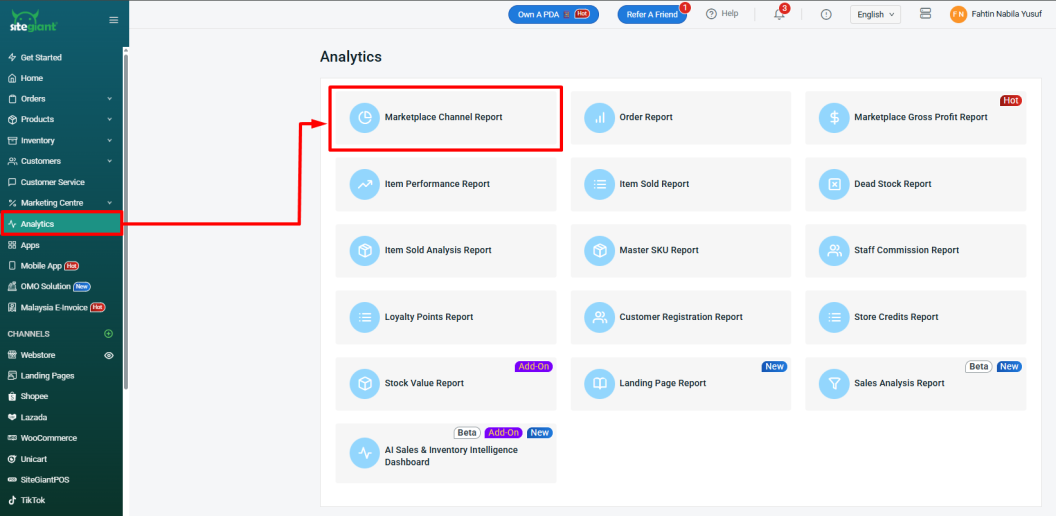
Step 1: The Analytics feature allows merchants to view total data performance for RedMart orders. You can view one of the reports under Analytics > Marketplace Channel Report.
Step 2: Select RedMart to view the report.
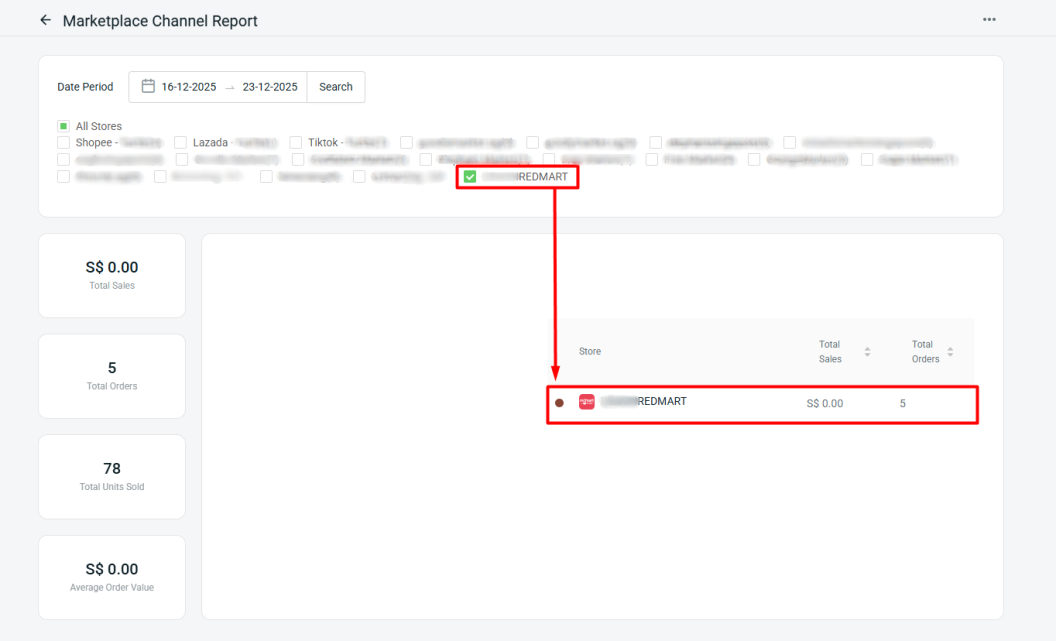
📌Note: As the total order amount is not synced back into the system, it will not be displayed in the report. Merchants will only be able to view the total number of orders in the RedMart report.