
1. Introduction
2. Change Currency Settings
1. Introduction
Changing the order currency helps ensure that your POS system uses the correct currency for transactions. This is important for maintaining accurate pricing, smooth transaction processing, and reliable financial reporting. It is especially important for businesses operating across multiple regions or standardizing a single sales currency. Proper currency configuration helps maintain consistency across transactions and supports accurate system integration and reporting.
2. Change Currency Settings
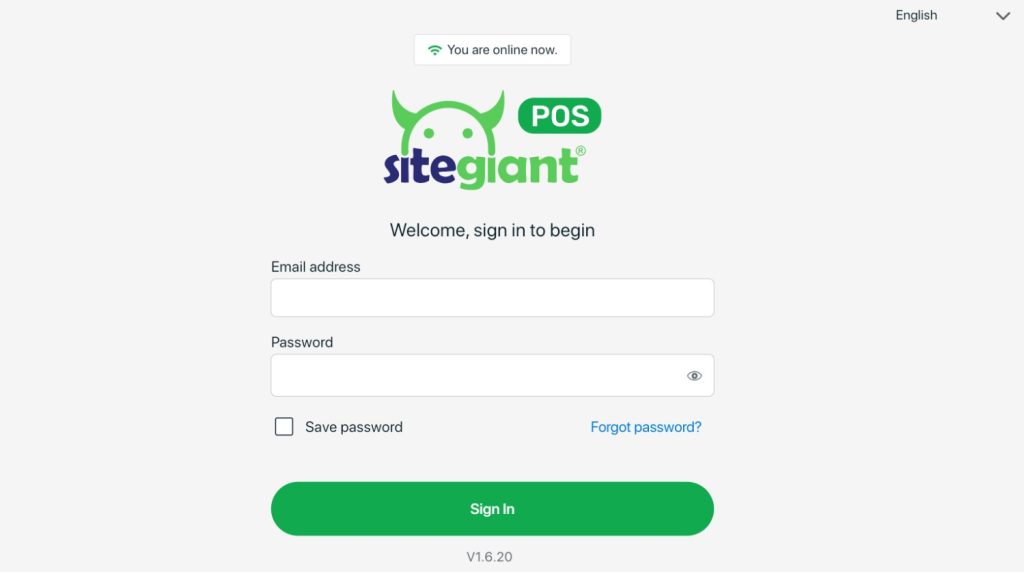
Step 1: Log in to your SiteGiant POS system on your device.
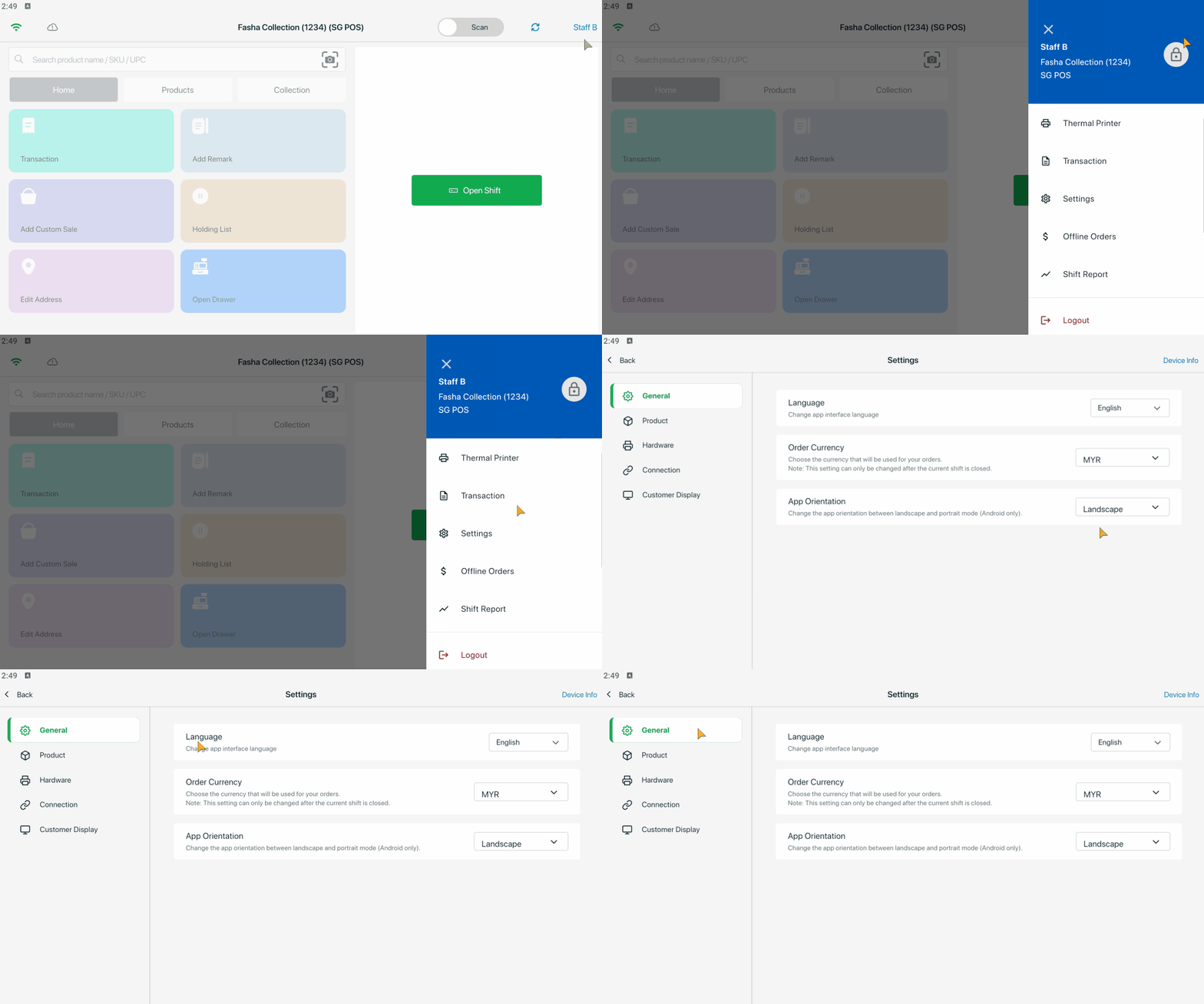
Step 2: Click the Username > Settings > choose General.
Step 3: Select the Order Currency that you want to use.
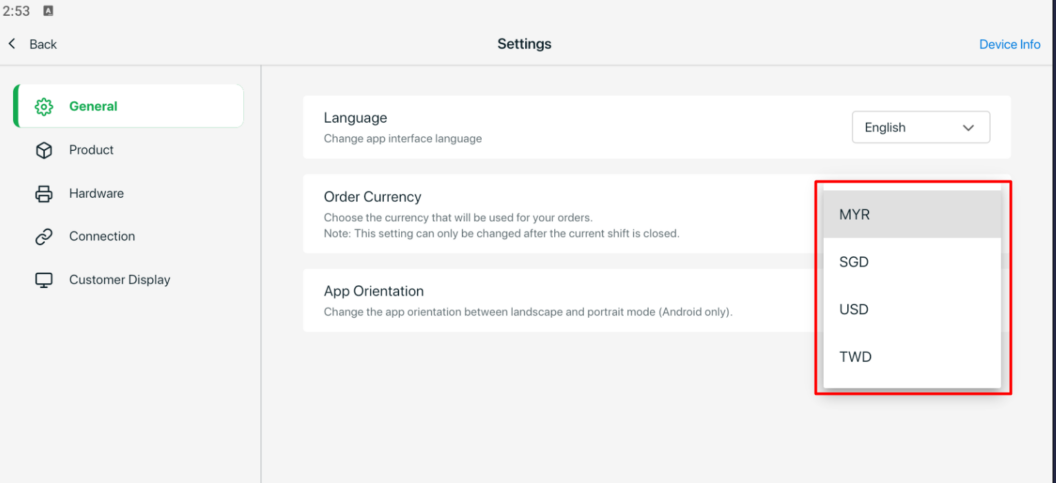
📌Note: Currency settings can only be changed when the current shift is closed, as each open shift has its own currency code. However, there are no restrictions for users with Shift Management disabled.
📝Additional Information
1. If shift management is disabled, you can change the currency at any time. However, if there are products in the cart, they will be cleared automatically when the currency is changed.
2. Currency changes are not allowed while the POS is in Offline Mode. If the currency is changed while online, all previously downloaded offline products will be removed automatically, and you will need to download the products again for Offline Mode.
3. Store Credit and payment terminal options will be hidden and disabled during checkout if the selected currency does not match the store’s default currency.