1. Introduction
2. Activate Fiuu VT+ Account
3. Create POS Account
4. Fiuu VT+ Setup In SiteGiant POS
5. Test Pay Via SiteGiant POS
1. Introduction
Fiuu VT+ Payment Terminal is a virtual terminal that can be used directly on your own devices and integrated with SiteGiant POS to provide a seamless and efficient payment experience. The terminal app can be downloaded from the Google Play Store or Apple App Store, allowing you to easily set up and start processing payments. With this integration, transactions are automatically recorded in the system, reducing manual effort, minimizing errors, and ensuring faster and more accurate payment processing at checkout.
2. Activate Fiuu VT+ Account
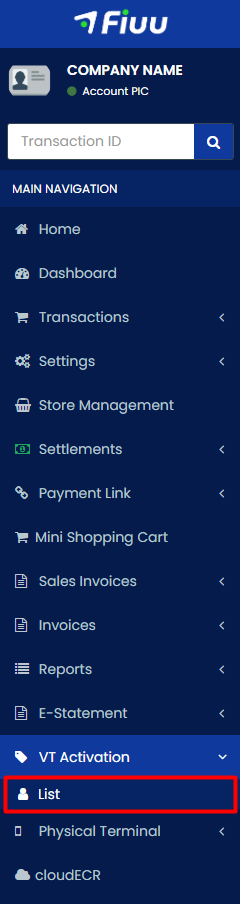
Step 1: Log in to Fiuu Merchant Portal > navigate to VT Activation on the sidebar menu > click List.
Step 2: Click + New Terminal > Confirm.

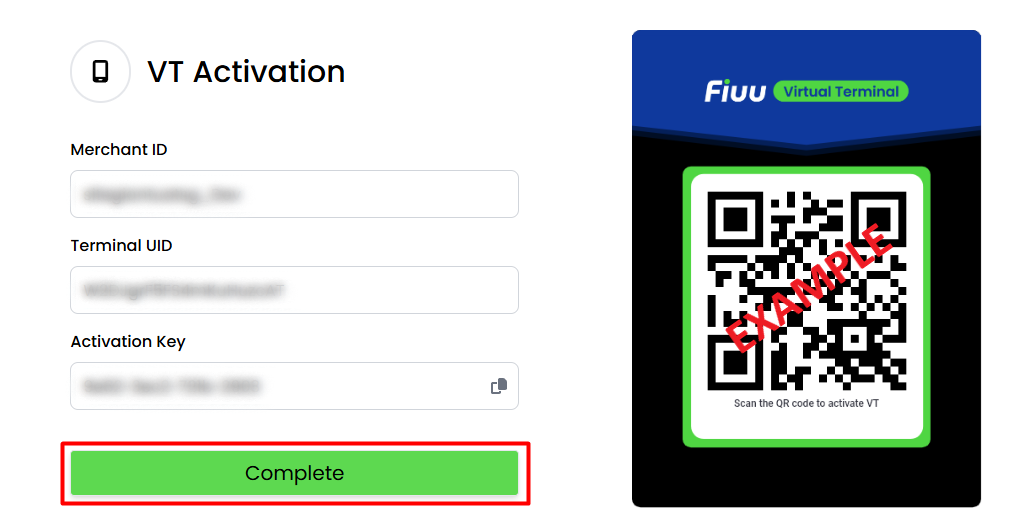
Step 3: Click Complete. Save the VT Activation details and QR Code for later use.
Step 4: Enable the CloudECR to activate the CloudECR integration.

Step 5. Install the Fiuu VT+ App from the Google Play Store or Apple App Store.
Step 6: Open the Fiuu VT+ App > tap Activate > review the Privacy Policy and tick the agreement box, click Agree > scan the saved QR code > set your application Passcode > the terminal status will initially show Offline, as no POS has been activated yet.
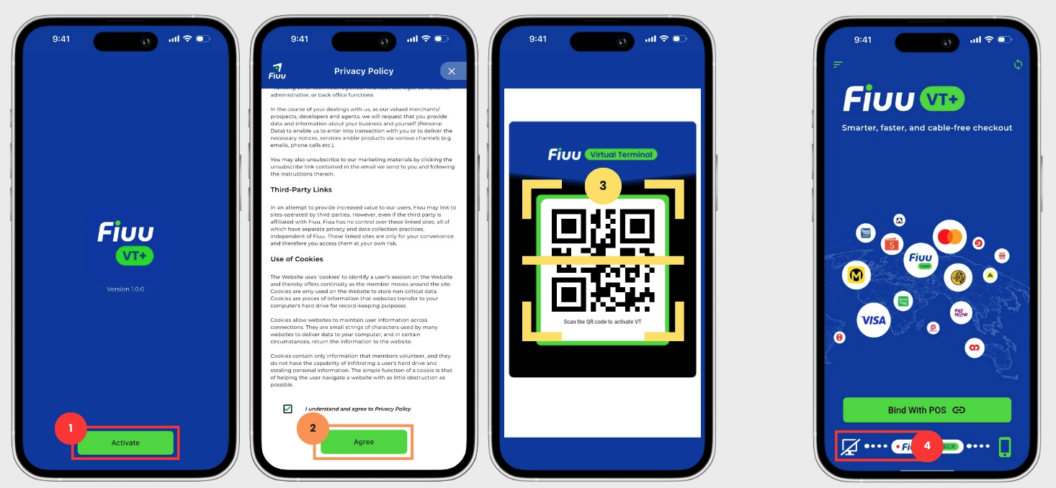
Step 7: Once the Virtual Terminal setup is complete, the status will automatically update to Active.

3. Create POS Account
Step 1: In Fiuu Merchant Portal, navigate to CloudECR > click + New Account.
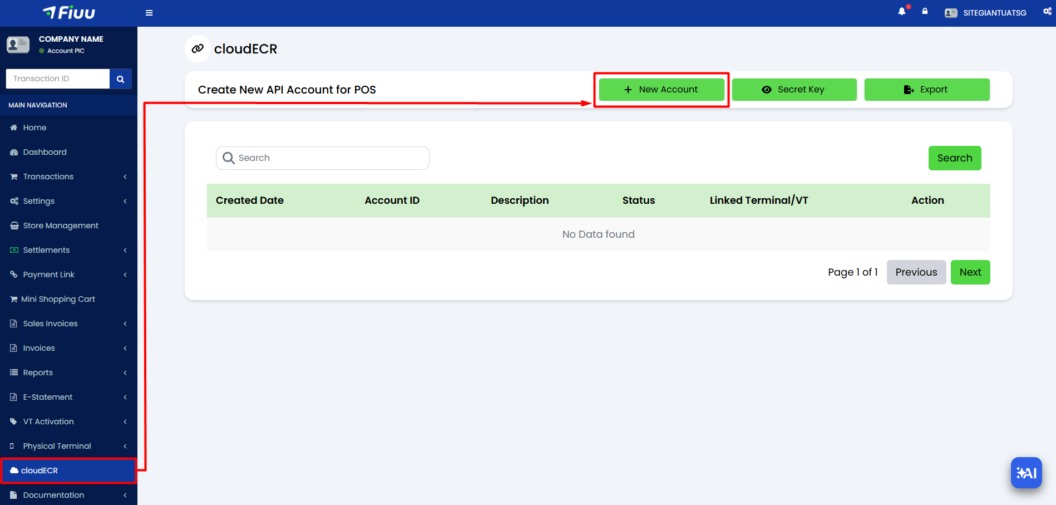
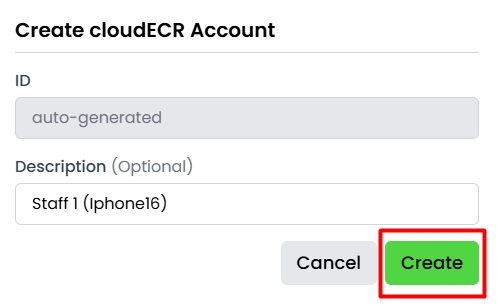
Step 2: Enter Description (Optional) > click Create.
📌Note: After creating your POS account, you will receive an email notification with your POS ID and a temporary password. Please click Activate your account in the email to proceed.
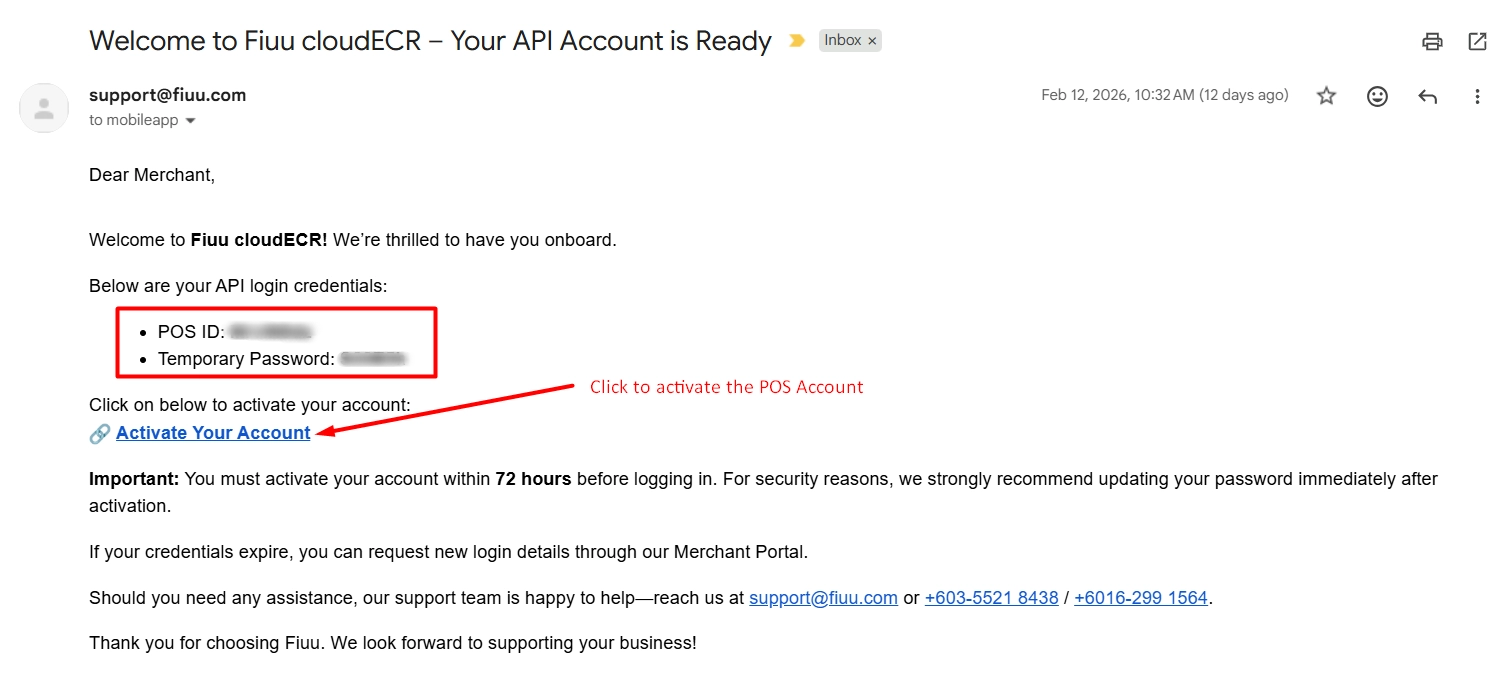
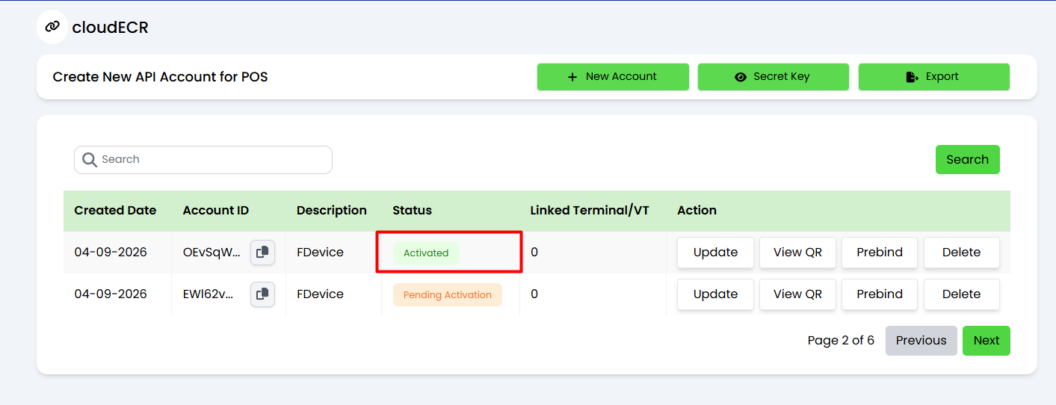
Step 3: You will see the Activated status after clicking the activation button in the email.
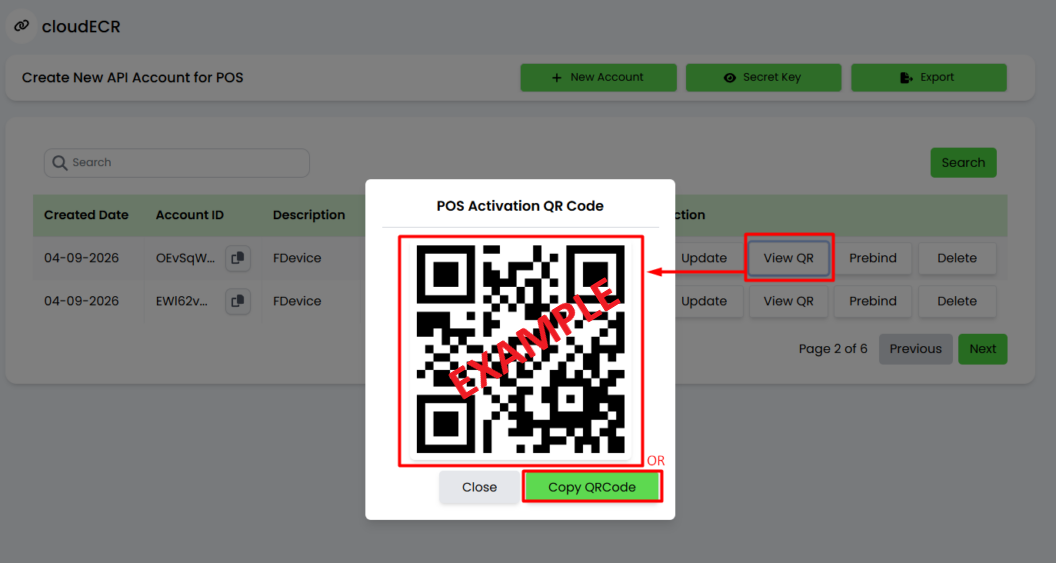
Step 4: Once the POS account is activated, click View QR to obtain the POS Activation QR code.
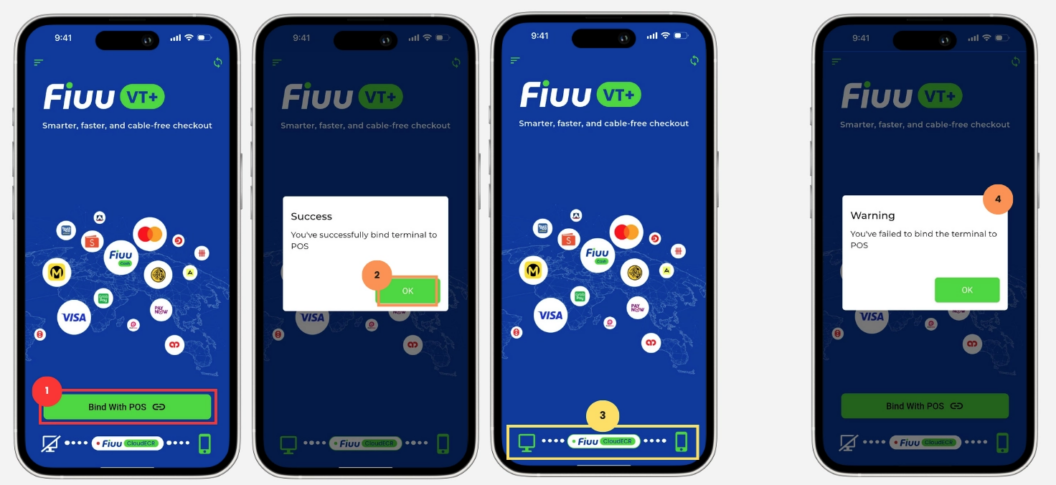
Step 5: Open your Fiuu VT+ app, tap Bind With POS > scan the POS Activation QR Code to bind your terminal > confirm the binding by checking the POS and cloudECR status.
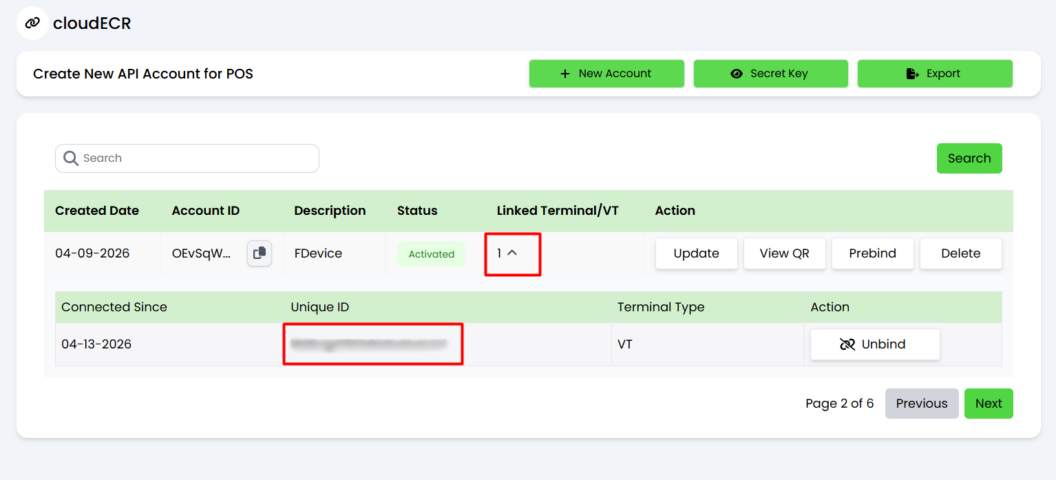
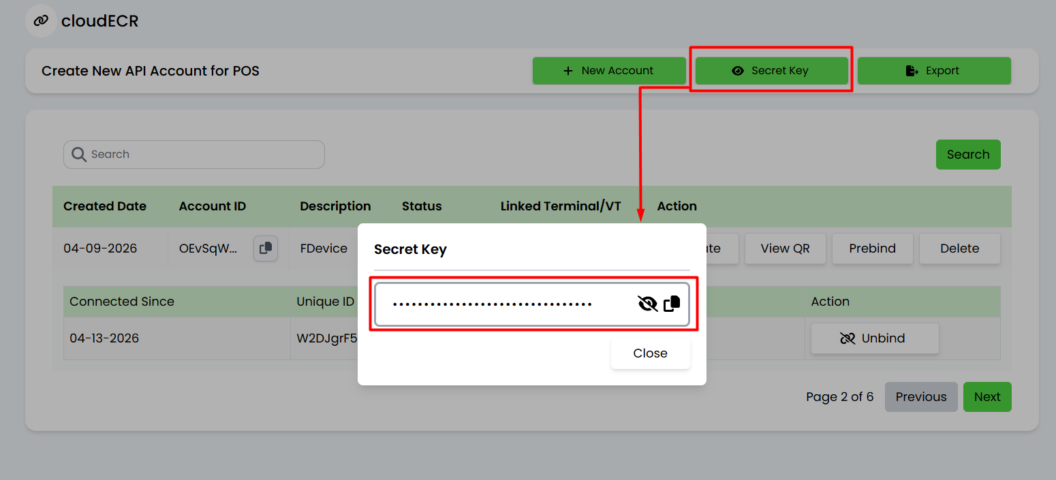
Step 6: Back to the cloudECR page, click Linked Terminal/VT to see the connected terminal > copy and save the Unique ID for later use.
Step 7: Click Secret Key to copy and save it for later use.
4. Fiuu VT+ Setup In SiteGiant POS
Step 1: Navigate to SiteGiant POS from the sidebar menu > click SiteGiant POS > Manage Preferences > under the Payment Methods section, click the pencil button > + Add Devices.
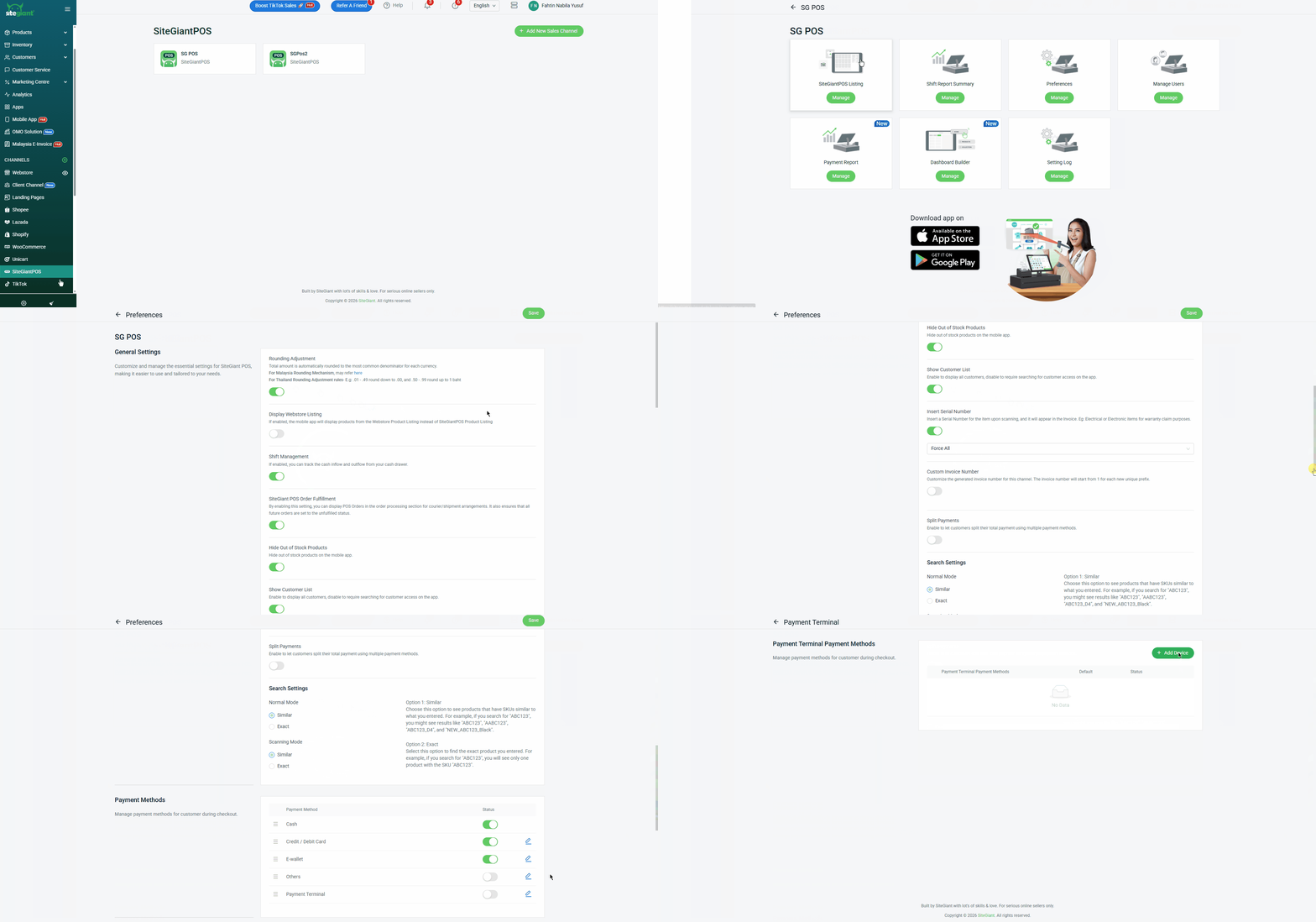
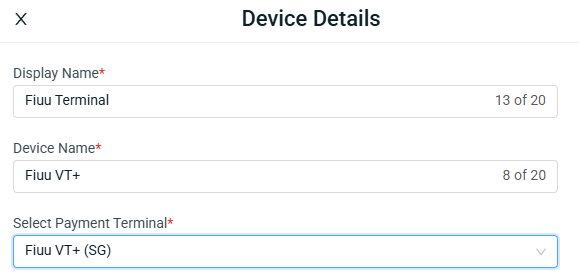
Step 2: Enter the Display Name and Device Name > select Payment Terminal (Fiuu VT+ MY or Fiuu VT+ SG).
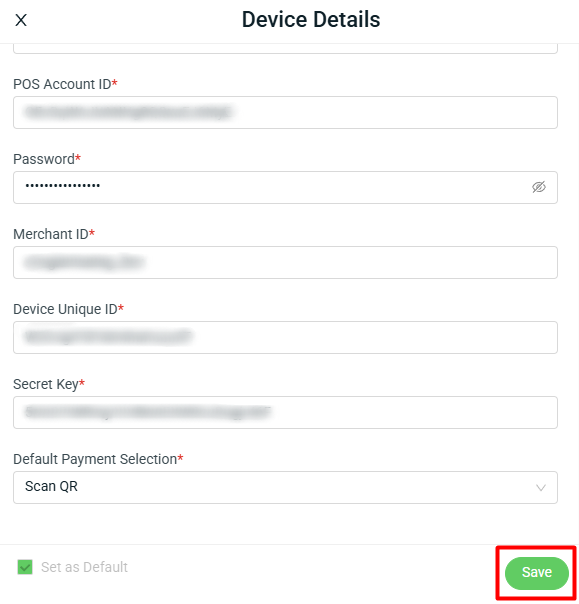
Step 3: Update POS Account ID, Password, Merchant ID, Device Unique ID, and Secret Key obtained from the Fiuu Merchant Portal > select the Default Payment Selection > Save.
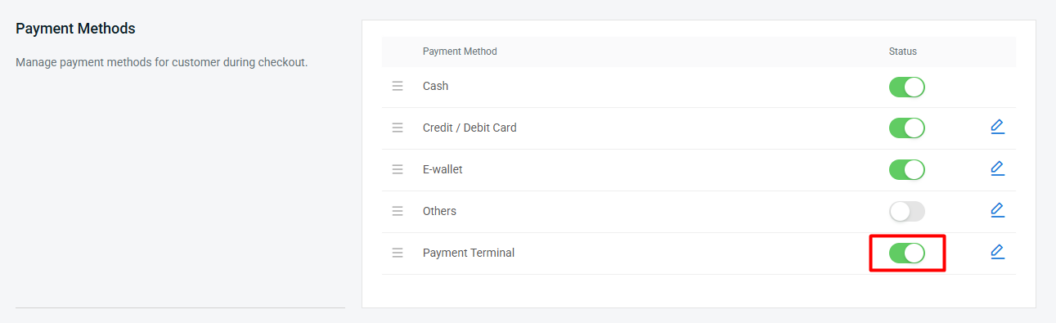
Step 4: Go back to the Payment Methods section and Toggle on Payment Terminal Status.
5. Test Pay via SiteGiant POS
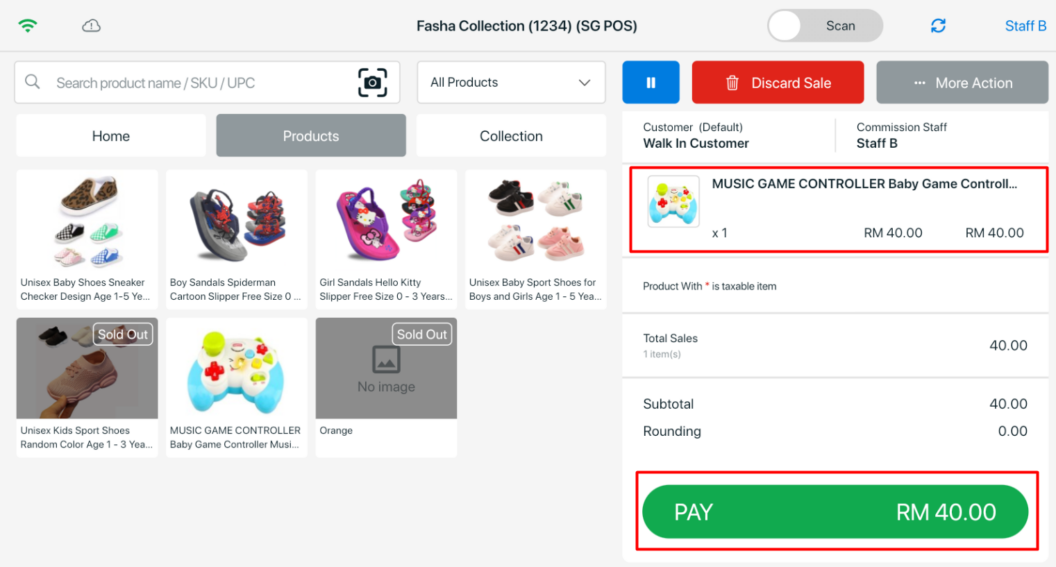
Step 1: Log in to SiteGiant POS > add Product > click Pay.
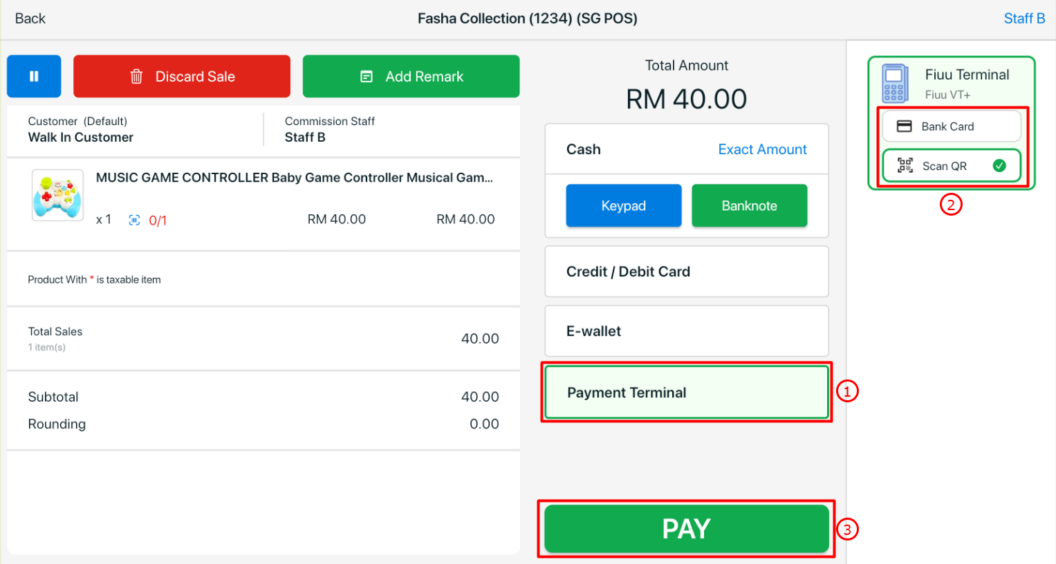
Step 2: Select Payment Terminal > choose the Payment Type > click Pay.
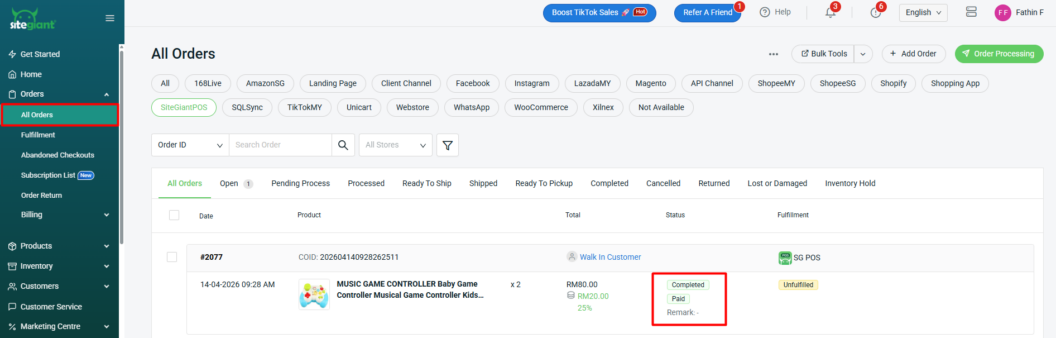
📌Note: Once Pay is clicked, the order will be created in the SiteGiant order listing with an Open status. The status will change to Completed only after the payment is successful.
Step 3: The Payment Type will appear on the payment terminal for the customer to continue the transaction. Once payment is done, the order status will change to Completed in SiteGiant.
Step 4: If a payment fails, an error message will be displayed showing the reason.
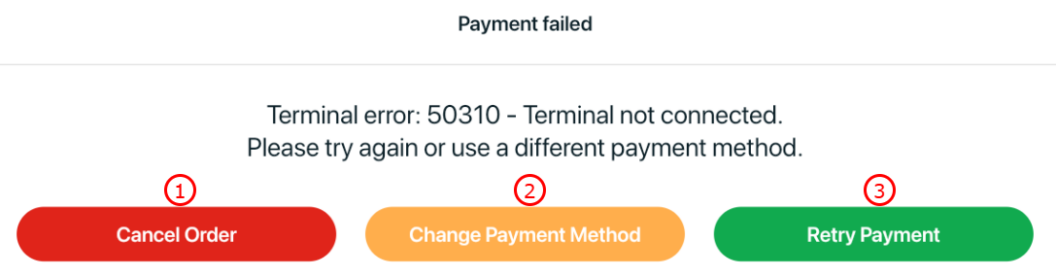
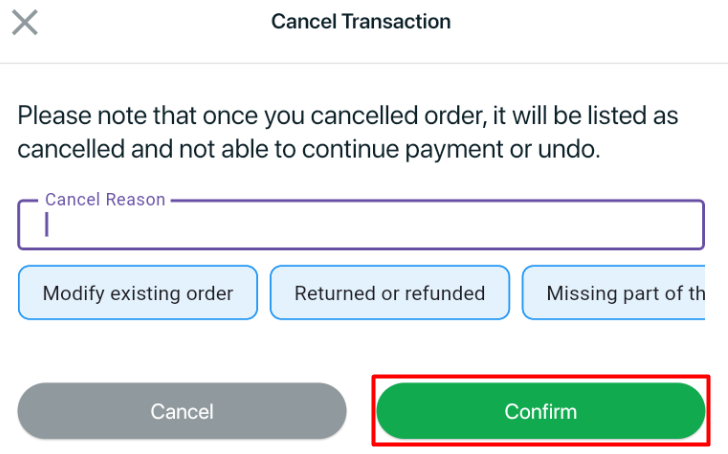
1. Cancel Order: Click this button if the customer does not wish to proceed with the transaction. Once cancelled, the order status in the order listing will be updated to Cancel.

Step 1: You may enter the Cancel Reason or select from the existing reasons > click Confirm.


2. Change Payment Method: Allows you to switch to another available payment method.
3. Retry Payment: Reprocess the payment again using the same payment method.