
1. Introduction
2. Set Up Shopee Direct Integration
3. Additional Information
1. Introduction
The Shopee Direct Programme empowers sellers to grow their businesses globally by reducing the barriers and challenges of cross-border e-commerce. It allows sellers to reach overseas buyers directly, helping them expand their market and increase sales. With SiteGiant, sellers can manage their Shopee Direct sales efficiently by centralizing inventory and orders on a single platform.
2. Set Up Shopee Direct Integration
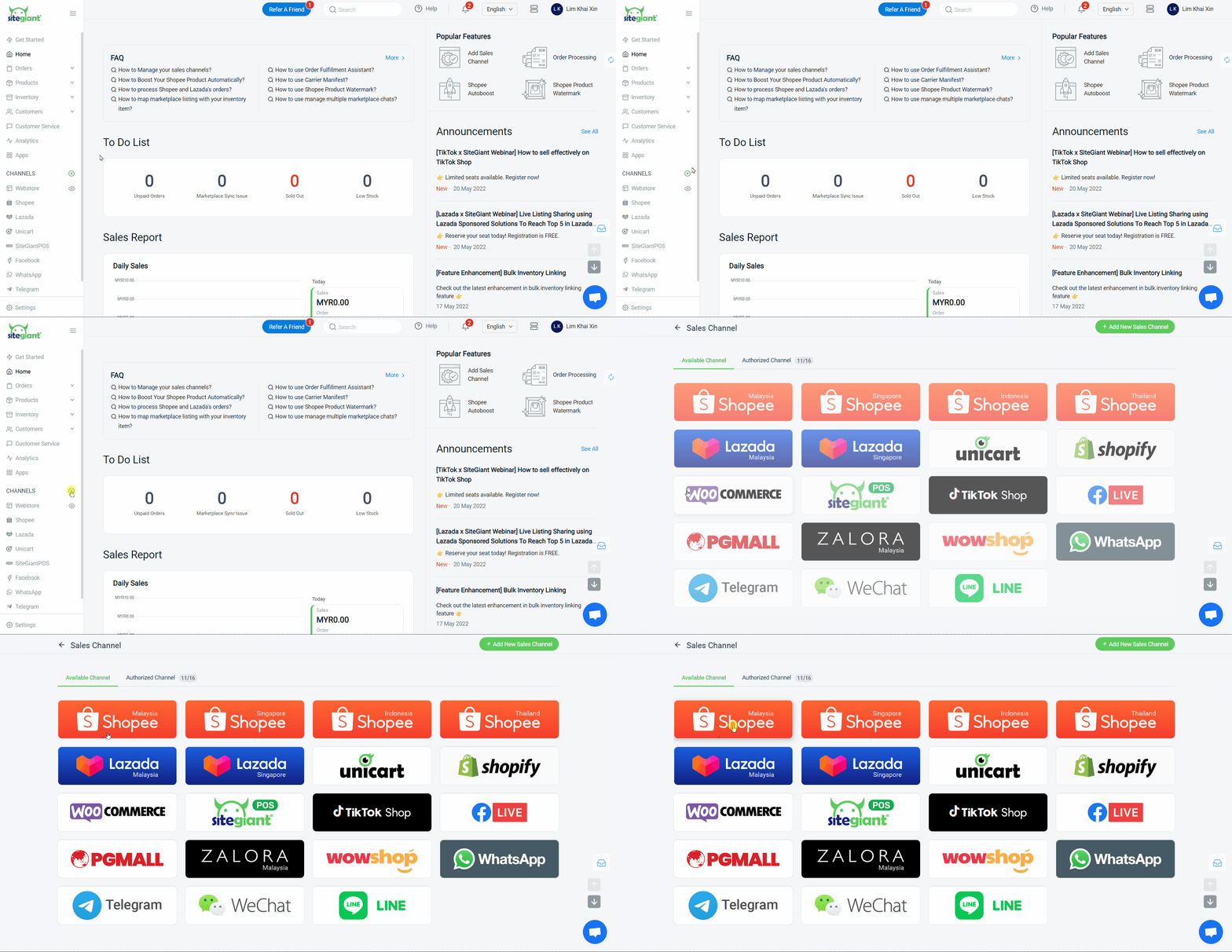
Step 1: Log in to your SiteGiant Seller Center > click [+] channels > choose Shopee Malaysia.
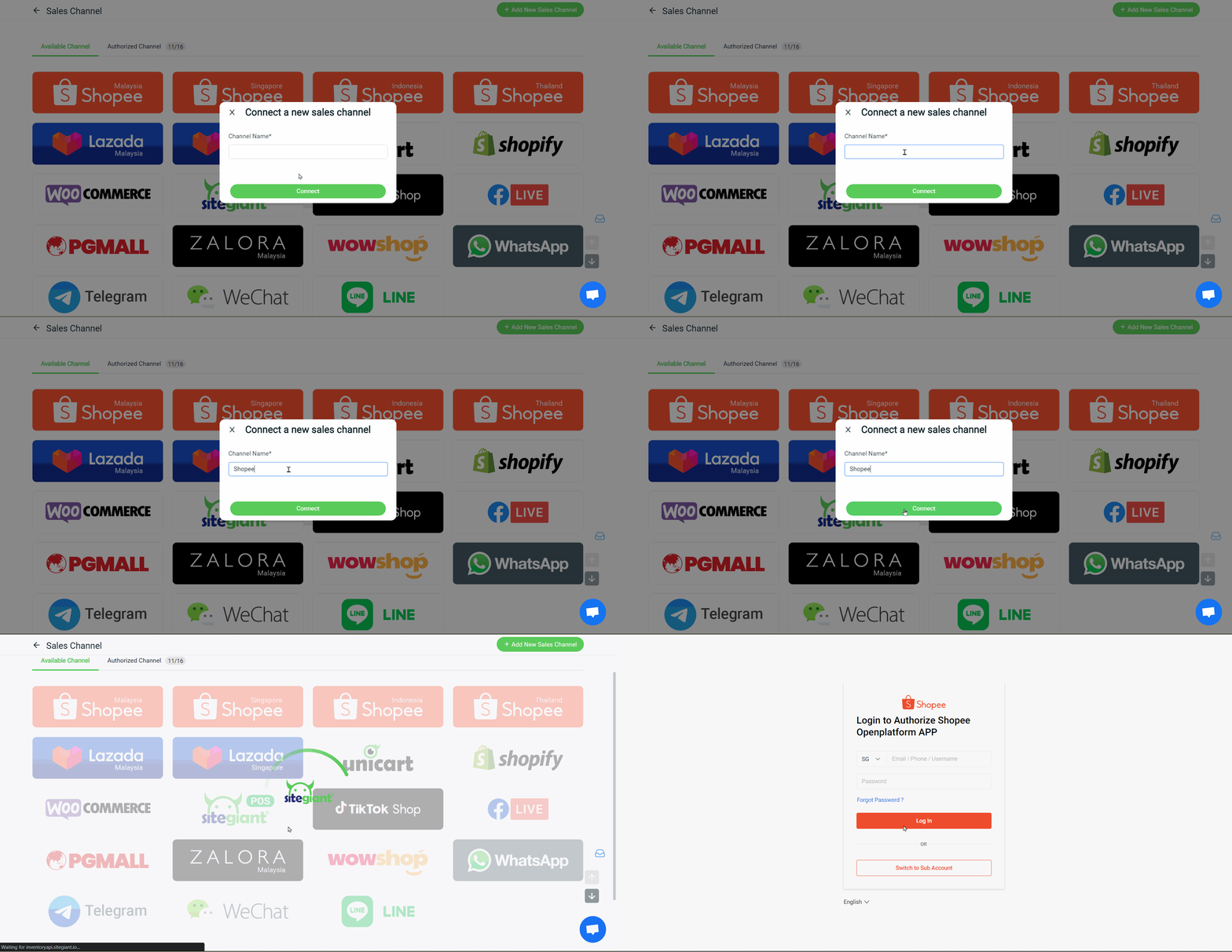
Step 2: Enter Channel Name > click connect, then you will be directed to the Shopee authorization page.
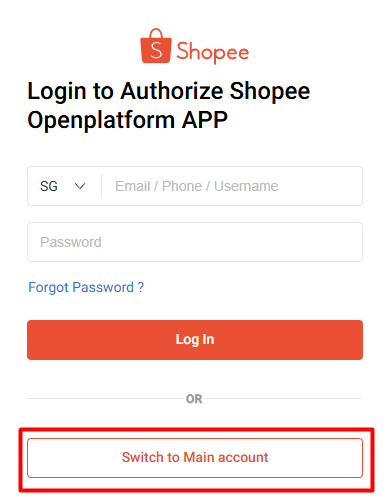
Step 3: Click Switch to Main account.
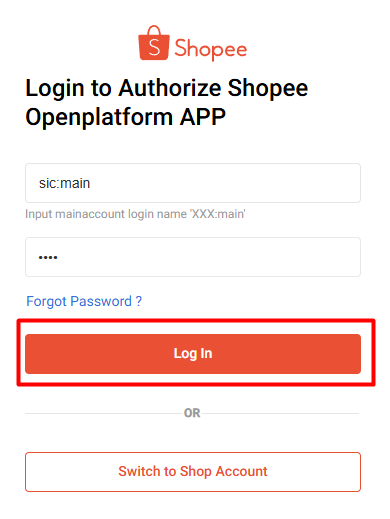
Step 4: Enter the main account login name (e.g: XXX:main) and Password > Log In.
Step 5: Tick the Shop > Confirm Authorization.
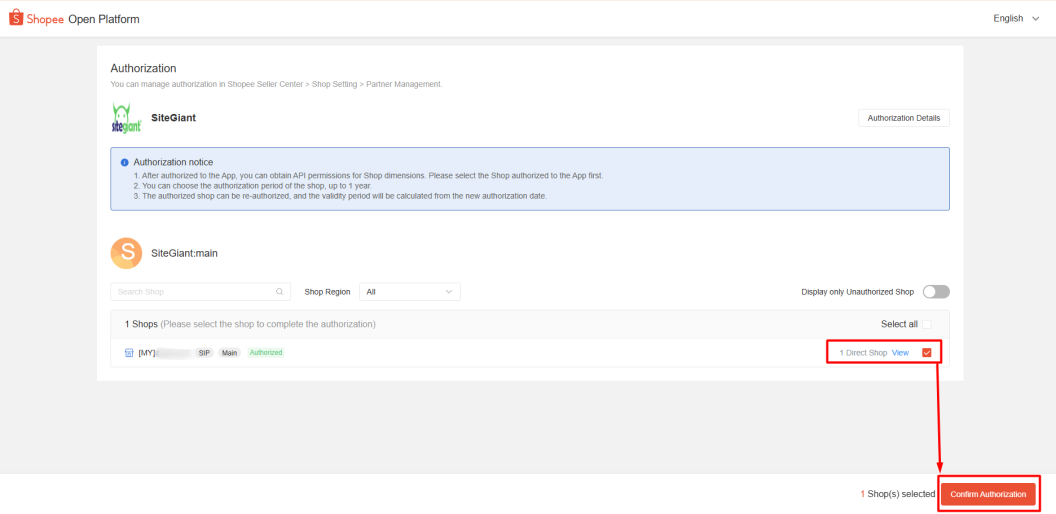
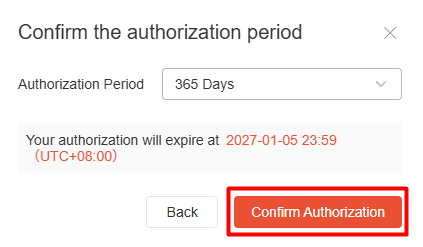
Step 6: Select the Authorization Period > Confirm Authorization.
Step 7: Once authorized, the system will redirect you to the Sales Channel page, where you will be able to see the Main Shop and Direct Shop tags for each channel.
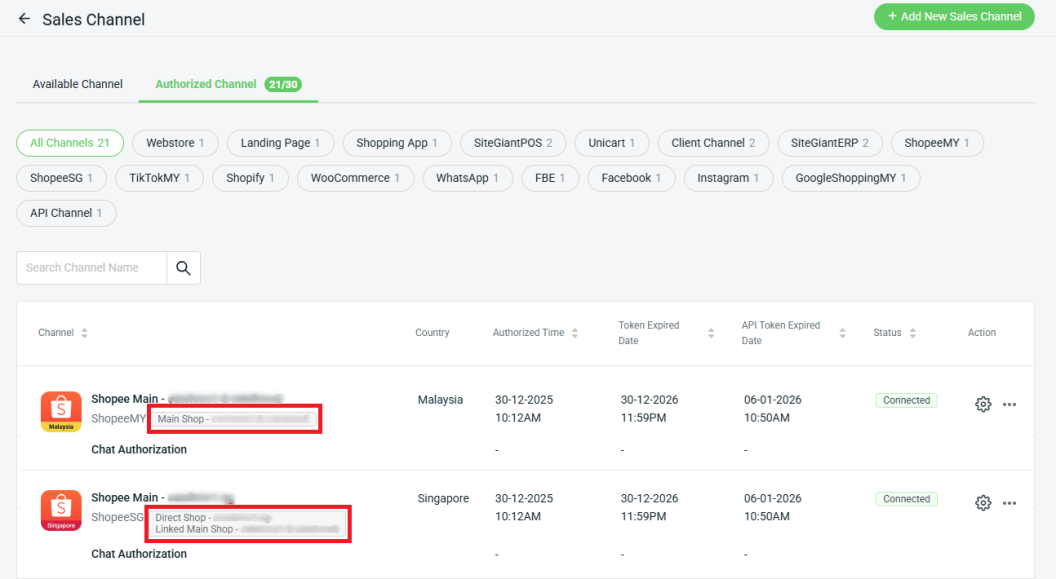
You have now successfully integrated your Shopee Direct account with SiteGiant!
📌Note:
– Your existing products in Shopee Direct Seller Center will be automatically synced back to SiteGiant’s Shopee Direct Listing.
– If you delete the Shopee main integration, the Shopee direct integration will be deleted as well.
– Warehouse setup is not available under Shopee Direct, as stock arrangement will follow the Main Shop.
📝Additional Information
1. Shopee Direct Product Listing
Step 1: You will be able to see the Direct Shop products under Products > Shopee Listing > select the Direct Shop country and Shop > click inside the Product.
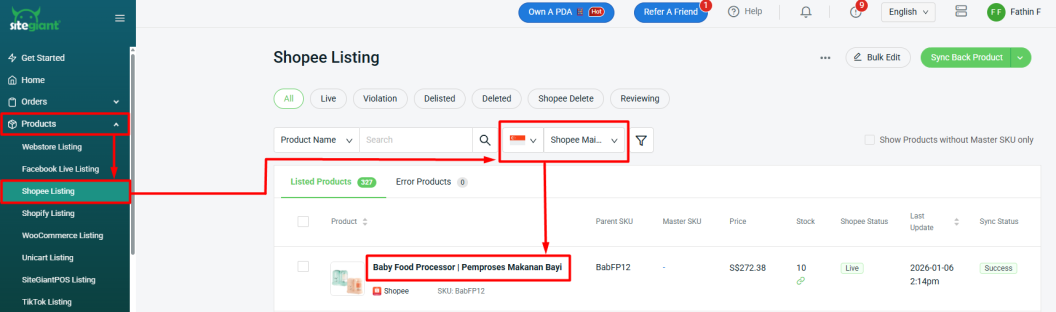
📌Note: You will not be able to add products under the Direct Shop account. This is because any products added under the Main Shop will automatically sync to the Direct Shop. However, to make the products appear in the SiteGiant Shopee Direct Listing, you may need to sync back the product. Learn more in How to Sync Back Products.
Step 2: To edit the product details, the changes must be made in the Shopee Main shop. Clicking Jump to the Corresponding MY SKU will redirect you to the Shopee Main product form to update.
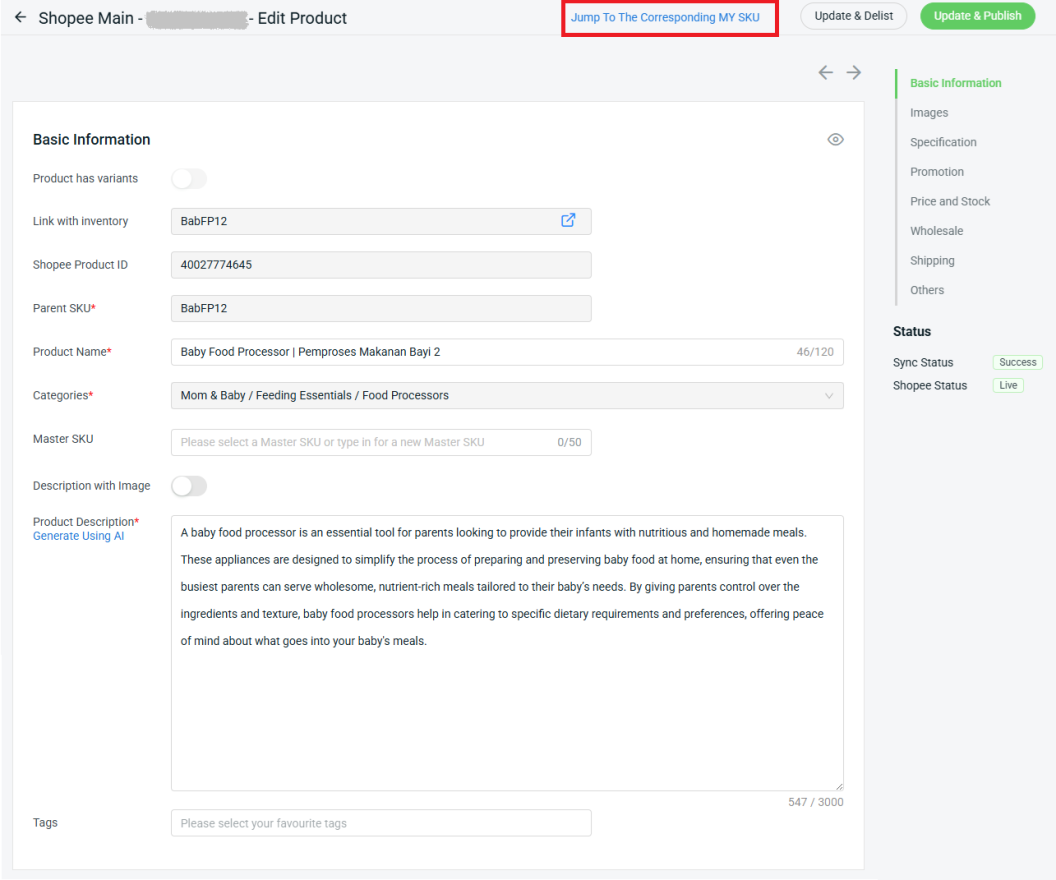
📌Note: In Shopee Direct product form, you can only edit specific details such as Product Name, Master SKU, Tags, Price, and Shipping Fee if you want them to be different from the Shopee Main shop. If these details are updated in the Shopee Main shop, the changes will not be synced to Shopee Direct.
2. Copy Listing
You will not be able to copy products from other sales channels to Shopee Direct, nor copy products from Shopee Direct to other sales channels.
3. Inventory Linking
Inventory linking is not available for Shopee Direct, as it automatically follows the inventory of the main shop.