1. Introduction
2. Retrieve Sub-Store Verification Code
3. Integrate SiteGiant ERP Store
4. Granting Sub-Store Access
5. Additional Information
1. Introduction
As your business grows, managing inventory and orders across multiple stores can become complicated. Store-to-Store Management allows you to connect one ERP account with another, enabling centralized control of inventory and webstore orders across multiple stores.
This feature is available to the ERP Premium Plan and above.
2. Retrieve Sub-Store Verification Code
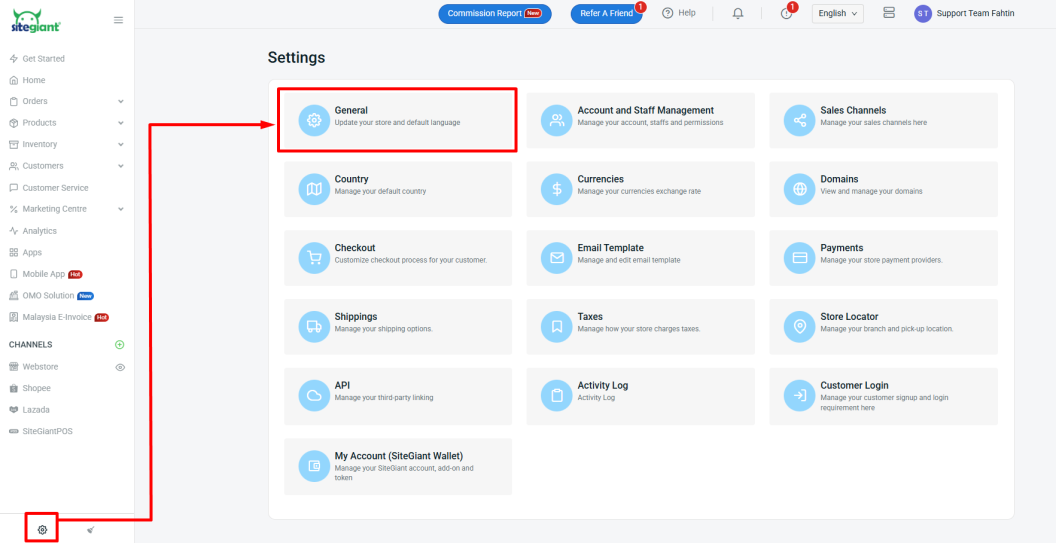
Step 1: Log in to the sub-store SiteGiant ERP account > navigate to Settings on the sidebar > click General.
Step 2: Go to the Store Details section > copy Store Verification Code.
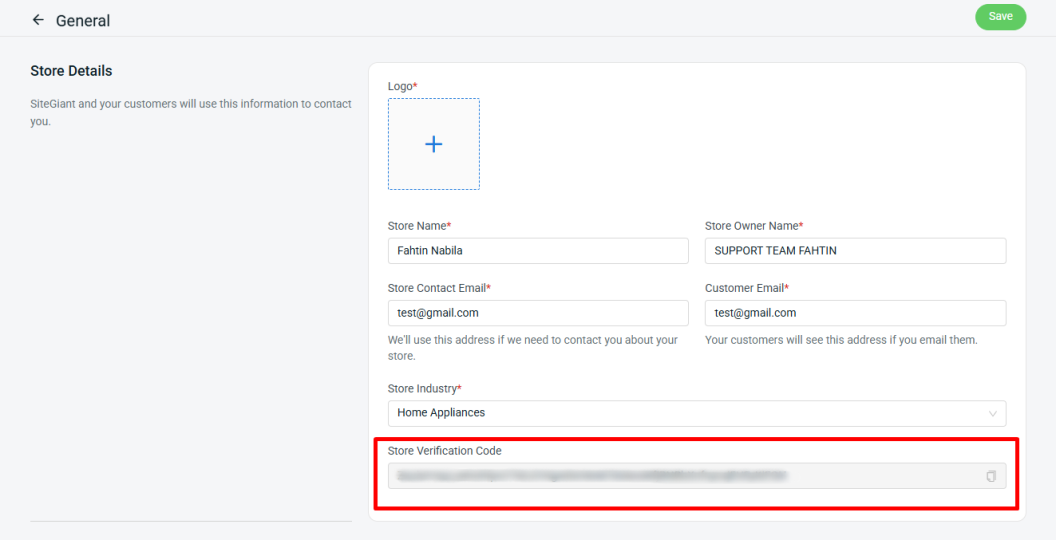
📌Note: Please be advised that each sub-store can only be linked to one main store and must not contain batch items, serial-numbered items, or kits.
3. Integrate SiteGiant ERP Store
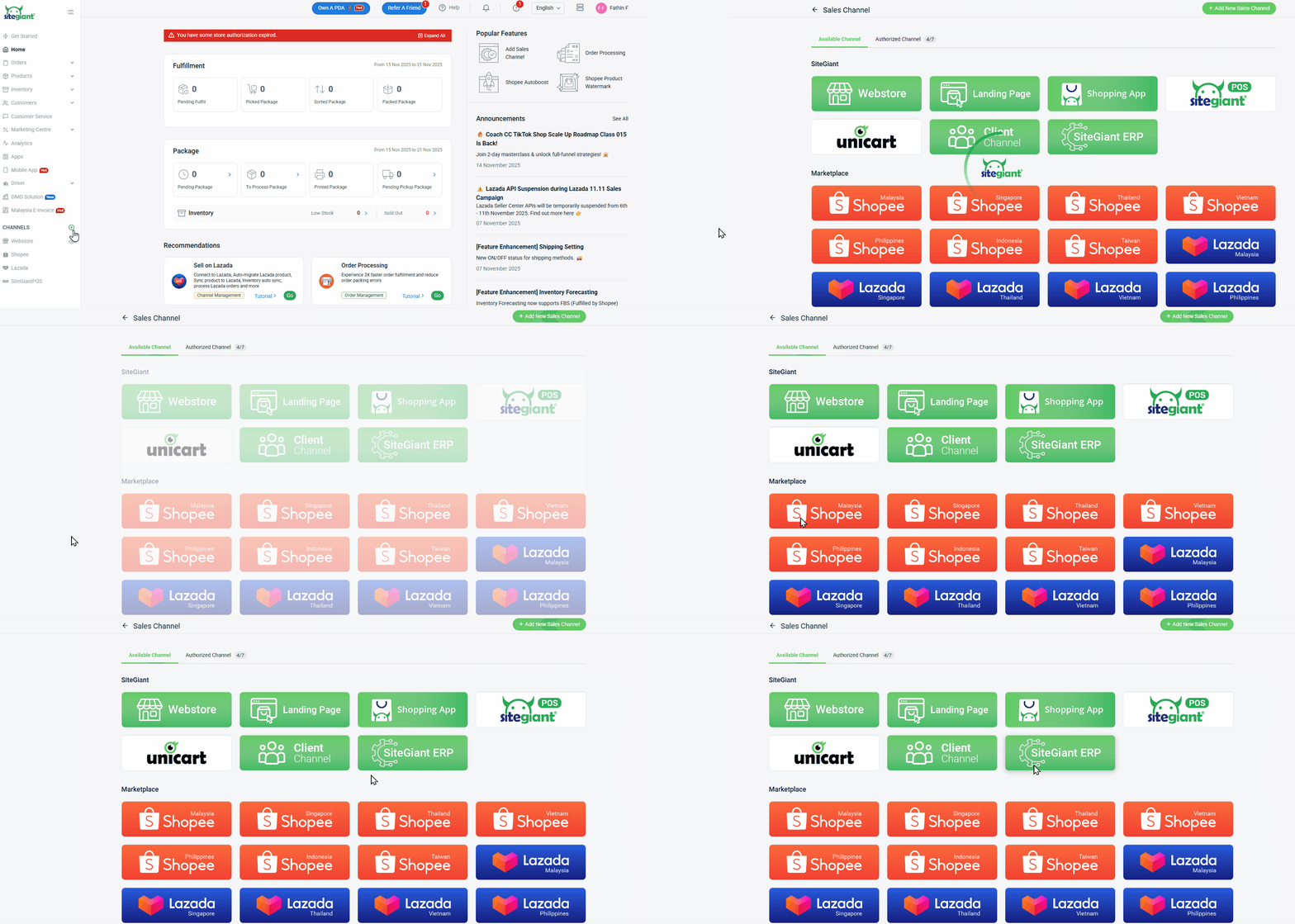
Step 1: Log in to the main SiteGiant ERP account that you wish to link > click add [+] channels > select SiteGiant ERP.
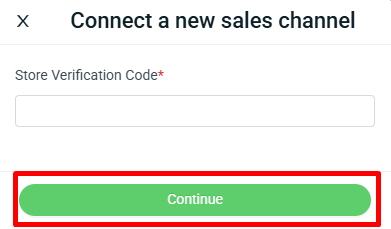
Step 2: Enter the Store Verification Code copied from the sub-store > click Continue.
Step 3: Set the Channel Name > link the Warehouse > Connect.
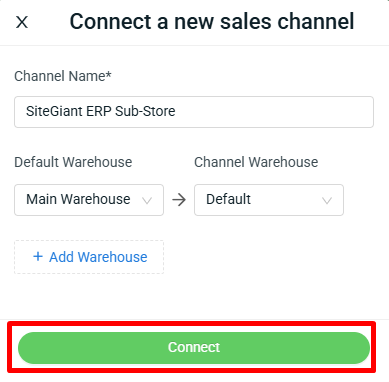
📌Note: A main store can be linked to multiple sub-stores.
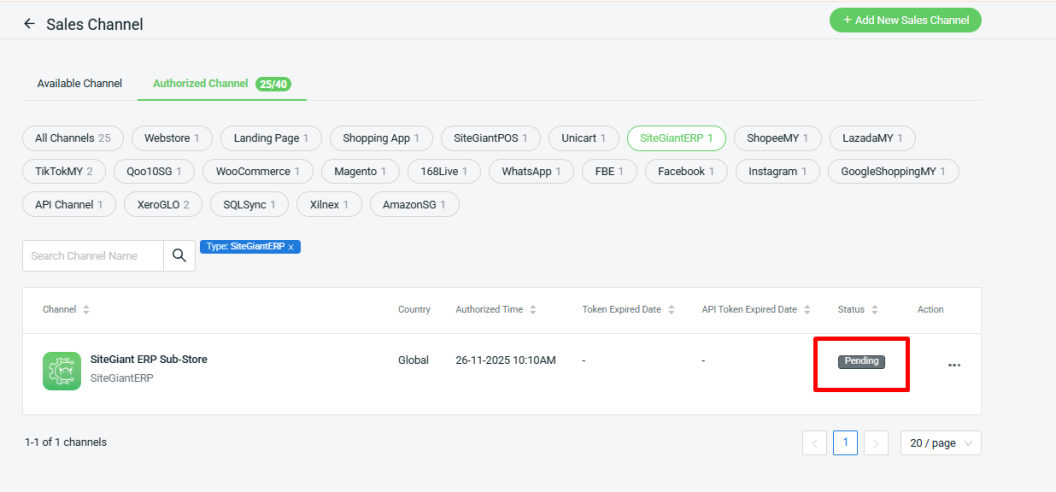
Step 4: Once connected, the status will remain as Pending until it is approved from the Sub-Store account.
4. Granting Sub-Store Access
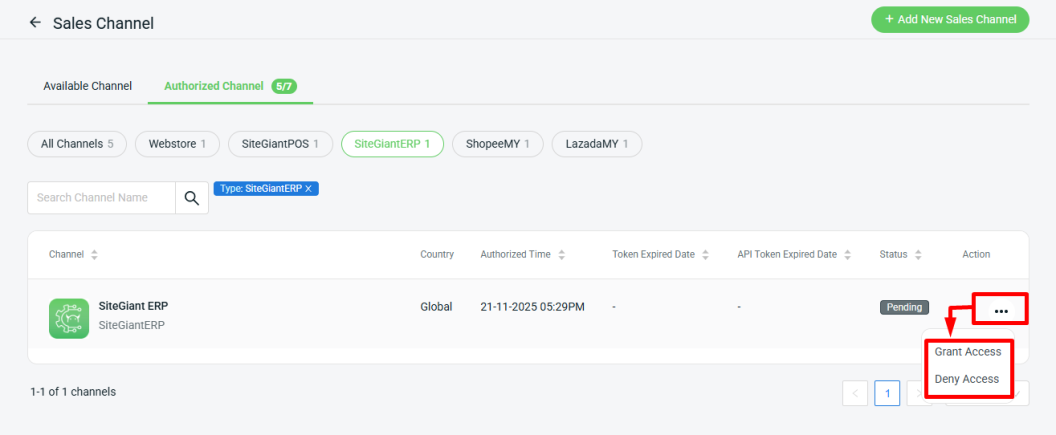
Step 1: Back to the sub-store SiteGiant ERP account > add [+] channels > click Authorized Channel.
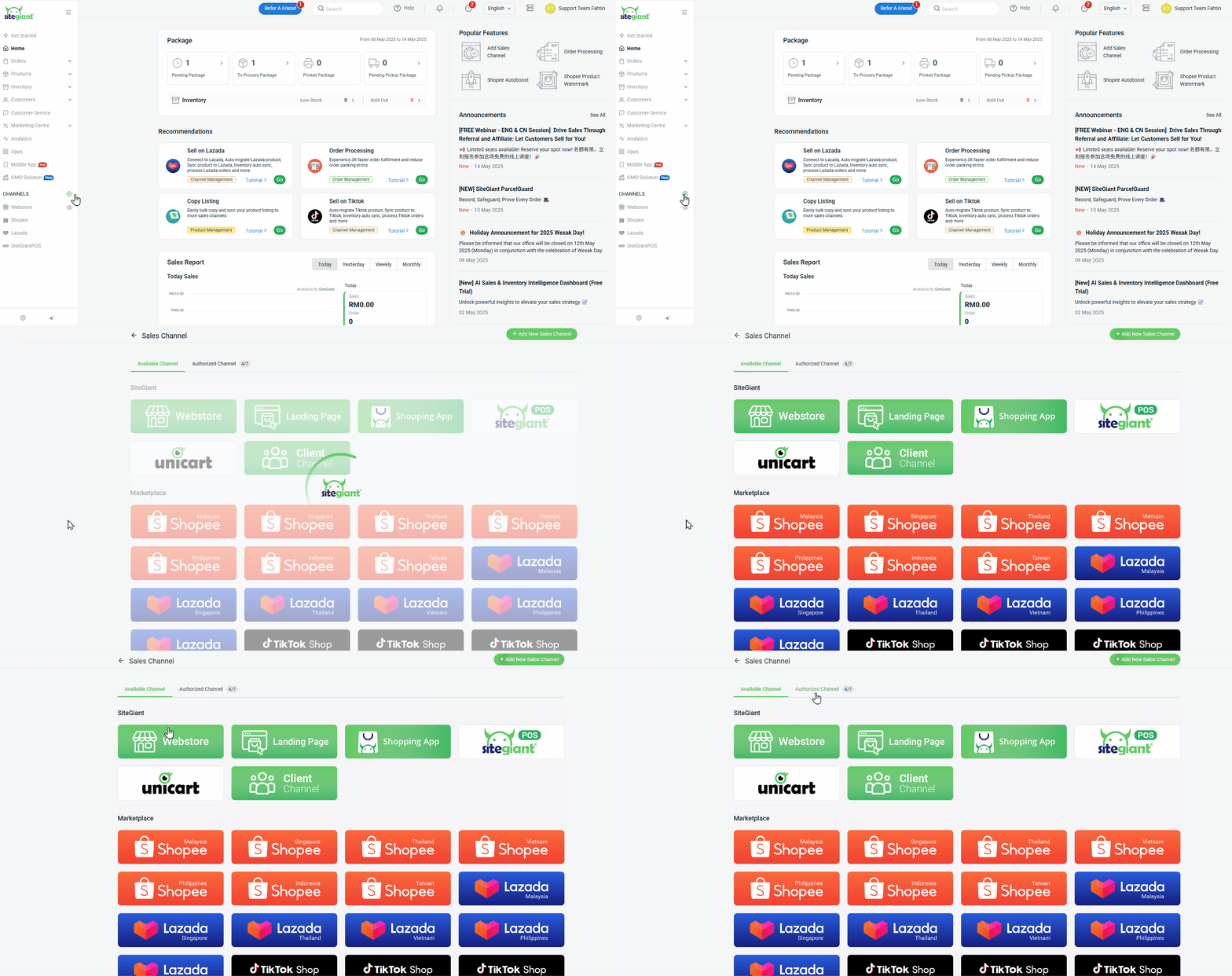
Step 2: Select the SiteGiant ERP channel > click More (…) > click Grant Access to accept the integration, or Deny Access to decline it.
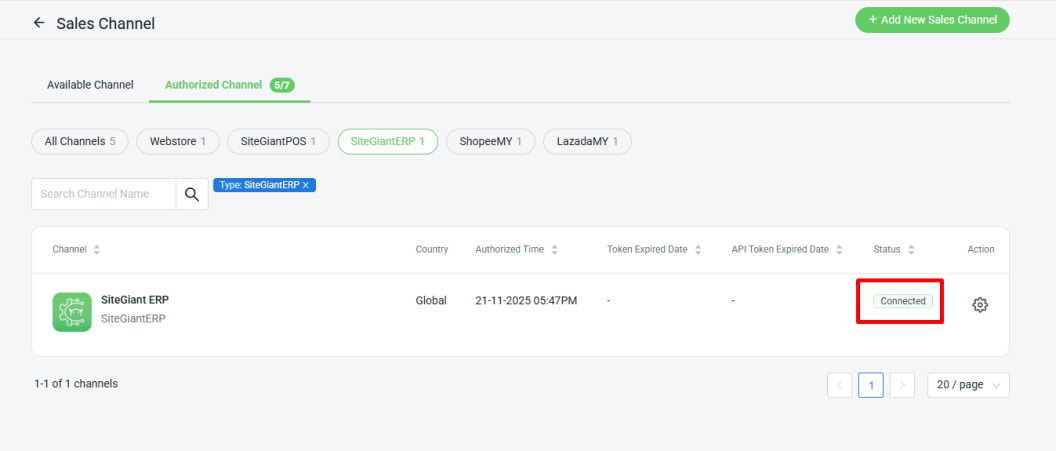
Step 3: Once access is granted, the status will change to Connected, and the same will be reflected in the main account.
📝Additional Information
1. Inventory Linking
Step 1: Navigate to Inventory on the sidebar menu > Inventory Linking > select Global Channel Store > SiteGiant ERP.
💡Tips: Learn more about How To Do The Inventory Linking.
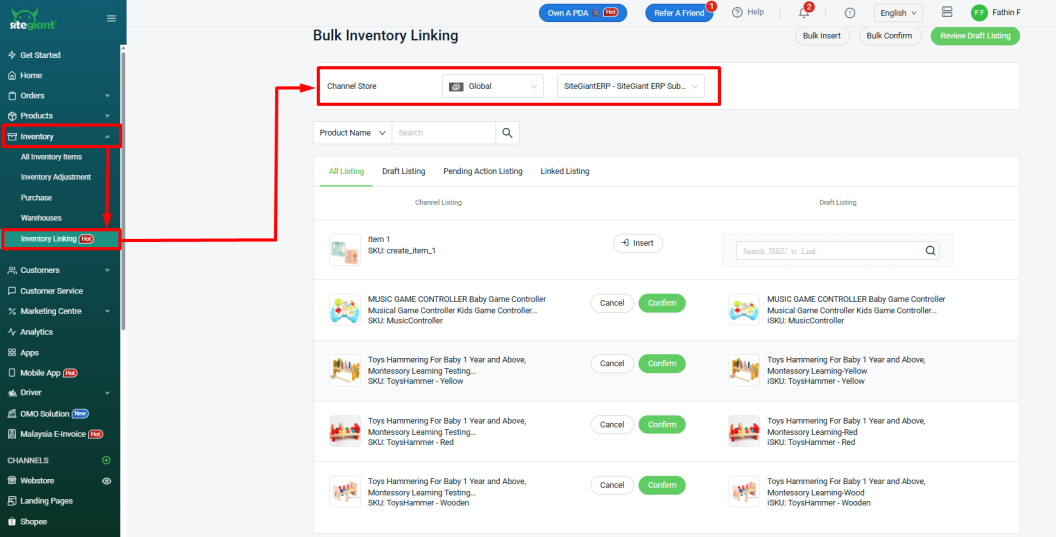
📌Note: The SiteGiant ERP channel listing is based on the item listings in your sub-store. Therefore, if a product has multiple variants, you will need to link each variant individually.
2. Stock Adjustment
Stock adjustment can only be done directly from your main store. If you perform a stock adjustment in the sub-store, it will not be updated to the main store.
3. Order Syncing
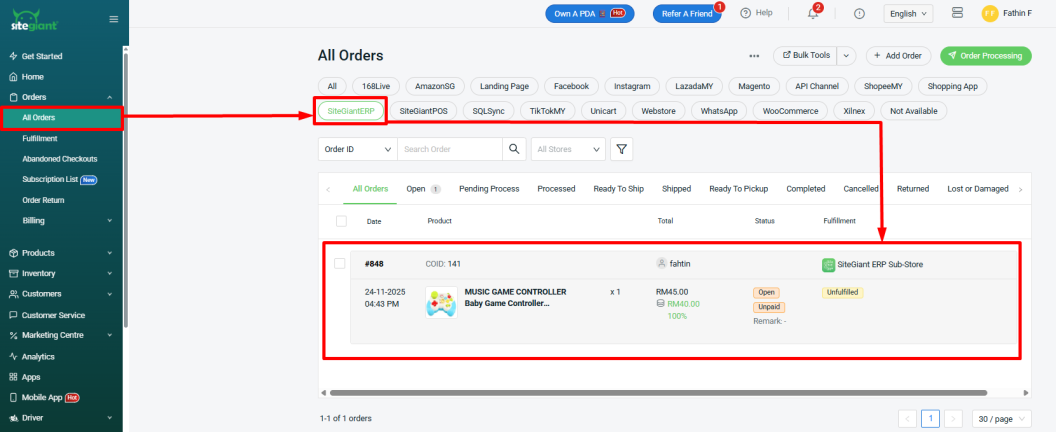
Step 1: Orders will sync from the sub-store to the main store. You can view them under Orders > All Orders > SiteGiant ERP orders.
📌Note:
– Only Webstore orders from sub-stores will be synchronized with the main store. Orders from Landing Pages, Social Commerce, SGPOS, and Shopping Apps will not be included.
– Order status updates and order processing can be done from either platform (sub-store or main store), as the status will be updated on both sides.
Learn more about:
How To Change The Order Status
How To Fulfill Webstore Order
– Split and Combine Order during fulfillment are only supported in the sub-store, as these changes will automatically update in the main store.
Learn more about:
How To Split Webstore Order
How To Combine Webstore Order
4. Analytics
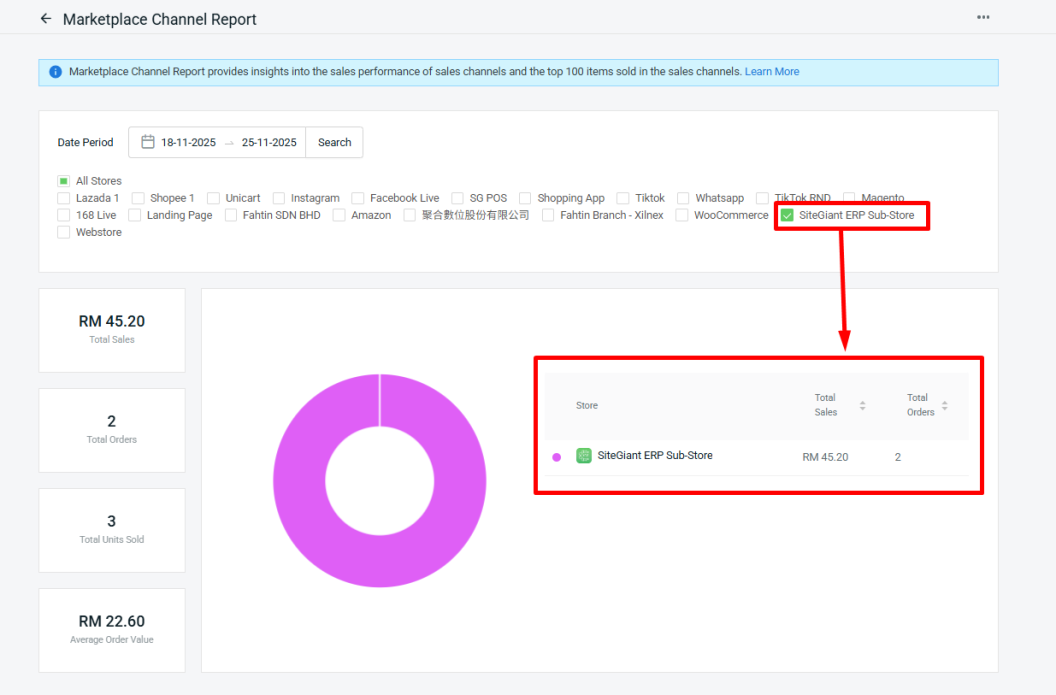
Step 1: SiteGiant ERP analytics can be viewed just like other sales channels. For example, you can check it under Analytics > Marketplace Channel Report.
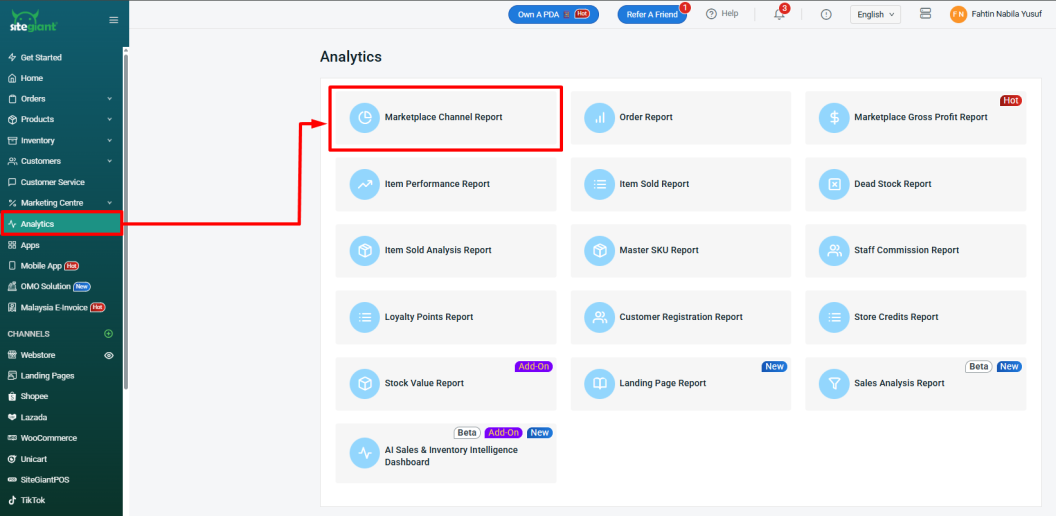
Step 2: Select SiteGiant ERP to view the report.