1. Introduction
2. Set Up Shopee Rating Settings
3. Display Review At Webstore
1. Introduction
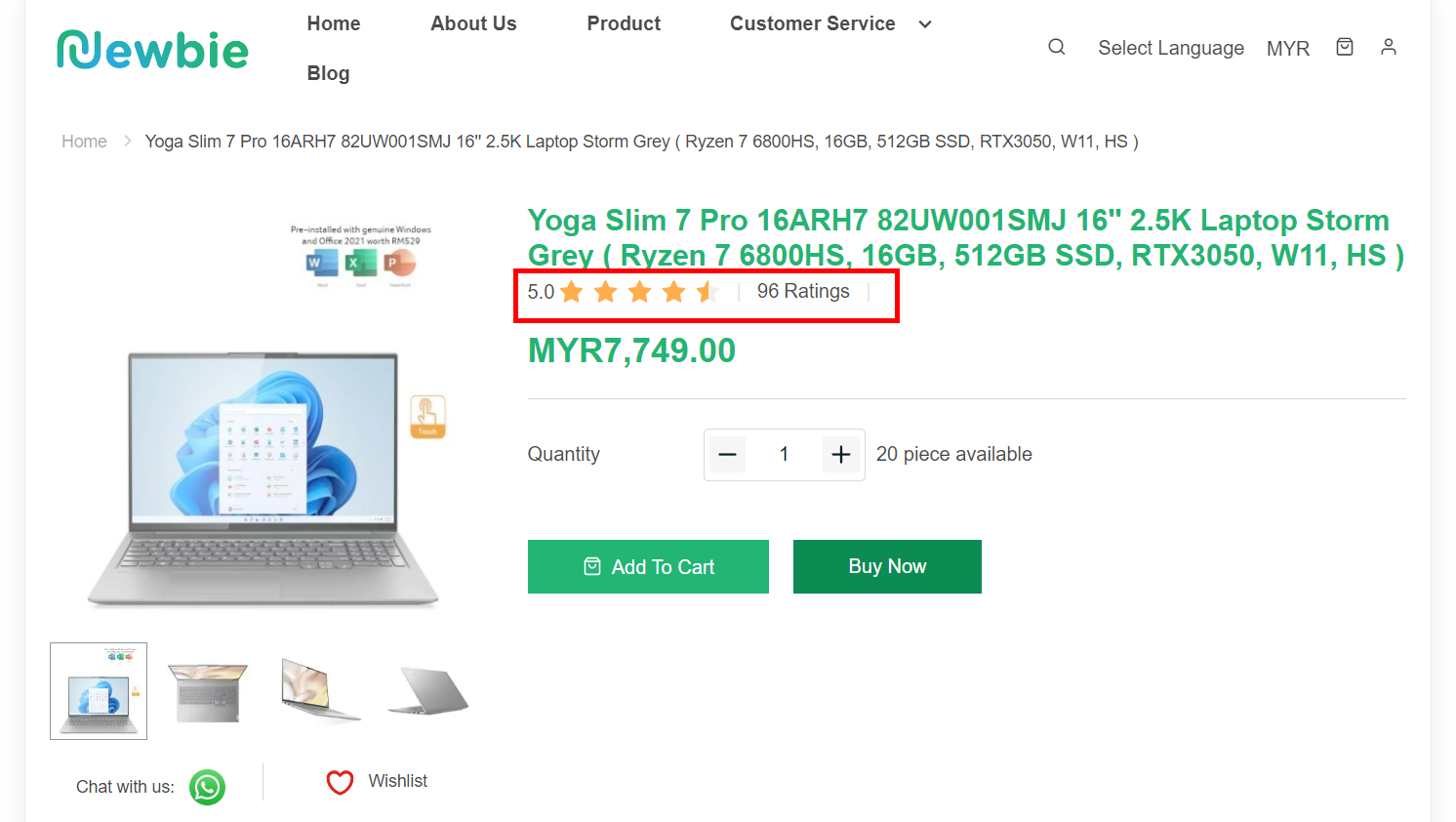
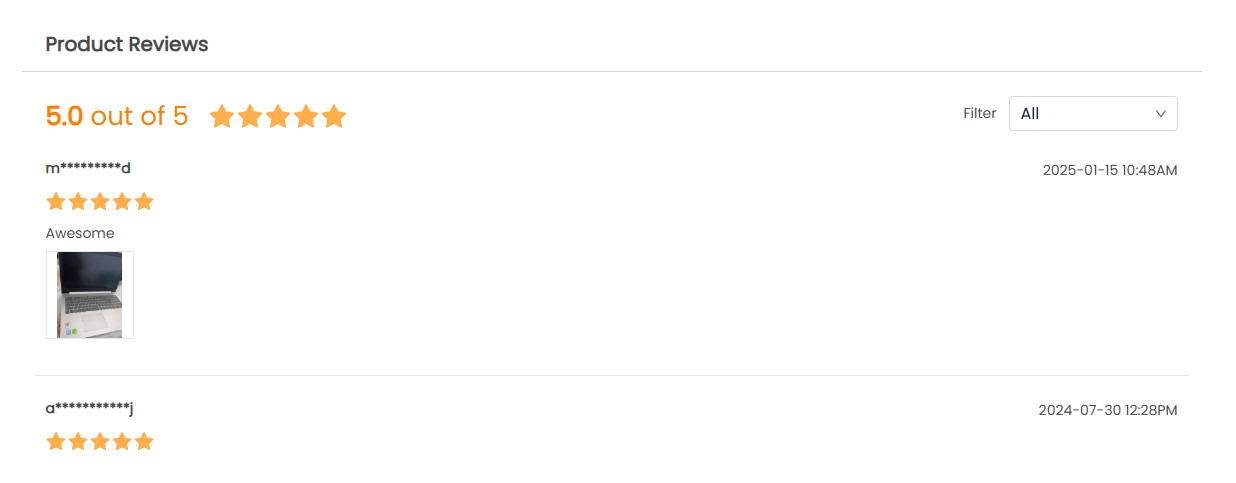
Product Ratings are important nowadays as it is one of the sources potential buyers refer to before purchasing a product. Products with good reviews and high ratings are more likely to generate better sales compared to products that don’t. If you are selling in marketplaces, you can now sync ratings from your Shopee marketplace and display them in your Webstore to increase the confidence of customers to purchase your products.
This feature is only available in SiteGiant ERP Value Plus Plan and above.
2. Set Up Shopee Rating Settings
Step 1: Navigate to Apps from the sidebar menu > Marketplaces > Shopee Rating.
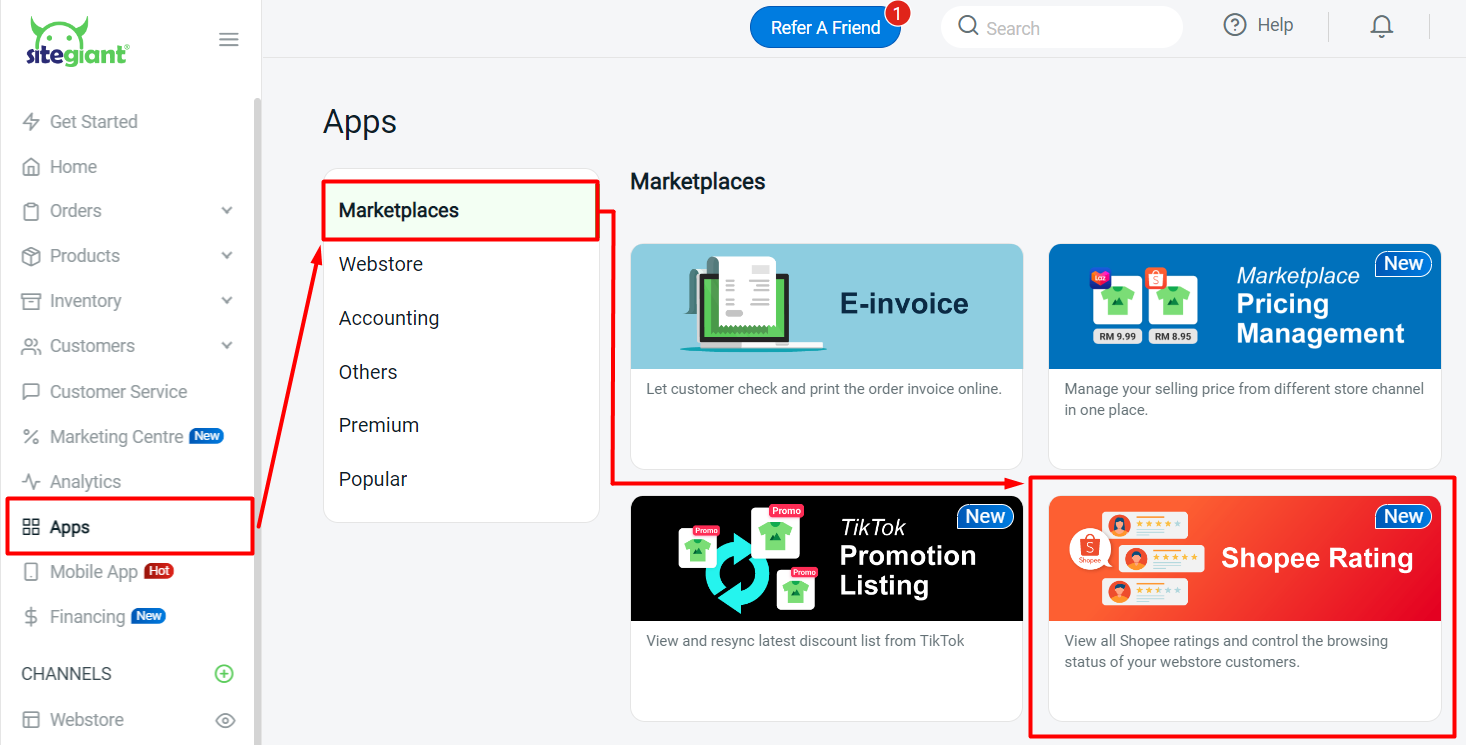
Step 2: For your first time setup, you will be redirected to the Shopee Rating Settings page.
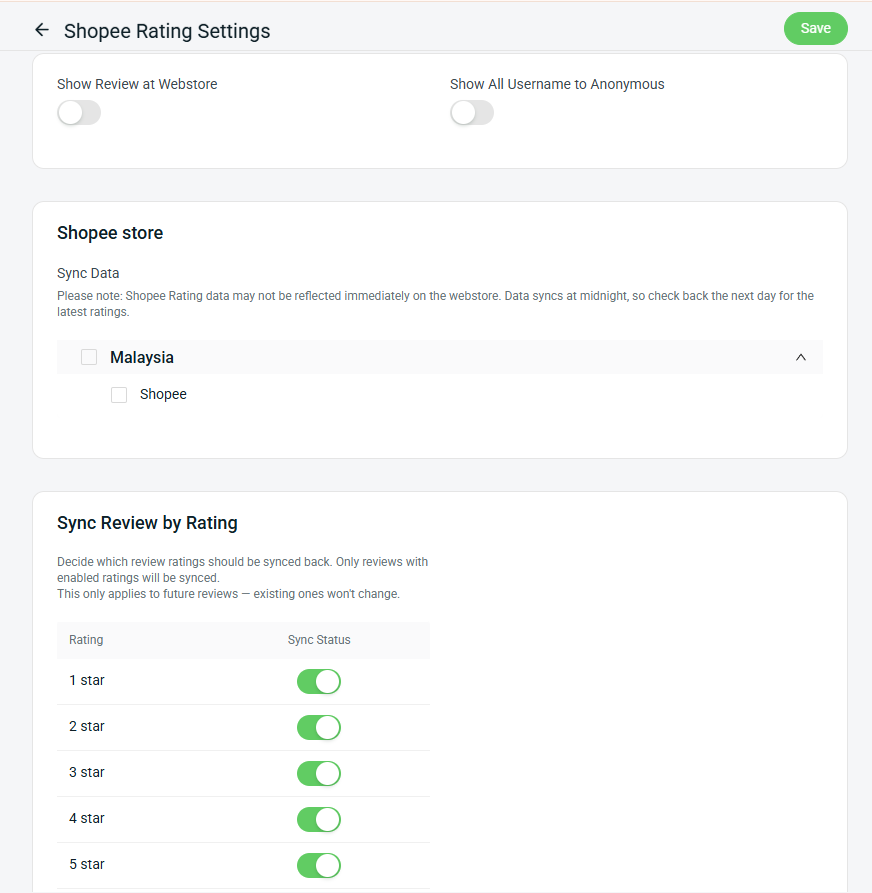
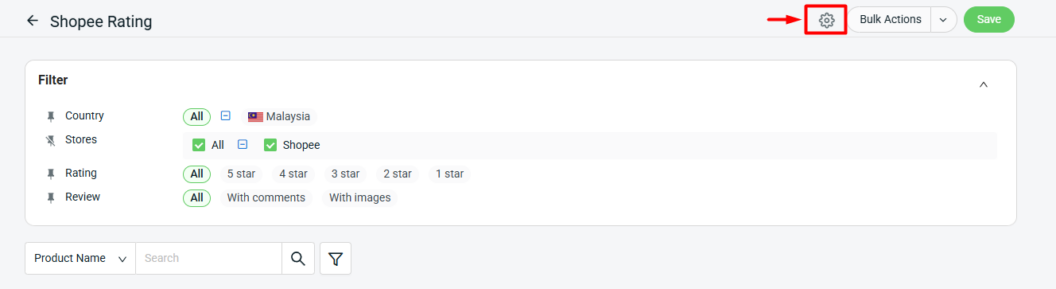
If it has been configured before, click the Setting icon at the top right corner to access the same page.
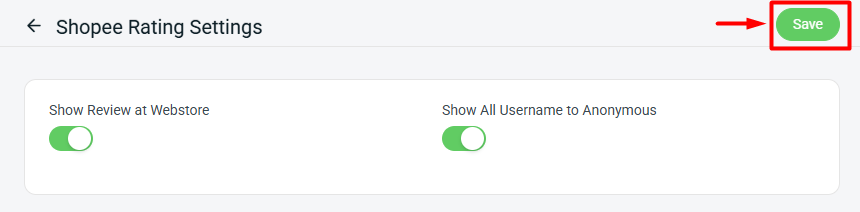
Step 3: Enable Show Review at Webstore button > enable Show All Username to Anonymous if you wish to hide username.

Step 4: Tick the Shopee store that you wish to sync back Shopee Rating data.
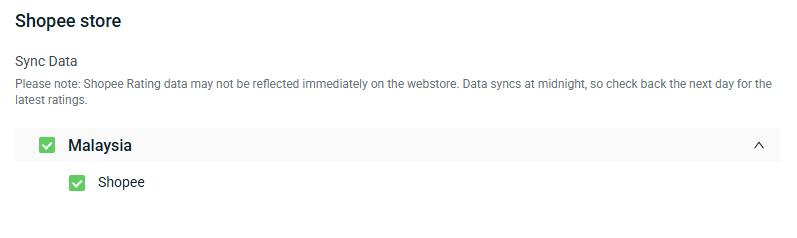
📌Note: Shopee Rating data will be synced at midnight. Check back the next day for the latest ratings. Only the latest 1000 ratings will be synced back daily.
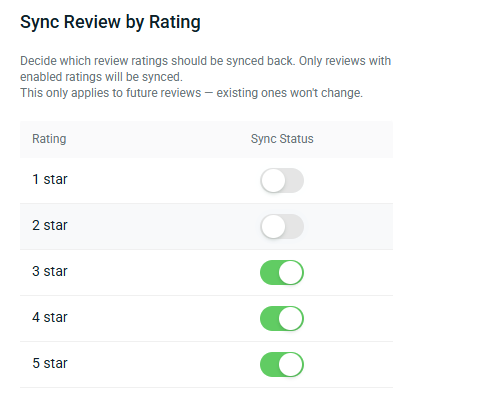
Step 5: Toggle on the review ratings you want to sync back to SiteGiant.
Step 6: Once all the settings are done, click Save.
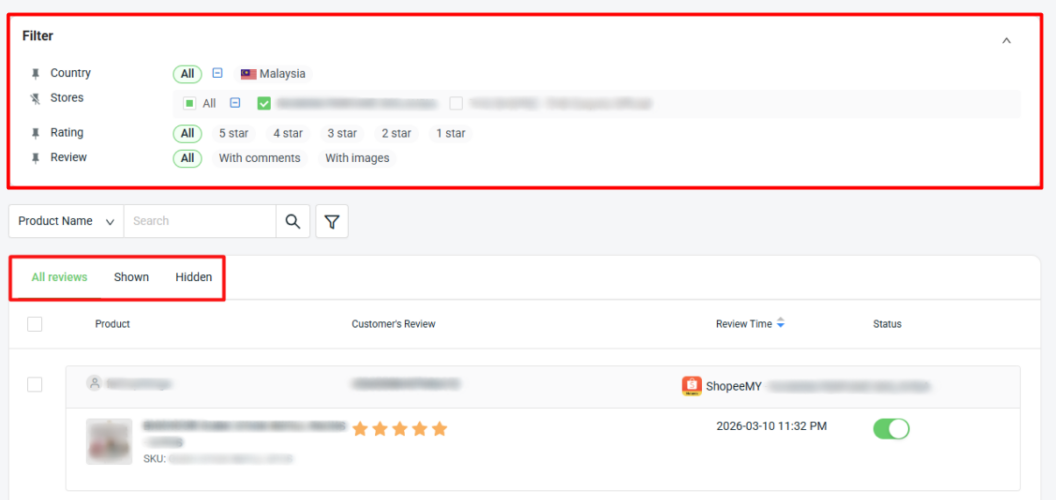
Step 7: After syncing, view and filter the Shopee Ratings according to your requirements.
3. Display Review At Webstore
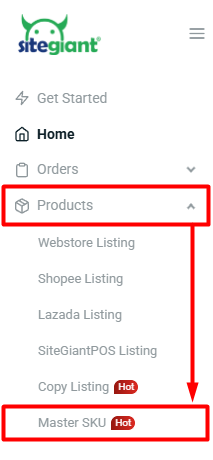
Step 1: Navigate to Products on the sidebar menu > select Master SKU.
Step 2: Set Master SKU for Webstore and Shopee Listing to match the products of both channels.
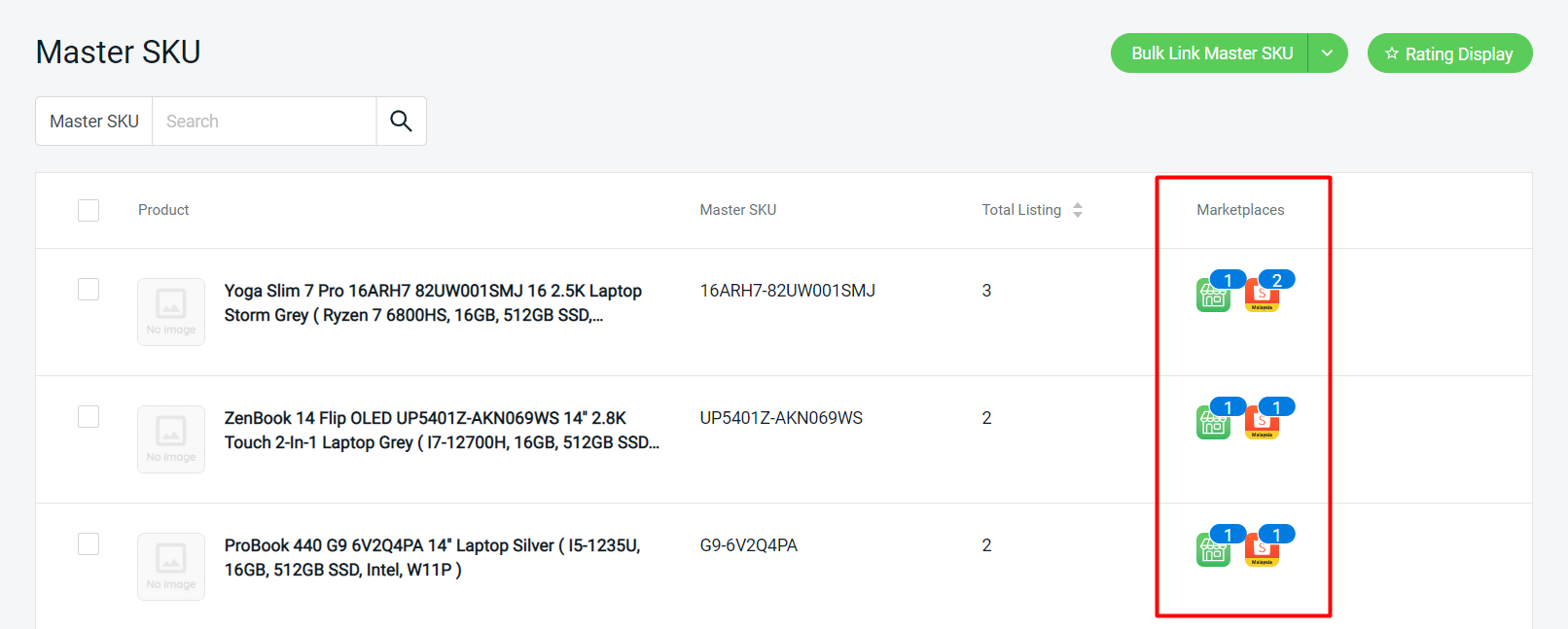
💡Tips: Learn more on How To Set Master SKU.
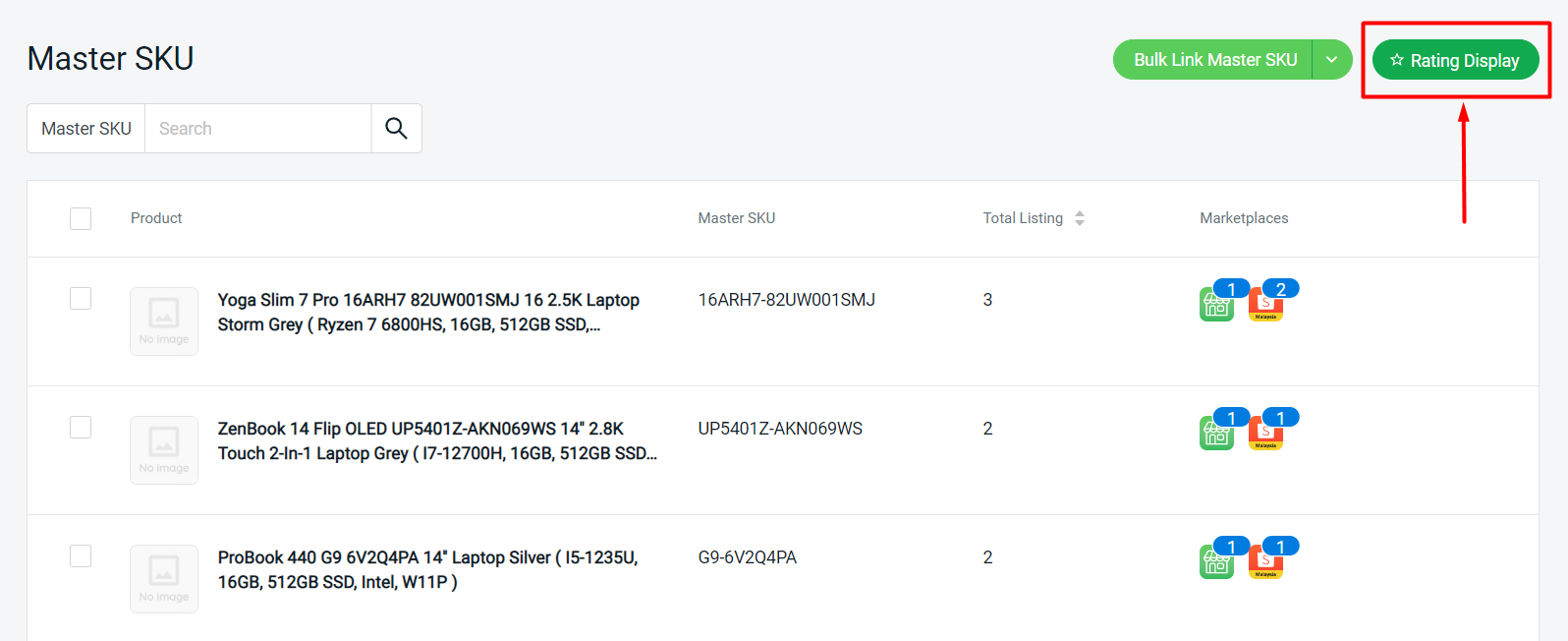
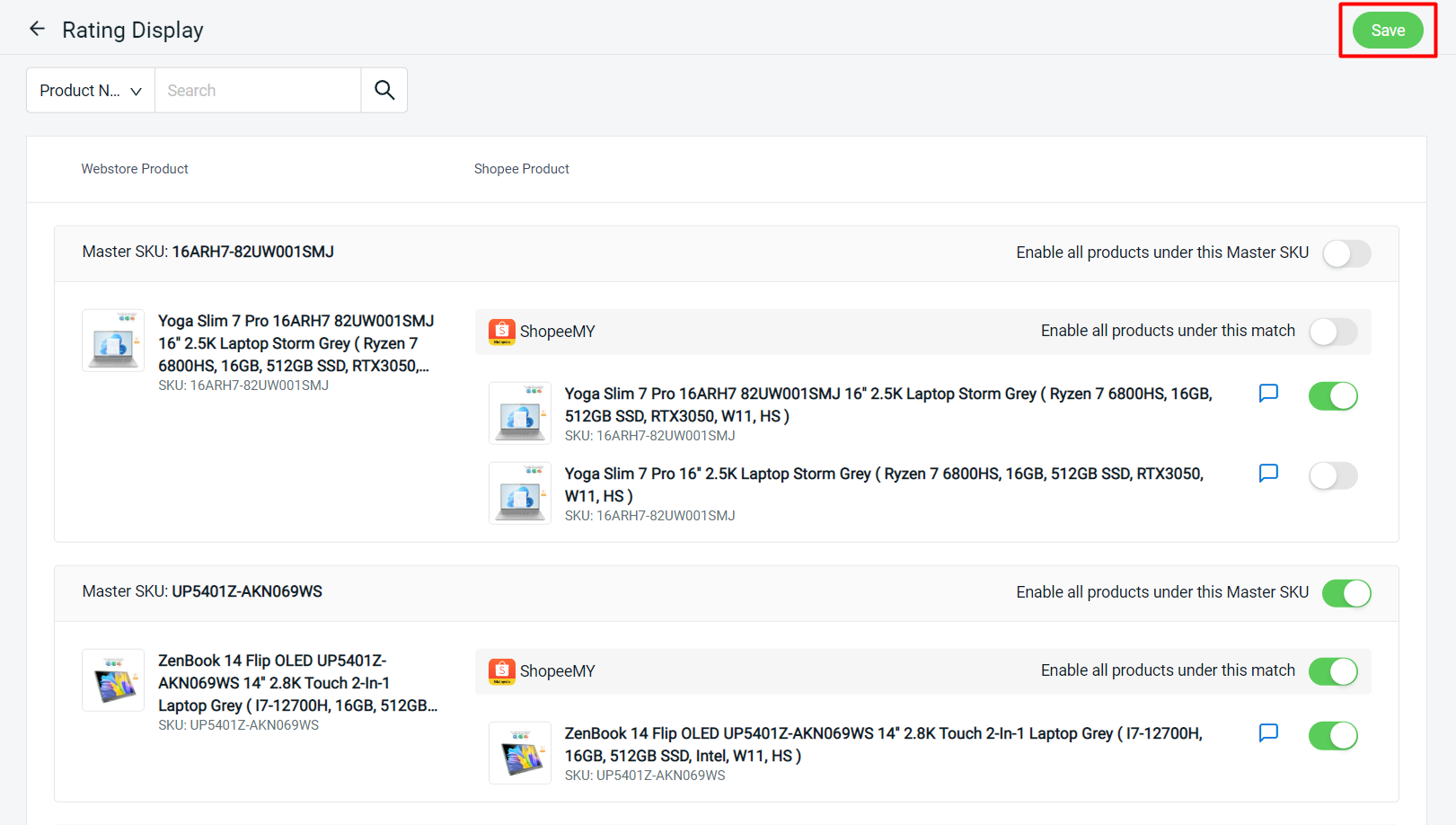
Step 3: Click on Rating Display.
Step 4: Enable the status of the Shopee product that you wish to show the rating for each Master SKU > Save.
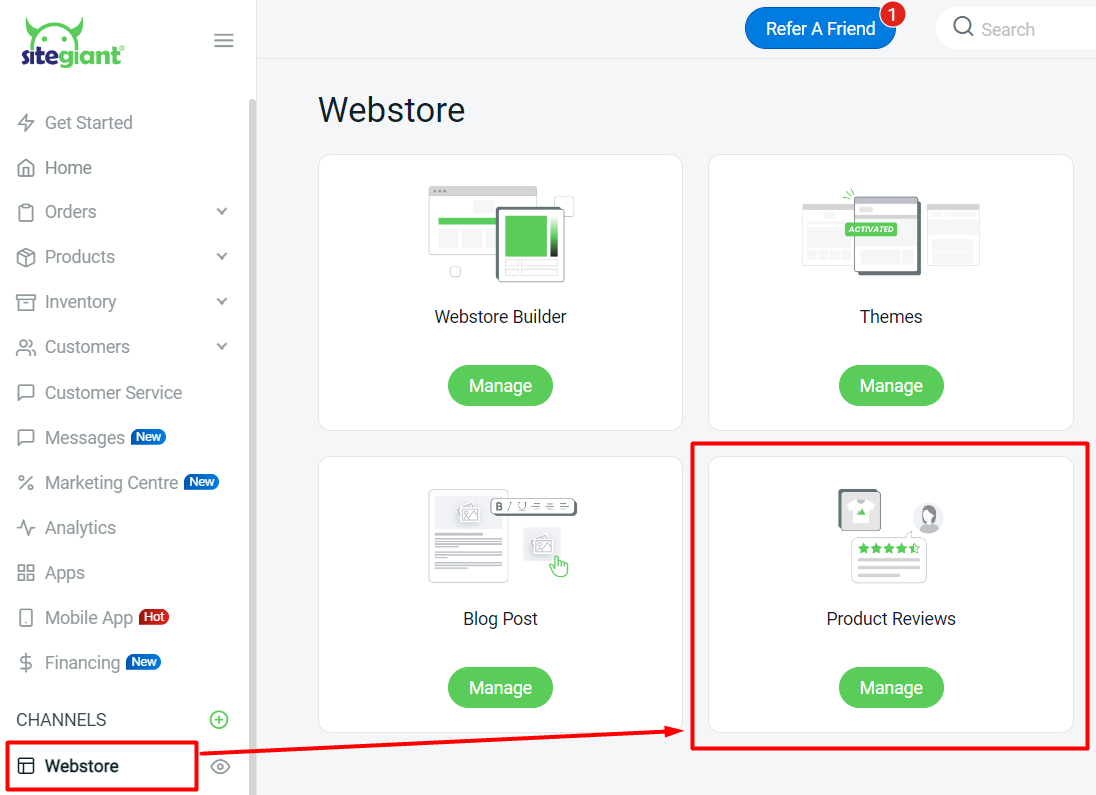
Step 5: Navigate to Webstore > Product Reviews.
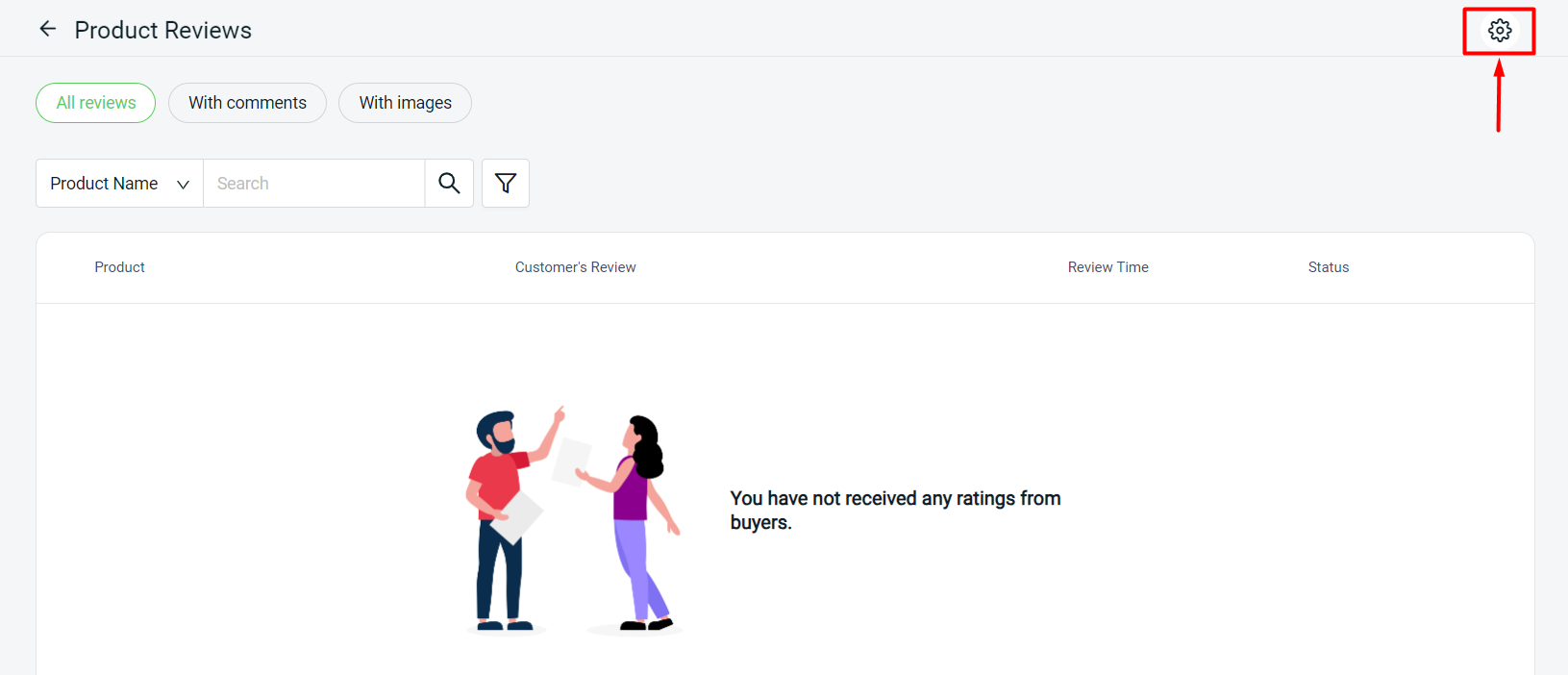
Step 6: Click on the Setting icon in the top right corner.
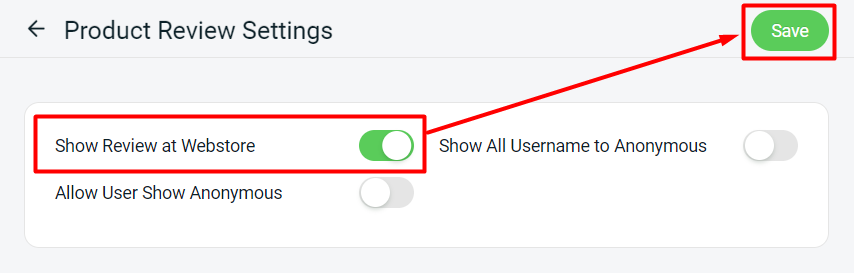
Step 7: Make sure the Show Review at Webstore status is ON > Save.
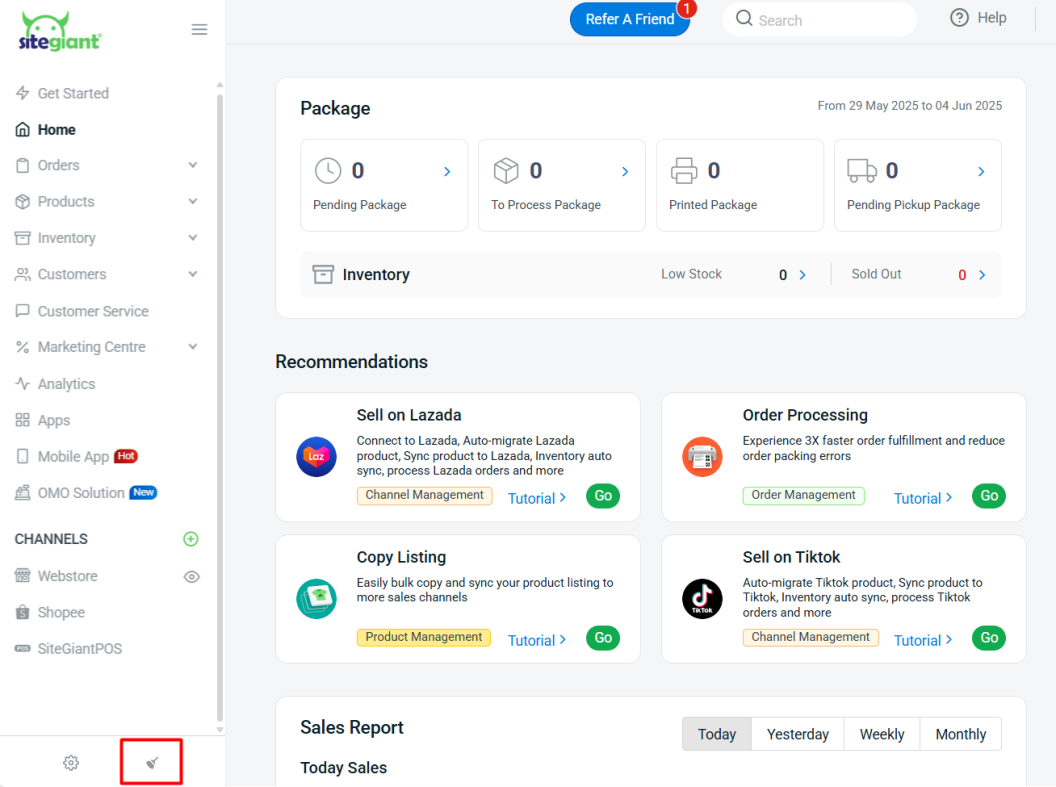
Step 6: Back to the dashboard and Clear Cache to see the changes on your Webstore.
Step 8: The product ratings will be added to the webstore product details page.