
1. Introduction
2. Add Sales Channel
3. Sync Back Sales Transaction From SQL
4. Additional Information
1. Introduction
The Sync Back Sales Transaction feature allows businesses to seamlessly transfer sales transaction data from the SQL Accounting System into SiteGiant’s platform. This integration ensures that all completed sales from the SQL system are accurately synced to SiteGiant for inventory management, reporting, and order fulfillment. By using this feature, sellers can reduce manual errors, maintain consistent and up-to-date sales information, and consolidate transactions for better reporting and analysis.
This feature is only available in the SiteGiant ERP Add-On App.
2. Add Sales Channel
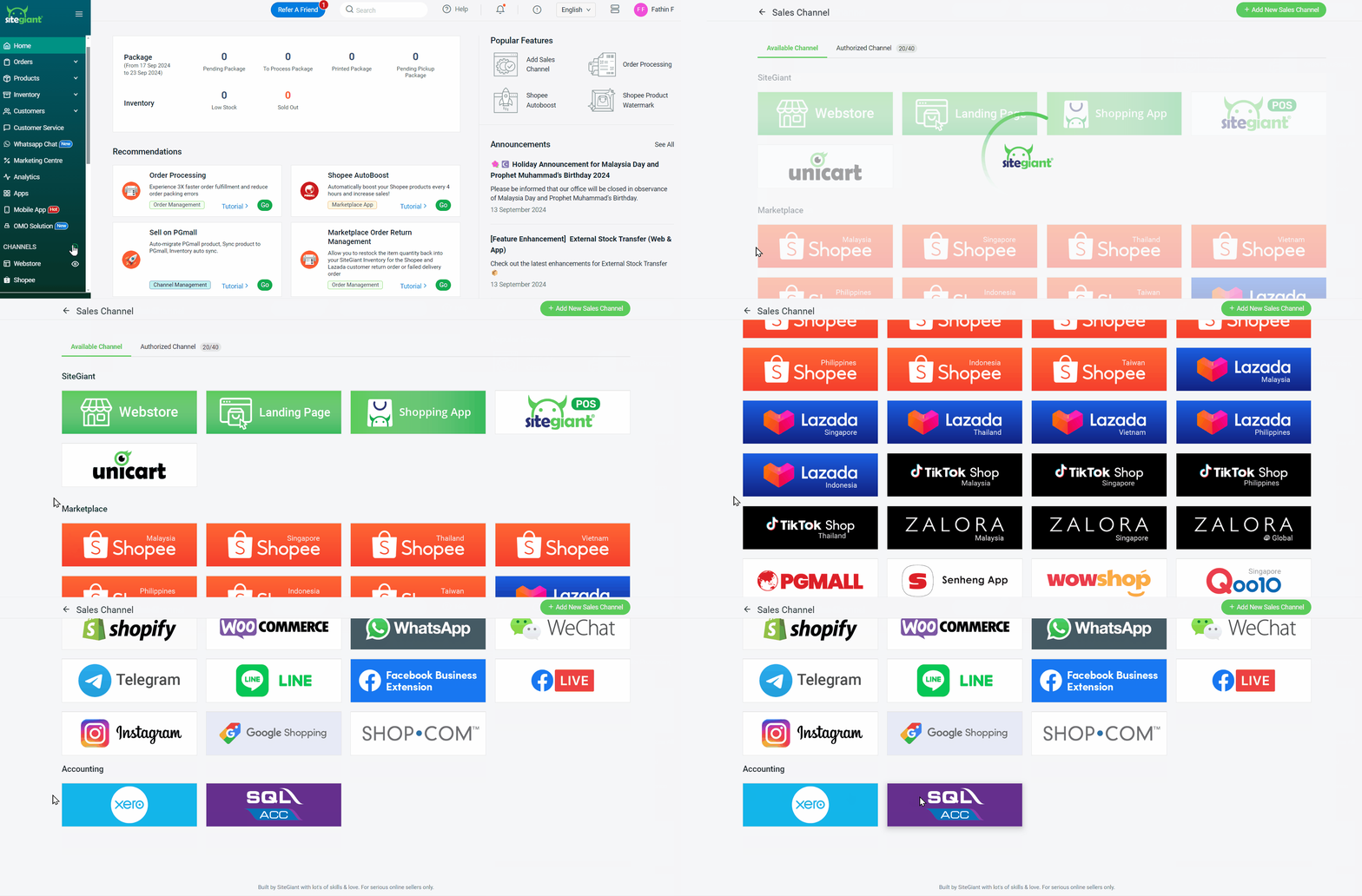
Step 1: Log in to your SiteGiant Seller Center > add [+] channels > choose SQL Acc.
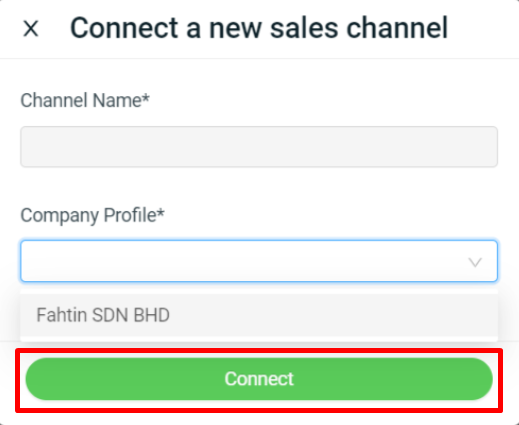
Step 2: Select Company Profile > click Connect.
3. Sync Back Sales Transaction From SQL
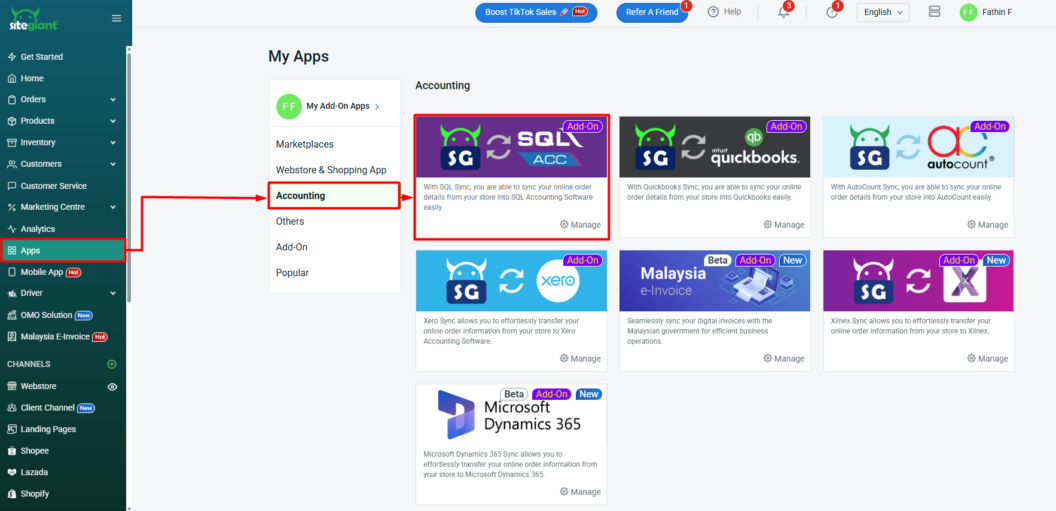
Step 1: Navigate to Apps on the sidebar menu > click Accounting > select SQL Acc.
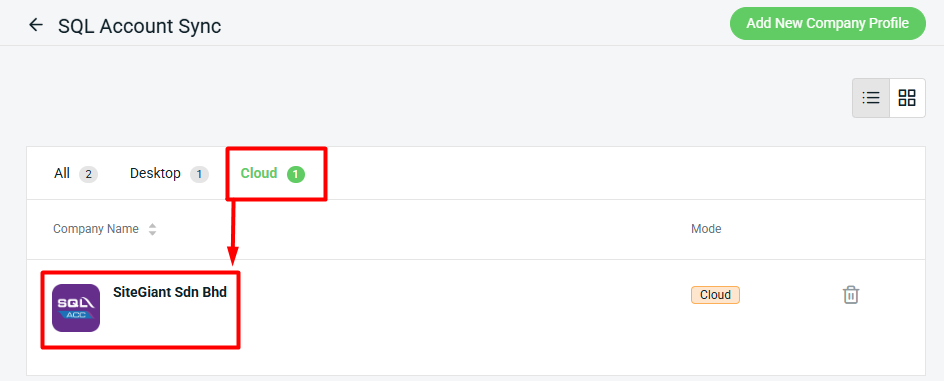
Step 2: Select Cloud > click inside the Company Profile.
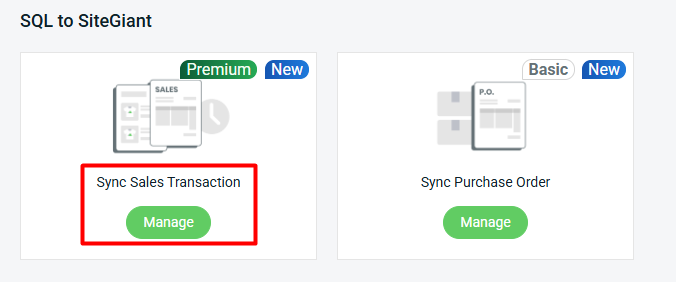
Step 3: Click Manage Sync Sales Transaction.
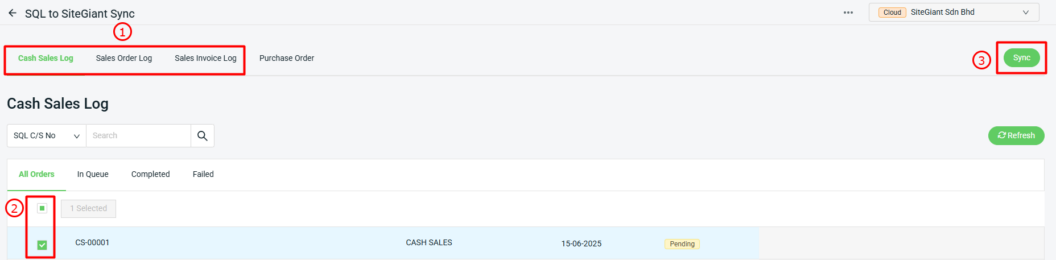
Step 4: Select Sales Order Log or Sales Invoice Log or Cash Sales Log > select related Cash Sales Log under All Orders tab > click Sync.
📌Note: Sales Order, Sales Invoice, or Cash Sales that contain a negative quantity are not supported for sync back.
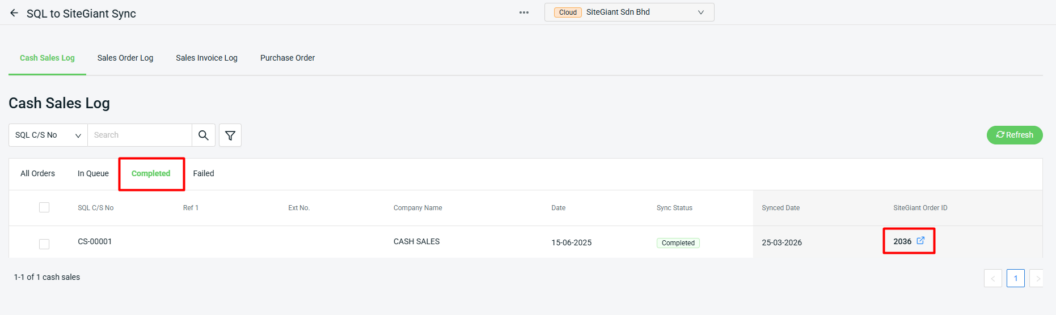
Step 4: Once the invoice has been successfully synced, it will appear under the Completed tab > click the arrow button to view the SiteGiant Order ID details.
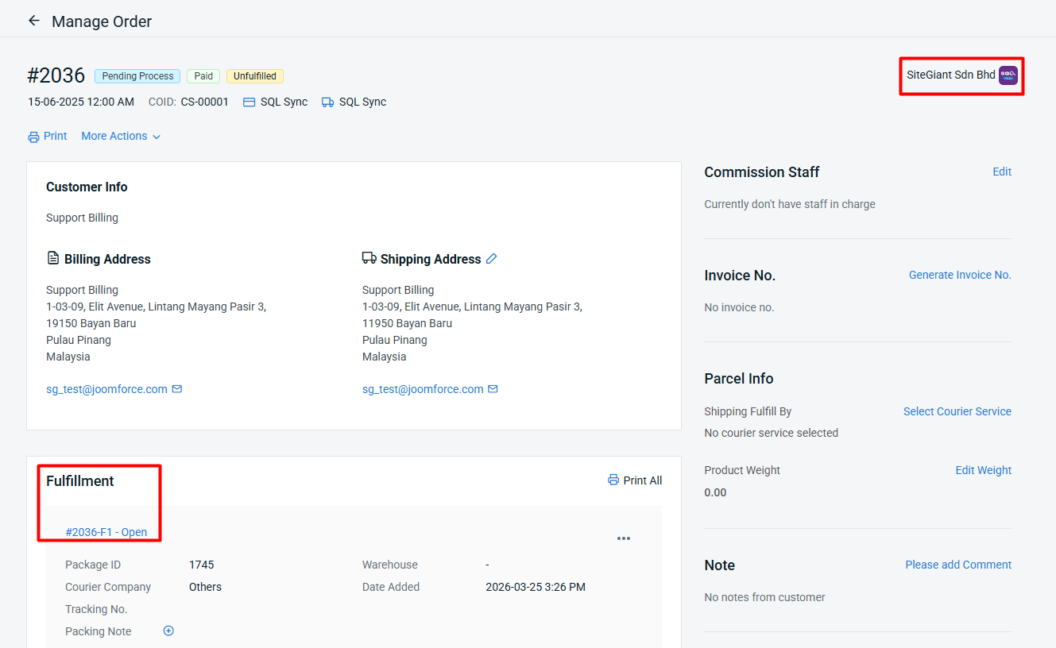
Step 5: You can view the order details, then click Open under the Fulfillment section to manually fulfill the order.
💡Tips: Learn more on How To Fulfilled Order Manually.
📝Additional Information
1. All Orders
Step 1: You also able to check the order syncing directly from All Orders listing.
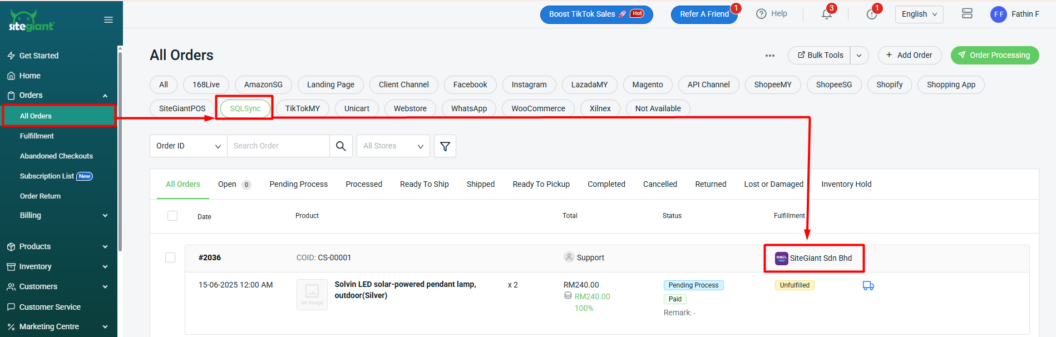
📌Note: Please ensure that you correctly perform the Product Matching for stock deductions in the SiteGiant system.