1. Introduction
2. Xilnex Integration
3. Update Xilnex Settings
4. Matching Setup
5. Sync Invoice (SiteGiant to Xilnex)
6. Sync Order Listing (Xilnex To SiteGiant)
7. Sync Purchase Order (Xilnex To SiteGiant)
8. Sync Transfer Note (Xilnex To SiteGiant)
9. Additional Information
1. Introduction

Xilnex is a cloud-based Point of Sale (POS) and retail management system designed to help businesses manage sales, inventory, customers, and overall operations more efficiently. When integrated with SiteGiant, it allows you to sync product listings, purchase orders, and transfer notes directly from Xilnex to the SiteGiant system.
📌Note: Please make sure you already registered an account with Xilnex for integration purposes. If you do not have an account yet, may proceed to register here.
2. Xilnex Integration
Step 1: Navigate to Apps on the sidebar menu > Accounting > click Xilnex.
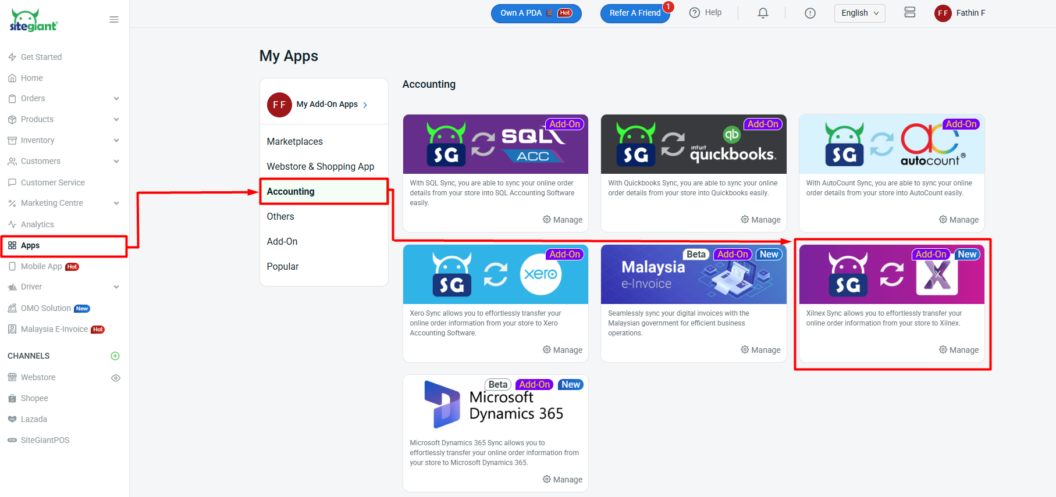
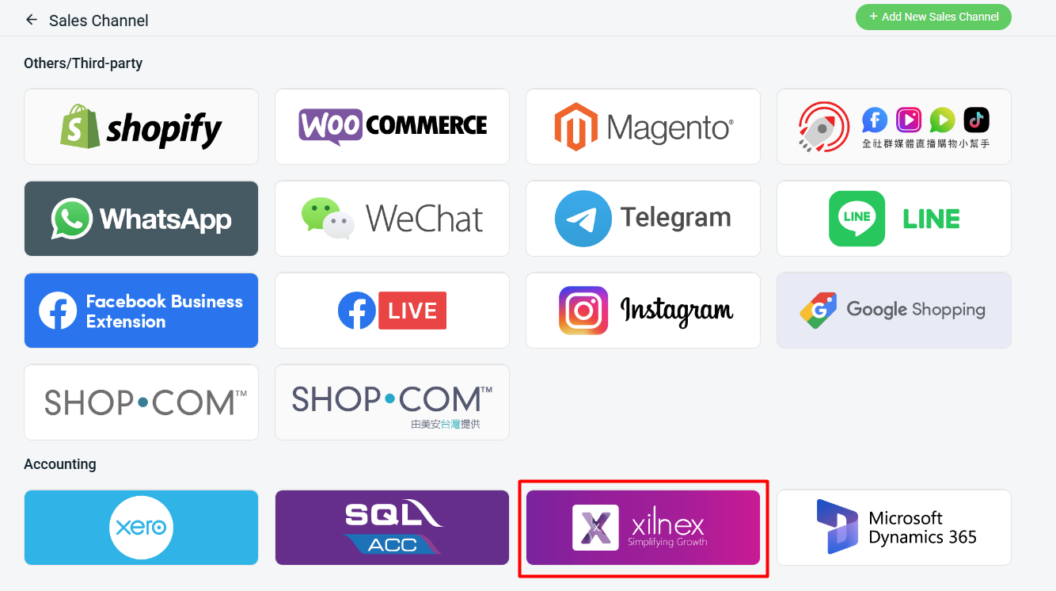
Step 2: Select Xilnex under the Accounting section.
Step 3: Enter APP ID and Access Token > click Authorize.
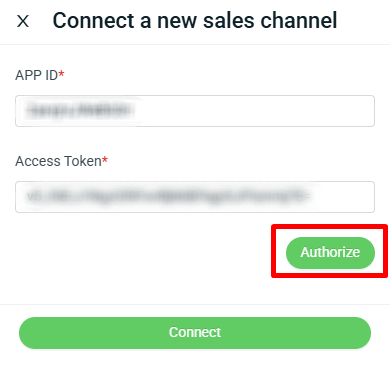
📌Note: Please contact the Xilnex representative to obtain the APP ID and Access Token.
Step 4: Select Outlet > select Default Warehouse > select Default Currency > enter Channel Name > click Connect.
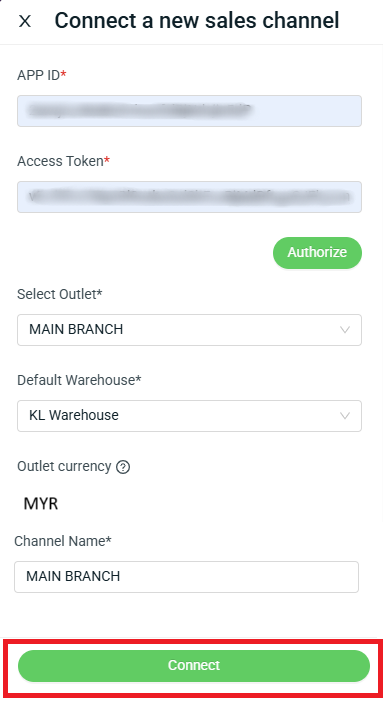
📌Note: Each Xilnex outlet can be linked to only one SiteGiant ERP channel.
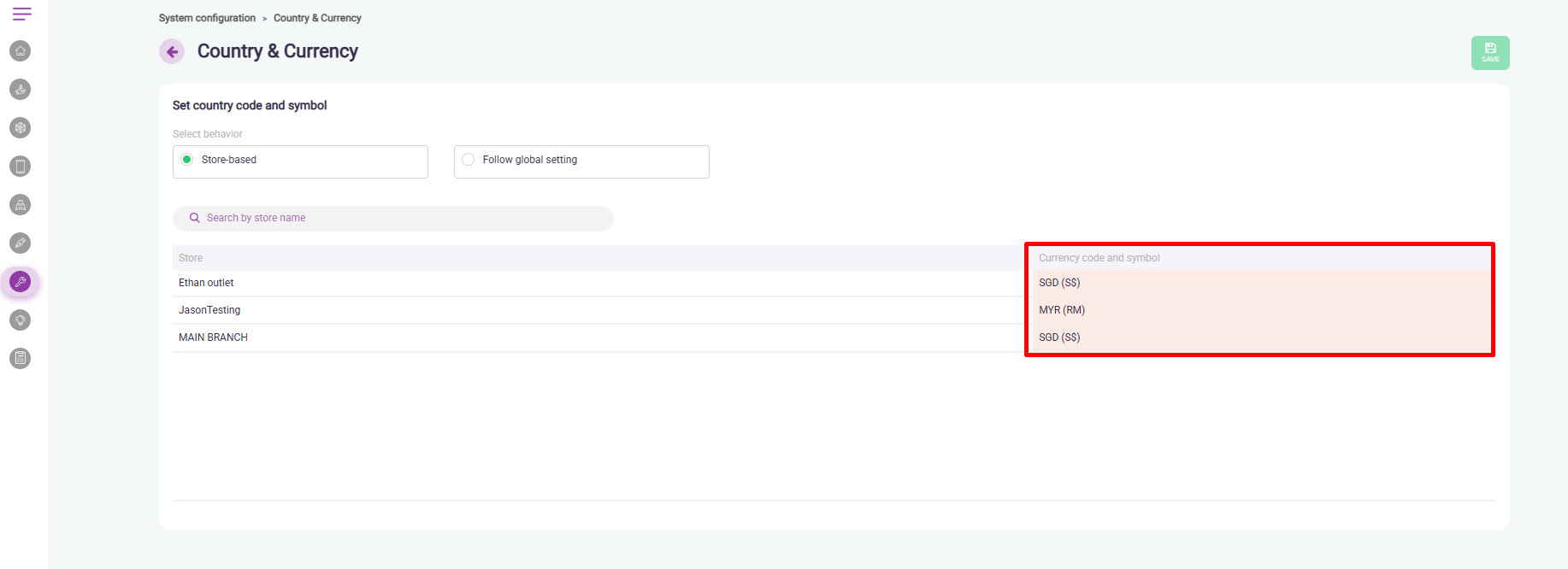
📌Note: The currency will automatically update based on your settings in Xilnex. However, please be informed that the currency setting can only be adjusted through the Xilnex Portal, instead of using the Xilnex POS. Step 1: Login Xilnex Portal > click Top Left Hamburger Icon > click Sytstem Configuration > Country & Currency.Step 2: The currency will automatically update during integration, based on the channel name you selected.
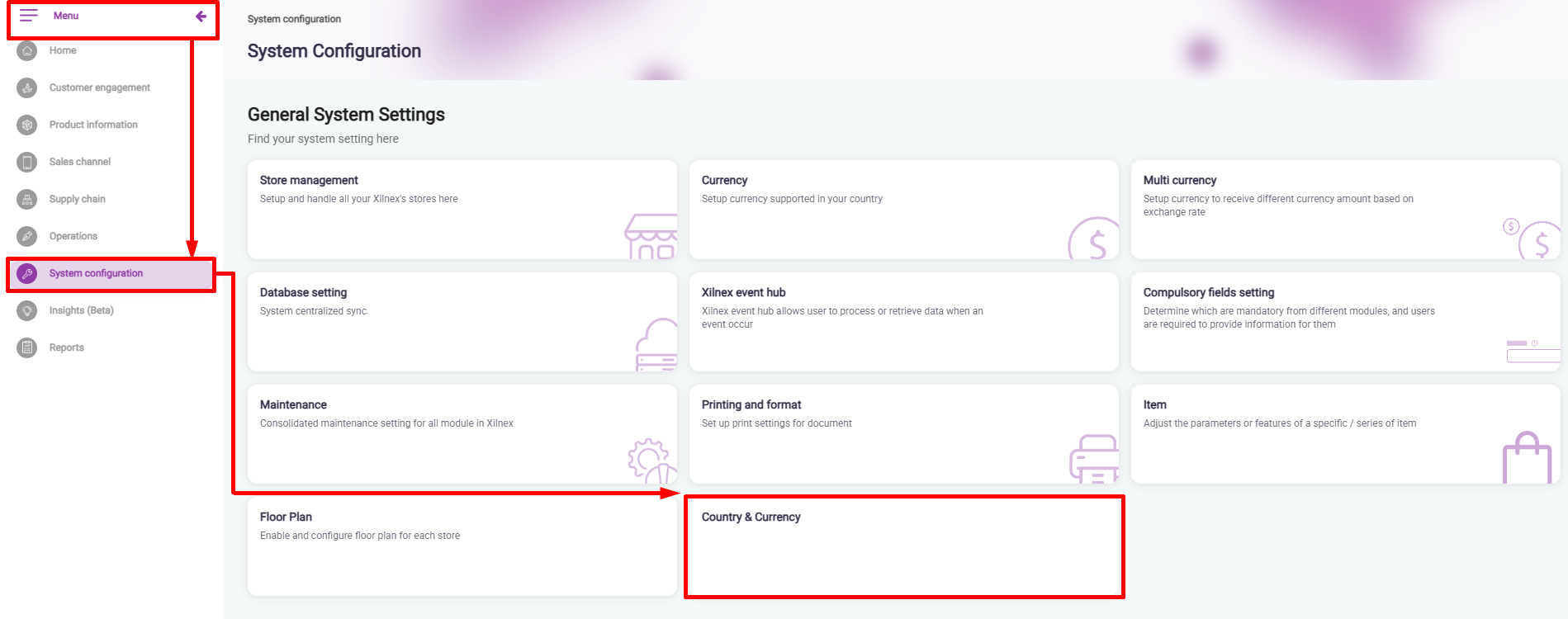 Step 2: The currency will automatically update during integration, based on the channel name you selected.
3. Update Xilnex Settings
Step 1: Navigate to Xilnex > click Xilnex’s outlet.
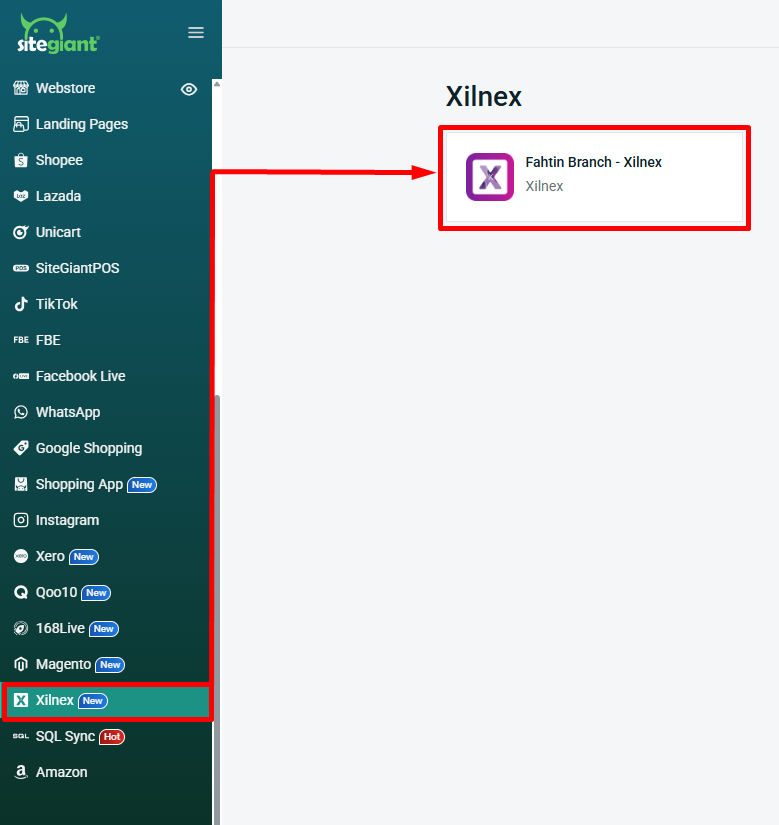
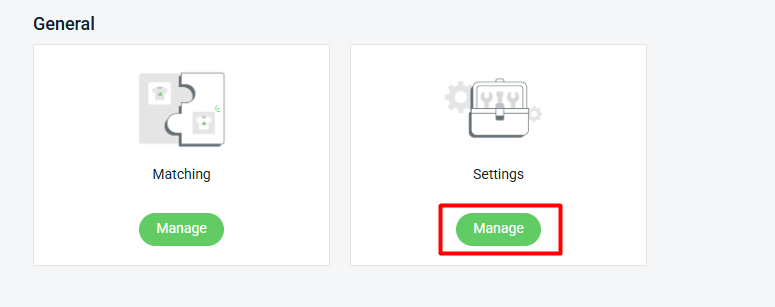
Step 2: Under the General section, click Manage Settings.
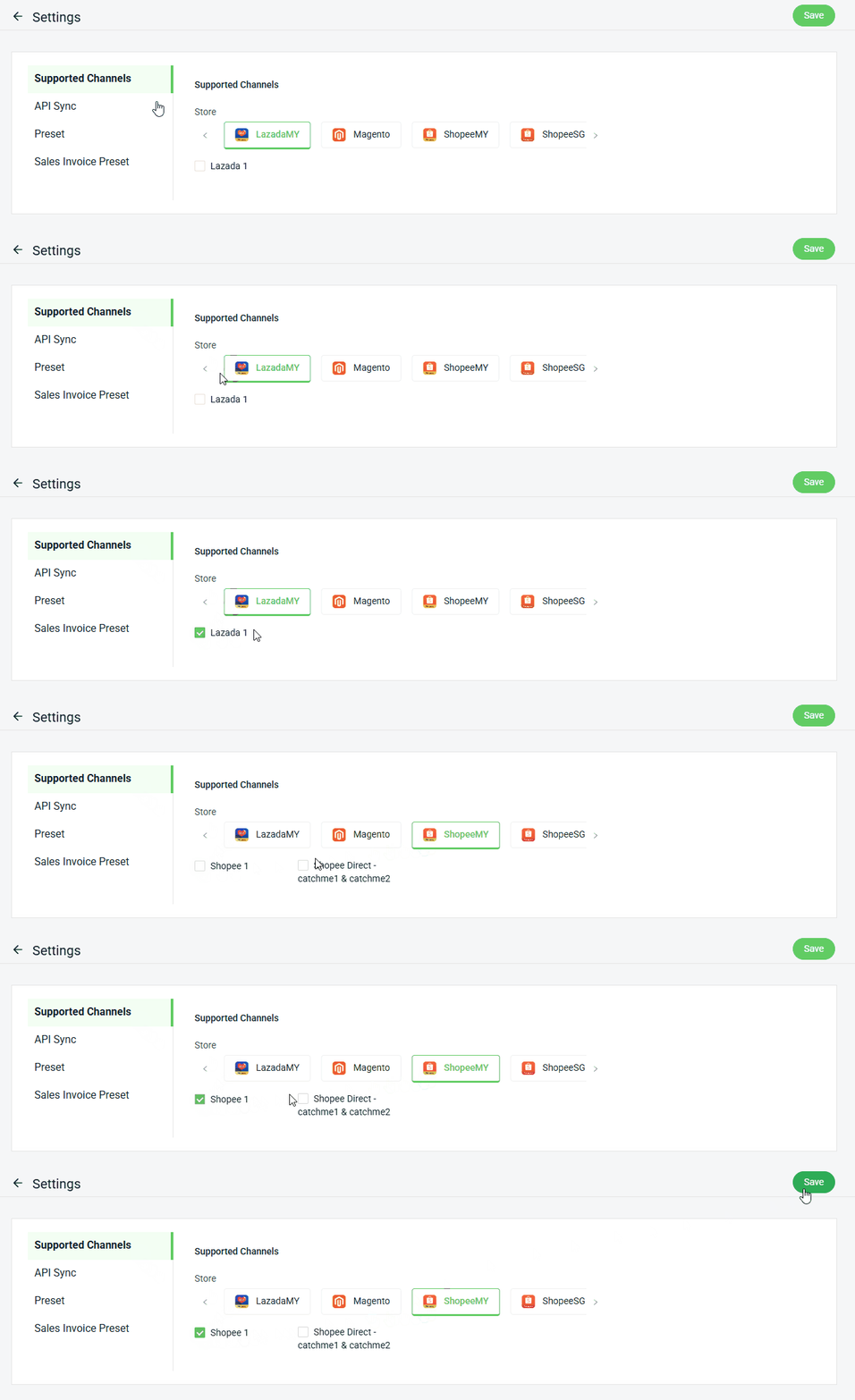
I. Supported Channel
Step 1: Select the Supported Channel you want to sync the invoice with Xilnex > Save.
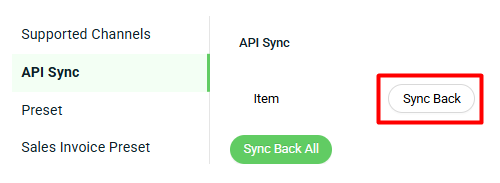
II. API Sync
Step 1: Click Sync Back to apply item updates from Xilnex to SiteGiant.
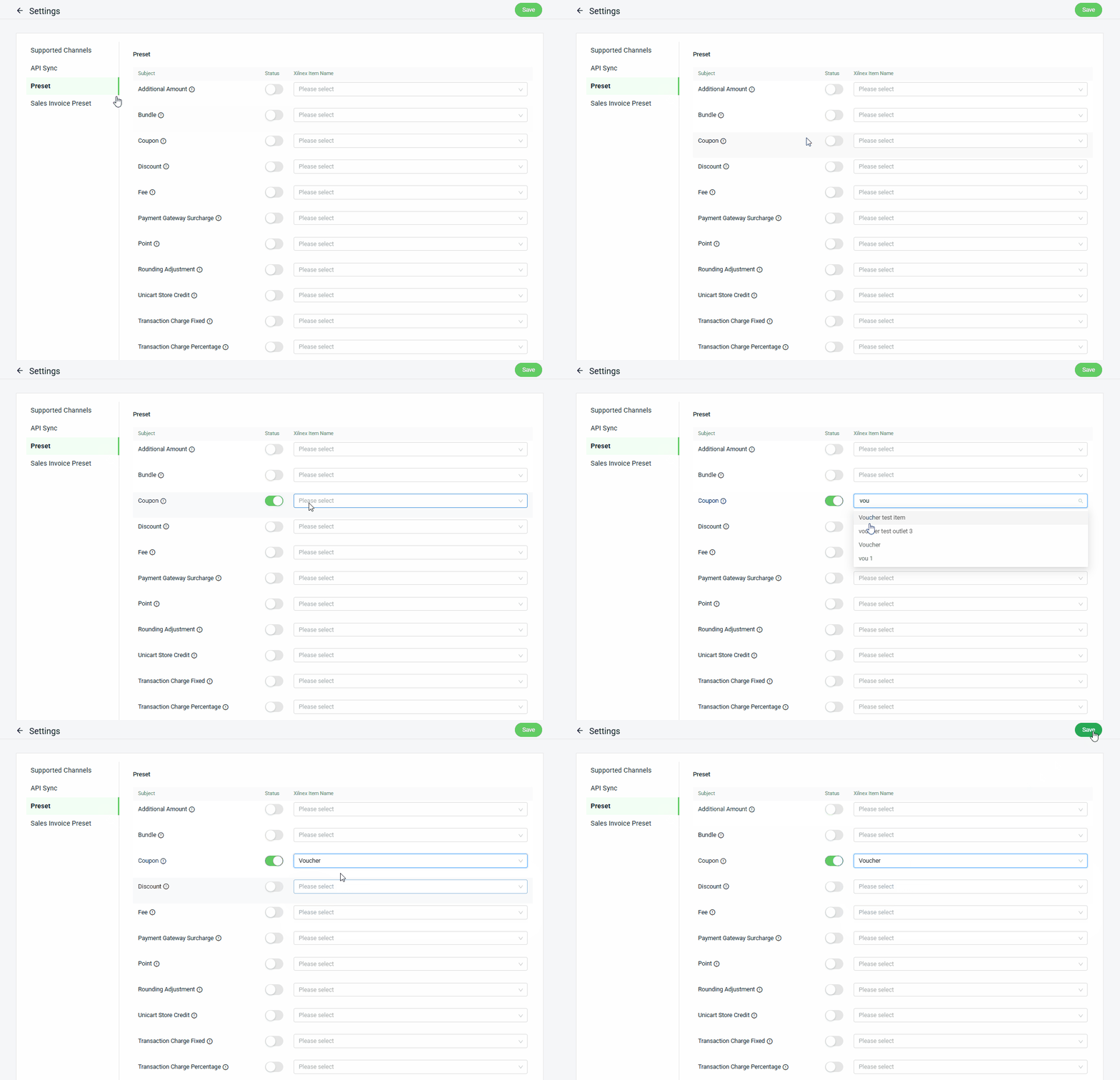
III. Preset
Step 1: Toggle On the Preset button if you want the update to be reflected on the invoice > mapped with the Xilnex Item Name list > Save.
IV. Sales Invoice Preset
Step 1: Select the Sales Date, External Ref ID, and Sales Type as the default setting for the invoice.
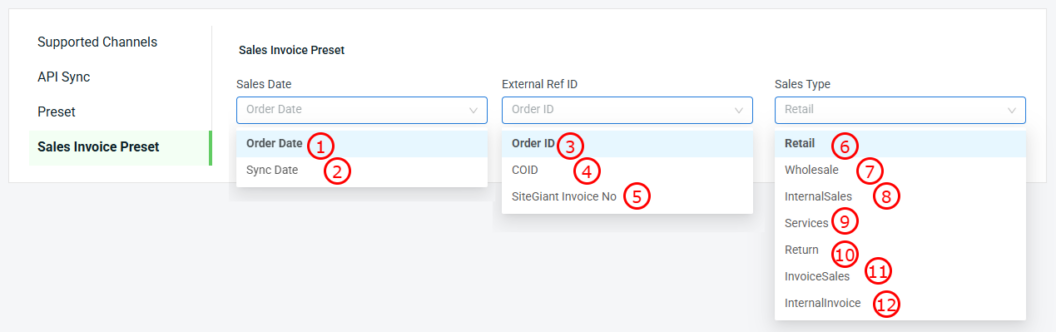
Sales Date
1. Order Date: The sales date in the invoice follows the order date.
2. Sync Date: The sales date in the invoice follows the order sync date.

External Ref ID
3. Order ID: The External Ref ID will use the order number from SiteGiant.
4. COID: The External Ref ID will be taken from the Marketplace Order ID.
5. SiteGiant Invoice No: The External Ref ID will be set based on the invoice number generated by SiteGiant.

Sales Type
6. Retail: Normal sales to the customer.
7. Wholesale: Bulk sales to the customer or dealers.
8. InternalSales: Internal transactions within the company only.
9. Services: Sales of services rather than physical products.
10. Return: Used for sales returns or refunds order.
11. InvoiceSales: Sales created directly as an invoice without a Sales Order.
12. InternalInvoice: Internal invoicing for internal accounting purposes only.
4. Matching Setup
Step 1: Navigate to Xilnex > click Xilnex’s outlet.
Step 2: Under the General section, click Manage Matching.
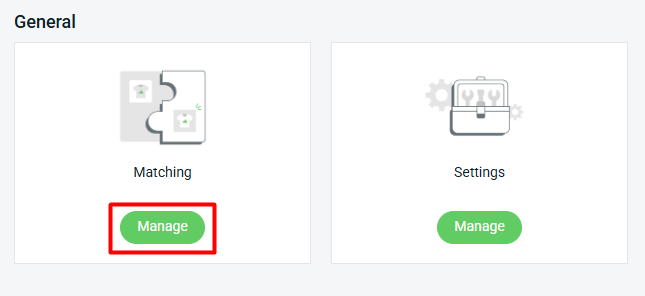
I. Item Matching
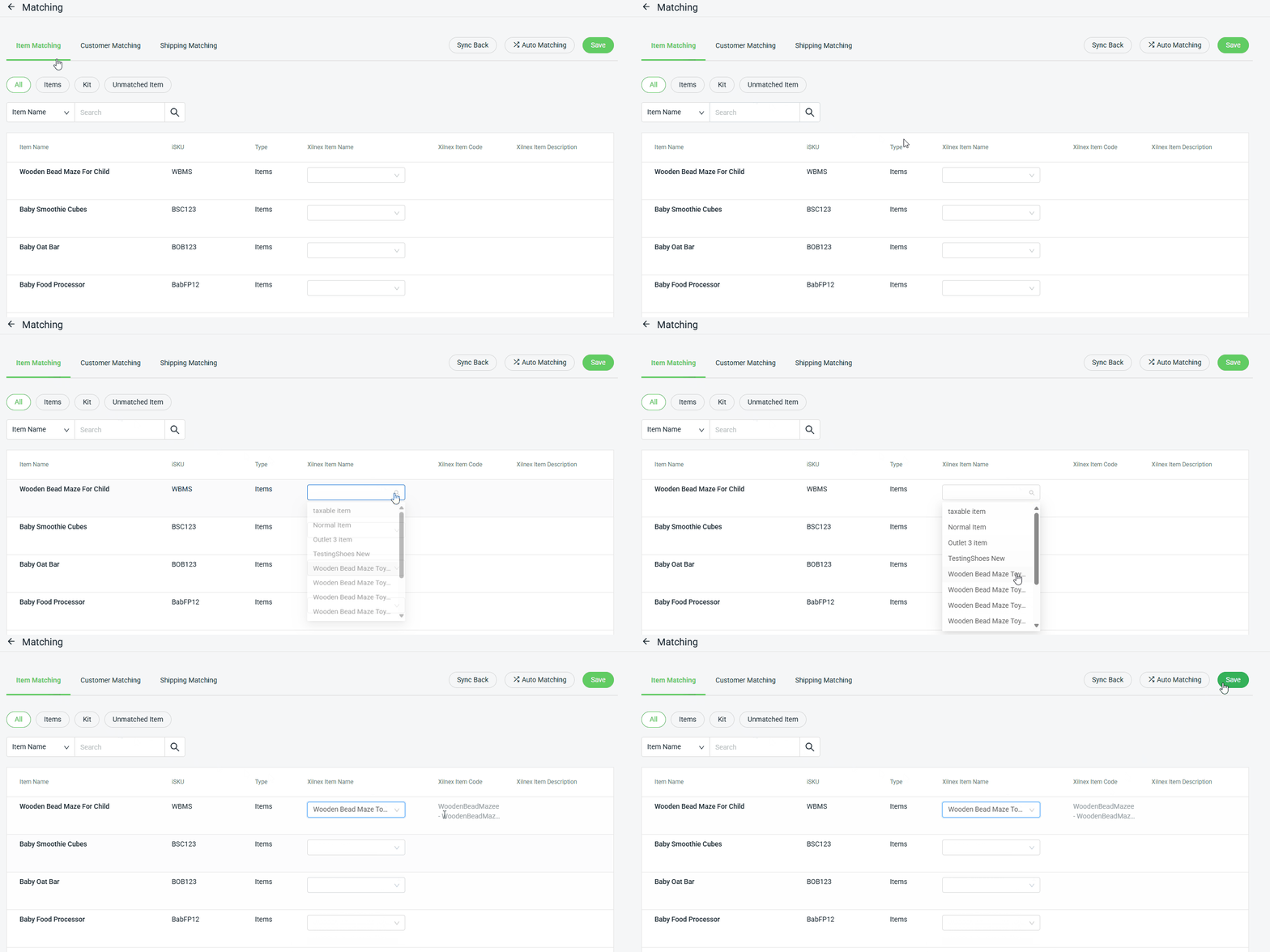
i) Manual Matching:
Step 1: Under Product Matching, all your Inventory Items will be listed > select the relevant product from Xilnex to match with the Inventory Item in SiteGiant > Save.
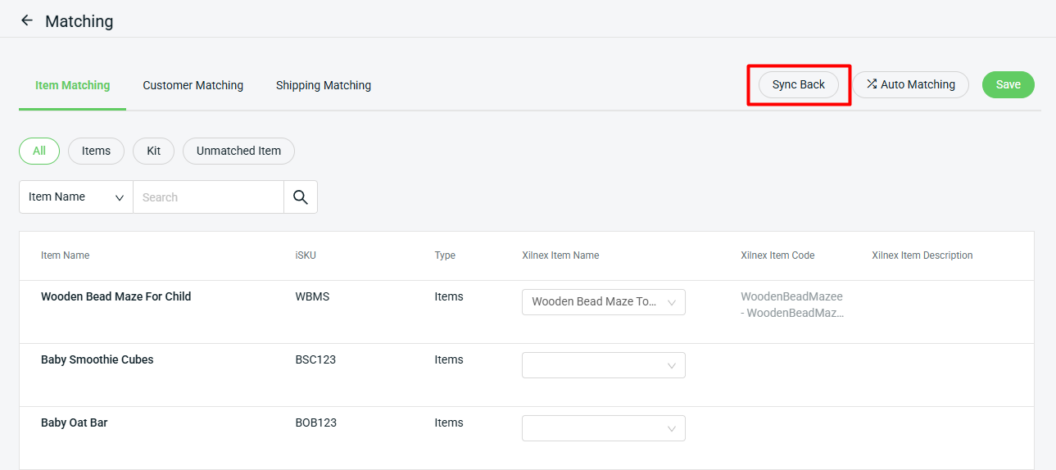
Step 2: Click the Sync Back button to retrieve the latest product update from Xilnex accounting.
ii) Auto Matching:
Step 1: Click on the Auto Matching icon from the top.
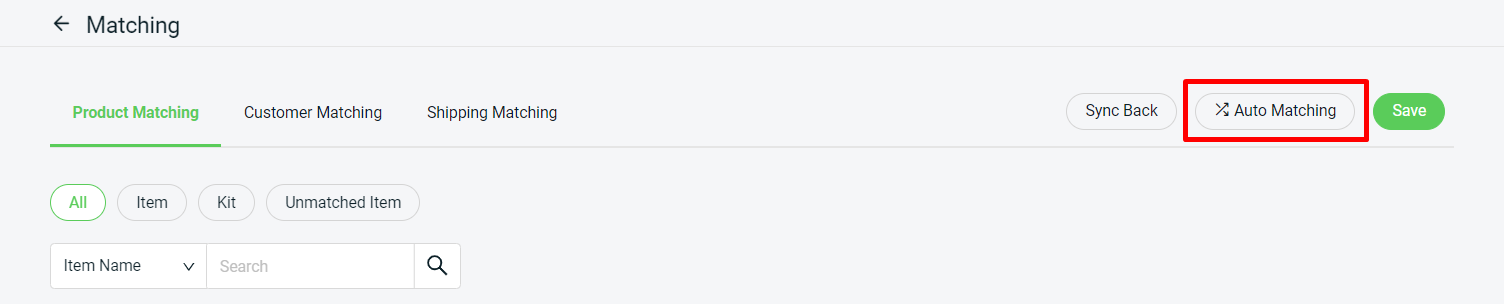
Step 2: If the Product Code in Xilnex matches the iSKU from SiteGiant, the system will automatically match the product for you.
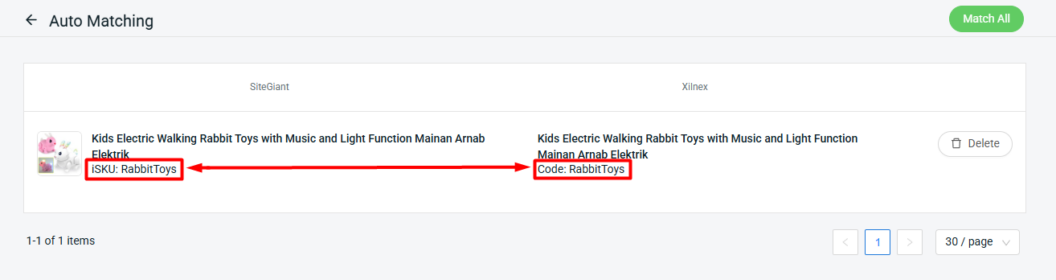
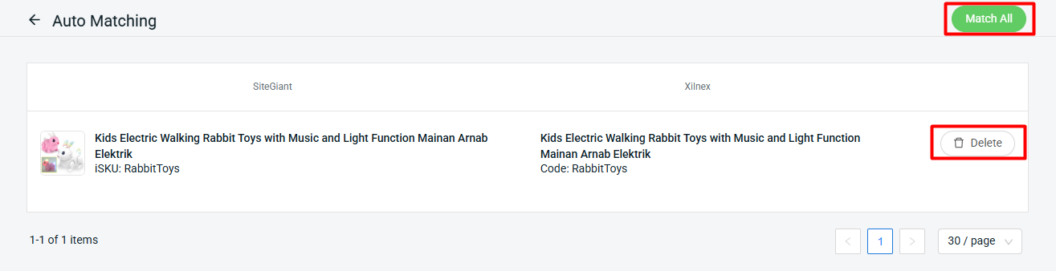
Step 3: If the auto-matching is correct, click Match All. If it is incorrect, click Delete to cancel the auto-match for the item, then click Match All again.
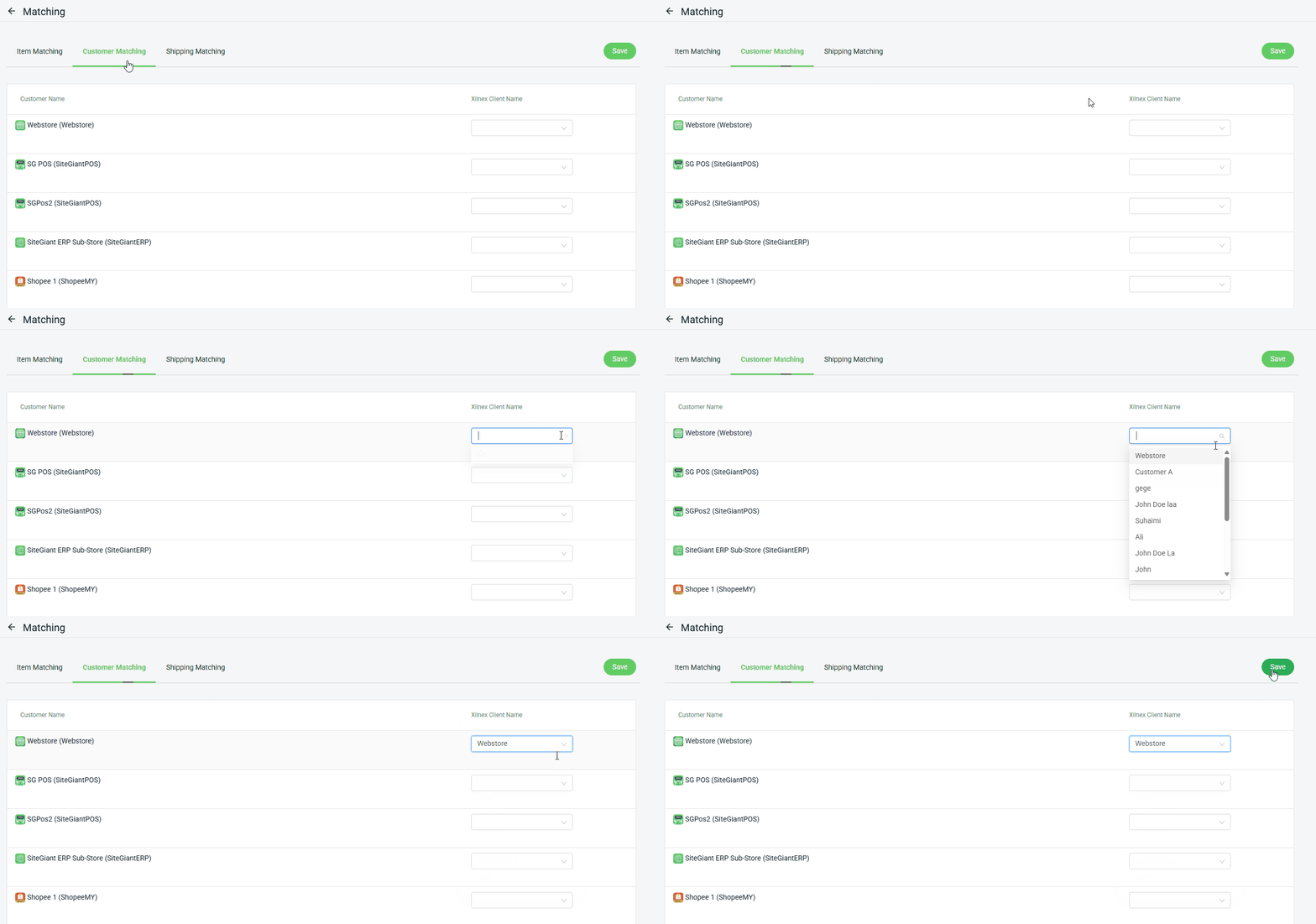
II. Customer Matching
Step 1: Select the correct Xilnex Client Name to match the Sales Channel in SiteGiant > Save.
III. Shipping Matching
Step 1: Select the relevant Xilnex Item Name to match the shipping code for each sales channel > Save.
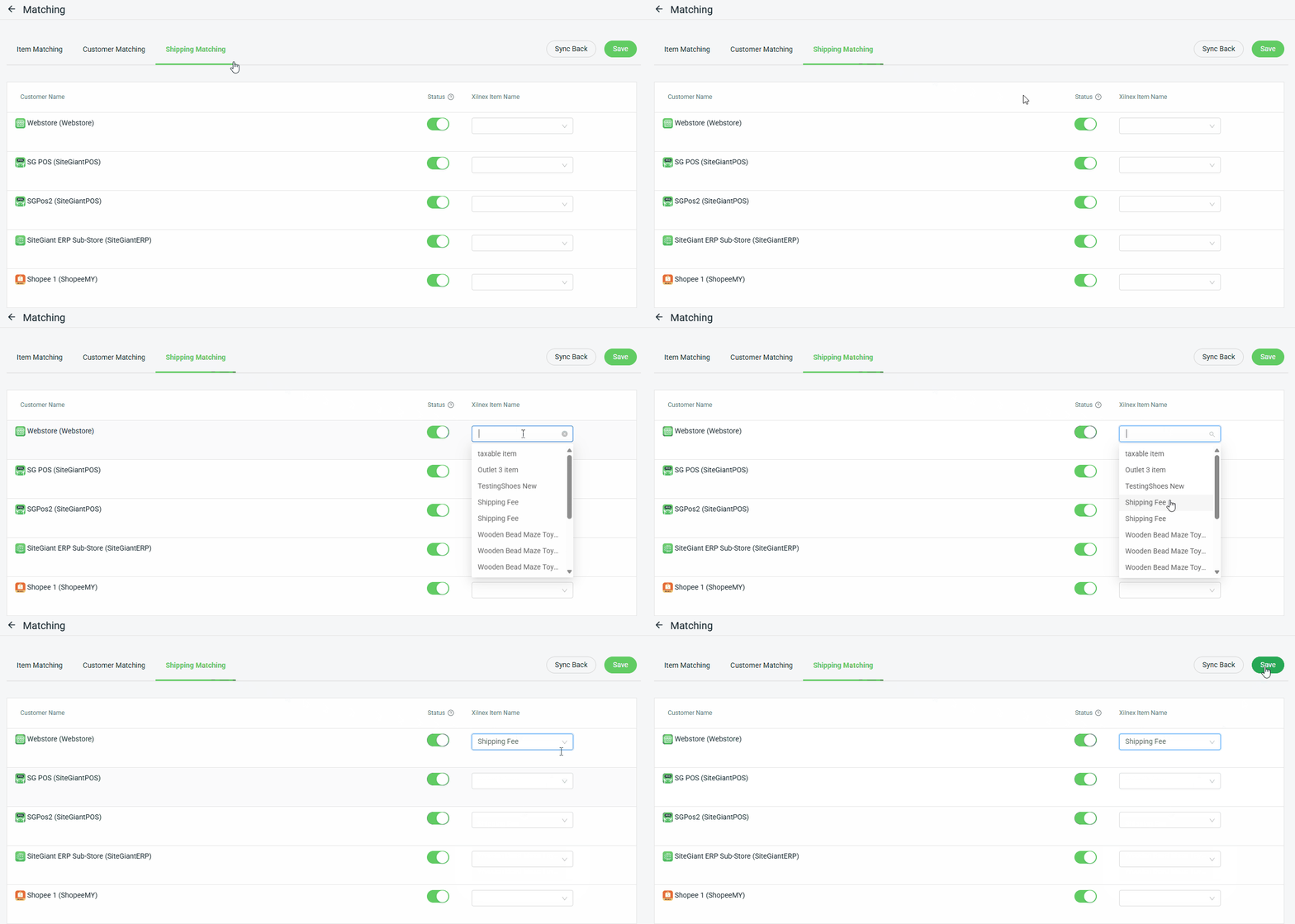
📌Note: All shipping statuses are enabled by default. You can choose to disable any status for a sales channel if you do not want its shipping fees to sync to Xilnex.
5. Sync Invoice (SiteGiant to Xilnex)
Step 1: Navigate to Xilnex > click Xilnex’s outlet.
Step 2: Click Manage Sync Sales Invoice.
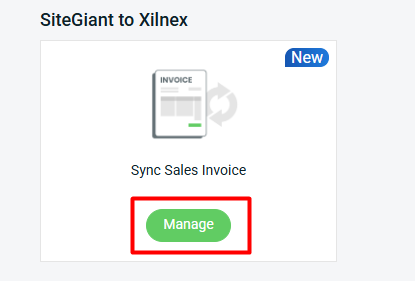
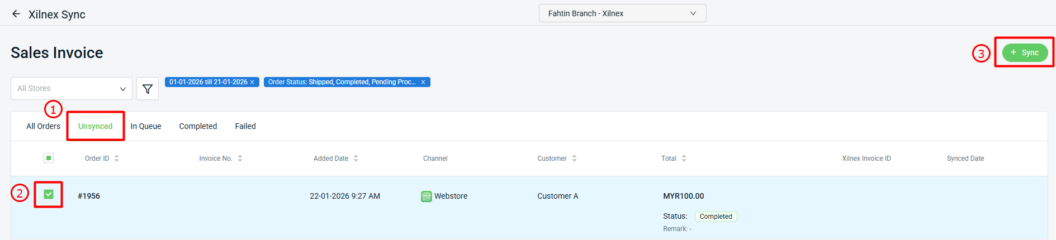
Step 3: Under the Unsynced tab > select the order that you want to sync > click +Sync.
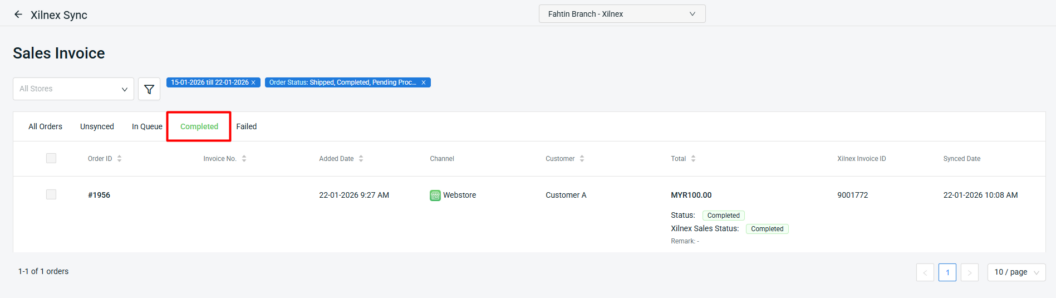
Step 4: Once the order has been successfully synced to Xilnex, it will automatically be moved to the Completed tab.
6. Sync Order Listing (Xilnex To SiteGiant)
Step 1: Navigate to Xilnex > click Xilnex’s outlet.
Step 2: Click Manage Order Listing.
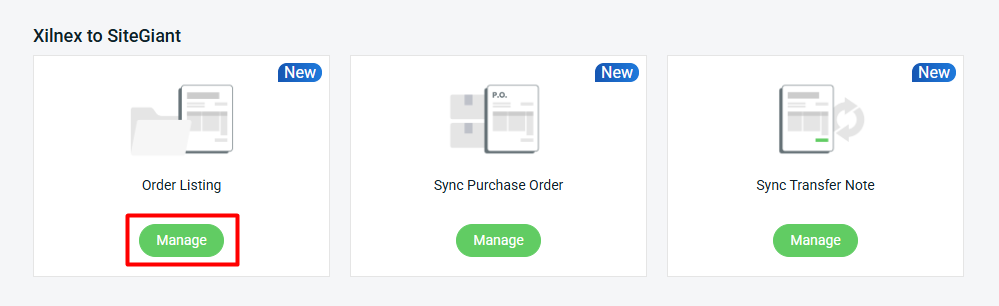
Step 3: All Sales Invoice Listings created in Xilnex will automatically sync to the SiteGiant order listing under Xilnex.
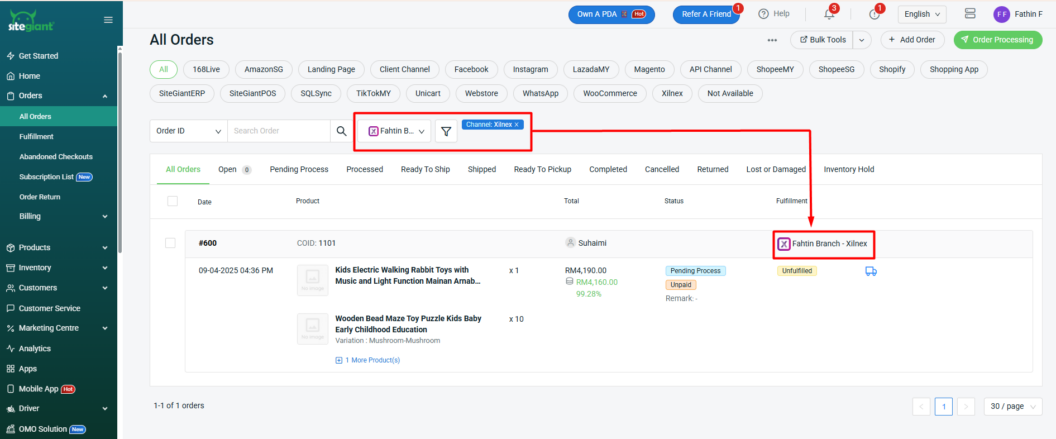
📌Note: If the order status is updated to Cancelled in Xilnex, the status will not be synced to SiteGiant.
7. Sync Purchase Order (Xilnex To SiteGiant)
💡Tips: If you are wish to sync the Purchase Order along with Vendor Information, please ensure that the currency code is not filled in under your Additional Information Vendor settings (in Xilnex account), as shown below:You are only allowed to select the currency on the Additional Information II page.
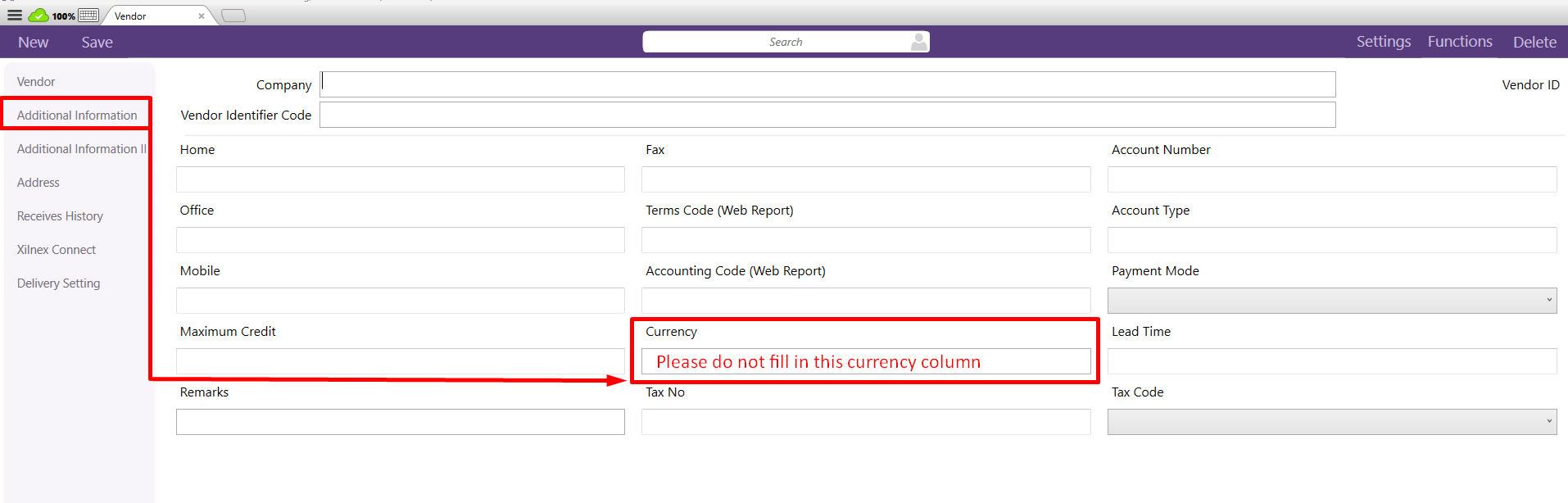 You are only allowed to select the currency on the Additional Information II page.
Step 1: Navigate to Xilnex > click Xilnex’s outlet.
Step 2: Click Manage Sync Purchase Order.
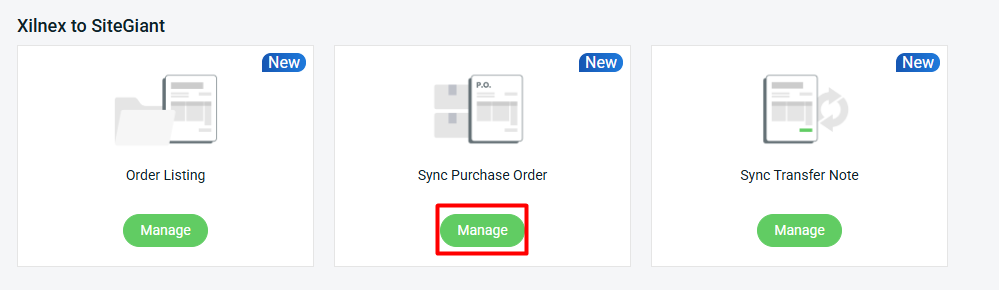
Step 3: Click Refresh to update and retrieve the latest Purchase Order from Xilnex.
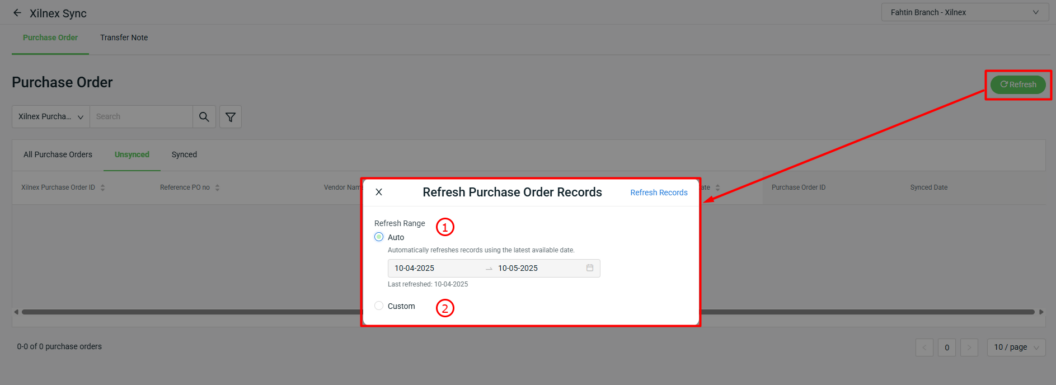
1. Auto: The start date will always refer to the Last Refreshed Date, and the end date will automatically be set to a date up to one month. The Last Refreshed Dat is updated to today’s date only when records are refreshed using the auto option.

2. Custom: Able to select any date range as long as is within the one month range.
Step 4: Under the Unsynced tab, click the Sync button to generate the Purchase Order in SiteGiant.
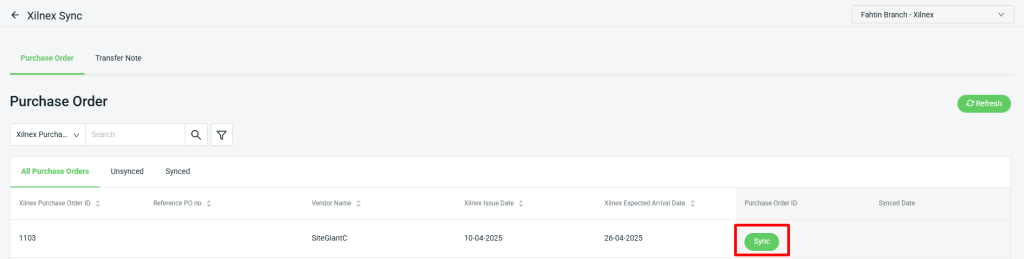
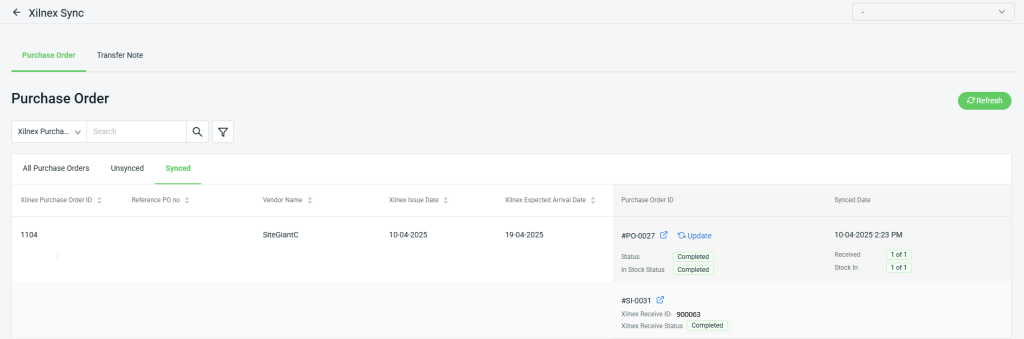
Step 5: The order will be moved to the Synced tab. Then, the Incomplete Purchase Order will be created on SiteGiant’s Purchase Order feature.
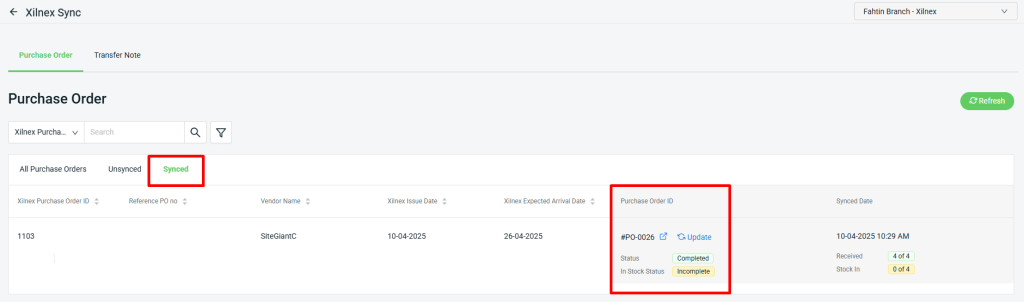
📌Note: When you create a Purchase Order in Xilnex and sync it to SiteGiant, it will be fully received by default.
Step 6: If you make any changes to the Purchase Order in Xilnex, click the Update button to fetch the latest information.
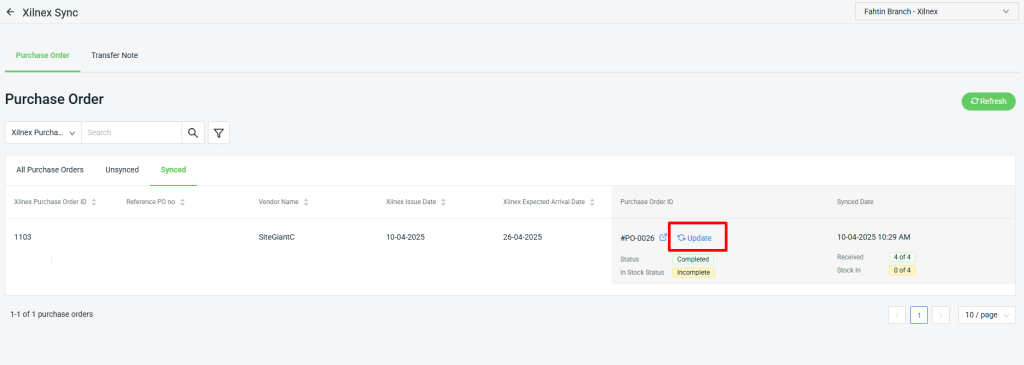
💡Tips: Learn more about How To Update Purchase Order.
Step 7: When the Purchase Order status in SiteGiant is marked as Completed, the Xilnex Receive Status will also show as Completed.
8. Sync Transfer Note (Xilnex To SiteGiant)
Step 1: Navigate to Xilnex > click Xilnex’s outlet.
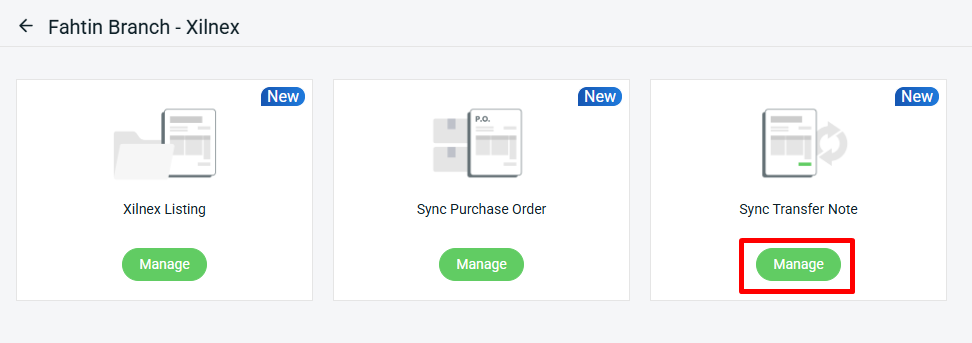
Step 2: Click Manage Sync Transfer Note.
Step 3: Click Refresh to update and retrieve the latest Transfer Note from Xilnex.
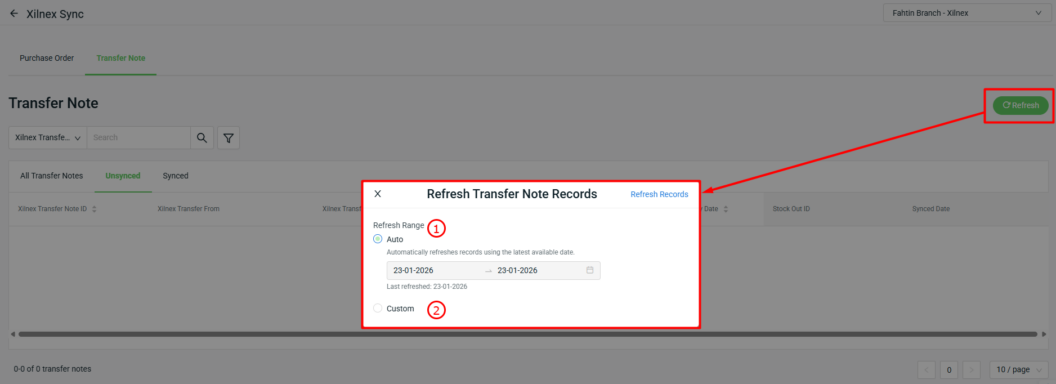
1. Auto: The start date will always refer to the Last Refreshed Date, and the end date will automatically be set to a date up to one month. The Last Refreshed Dat is updated to today’s date only when records are refreshed using the auto option.

2. Custom: Able to select any date range as long as is within the one month range.
Step 4: Under the Unsynced tab, click the Sync button to generate the Stock Out ID.
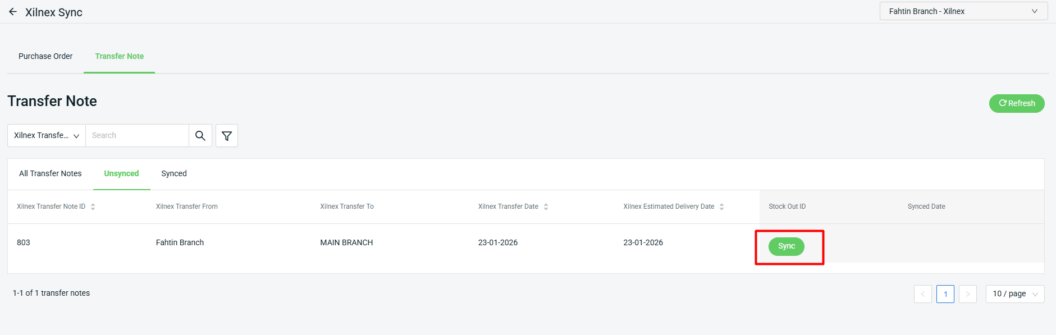
📌Note: Only Transfer Notes with a Confirmed status in Xilnex can successfully update their status in SiteGiant.
Step 5: When a Transfer Note is successfully synced, it will be moved to the Synced tab with a Shipped status.
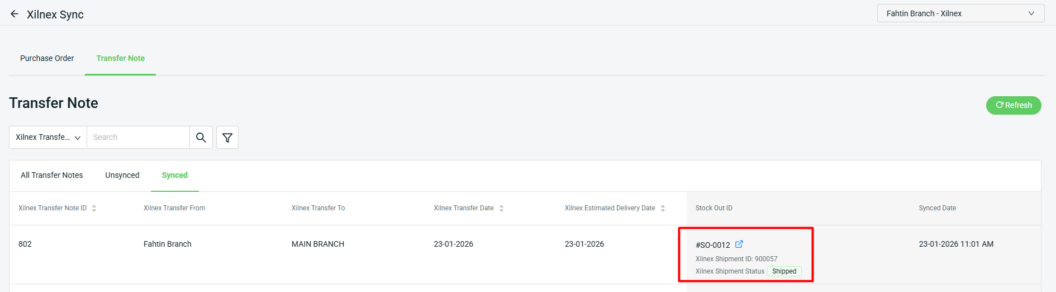
📌Note: When the Stock Out ID is generated and successfully synced, the stock will be deducted in SiteGiant.
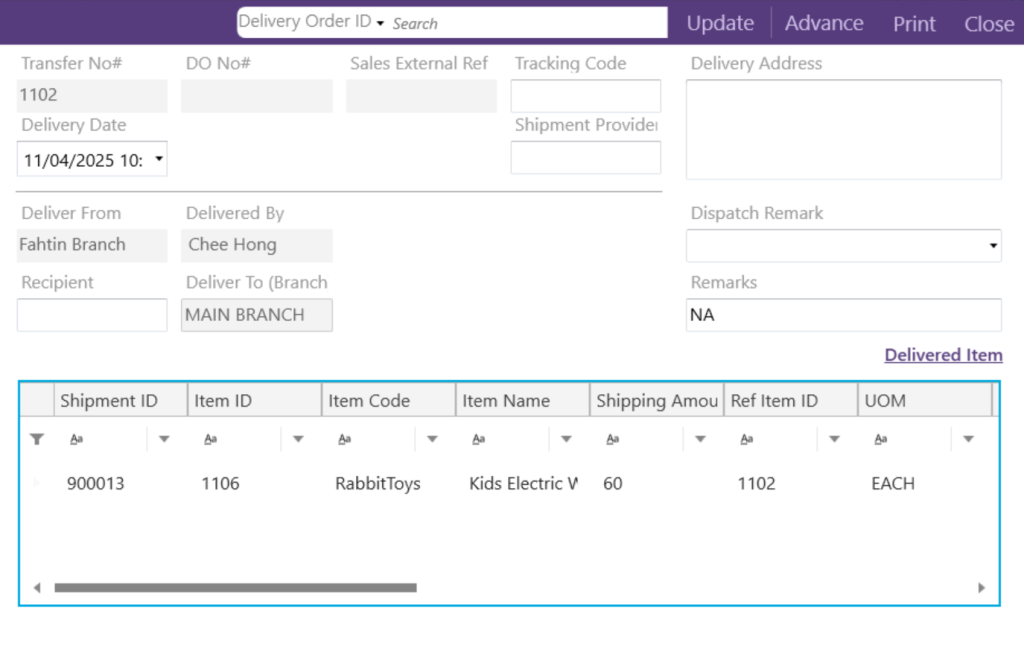
Step 6: Once the Transfer Note is completed, it will be updated in the Delivery Order Listing section of the Xilnex system, and the stock will also be deducted in Xilnex.
📝Additional Information
1. Analytic Report
You can view the Xilnex order details under the Analytic Report section, including Marketplace Channel Report, Order Report, Item Performance Report, and Item Sold Report.
2. Sync Data (Xilnex Cloud)
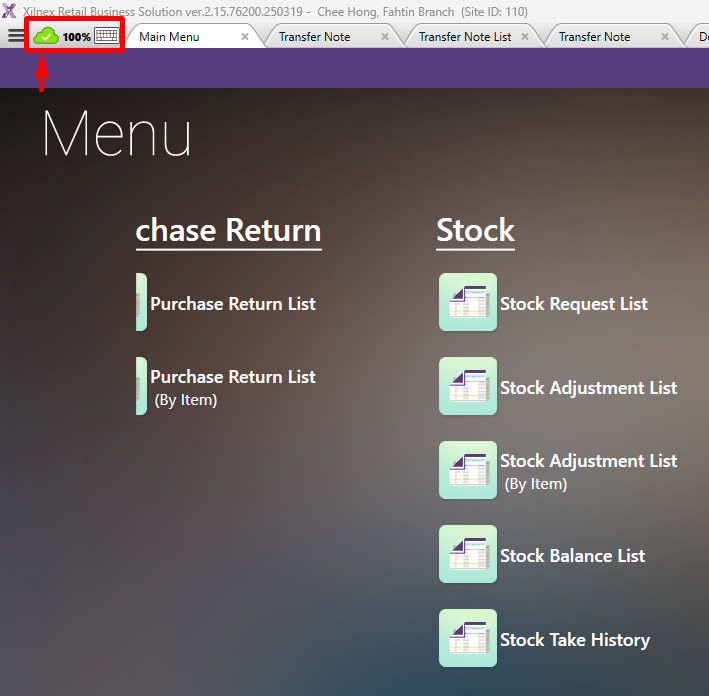
Xilnex POS will continuously sync updates to the Xilnex cloud. So if you make any changes in the POS, please allow some time for the data to sync to the cloud before it can be synced to SiteGiant ERP. In some cases, a manual sync may be needed if the latest changes are not reflected.
You can Log in to your Xilnex account > click the Cloud button to manually sync.