
1. Introduction
2. Sync Purchase Order From SQL Software
1. Introduction
The SQL Purchase Order (Cloud Mode) integration with SiteGiant enables seamless synchronization of purchase order data between both systems. This feature allows users to manage and update purchase orders directly from SQL Accounting while ensuring that all information is accurately reflected in SiteGiant. With cloud-based connectivity, it makes the process faster, reduces manual work, and helps manage stock and purchases more easily.
2. Sync Purchase Order To SiteGiant SQL System
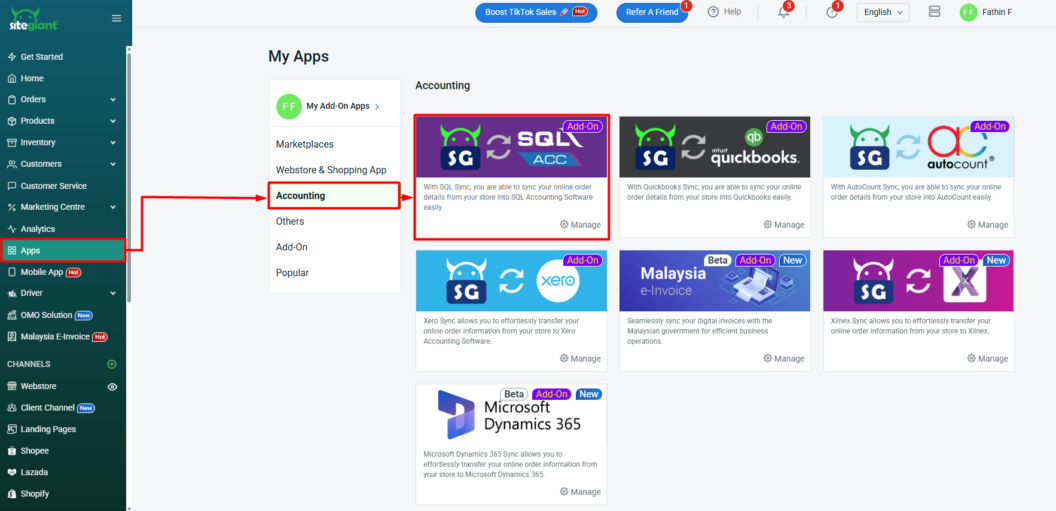
Step 1: Navigate to Apps on the sidebar menu > click Accounting > select SQL Acc.
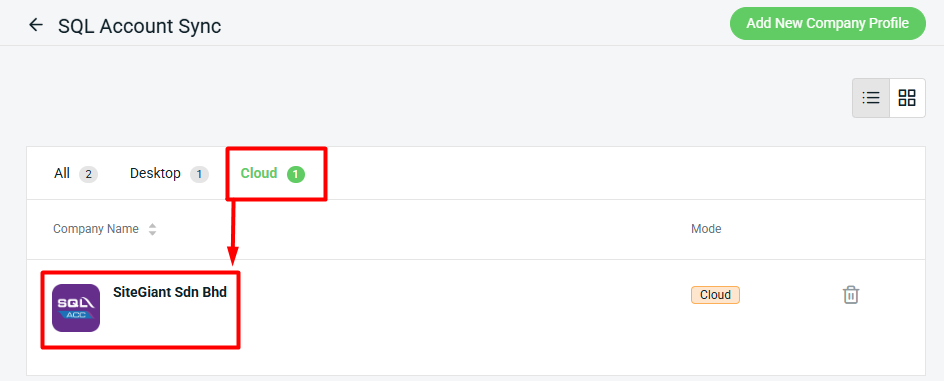
Step 2: Select Cloud > click inside the Company Profile.
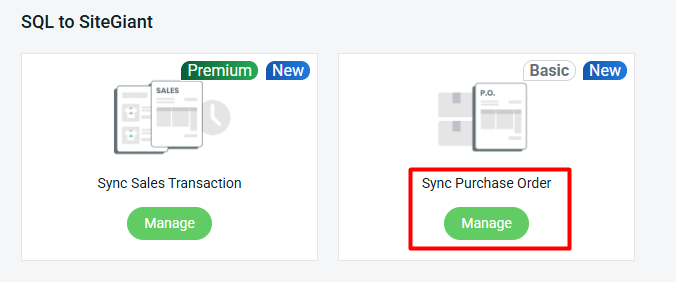
Step 3: Click Manage Sync Purchase Order.
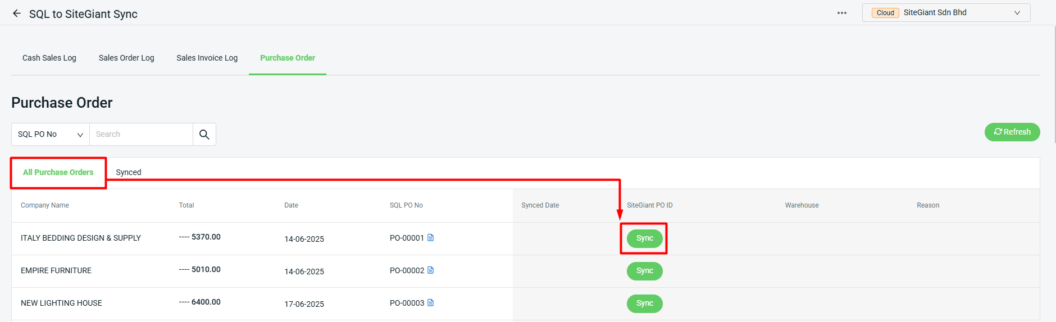
Step 4: The updated Purchase Order details in SQL Accounting will be visible under the All Purchase Orders Tab > click the Sync button to create the Purchase Order in SiteGiant.
📌Note:

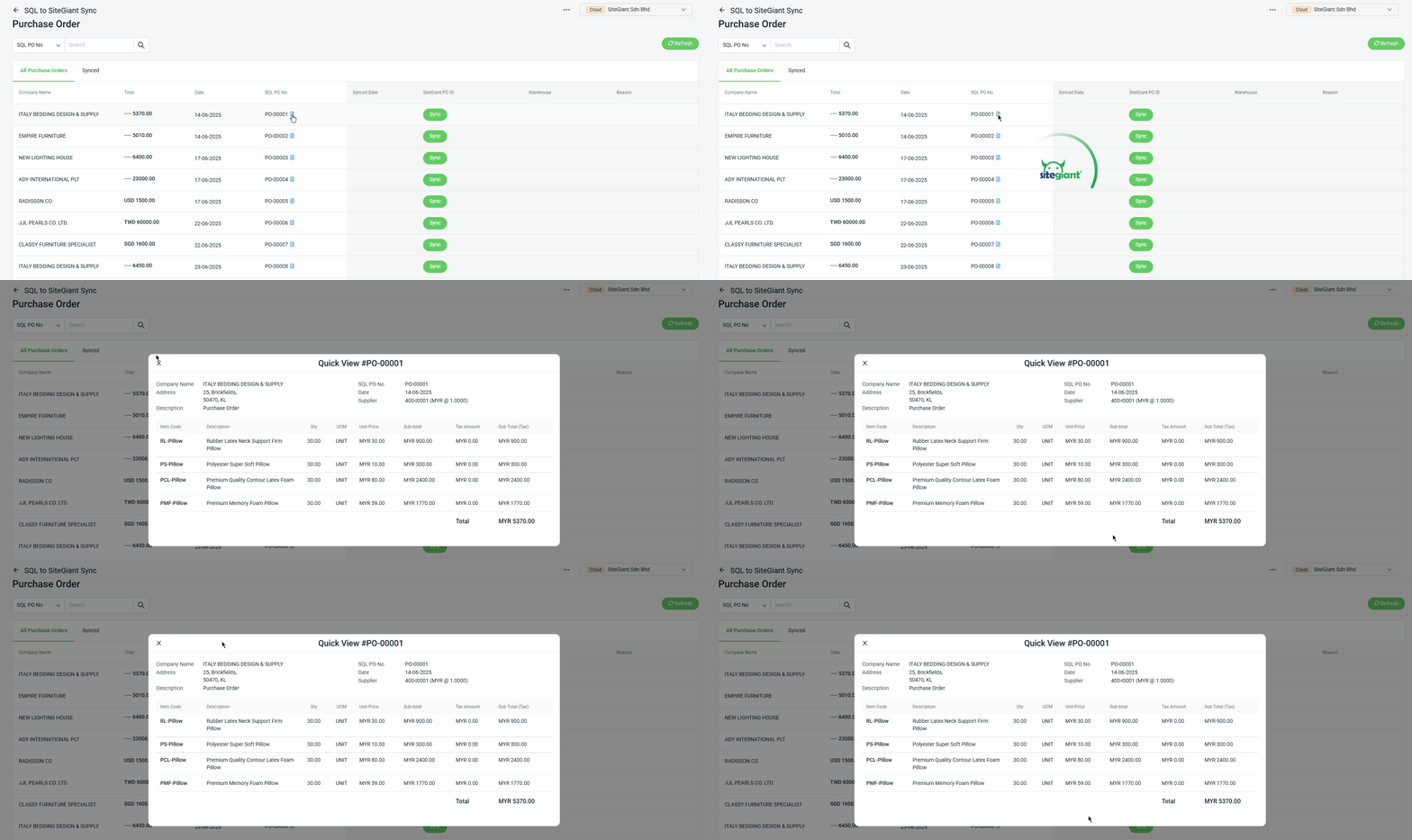
1) Preview Purchase Order
You can preview the Purchase Order details from All Purchased Orders and Synced tab after syncing from SQL to SiteGiant.
Step 2: The order will be moved to the Synced tab. Then, the Incomplete Purchase Order will be created on SiteGiant’s Purchase Order app.
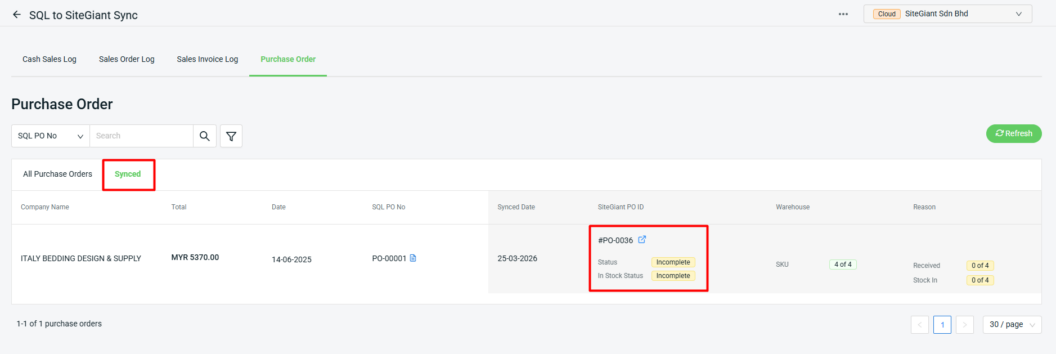
📌Note: You can click the Refresh button if you have amended new details in the SQL software Purchase Order page.
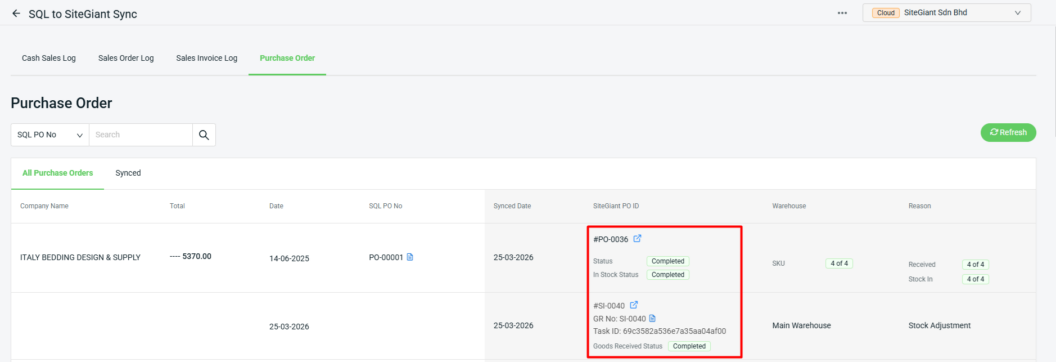
Step 3: Once the Purchase Order status is updated to Completed, the status on the SQL page will also be updated to Completed, and the Goods Received status will be automatically synced to SQL.
💡Tips: Learn more on How To Update Purchase Order