1. Introduction
2. Sync Purchase Order (QNE To SiteGiant)
1. Introduction
The QNE Purchase Order integration with SiteGiant helps businesses streamline their purchasing workflow by automatically synchronizing purchase order data between the two platforms. With this integration, customers no longer need to manually create Purchase Orders separately in SiteGiant and QNE Accounting, which helps reduce duplicate work and minimize human errors. In addition, related purchase order details can be managed more efficiently without needing to update information on both platforms individually. This improves operational efficiency, saves time, and ensures more accurate and consistent purchasing records across the system.
2. Sync Purchase Order (QNE To SiteGiant)
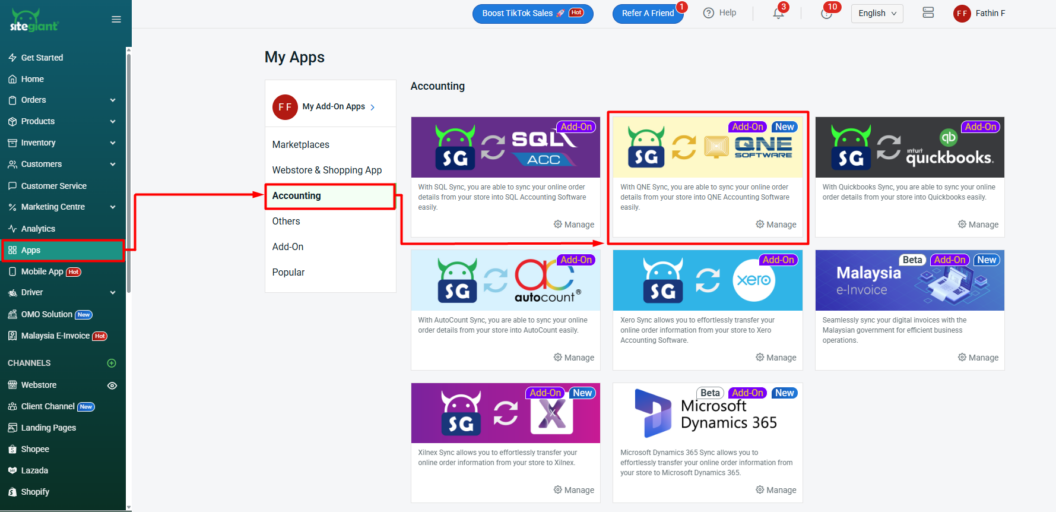
Step 1: Navigate to Apps on the sidebar menu > select Accounting > click QNE Software.
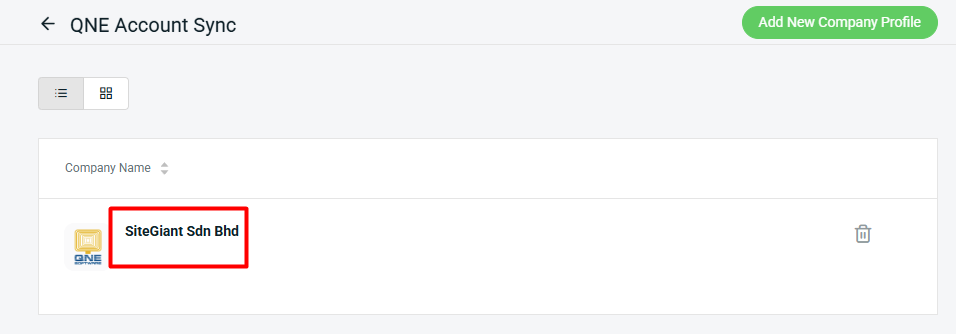
Step 2: Click inside the Company Profile.
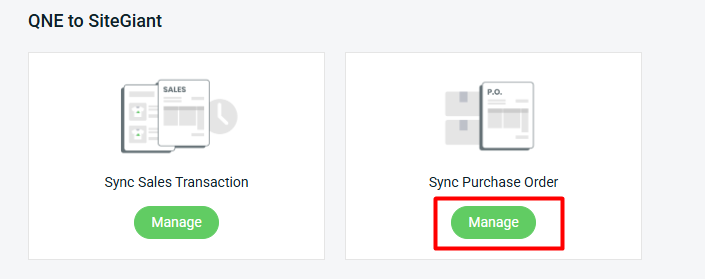
Step 3: Click Manage Sync Purchase Order.
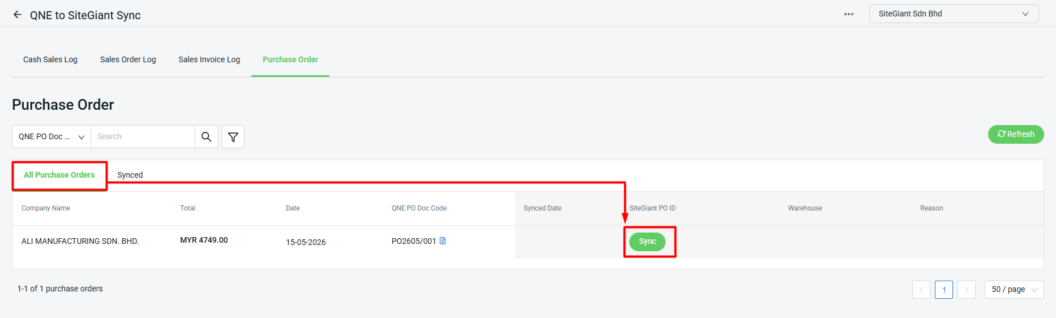
Step 4: The updated Purchase Order details in QNE Accounting will be visible under the All Purchase Orders Tab > click the Sync button to create the Purchase Order in SiteGiant.
📌Note:
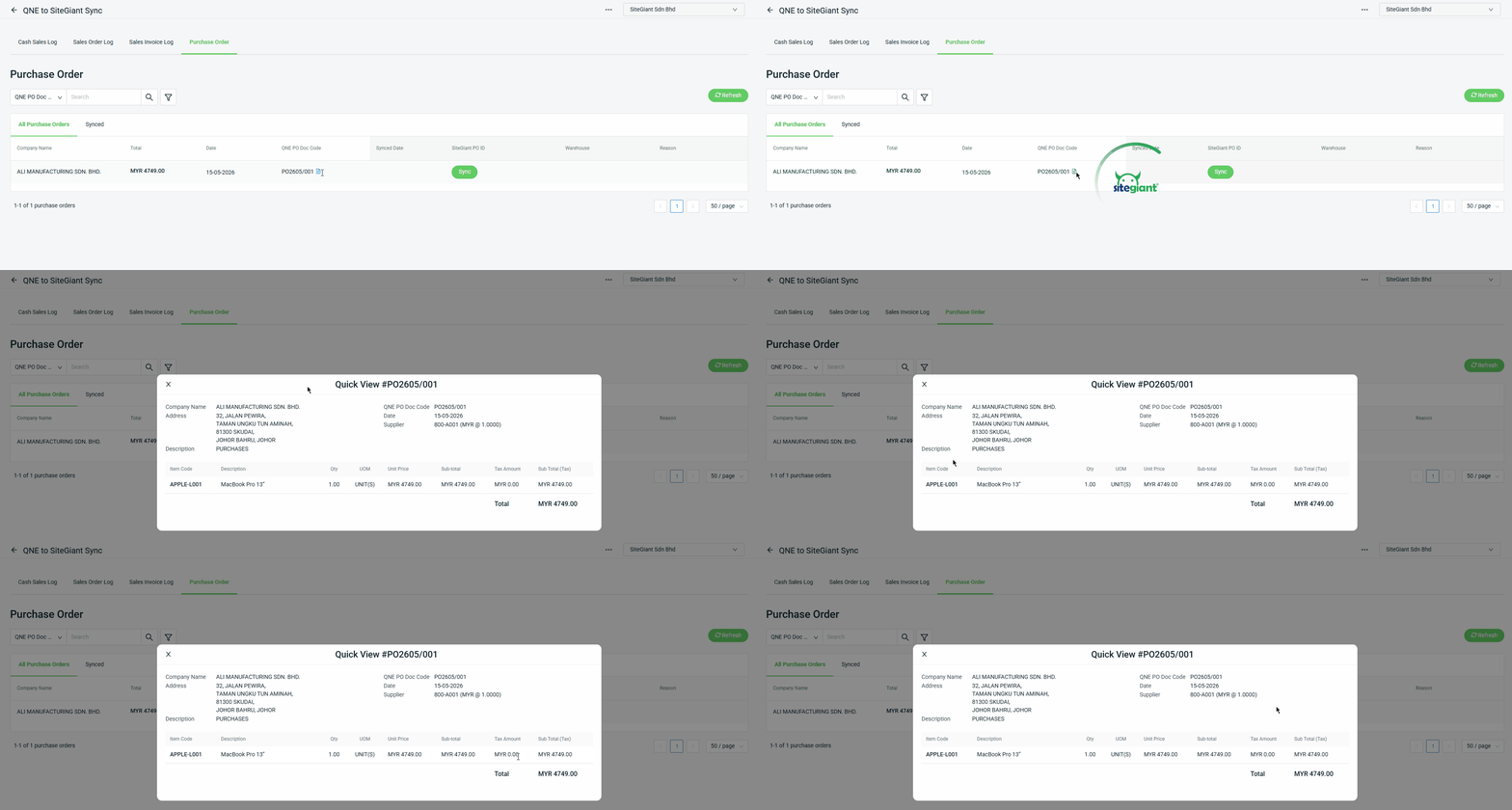
1) Preview Purchase Order
You can preview the Purchase Order details from All Purchased Orders and Synced tab after syncing from QNE to SiteGiant.
Step 2: The order will be moved to the Synced tab. Then, the Incomplete Purchase Order will be created on SiteGiant’s Purchase Order app.
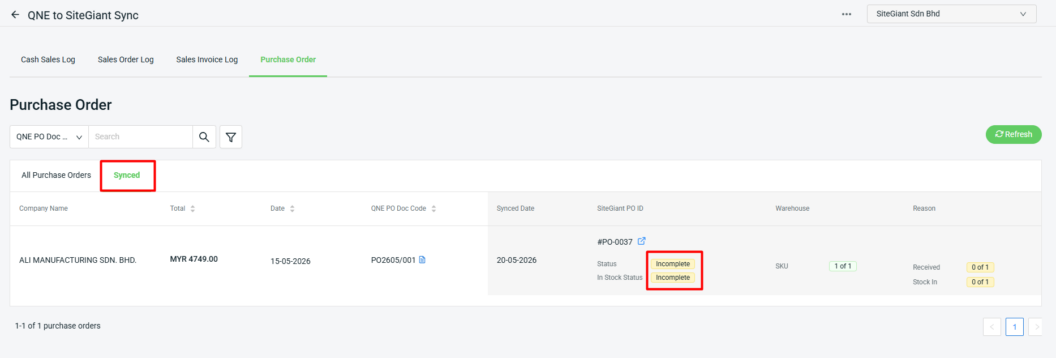
📌Note: You can click the Refresh button if you have amended new details in the QNE software Purchase Order page.
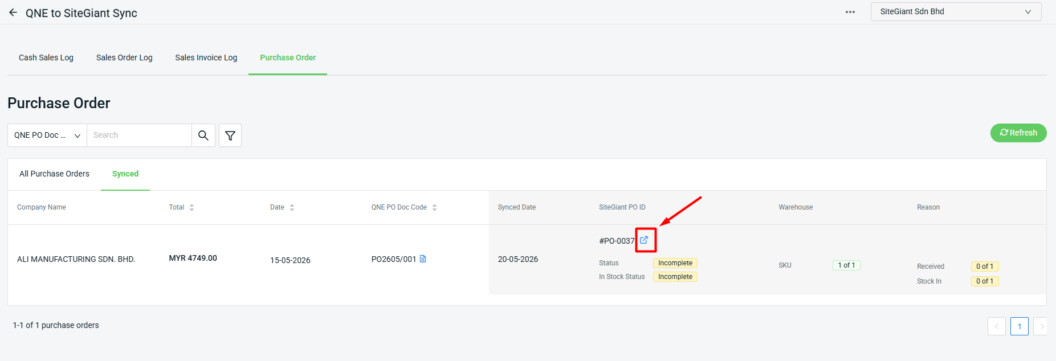
Step 3: Click the SiteGiant PO ID arrow button to update the purchase order details.
💡Tips: Learn more on How To Update Purchase Order
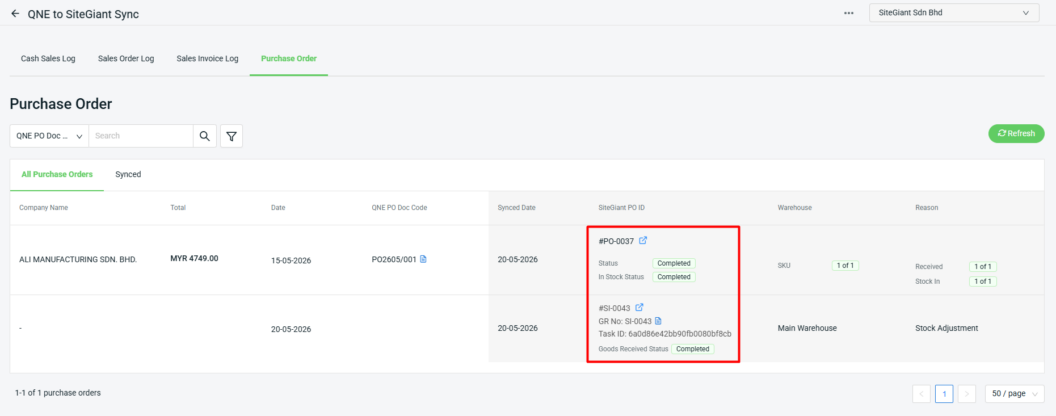
Step 4: Once the Purchase Order status is updated to Completed, the status on the QNE page will also be updated to Completed, and the Goods Received status will be automatically synced to QNE.