
1. Introduction
2. Sync Back (Product Listing)
3. Sync Back (Sales Channel)
1. Introduction
Integration with marketplaces allows sellers to sync products between SiteGiant and the Marketplace Seller Centre. Once the marketplace seller account is integrated via the Sales Channels in SiteGiant, products can be synced between both platforms. Sellers can sync the latest product information from the Seller Centre to keep their SiteGiant listings updated.
2. Sync Back (Product Listing)
Syncing back in Product Listings means updating an existing product’s SiteGiant listing with the most recent product information from the Marketplace. For products that are not yet linked, the inventory from the Marketplace will be synced to SiteGiant. However, for linked products, inventory will not be synced. Any inventory adjustments must be made in the SiteGiant system.
Step 1: Navigate to Products on the sidebar menu > click the Product Listing that you want to sync back > press Sync Back Product.
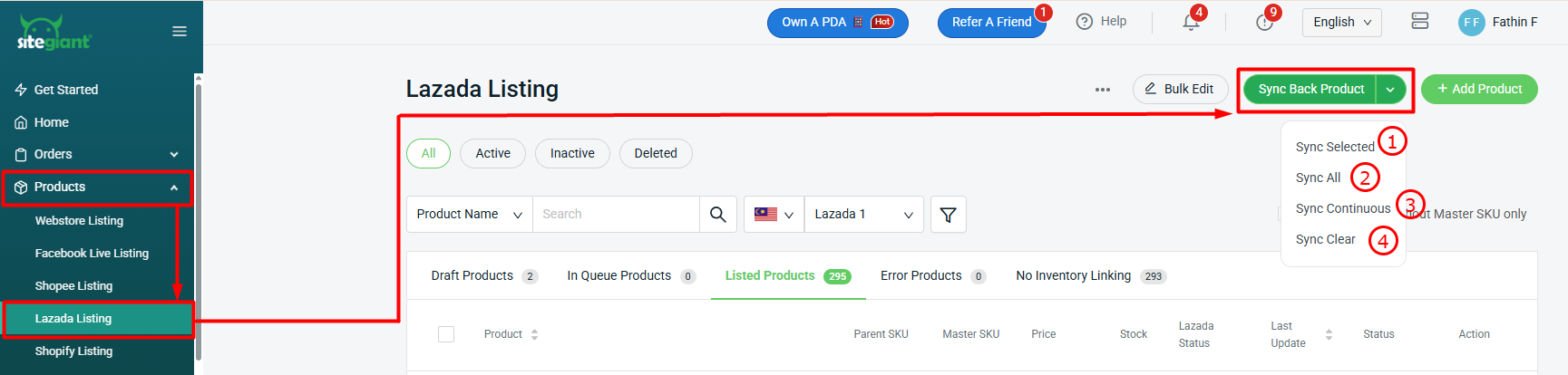
1. Sync Selected: Select any product(s) and sync back the information for the particular product(s) only.

2. Sync All: Any product(s) information which have made changes in seller center will be synced back.

3. Sync Continuous: If the data is still not updated after clicking Sync Back, you may click this button to push the data to SiteGiant, especially when syncing a large number of products at the same time. Note: This button is only applicable to the Lazada listing page.

4. Sync Clear: If the product sync back process takes too long or gets stuck, you may click this button to clear the process. Once completed, you can proceed to sync back again.
Step 2: Allow some time for the sync process. Click Sync Back Status to check the update.
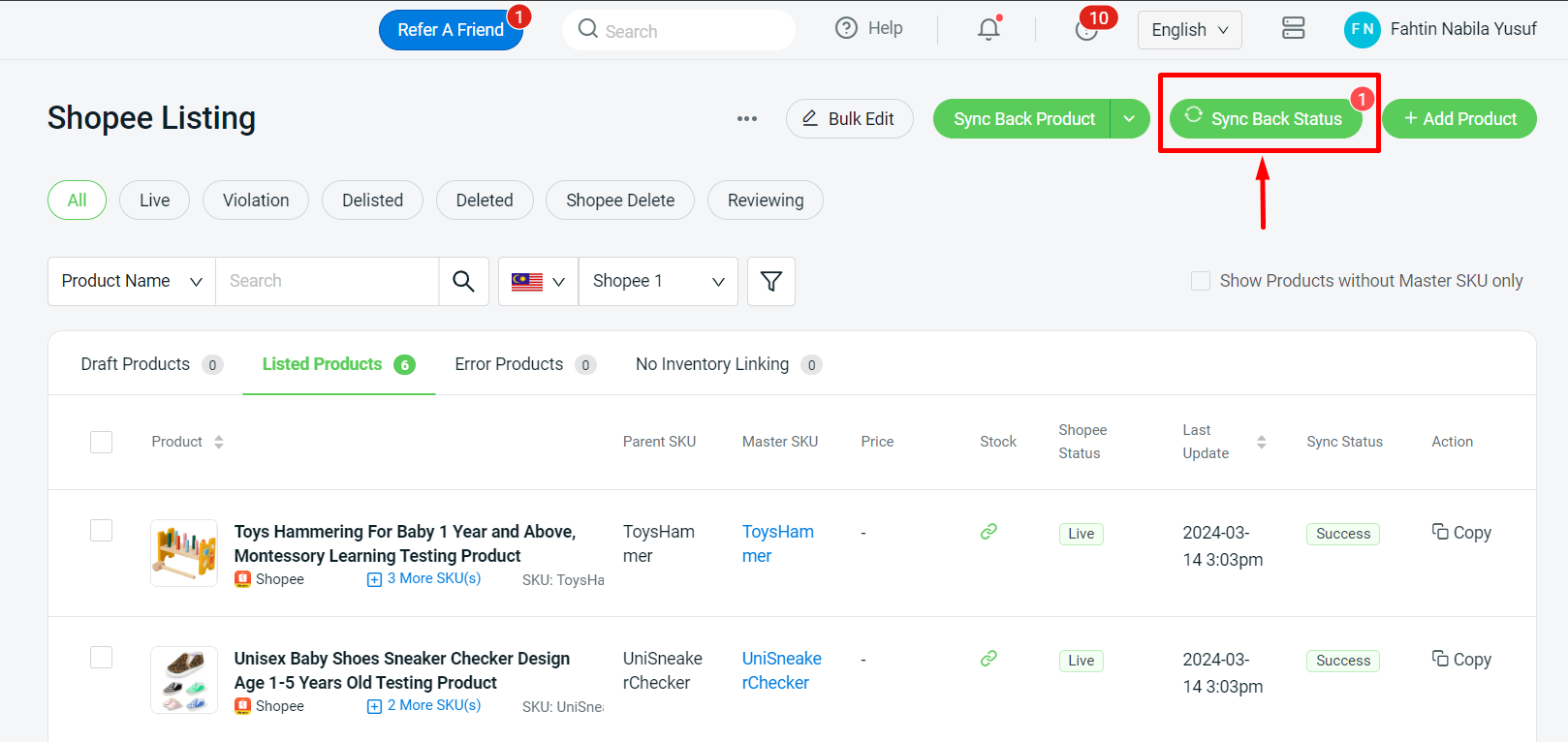
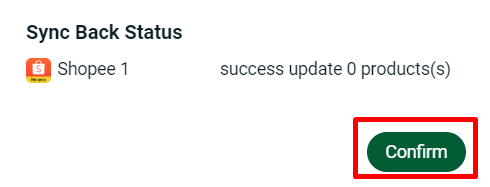
Step 3: You will see the Sync Back Status and click Confirm once completed.
3. Sync Back (Sales Channel)
Syncing Back Product in the Sales Channel is used to sync a new product from the marketplace to the SiteGiant system. Other than that, you can also use this button to update existing product details. However, for ease of use, Sync Back (Product Listing) is recommended.
Step 1: Navigate to Channels + on the sidebar menu > click Authorized Channel.
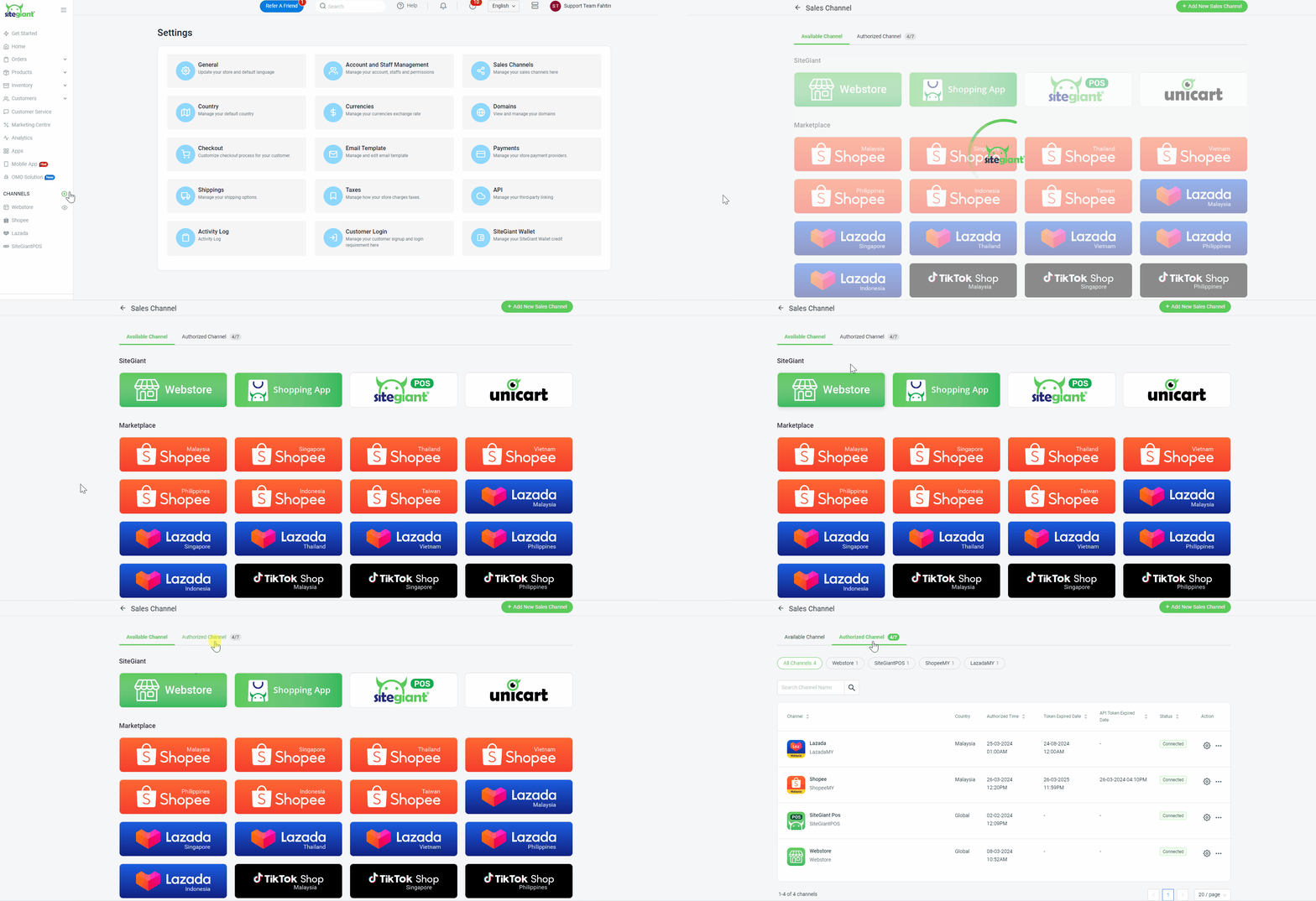
Step 2: Select the channel that you want to sync back > click more(…) > Sync Back Product.
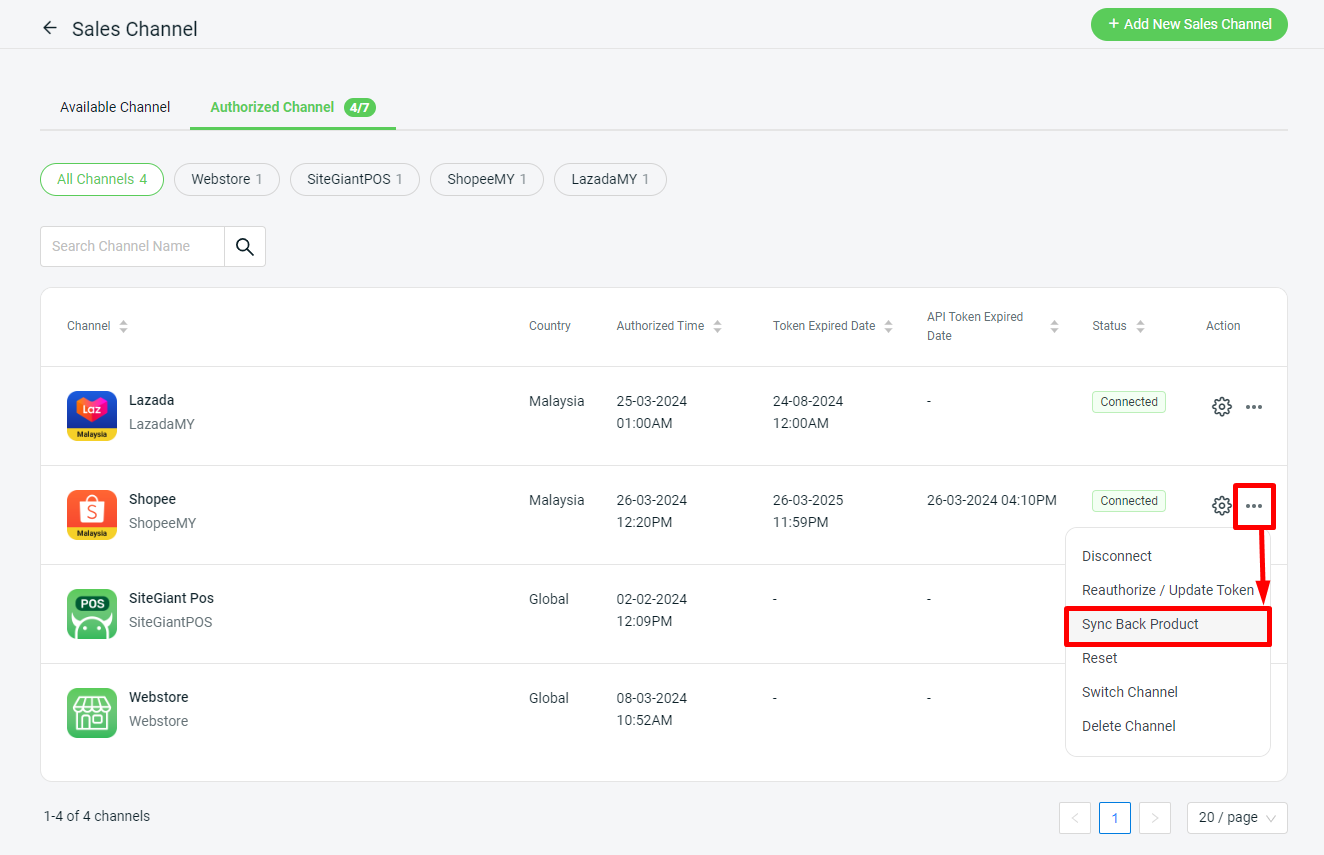
Step 3: Allow some time for the sync process. Click Sync Back Status to check the update.
Step 4: You will see the Sync Back Status and click Confirm once completed.