1. Introduction
2. Get API Key & Shop ID
3. Set Up Decathlon Integration
4. Add And Sync Product
5. Inventory Linking
6. Order Sync
1. Introduction
Decathlon Seller Center is a platform that allows sellers to manage and publish their products on Decathlon’s online marketplace. It provides tools to create product listings, update offers, manage inventory, and track product approval status. With SiteGiant integration, sellers can seamlessly sync products, orders, and inventory between SiteGiant and Decathlon Seller Center, making multichannel management more efficient and reducing manual work.
This feature is available for SiteGiant ERP Premium Plan and above.
2. Get API Key & Shop ID
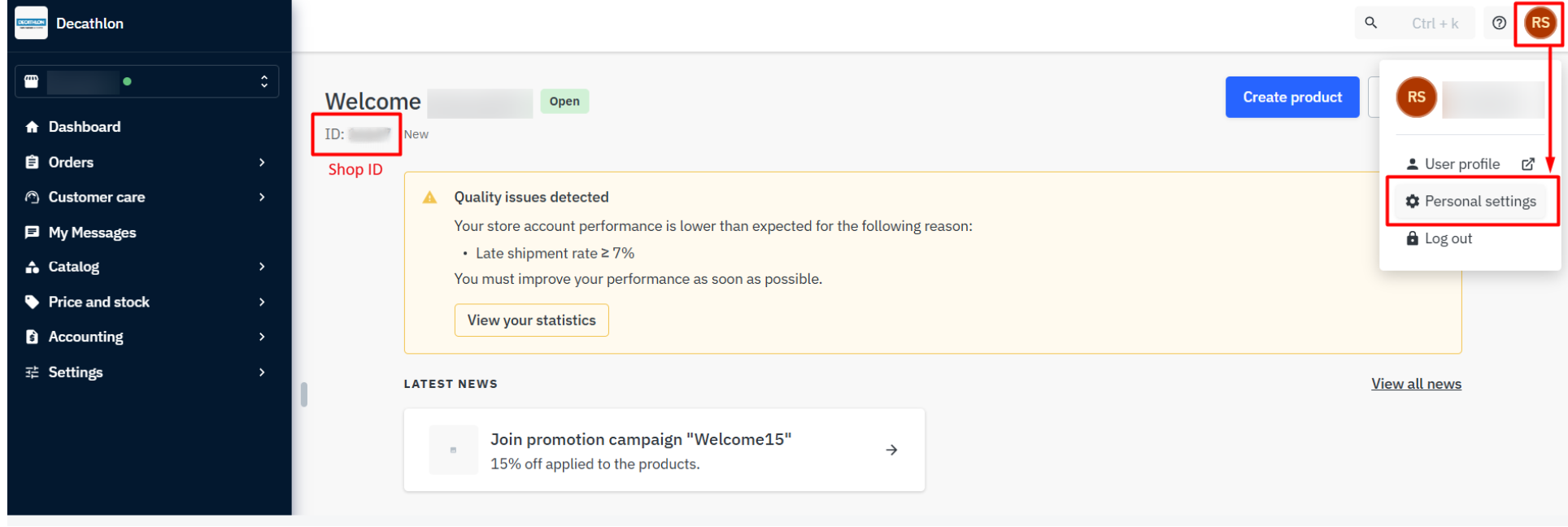
Step 1: Log in to your Decathlon account > copy the Shop ID for later use > click Username on the right side > Personal settings.
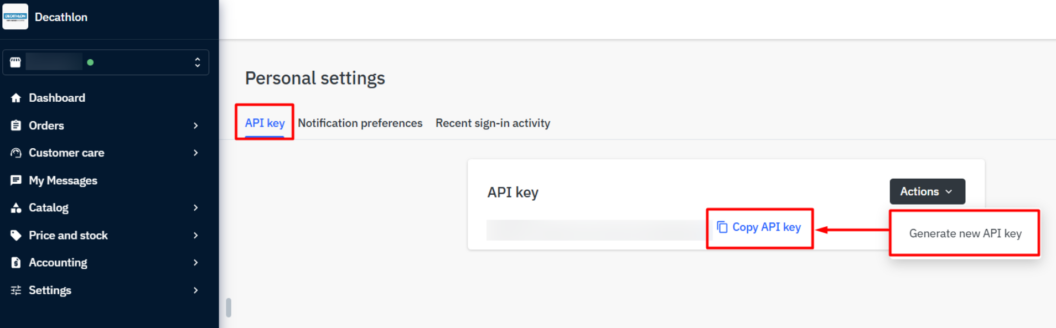
Step 2: Under the API Key page > click Actions > Generate new API key > Copy API Key for later use.
3. Set Up Decathlon Integration
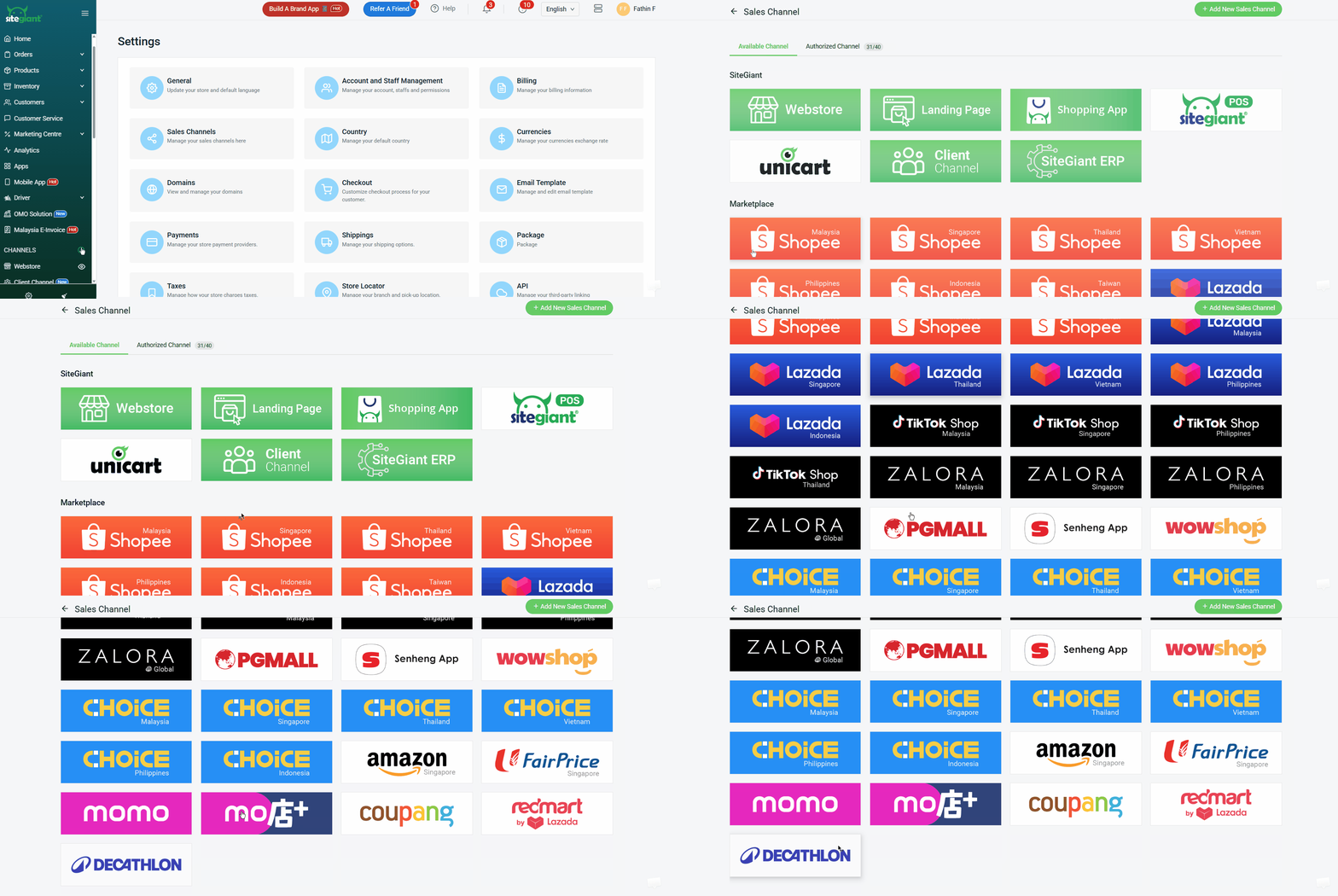
Step 1: Log in to your SiteGiant Seller Center > click add [+] channels > choose Decathlon.
Step 2: Enter the Channel Name, API Key, and Shop ID > Connect.
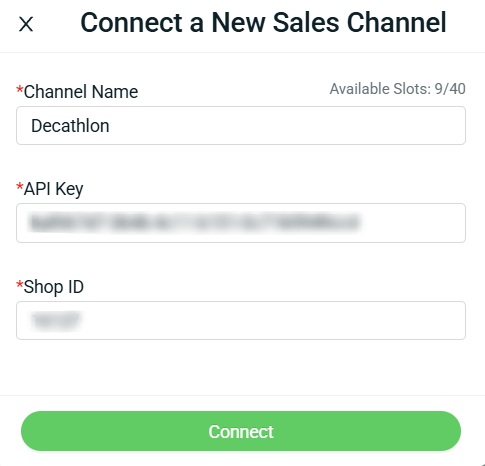
You have now successfully integrated your Decathlon account with SiteGiant!
📌Note: Your existing products in the Decathlon Offer Page will be automatically synced back to SiteGiant’s Decathlon listing.
4. Add And Sync Product
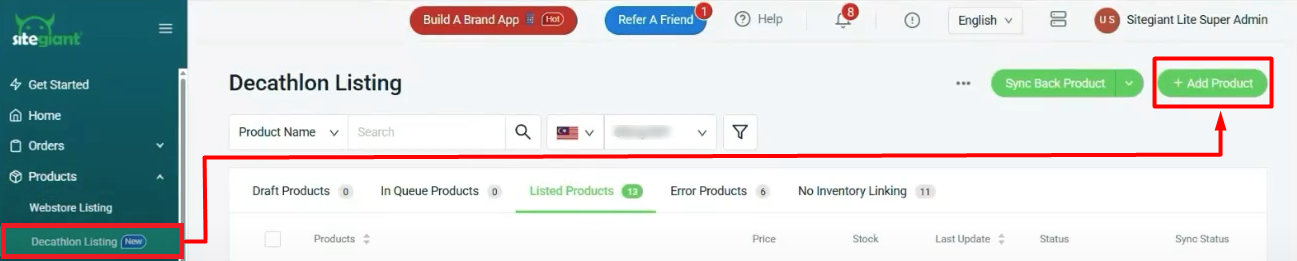
Step 1: Navigate to Product on the sidebar menu > Decathlon Listing > click + Add Product.
Step 2: Update the Basic Information section by entering the Product Name > selecting the Category > choose Brand. Once the category is selected, all related attributes will be displayed under the Catalog section.
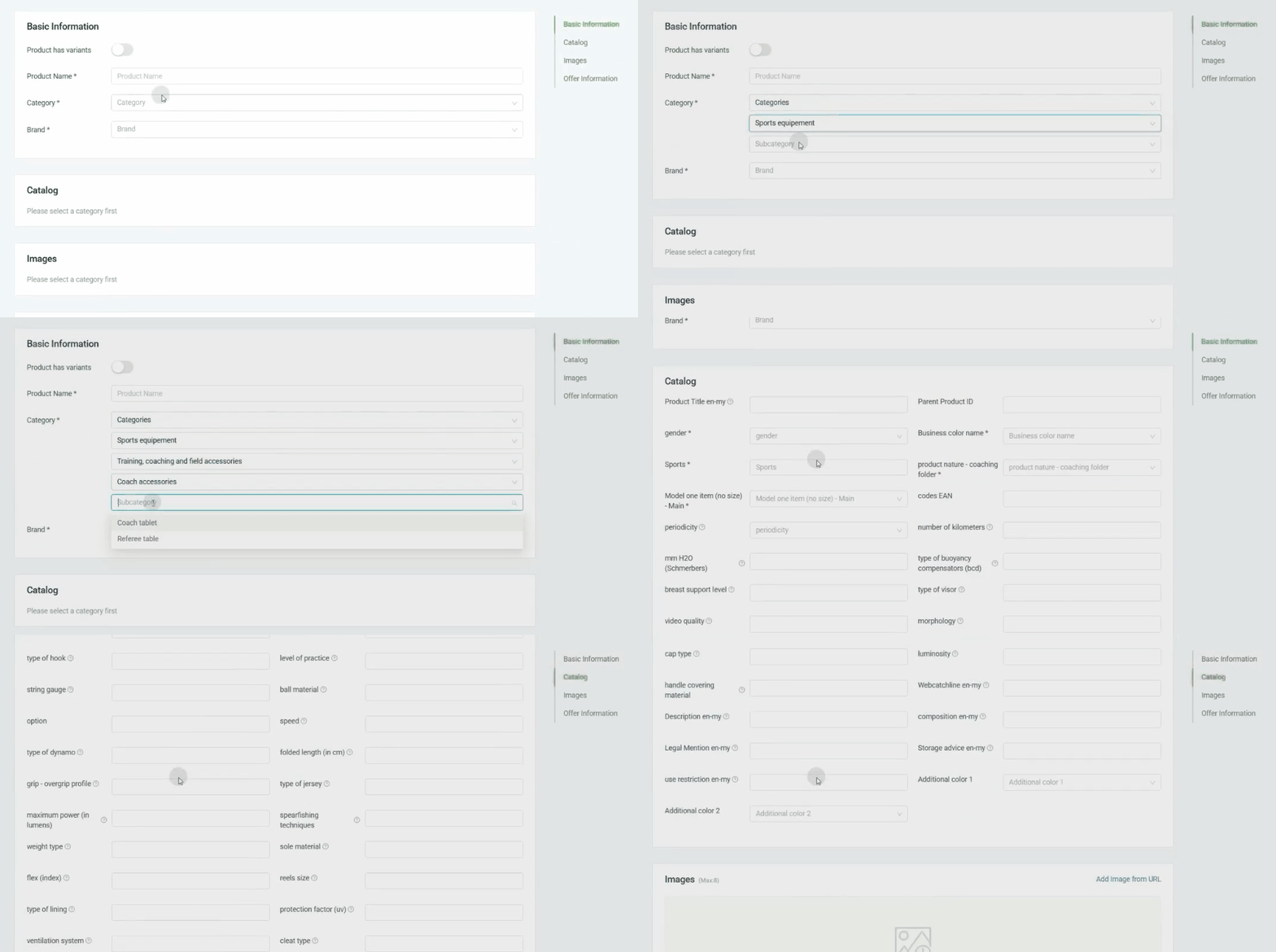
📌Note: This Category and Catalog selection will only appear when the product is first added from SiteGiant.
Step 3: Upload an image from your computer > update Offer Information, Settings, Pricing, and ERP Information sections.
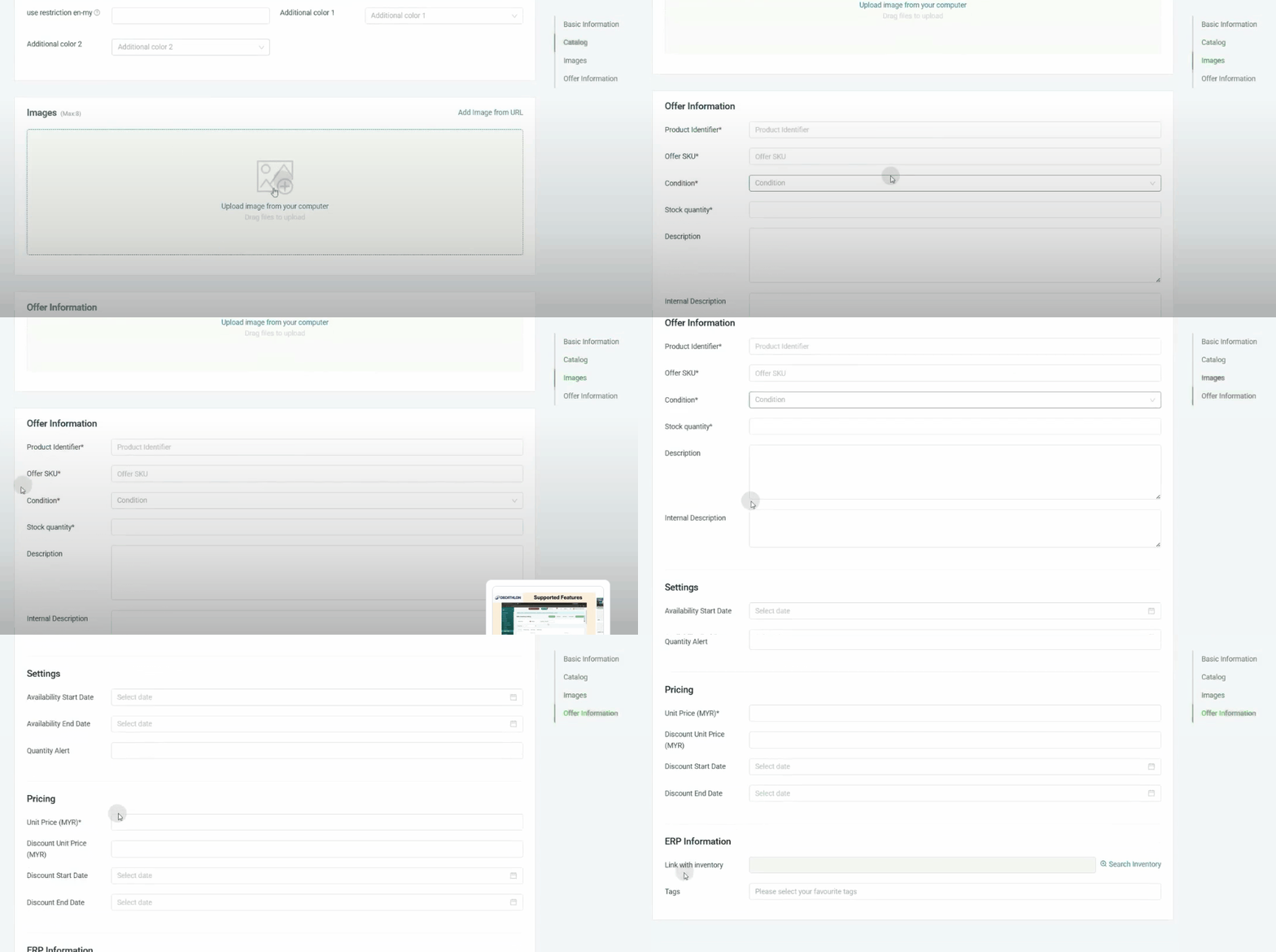
Step 4: Once done, you can click Save As Draft or Save And Publish.

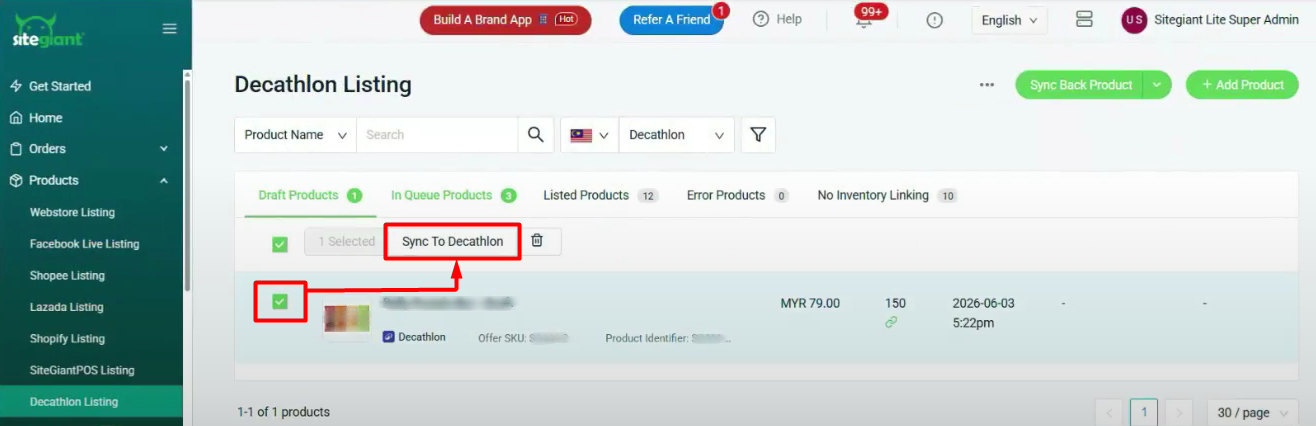
If you select Save As Draft, then to sync the product to Decathlon later, go to Draft tab > Tick the product > click Sync To Decathlon.
📌Note:
1. After Sync to Decathlon or Save and Publish, the product will be moved to the In Queue Products tab and you will need to wait for a review from Decathlon before the product is moved to Listed Products.
2. Basic Information (Product Name, SKU, Category, Brand, Description, Main Image) is view-only and cannot be edited.
5. Inventory Linking
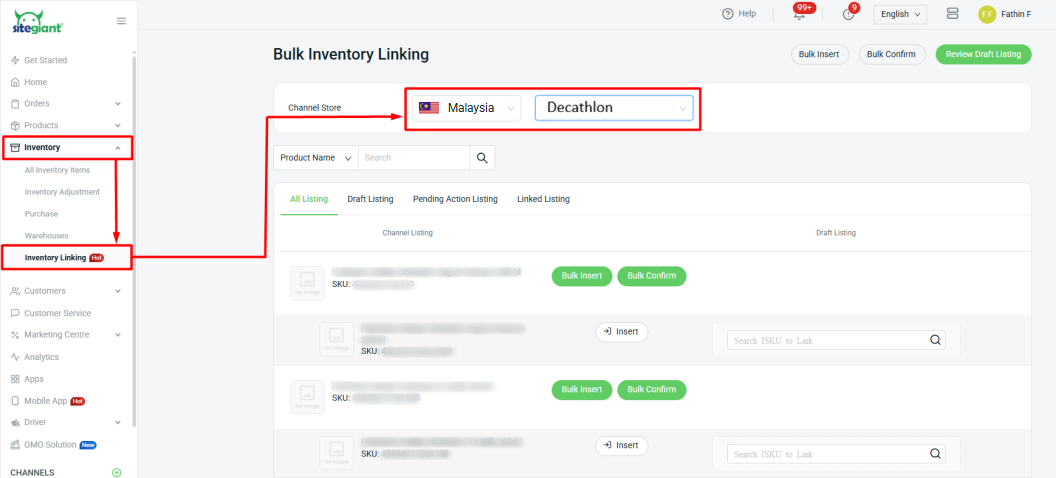
Step 1: Navigate to Inventory on the sidebar menu > Inventory Linking > select Malaysia Channel Store > Decathlon
💡Tips: Learn more about How To Do The Inventory Linking.
6. Order Sync
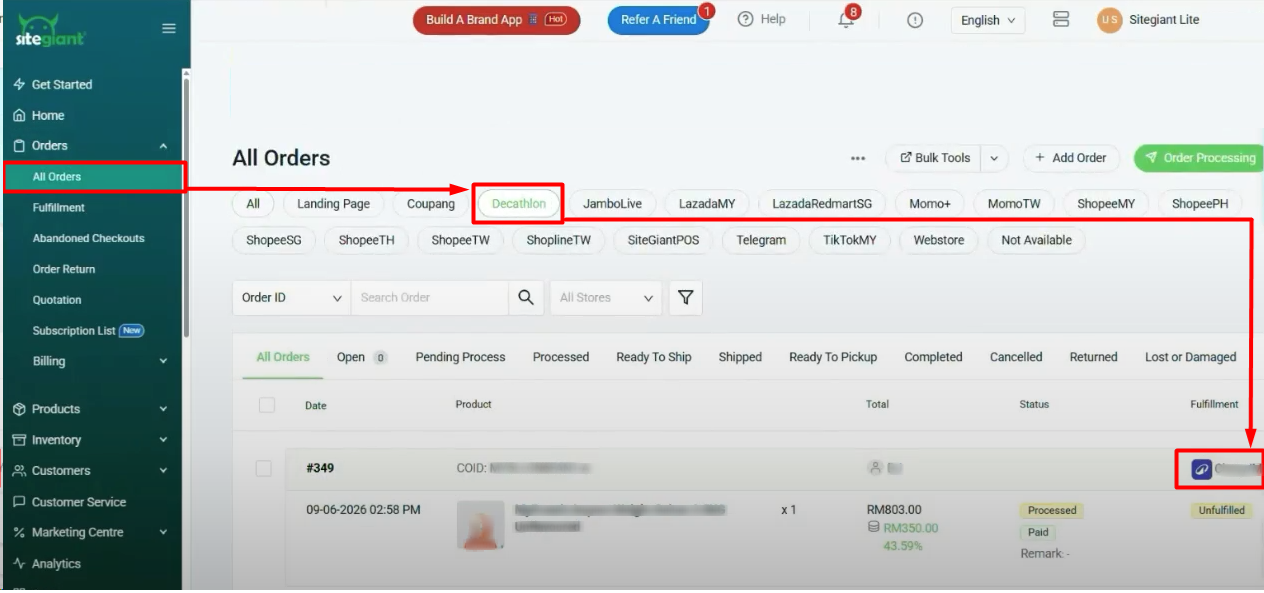
Step 1: Only orders with a status of Awaiting Shipment will be synced back to SiteGiant. The order can be viewed under Orders > All Orders > Decathlon.