1. Introduction
2. OpenAI Settings
3. Google Gemini Settings
4. Uses Of AI Integration
1. Introduction
AI Provider Integration allows SiteGiant to integrate with external AI providers, enabling AI-powered features across the platform. At present, SiteGiant supports integration with OpenAI and Google Gemini. Once configured, the selected AI provider can be used to power supported AI functionalities within SiteGiant.
📌Note: Please ensure your account has sufficient credit to use this integration.
2. OpenAI Settings
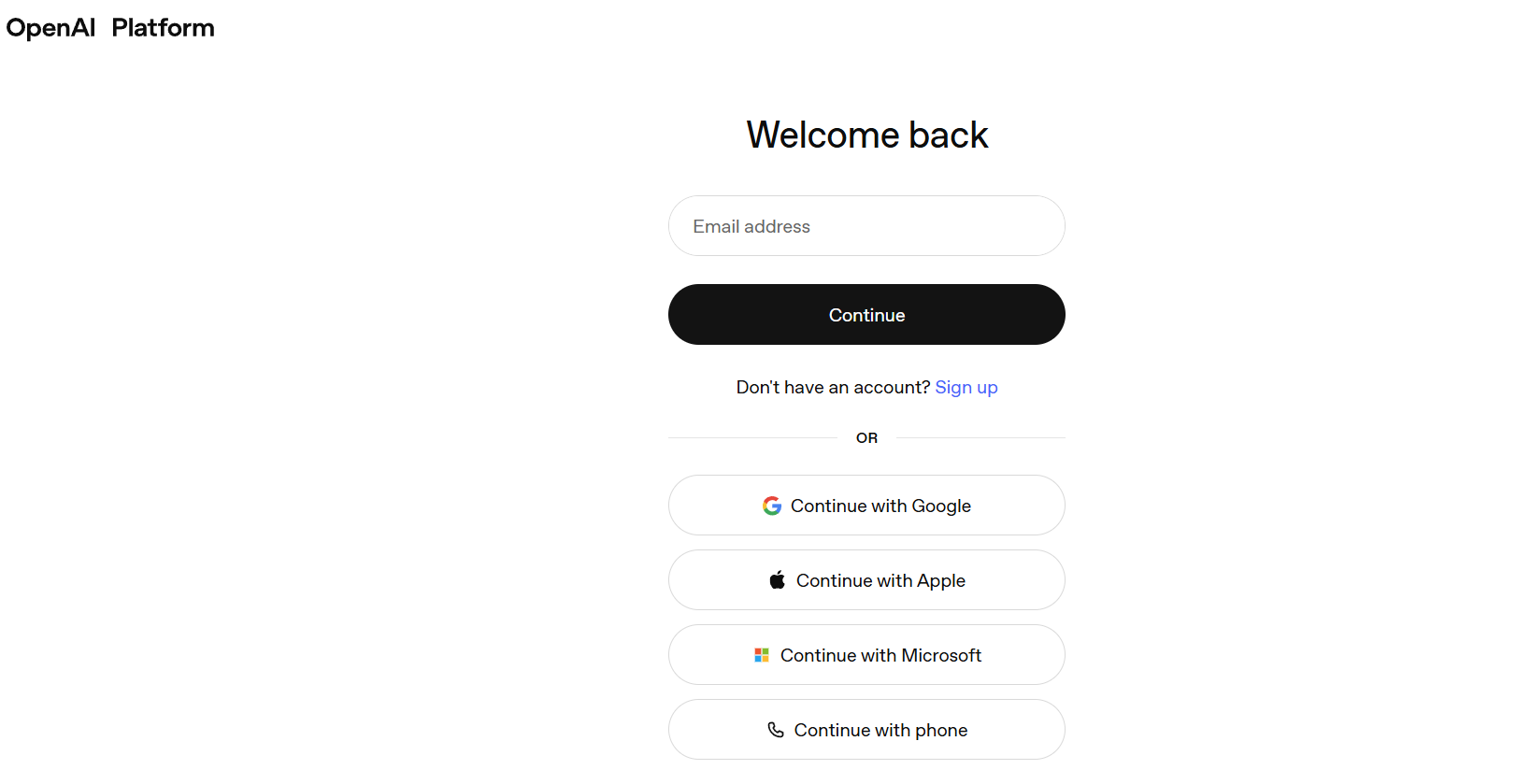
Step 1: Sign in to your OpenAI account.
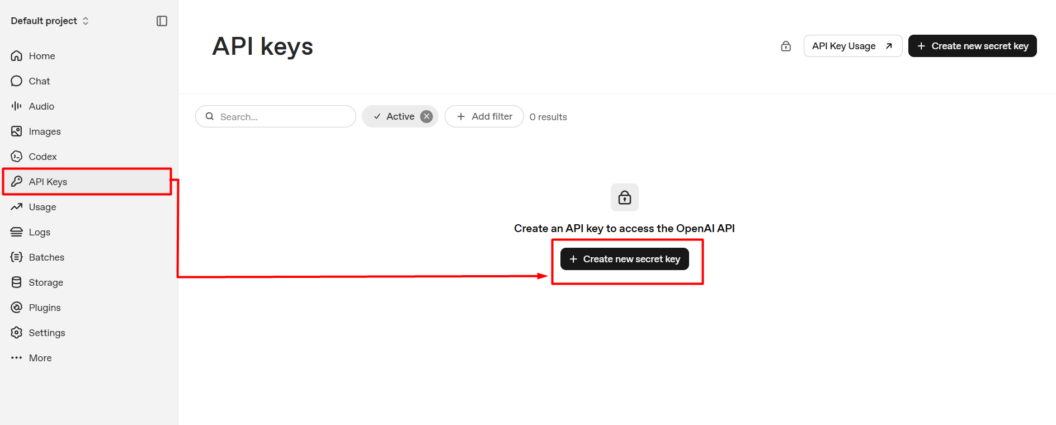
Step 2: Navigate to API Keys on the sidebar menu > click + Create new secret key.
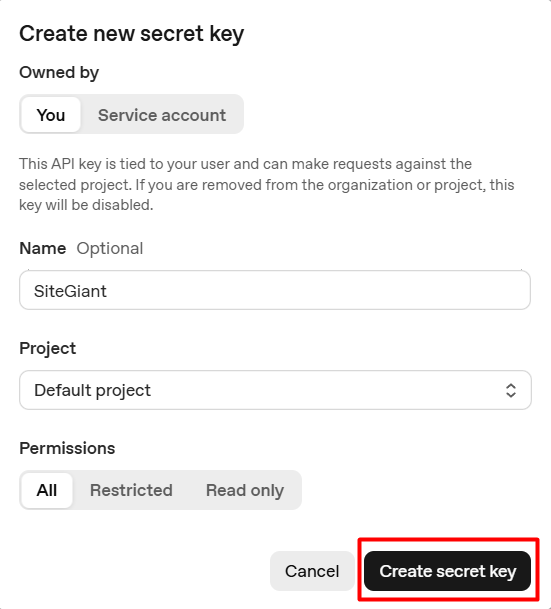
Step 3: Enter the Name (Optional) > select Project as Default project > set Permissions as All > Create secret key.
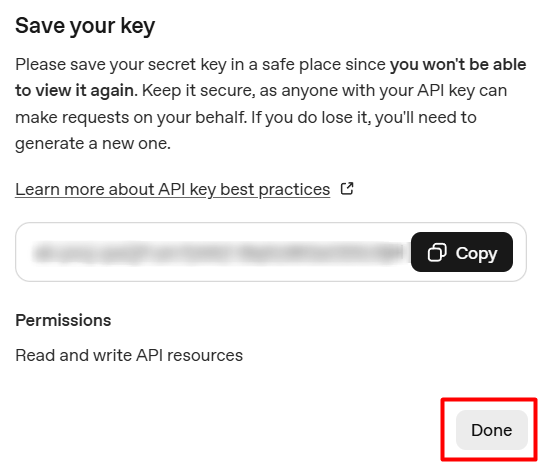
Step 4: Copy the API Key for later use > Done.
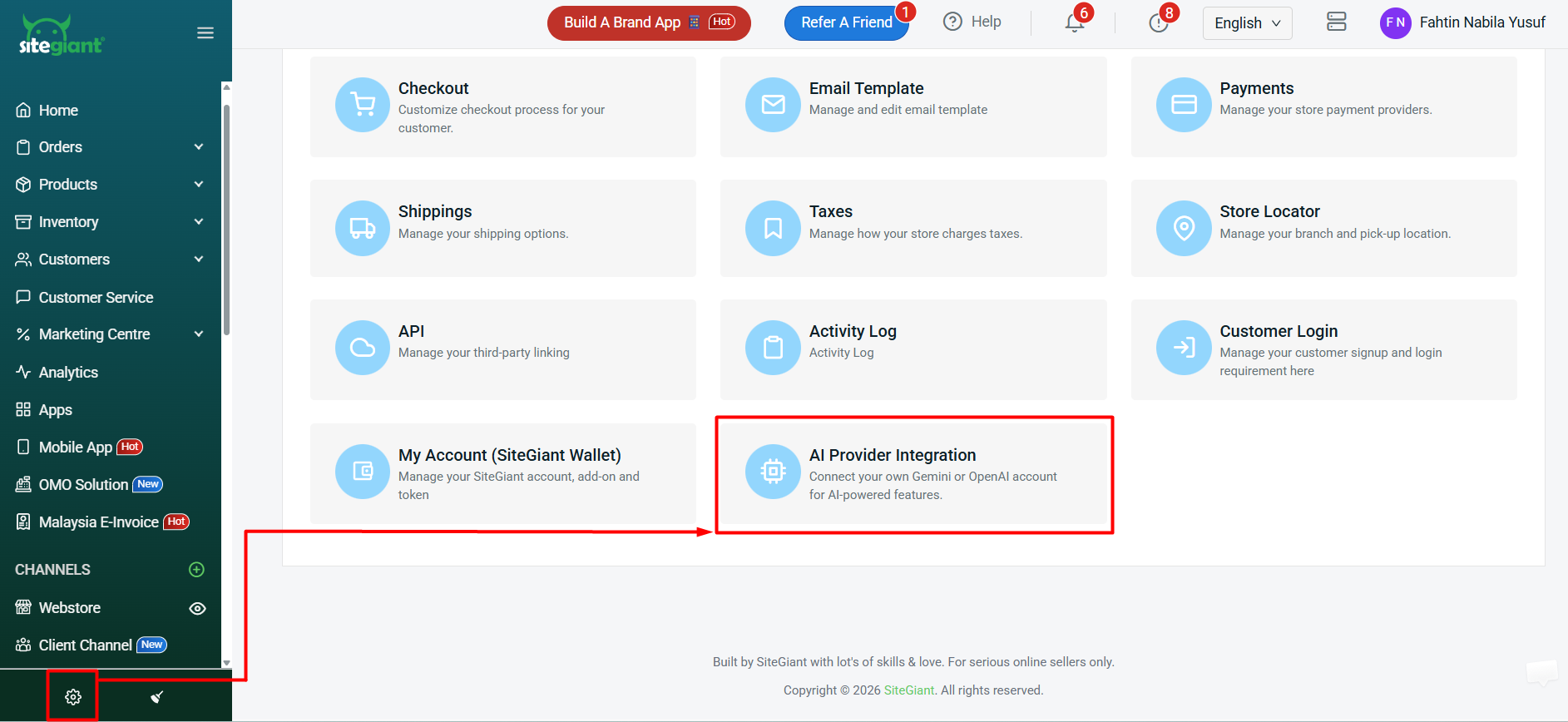
Step 5: Log in to your SiteGiant account > navigate to Settings on the sidebar menu > click AI Provider Integration.
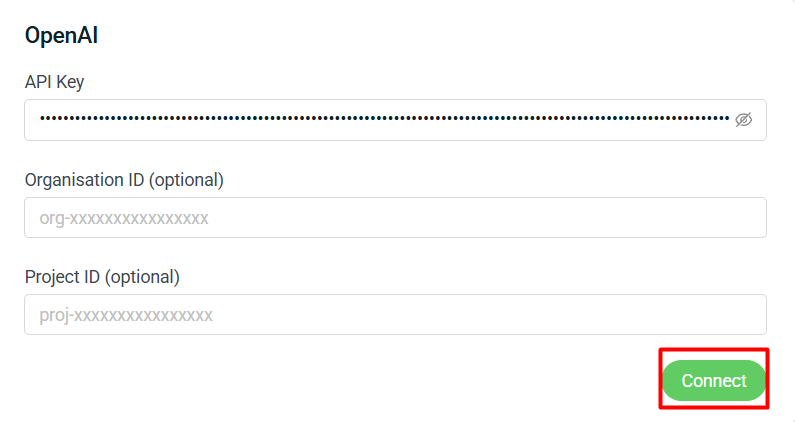
Step 6: Update the API Key > click Connect.
Step 7: Select the OpenAI Model > Save.
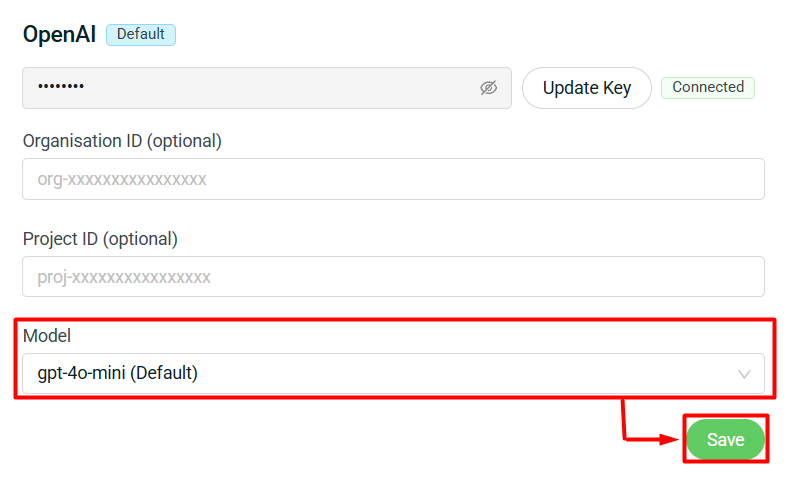
3. Google Gemini Settings
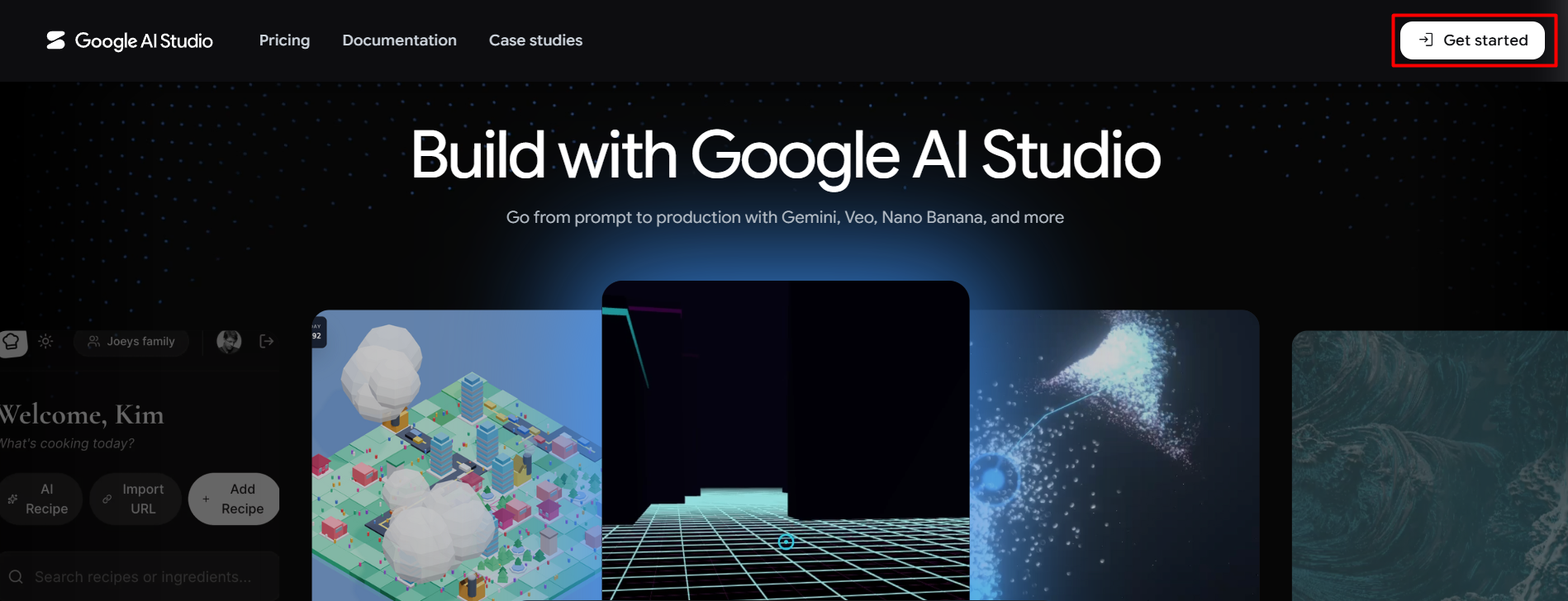
Step 1: Sign in to your Google Gemini account > click Get Started.
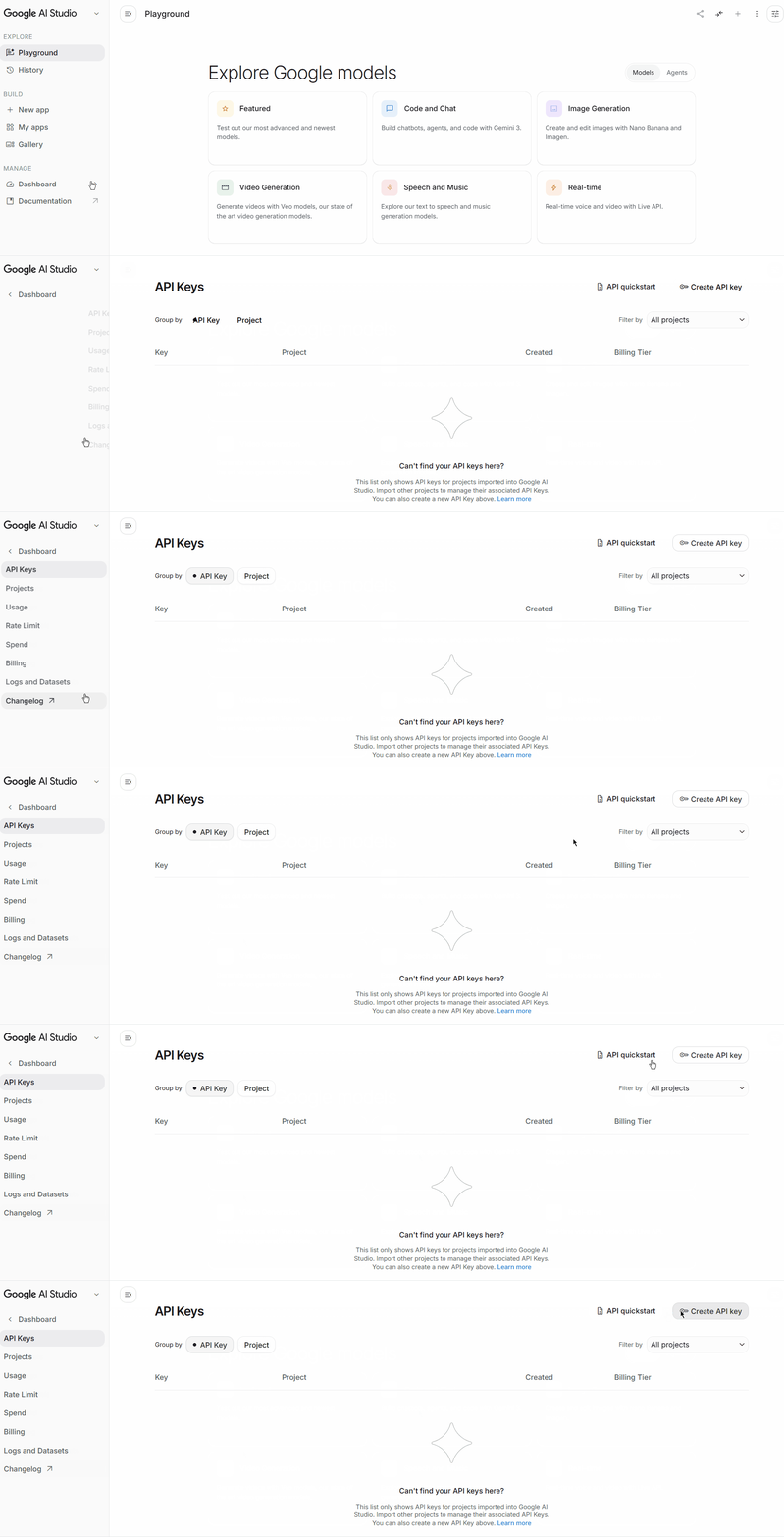
Step 2: Click Dashboard on the sidebar menu > Create API key.
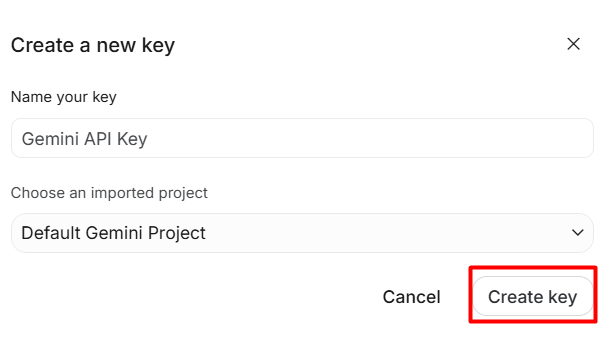
Step 3: Enter the Name your key > Choose an imported project (Default Gemini Project) > click Create key.
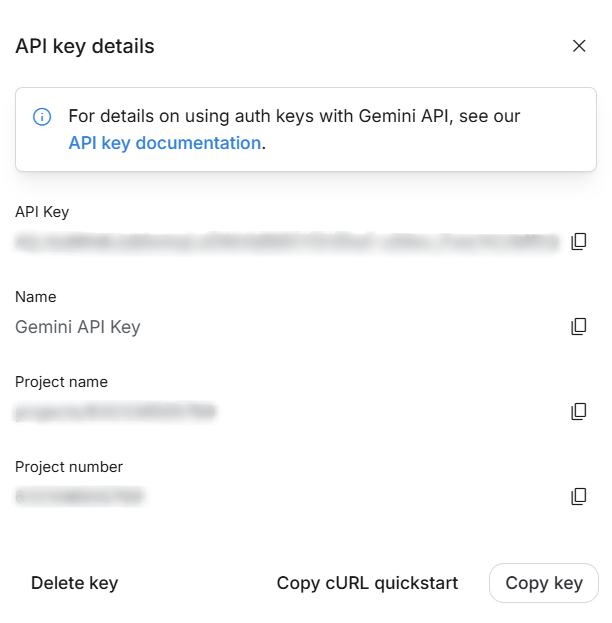
Step 4: Copy the API Key for later use.
Step 5: Log in to your SiteGiant account > navigate to Settings on the sidebar menu > click AI Provider Integration.
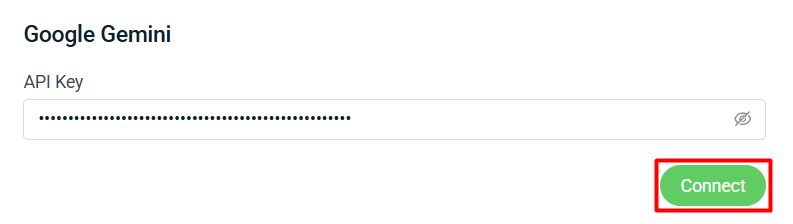
Step 6: Update the API Key > click Connect.
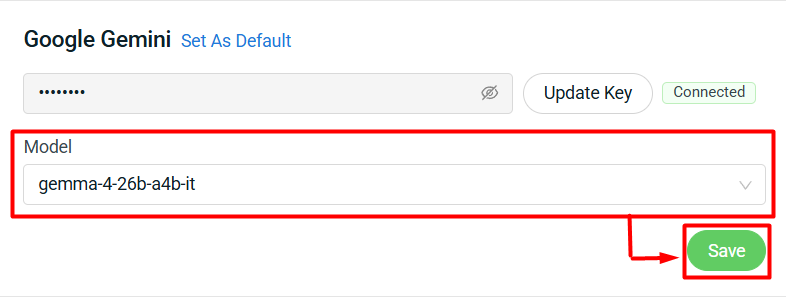
Step 7: Select the Gemini Model > Save.
4. Uses Of AI Integration
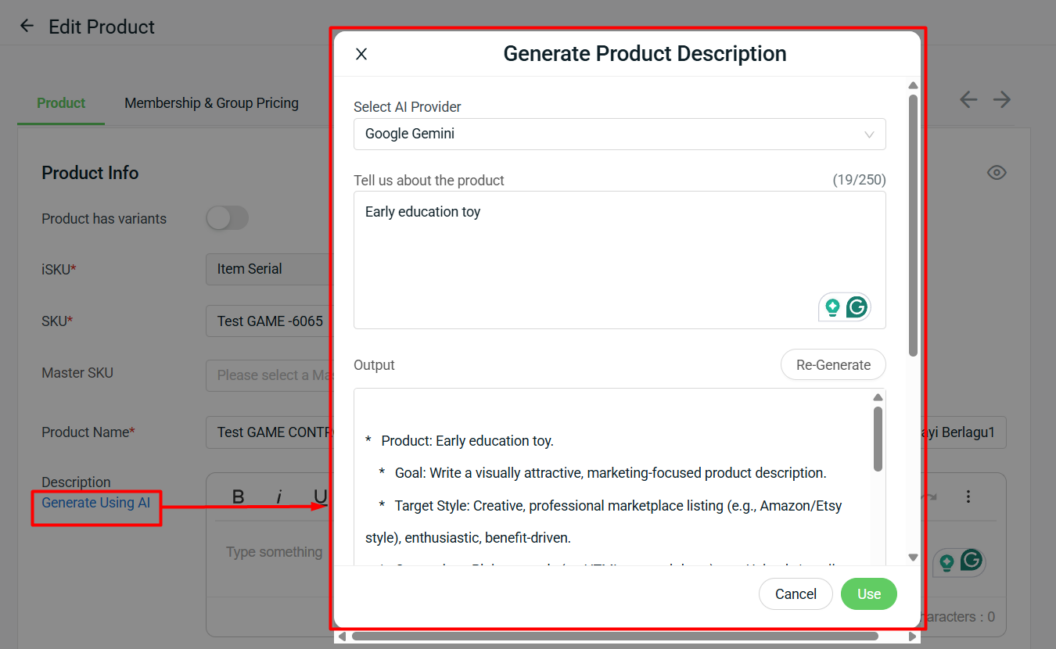
1. Product Description
Step 1: Under the Product Description section, click Generate Using AI > Select AI Provider > Update the Tell us about the product field > click Generate > once the output is generated, click Use.
2. Product Specifications/Attributes (Copy Listing)
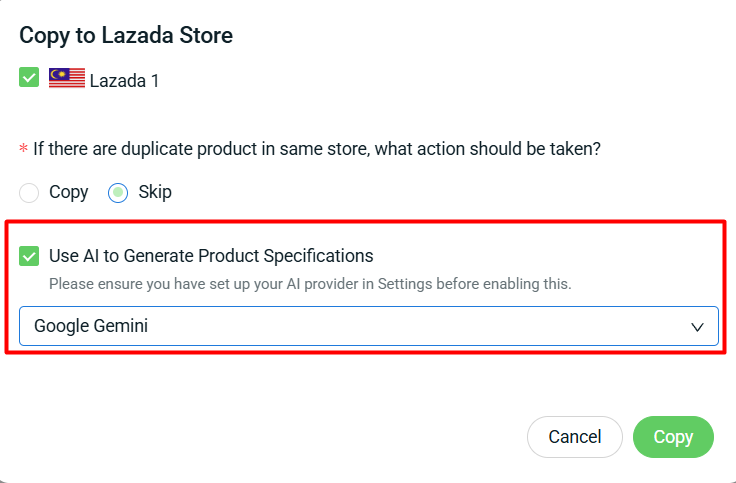
Step 1: When copying a listing, tick Use AI to Generate Product Specifications (Optional) > click Copy.