
1. Introduction
2. SQL Integration
3. SQL Settings
4. SQL Matching
5. Sync Invoice (SiteGiant to SQL)
6. Sync Customer Payment (SiteGiant To SQL)
7. Additional Information
1. Introduction
The Sync With SQL Accounting (Cloud Mode) feature enables seamless integration between the SQL Accounting system and SiteGiant’s platform, allowing data to be synchronized efficiently between both systems. Through this feature, important information such as items, customers, transactions, and customer payments can be kept up to date. By operating in Cloud Mode, the synchronization process is performed online without the need for a local server, providing greater flexibility and accessibility. This helps businesses reduce manual data entry, minimize errors, and ensure accurate and consistent data across both platforms.
📌Note: To proceed with the integration with SQL Cloud, please ensure that you have obtained the Access Key and Secret Key from the SQL person in charge for integration purposes.
2. SQL Integration
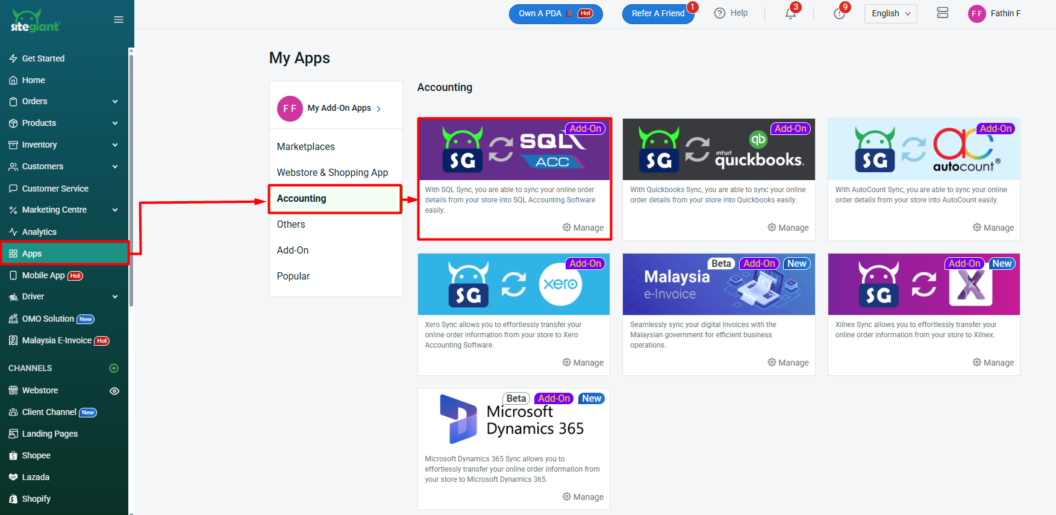
Step 1: Navigate to Apps on the sidebar menu > select Accounting > click SQL Acc.
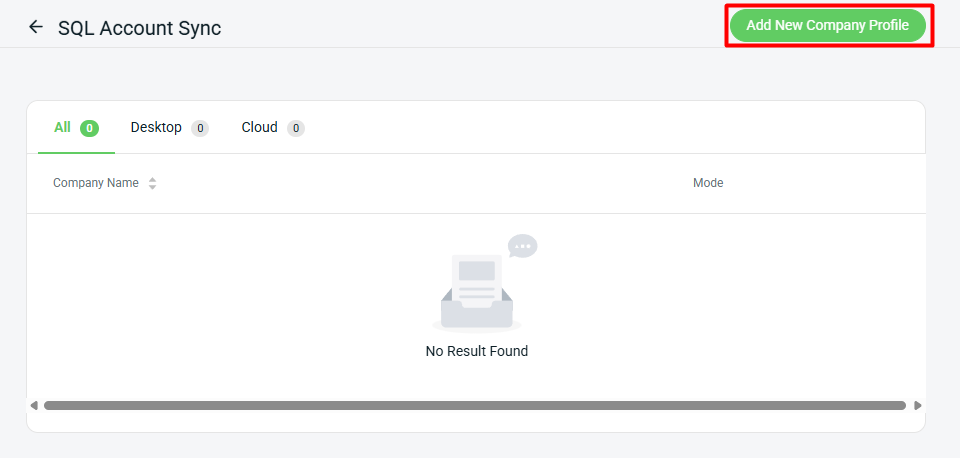
Step 2: Click Add New Company Profile.
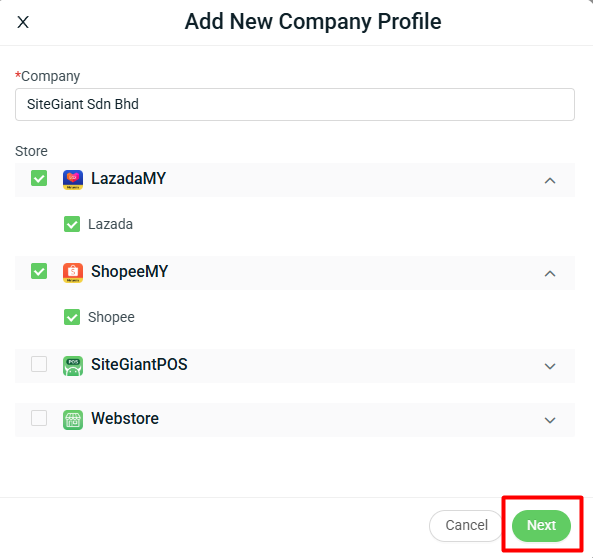
Step 3: Enter the Company Name > tick the Store that you want to update the invoice to SQL > Next.
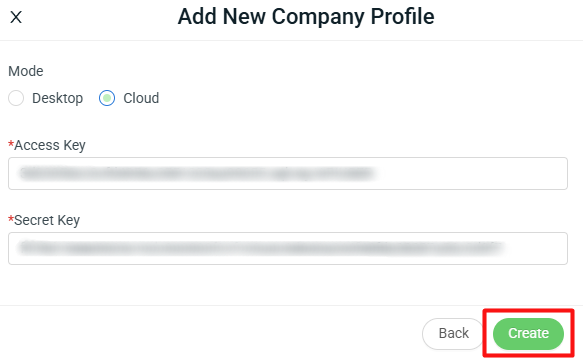
Step 4: Select Cloud Mode > enter the Access Key and Secret Key > click Create.
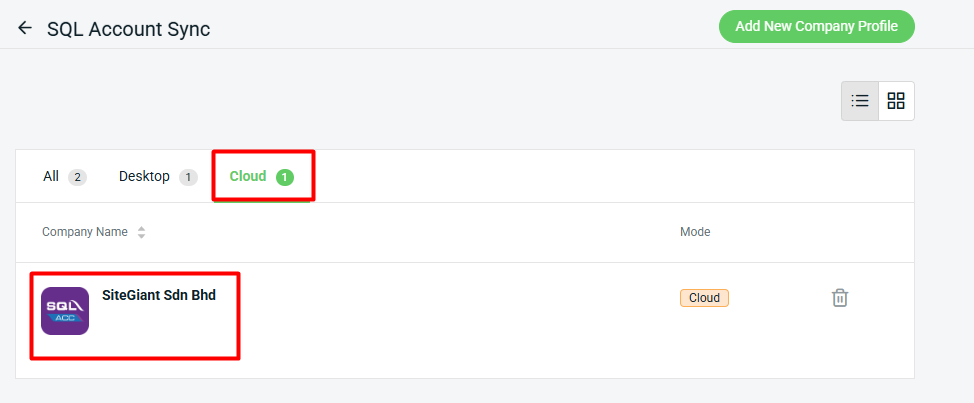
Step 5: You will see the company profile under Cloud tab > click inside the Company Profile to proceed with the setup.
3. SQL Settings
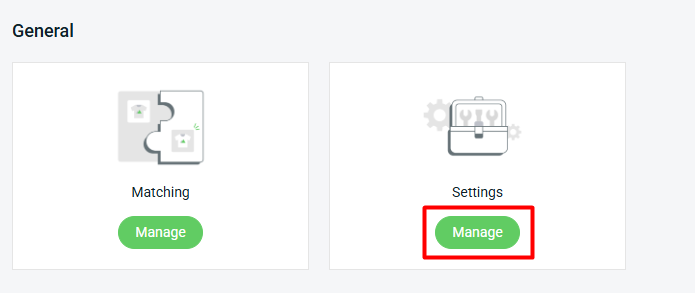
Step 1: Under General section, click Manage Settings.
I. Company Profile Settings
This setting is configured during the integration process. However, if you have any new sales channels to update, you may amend them here. If no changes are required, you may leave the settings as they are from the integration.
Step 1: Update the Company Profile Name (optional) > tick or untick the Store(s) you wish to update > Save.
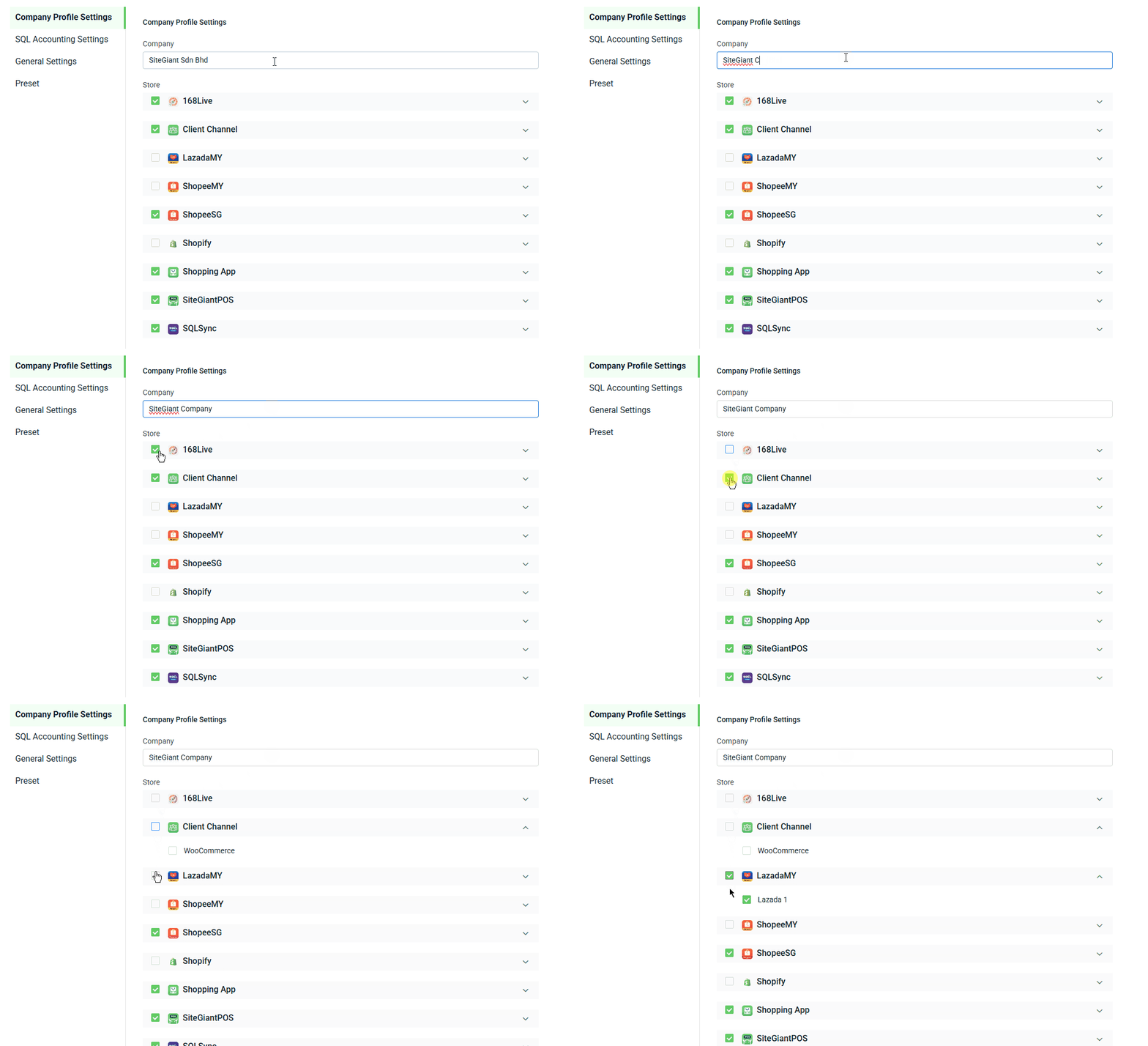
📌 Note: If no changes are required, you may leave it as set during the integration.
II. SQL Accounting Settings
These settings are also configured during the integration. If no changes are required, you can leave the settings as they are.
Step 1: Select the Cloud mode > enter the Access Key and Secret Key.
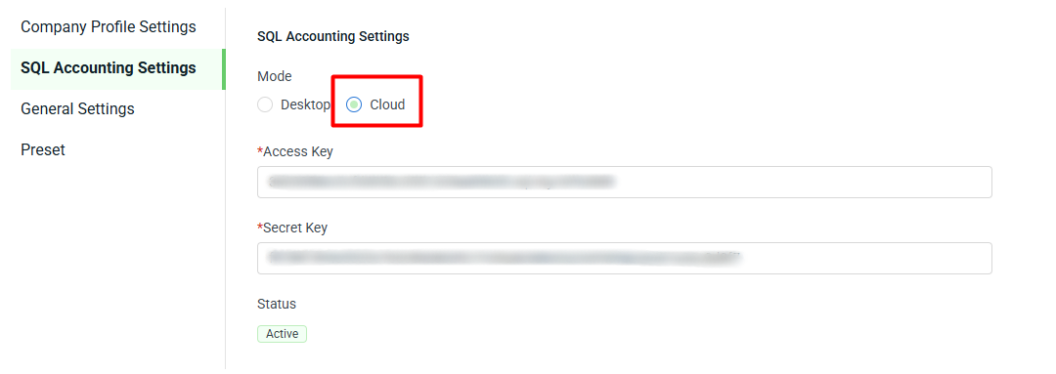
There are three types of status available in the SQL Integration:

1. Active: The connection is successful and accessible. The system is able to communicate with the SQL Accounting API without any issues.

2. Inactive: The connection is not accessible. This may be caused by incorrect credentials or a revoked token (Access Key or Secret Key), or the integration may have been disabled.

3. Timeout: The connection to the API has failed due to a server issue or no response within the expected time. This usually indicates that the SQL Accounting server or API service is down, or the SQL API is not able to connect with their local server. For this issue, it is recommended to check with your SQL dealer for further assistance.
III. General Settings
Step 1. Update the General Settings if you wish to apply them to your invoice > Save.
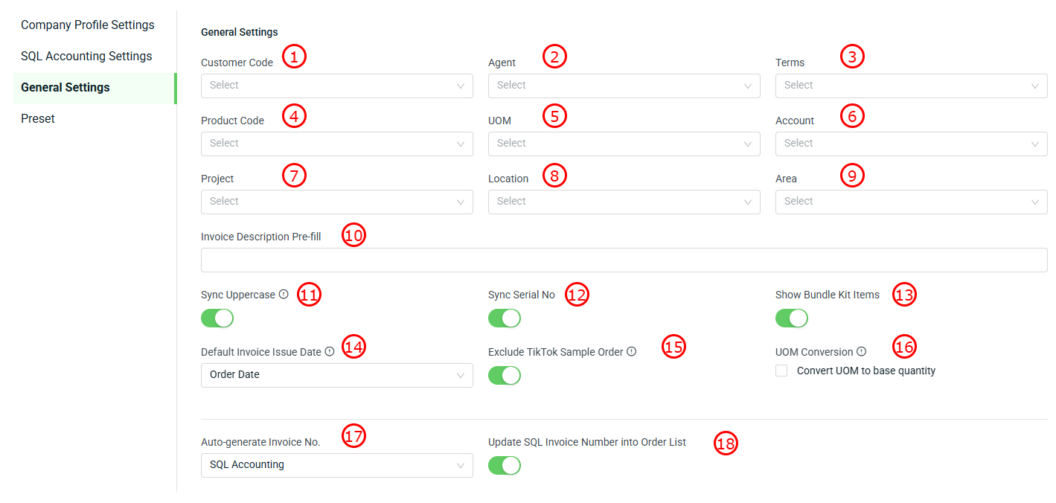
1. Customer Code: This customer code will be used on the invoice when no matching customer is set for the sales channel.

2. Agent: Sets a default sales agent for invoices.

3. Terms: Applies default payment terms (eg: Cash or 30 Days).

4. Product Code: This product code will be used on the invoice if no matching product is set.

5. UOM: This UOM will be used on the invoice when no UOM is set in the product matching.

6. Account: Assigns a default account code for invoice.

7. Project: Links invoices to a specific project.

8. Location: Sets a default location or warehouse for the invoice transaction.

9. Area: Assigns a default sales area/region.

10. Invoice Description Pre-fill: The description will be auto-filled and applied to all synced invoices.

11. Sync Uppercase: Converts all synced invoice text to uppercase and includes the invoice prefix.

12. Sync Serial No: Syncs serial numbers into the invoice. Please ensure the serial numbers are updated in the order details.

13. Show Bundle Kit Items: Displays individual items inside a bundle/kit on the invoice.

14. Default Invoice Issue Date: Select which date is used as the invoice issue date.

15. Exclude TikTok Sample Order: Excludes TikTok sample orders from invoice creation.

16. UOM Conversion: Converts selected UOM into base quantity during sync for purchase order only.

17. Auto-generate Invoice No.: Selects where the invoice number is generated from.

18. Update SQL Invoice Number into Order List: Updates the SQL-generated invoice number back into the order list.
IV. Preset
Step 1: Toggle On the Preset button if you want the update to be reflected on the invoice > select the Item Code and UOM > select the Tax Code if you use it > Save.
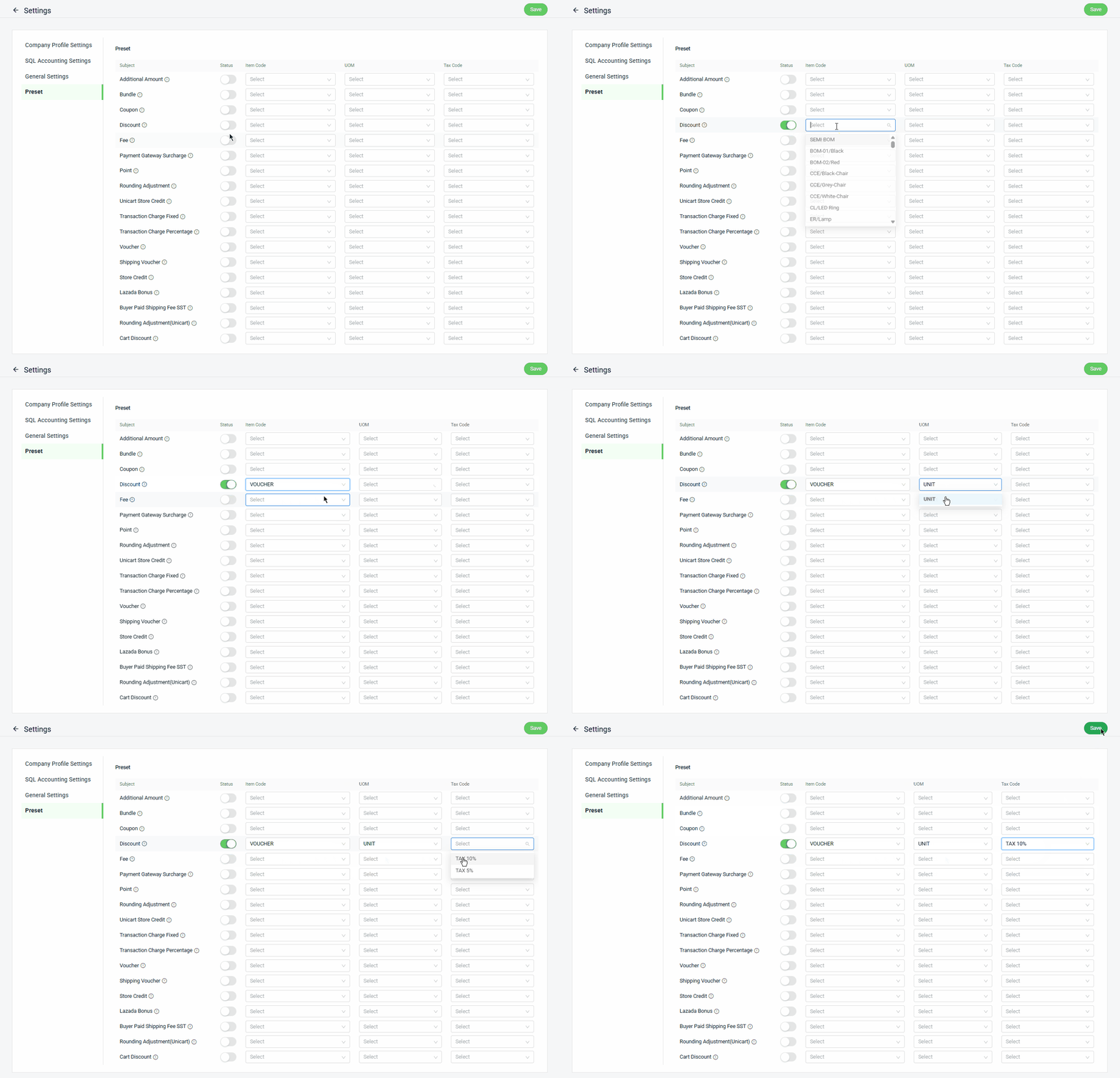
📌Note: Click the Tooltip icon to check if these preset details can be updated for which sales channel.
4. SQL Matching
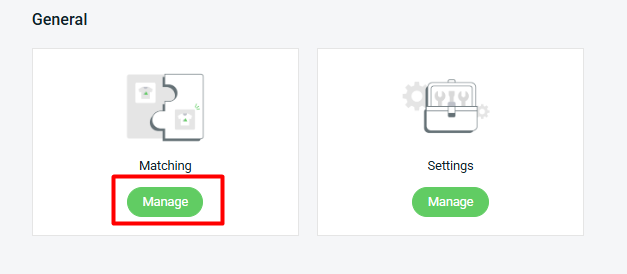
Step 1: Under the General section, click Manage Matching.
I. Item Matching
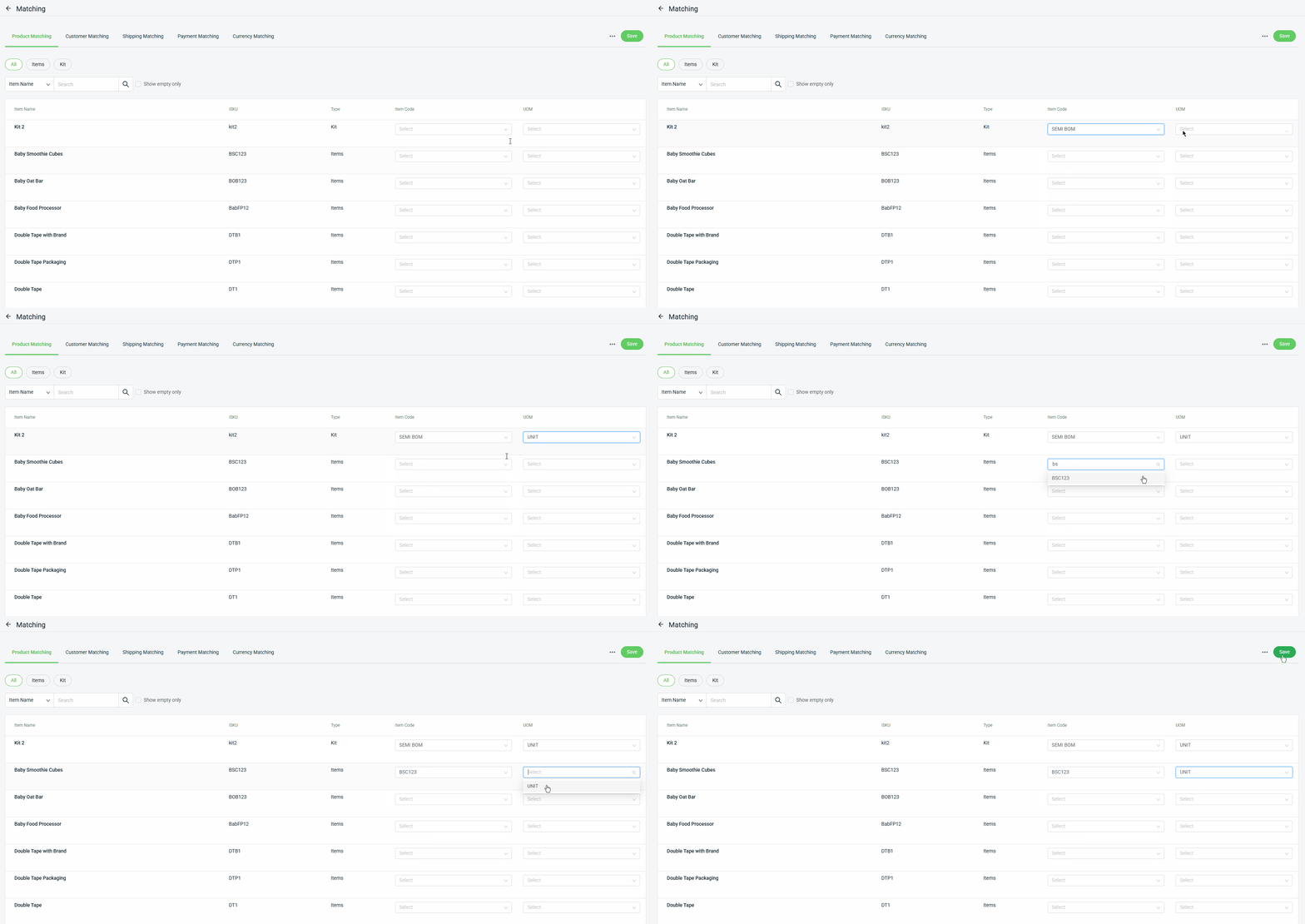
i) Manual Matching:
Step 1: Under Product Matching, all your inventory items will be listed > select the Item Code and UOM you want to match > Save.
ii) Bulk Matching:
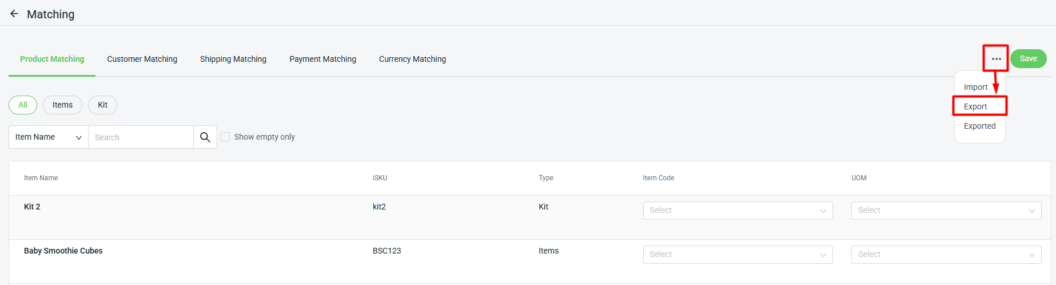
Step 1: Click More(…) > select Export.
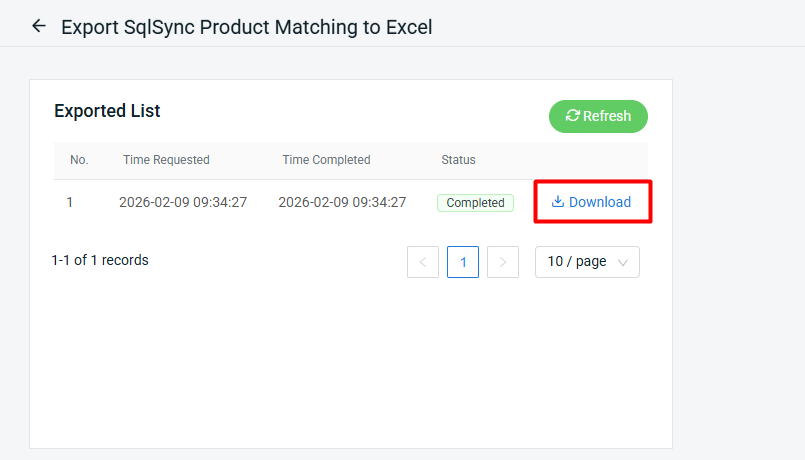
Step 2: Download the Export List button.
Step 3: Update the syncapp_code (Item Code) and syncapp_uom (UOM) from the SQL account to match them with the SiteGiant list.

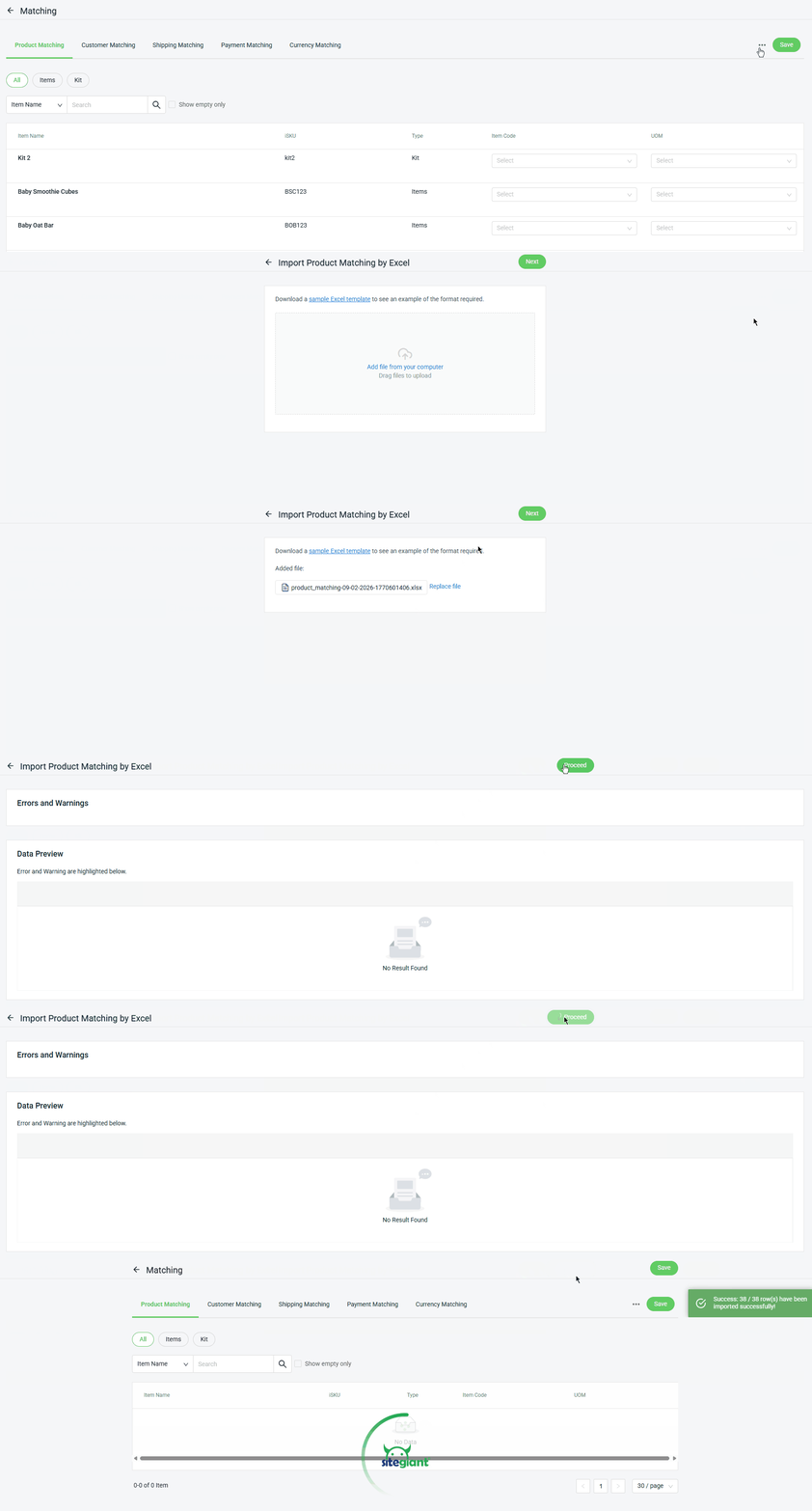
Step 4: Back to Product Matching page > press More(…) > Import > click Add file from your computer > Next > Proceed > Done.
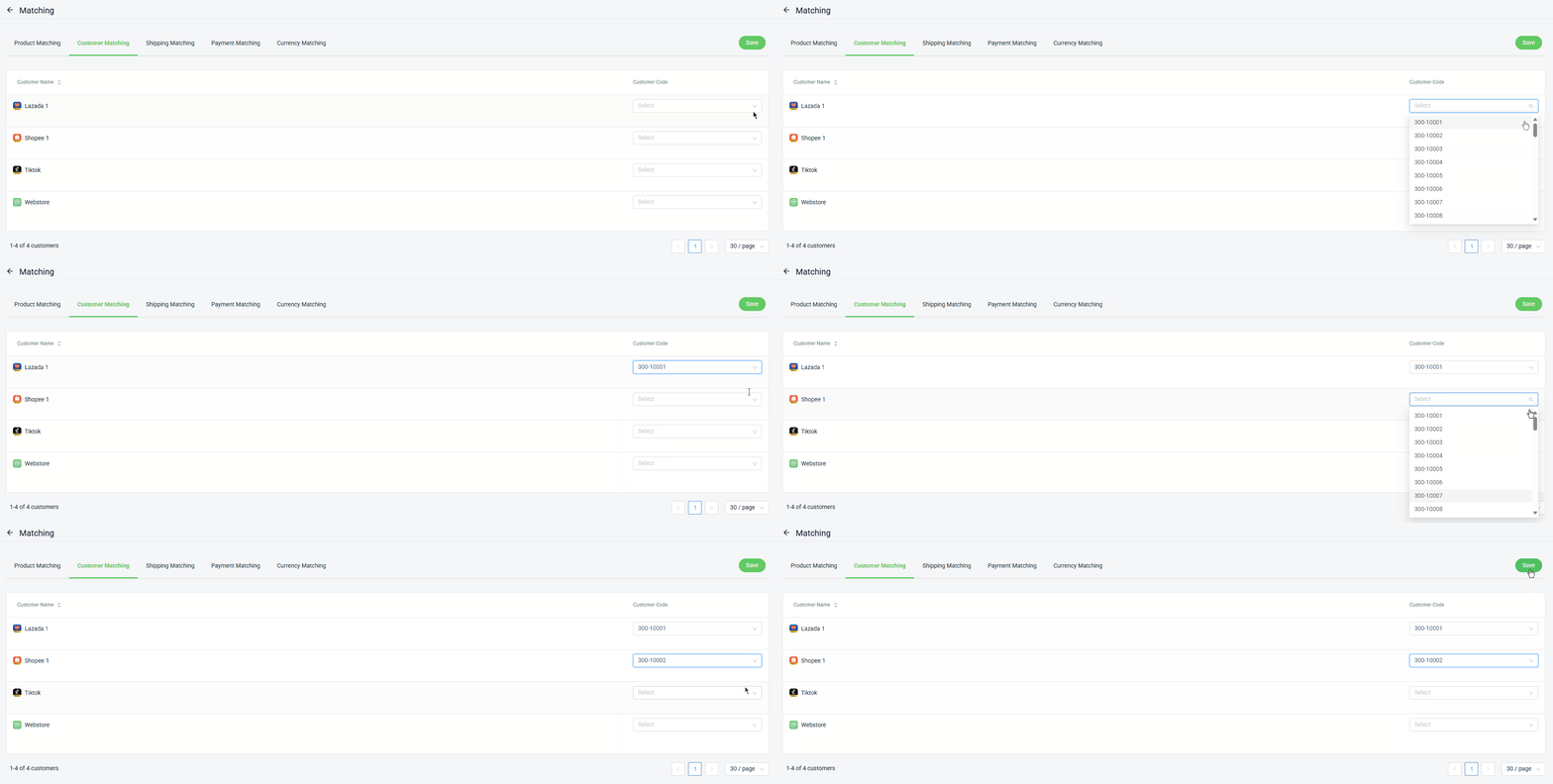
II. Customer Matching
Step 1: Select the correct SQL Customer Code to match the Sales Channel in SiteGiant > Save.
III. Shipping Matching
Step 1: Select the relevant Shipping Item Code and Unit to match with each sales channel > Save.
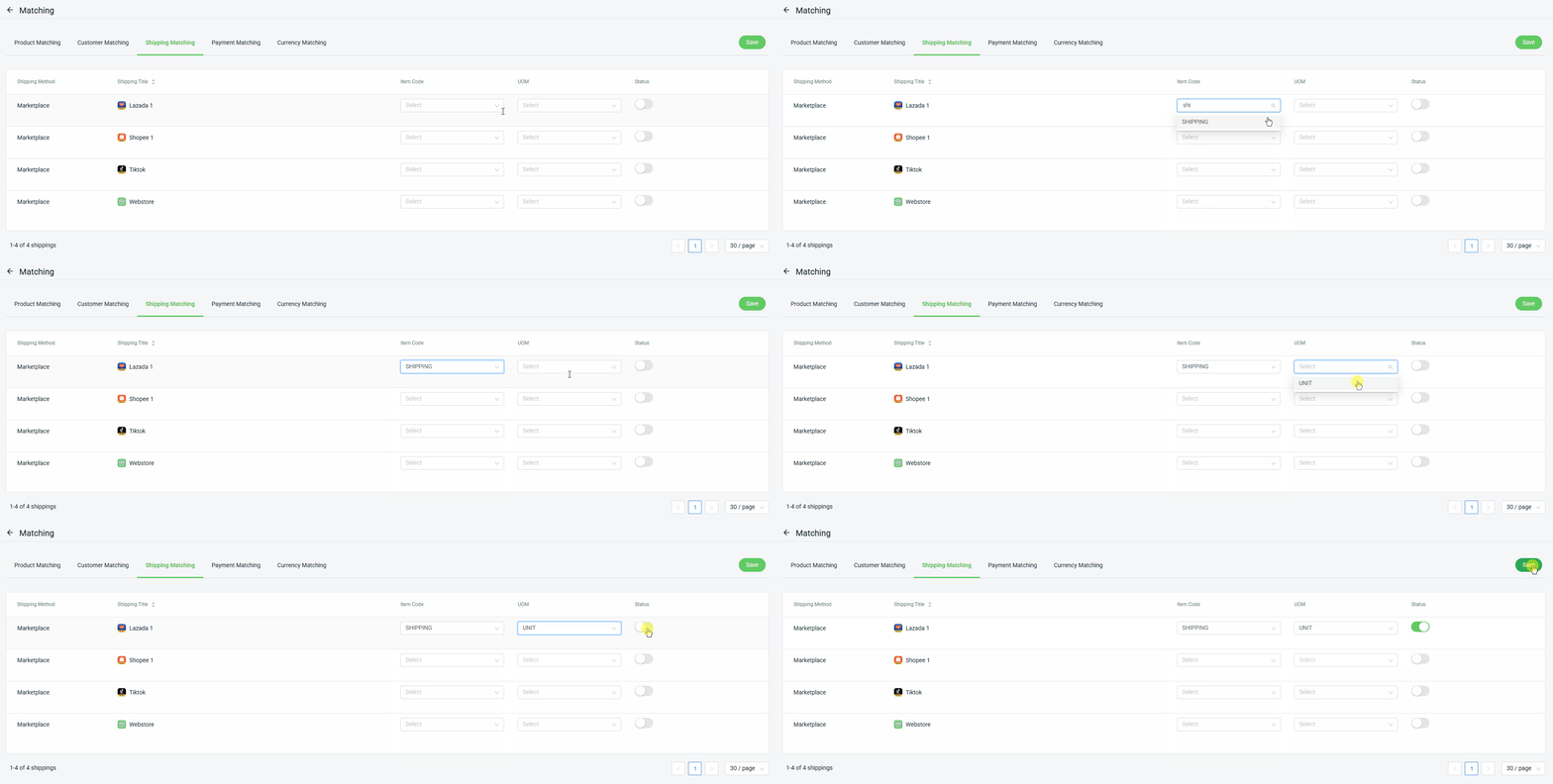
📌Note: All shipping statuses are disabled by default. You may leave the status and item code fields empty if you do not want them to be updated on the invoice.
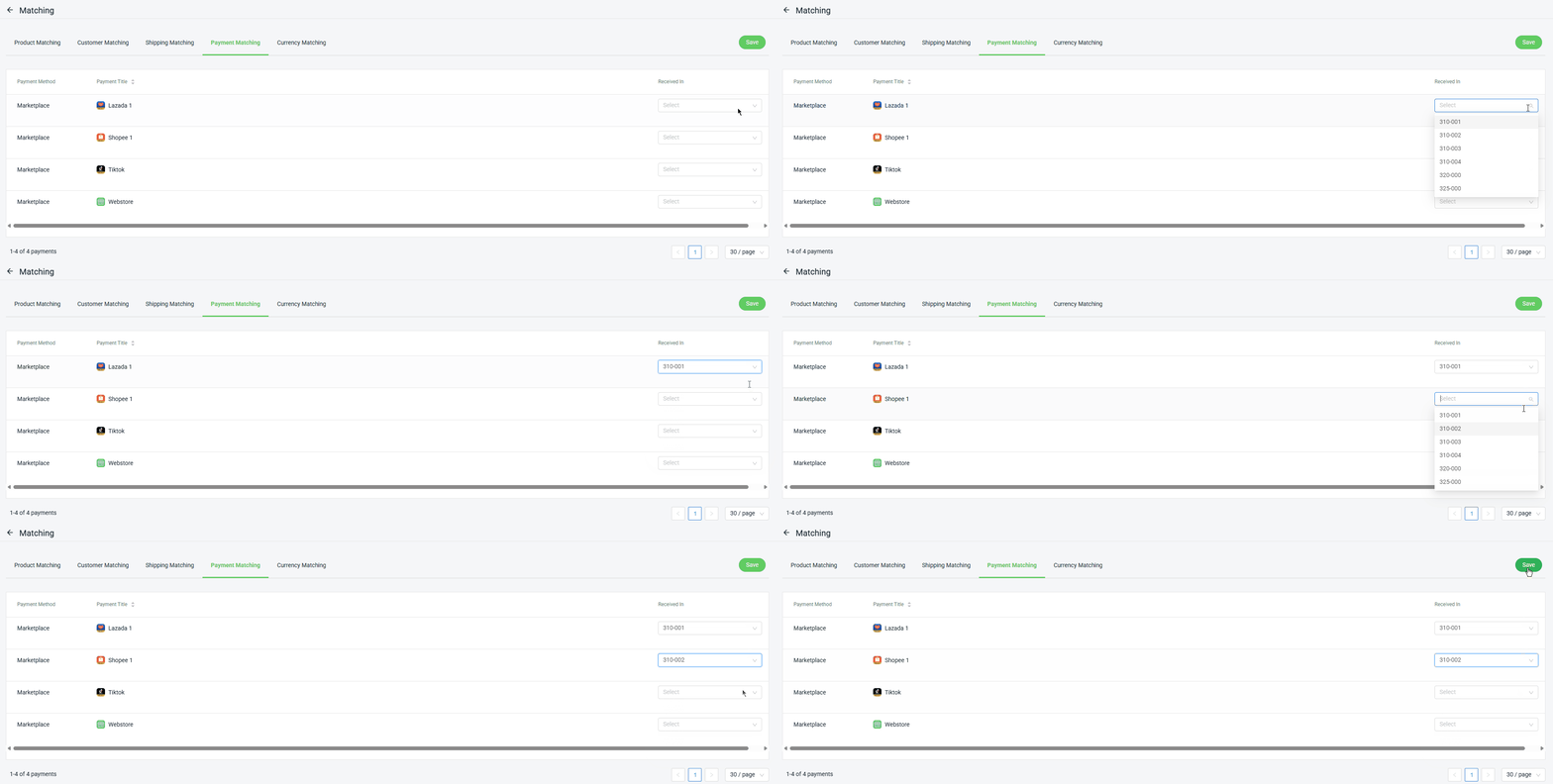
IV. Payment Matching
Step 1: Select the Payment Receive In code to match with each sales channel > Save.
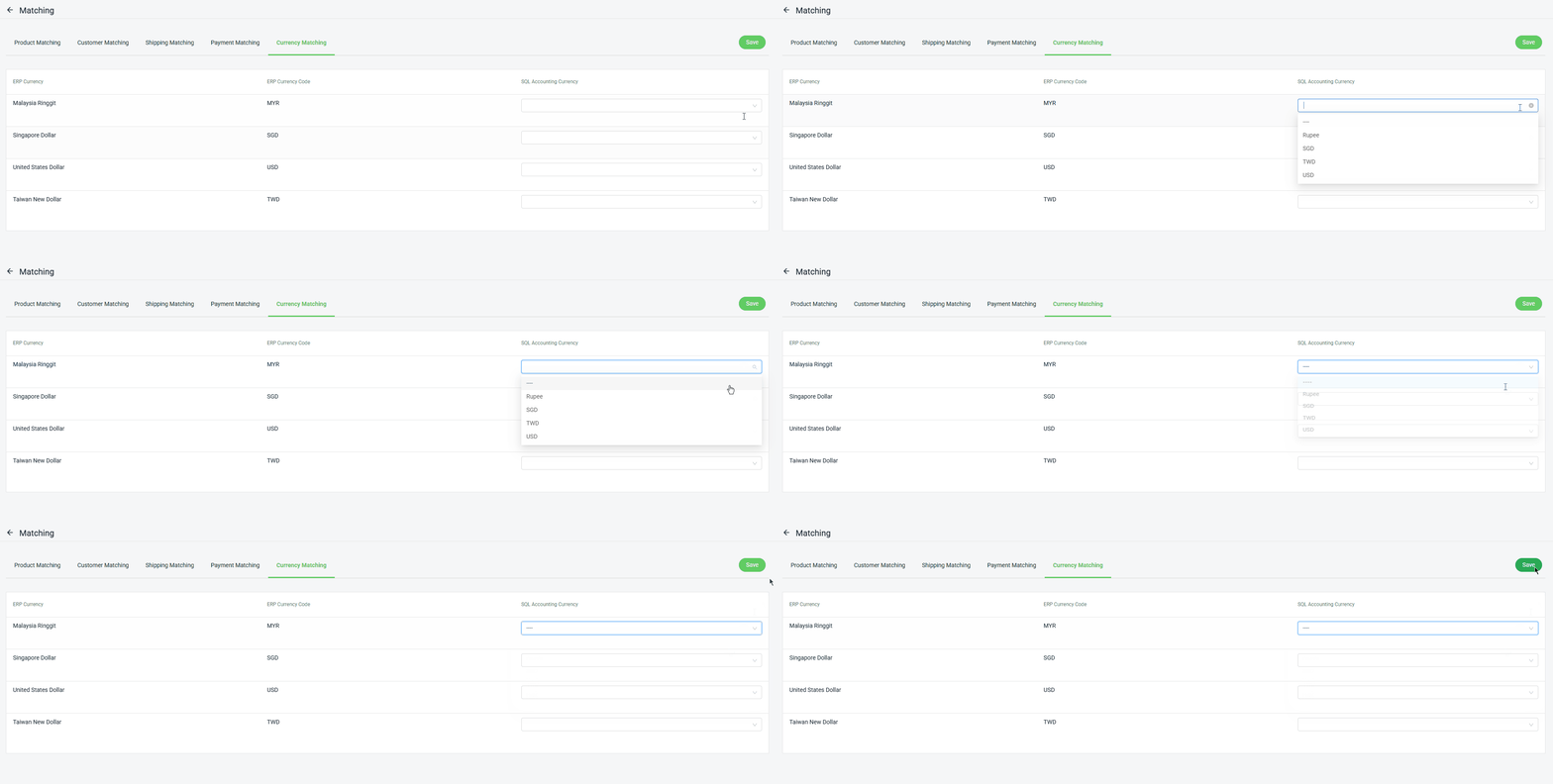
V. Currency Matching
Step 1: Select the SQL Accounting currency to match the SiteGiant currency > Save.
5. Sync Invoice (SiteGiant to SQL)
Step 1: Click Manage Sync Sales Invoice.
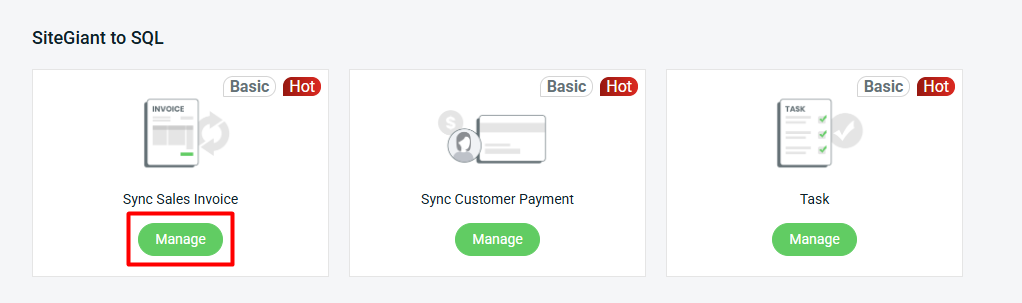
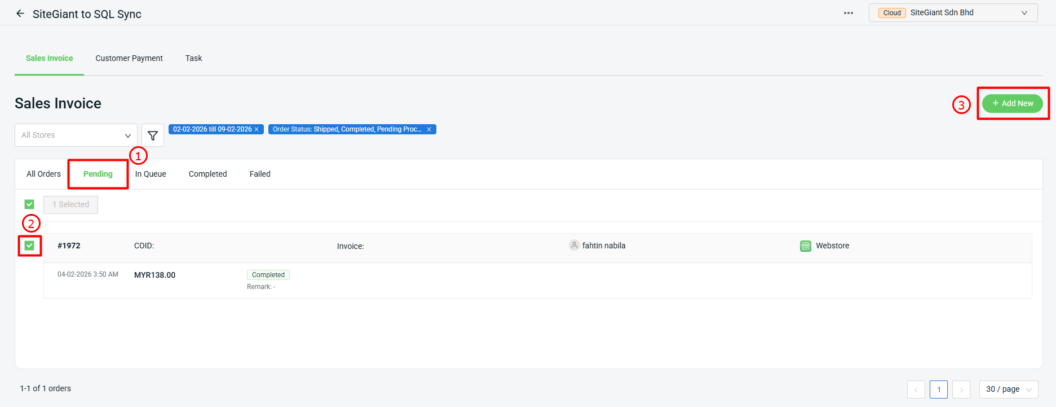
Step 2: Under the Pending tab > tick the order that you want to sync > click + Add New.
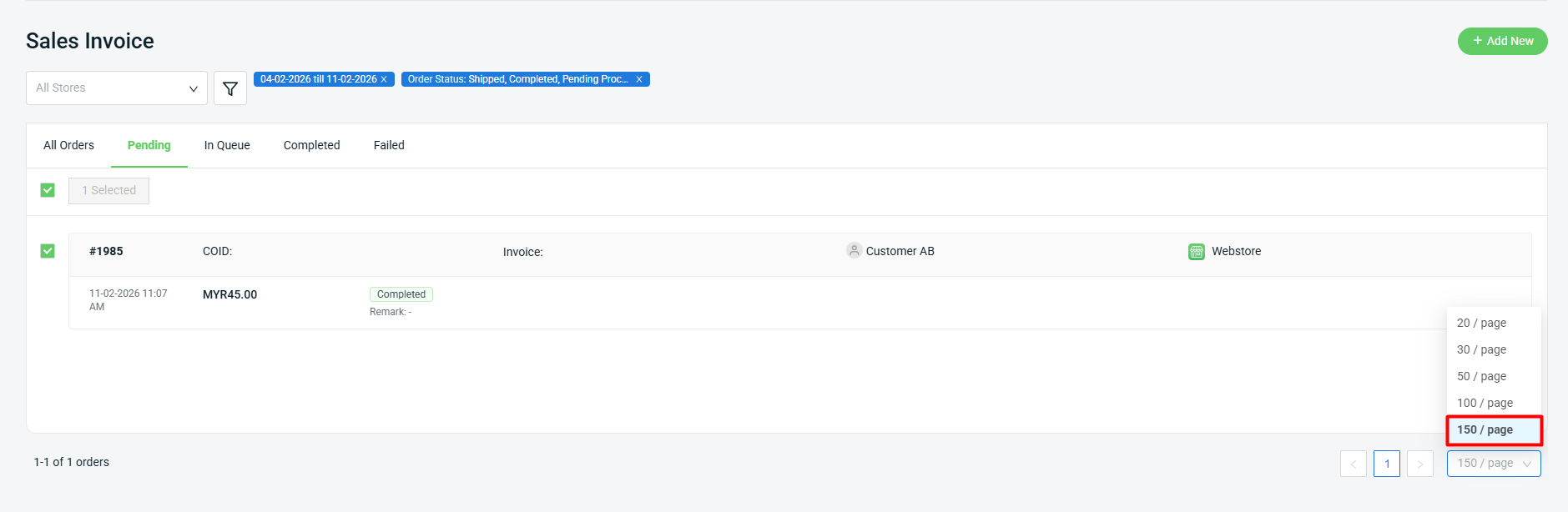
📌Note: The maximum number of orders that can be synced at one time is 150 per page.
Step 3: If all invoice details are completed, you may click the Sync button.
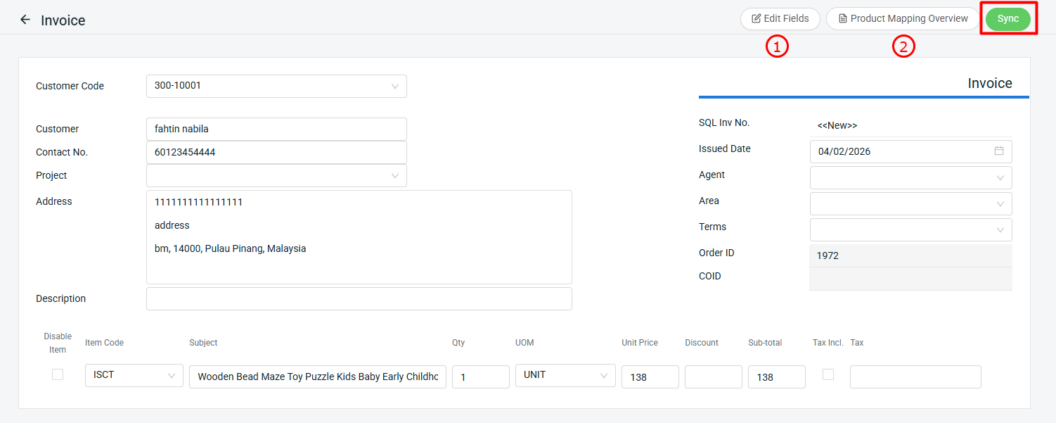
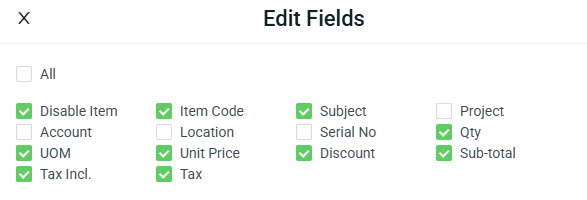
1. Edit Fields: Allows seller to select which fields to update in the invoice.


2. Product Mapping Overview: Showing a summary view of how products in the invoice are mapped between SiteGiant and SQL Accounting.
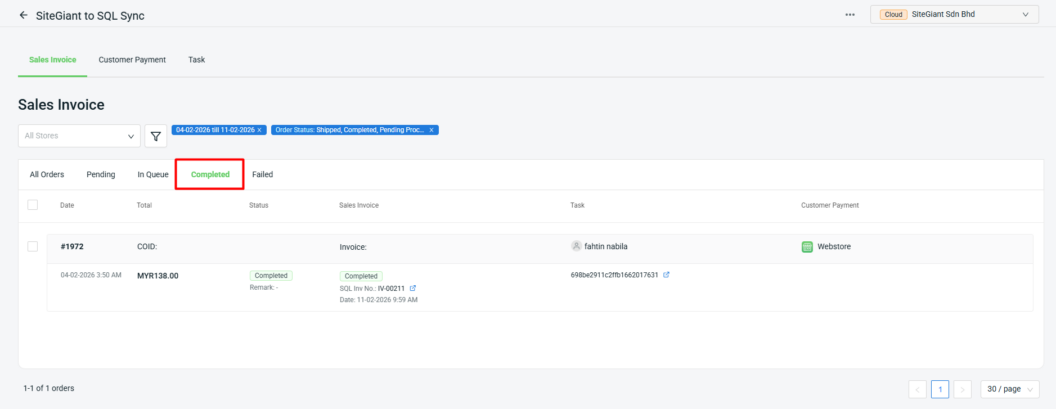
Step 4: Once the order has been successfully synced to SQL, it will automatically be moved to the Completed tab.
Step 5: The order syncing status can also be checked under the Task page.
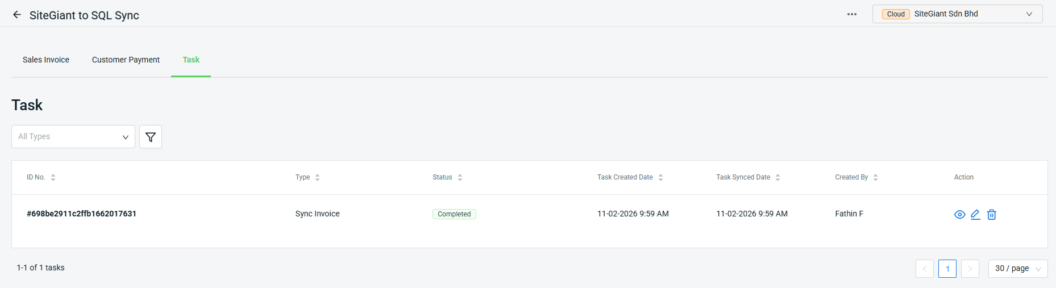
1. Eye Icon: View the invoice details that have been synced to SQL under the task.

2. Pencil Icon: This is normally used to check orders that have failed due to incorrect details. You can edit the details by filtering the order status before resyncing, or delete selected orders from the related task. Once an order is deleted, it will revert to pending status.


3. Trash Icon: Click this button to delete the entire task. All orders synced under this task will be moved back to pending status.
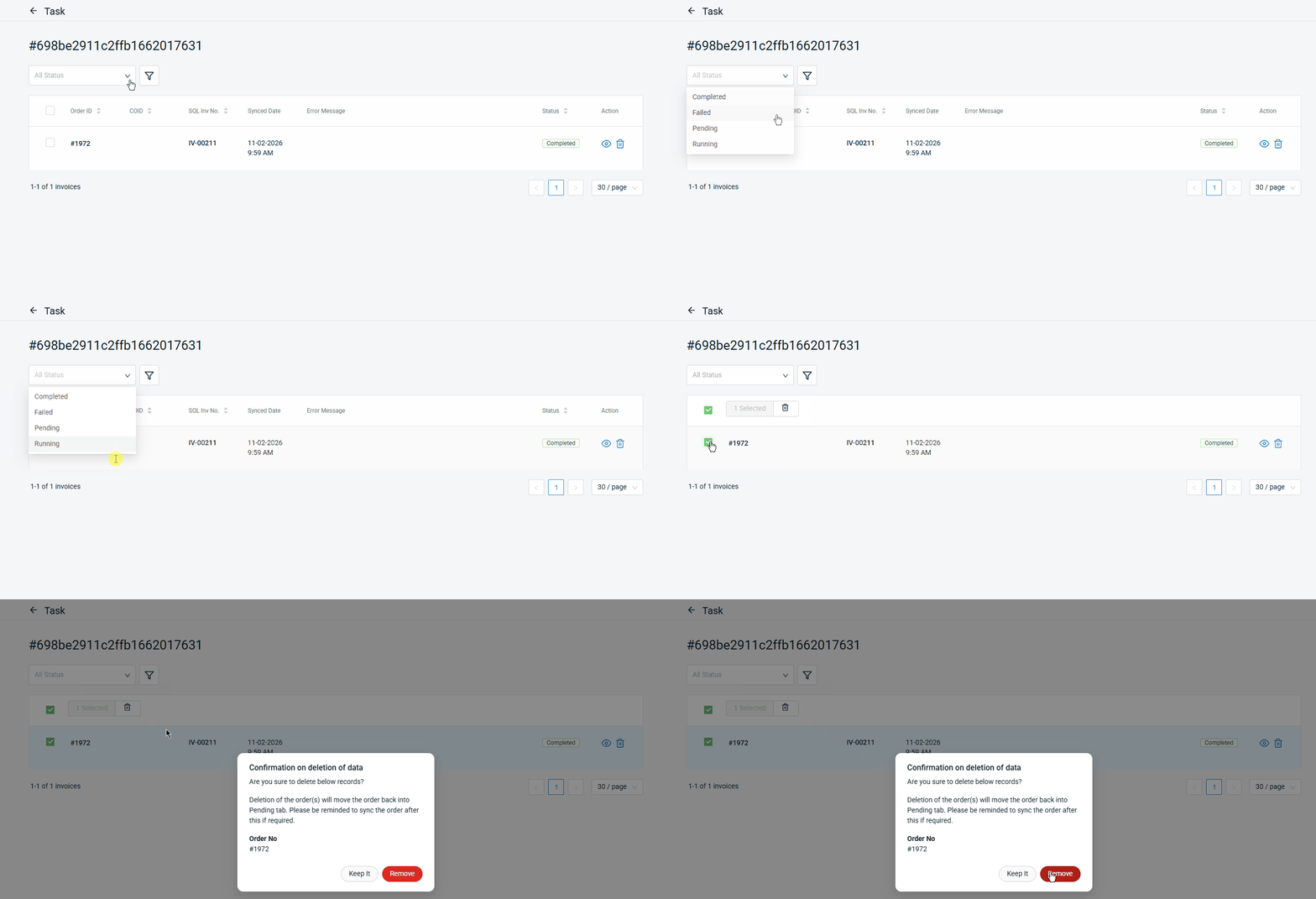
📌Note: If you sync more than one order at a time, all orders will be updated under the same task ID.
6. Sync Customer Payment (SiteGiant To SQL)
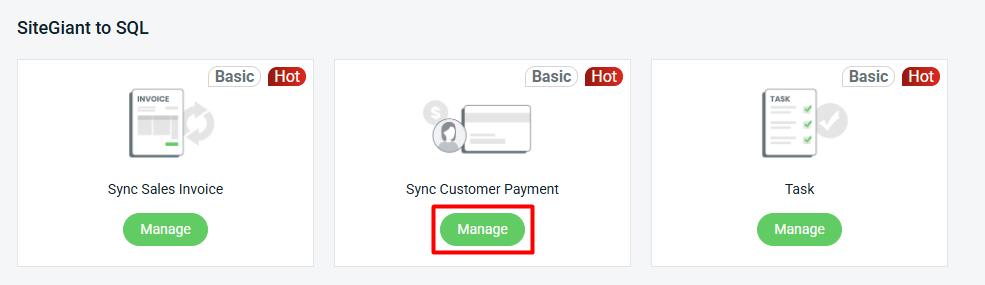
Step 1: Click Manage Sync Customer Payment.
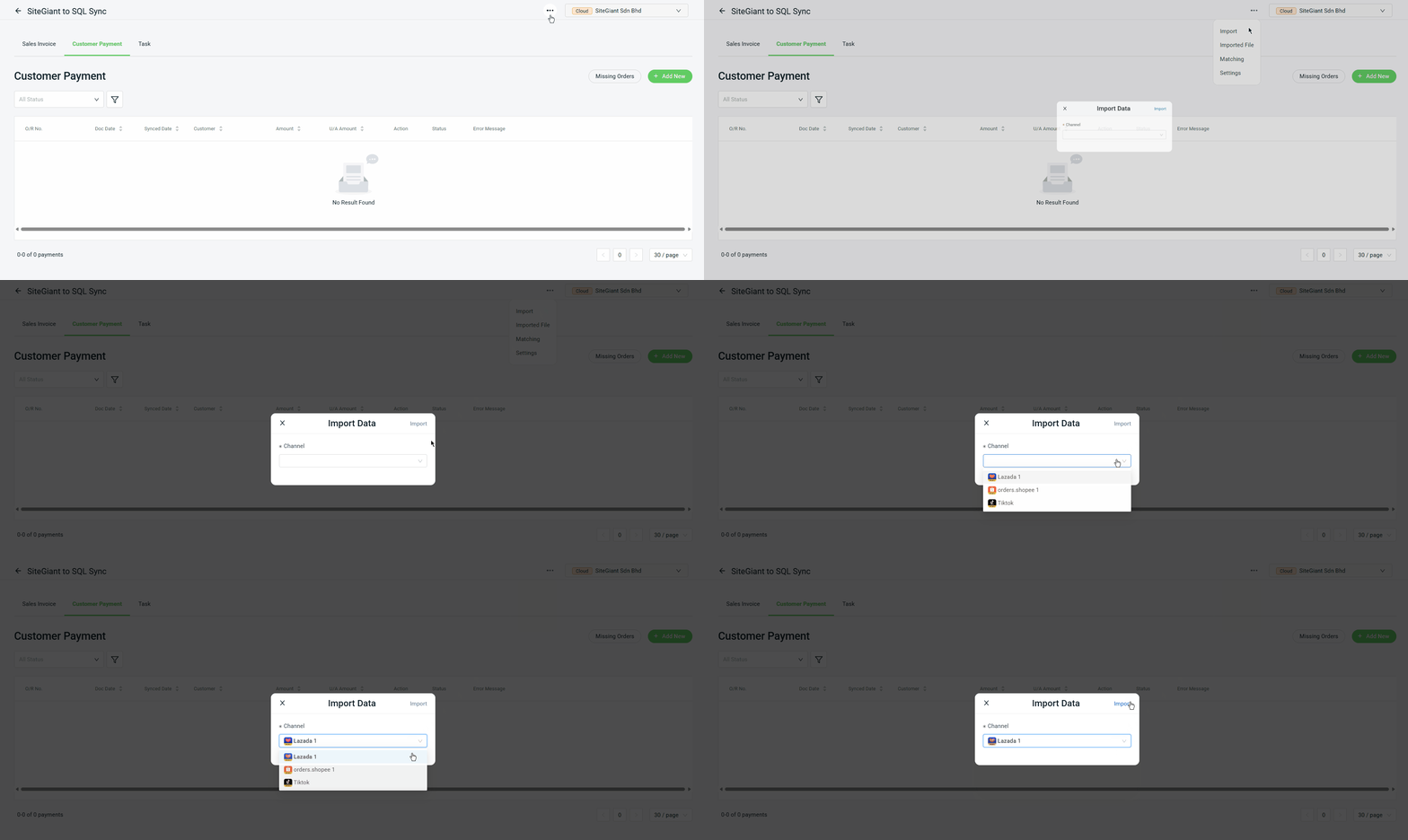
Step 2: Click More(…) > Import > select the channel you would like to sync > Import file.
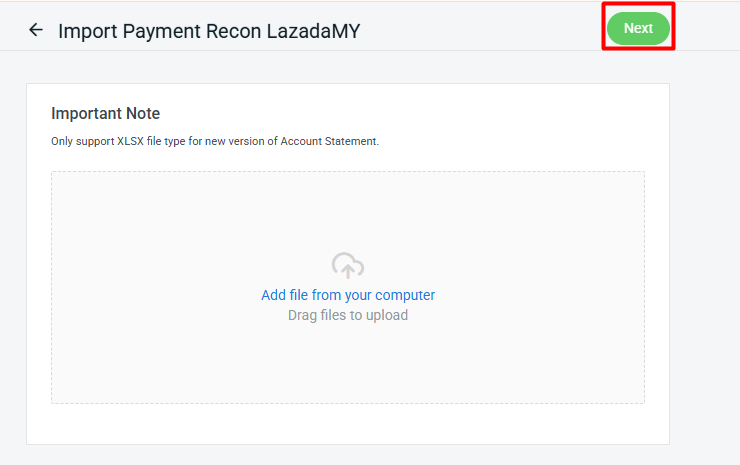
Step 3: Click Add file from your computer to upload > Next.
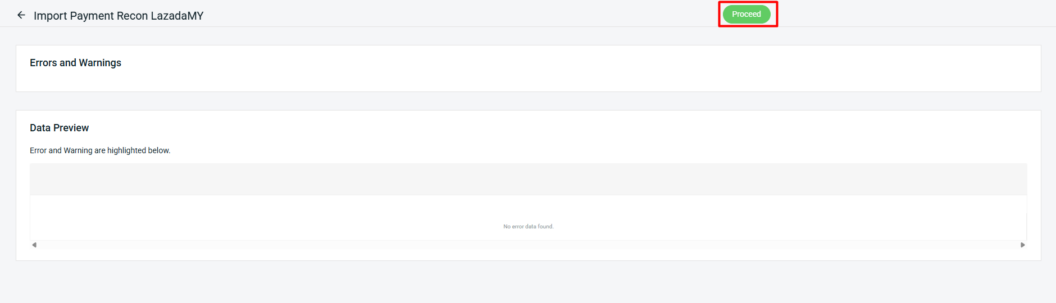
Step 4: If any errors are detected in the uploaded Excel file, they will be displayed under Errors and Warnings, and the affected column will be shown in Data Preview. Kindly correct the errors and reupload the file. Click Proceed if no errors are found.
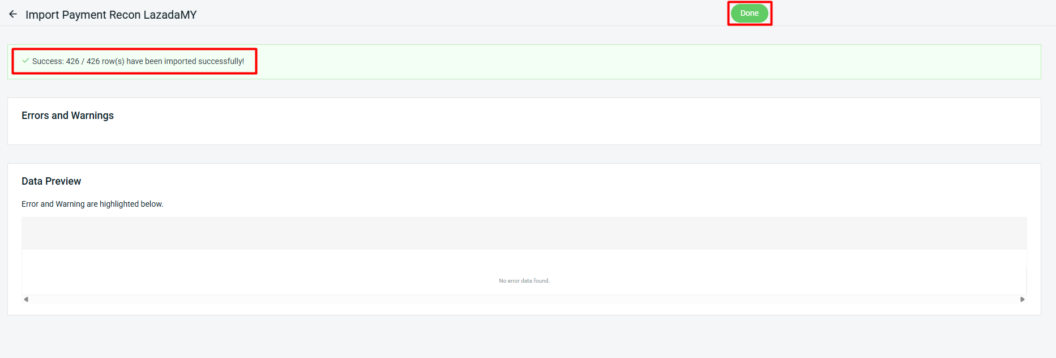
Step 5: When the page shows Imported Successfully, the data has been successfully updated in SiteGiant > click Done.
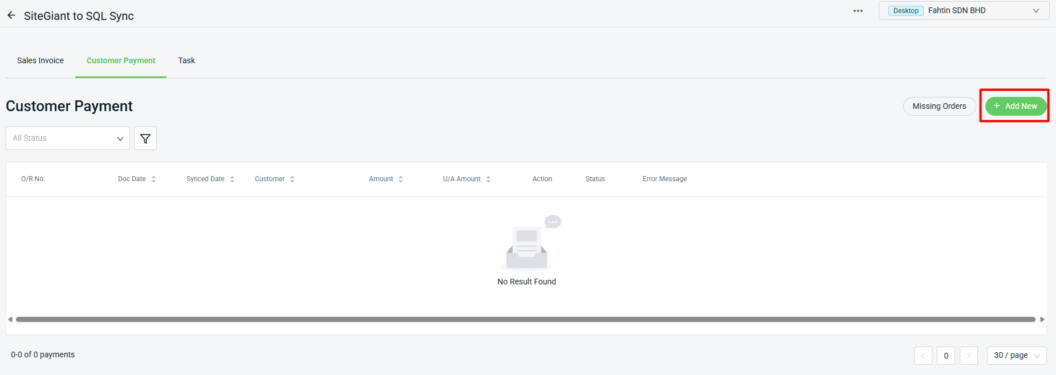
Step 6: Back to the Customer Payment page, click the + Add New button.
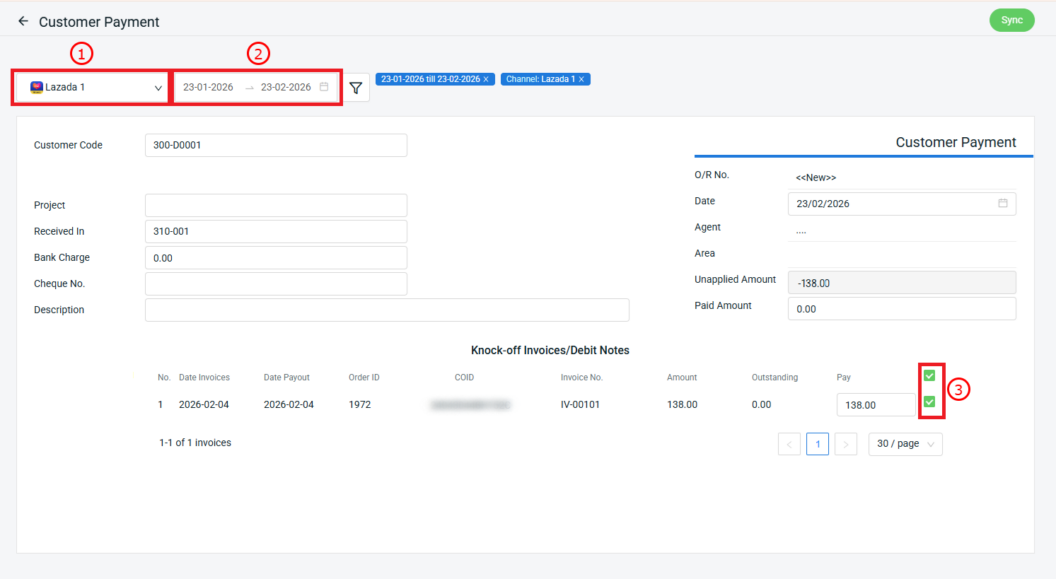
Step 7: Select Sales Channel > filter by Payment Date > tick the checkbox to knock off the invoice.
Step 8: After ticking all the invoices, the system will calculate the total under Unapplied Amount. Kindly enter the total amount into the Paid Amount field. Once done, click Sync to proceed.
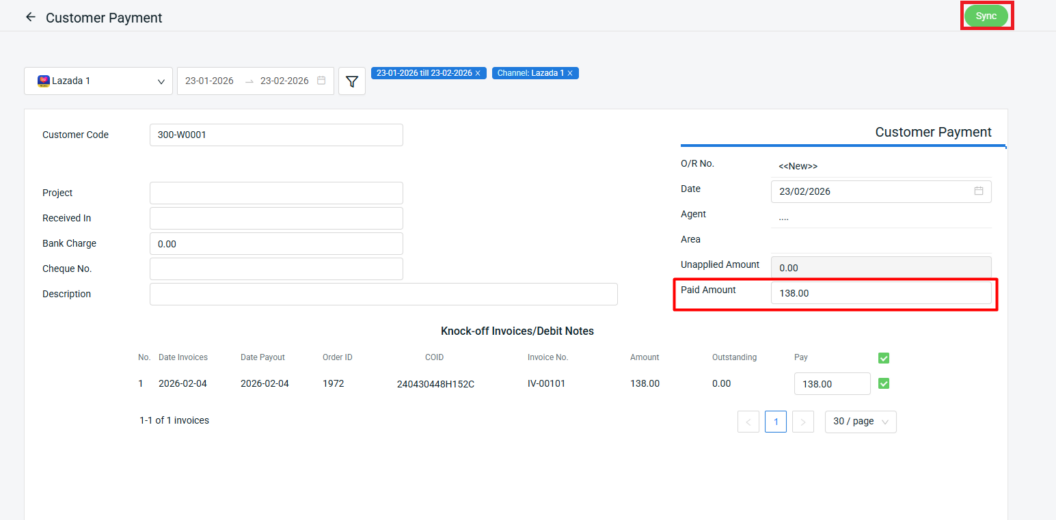
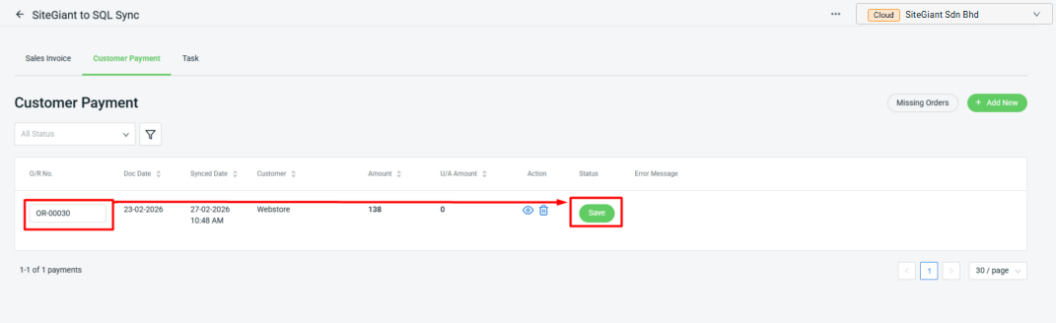
Step 8: The customer payment will be listed on the Customer Payment page once it has been successfully synced to SQL. Update the O/R No. > click Save.
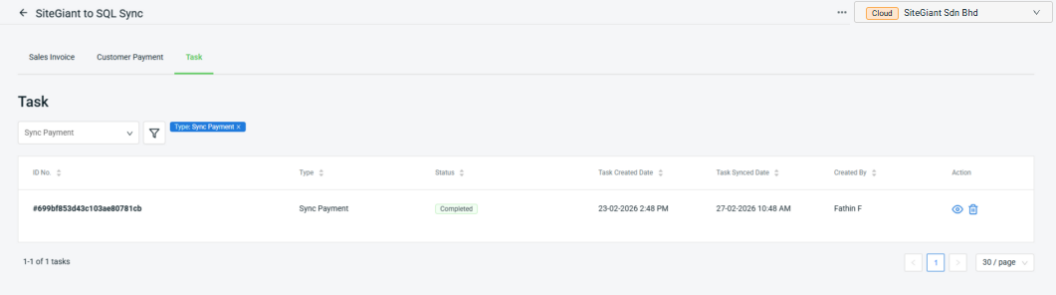
Step 9: The customer payment syncing status can also be checked under the Task page.
📝Additional Information
For the SQL to SiteGiant syncing feature, please refer to the tutorials provided in the links below:
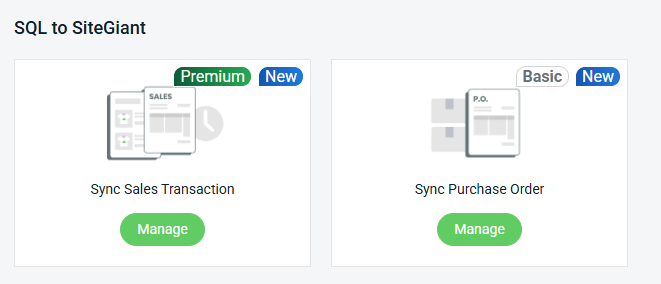
Sync Sales Transaction (This feature is only available in the SiteGiant ERP Add-On App.)
Sync Purchase Order