1. Introduction
2. Reset Password
3. Manual Reset
1. Introduction
Forgot your SiteGiant account password?
This guide will walk you through the steps to reset your password and regain access to your SiteGiant account.
2. Reset Password
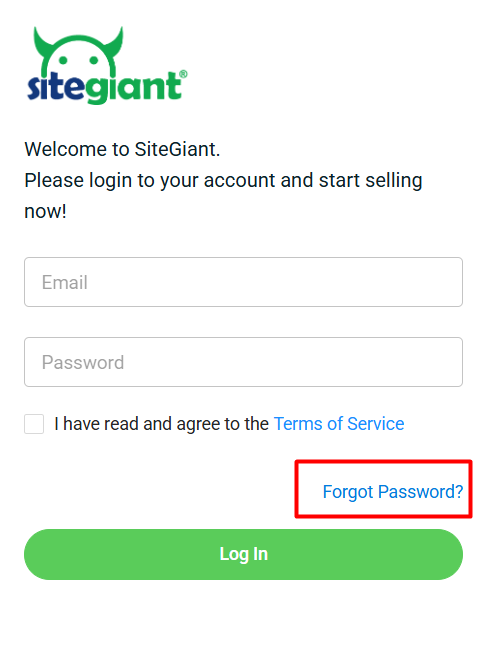
Step 1: Go to the SiteGiant Login Page > click Forgot Password?
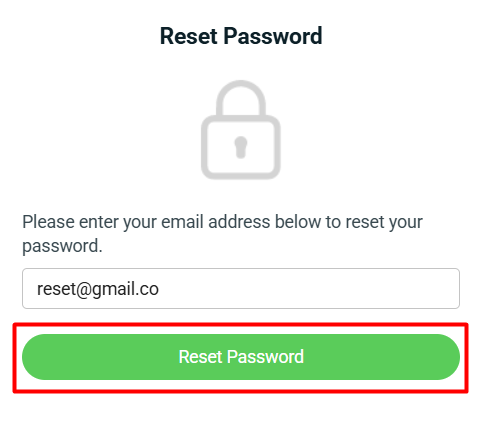
Step 2: Enter the login Email Address > Reset Password.
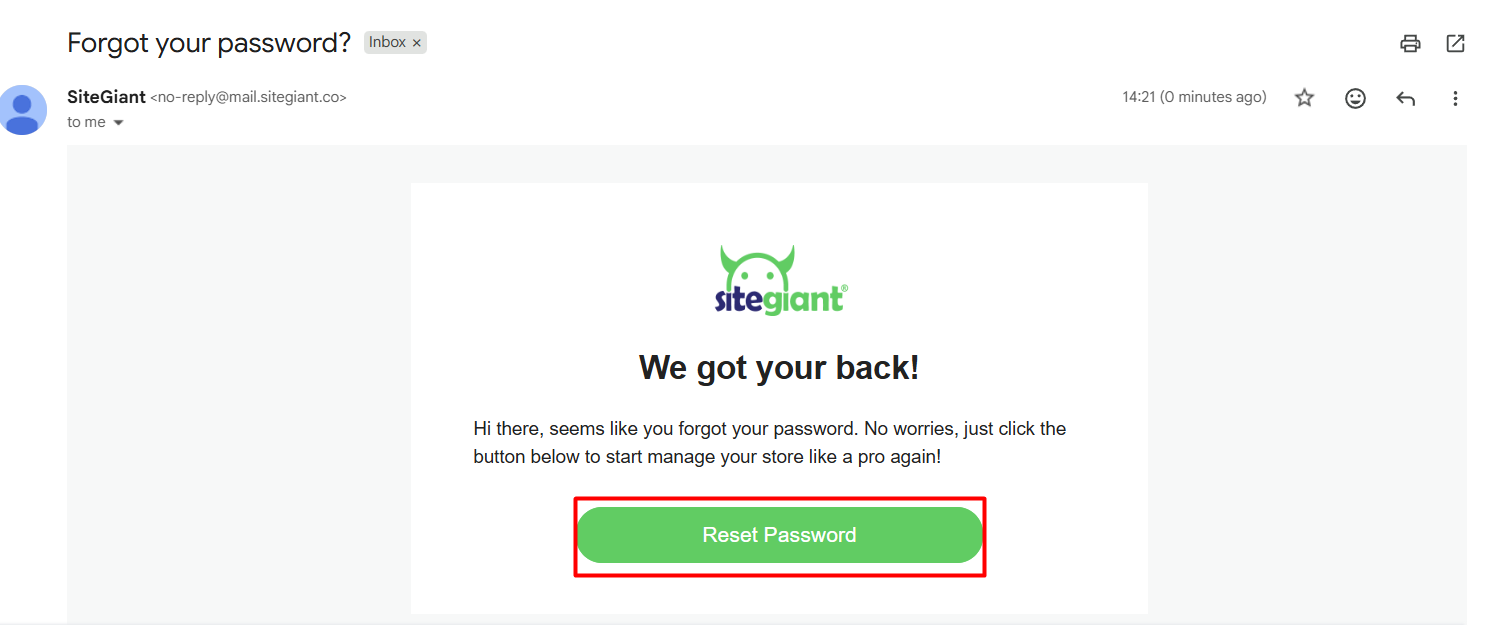
Step 3: Find the email titled Forgot your password? > open the email > click Reset Password.
Step 4: Update the New Password and Confirmed Password > click Reset Password.
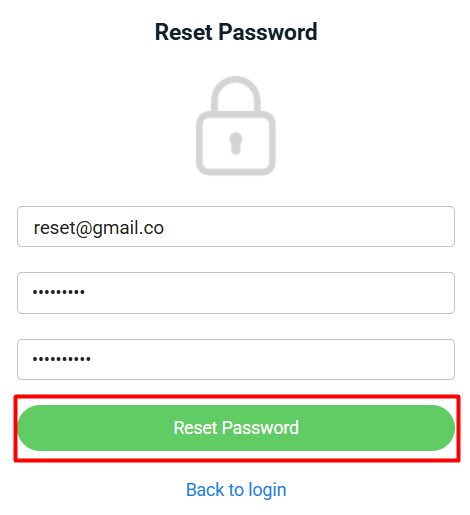
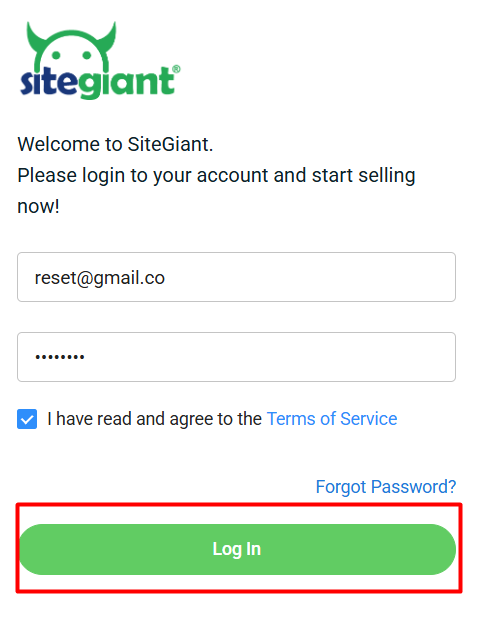
Step 5: Once done, proceed to Log In again.
3. Manual Reset
The manual password reset can only be performed by the account owner through the backend login.
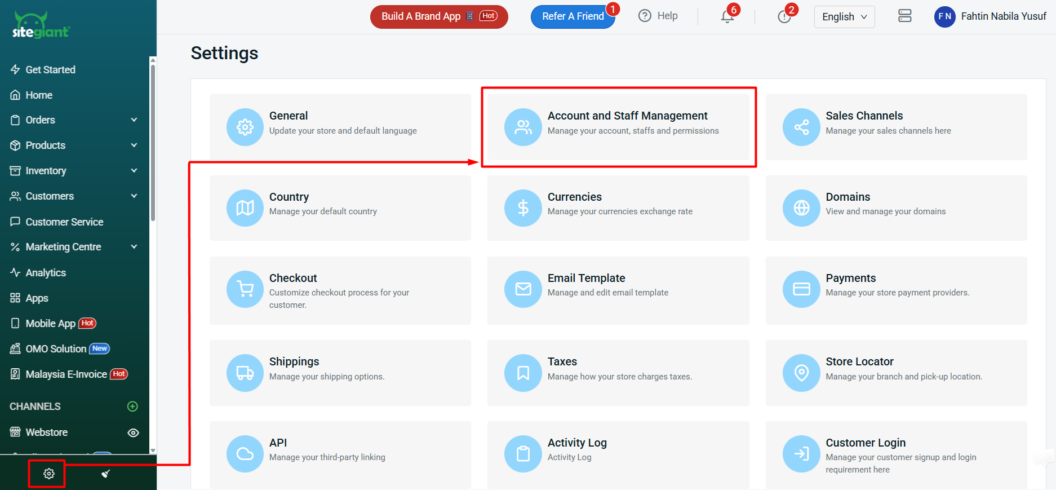
Step 1: Navigate to Settings on the sidebar menu > click Account and Staff Management.
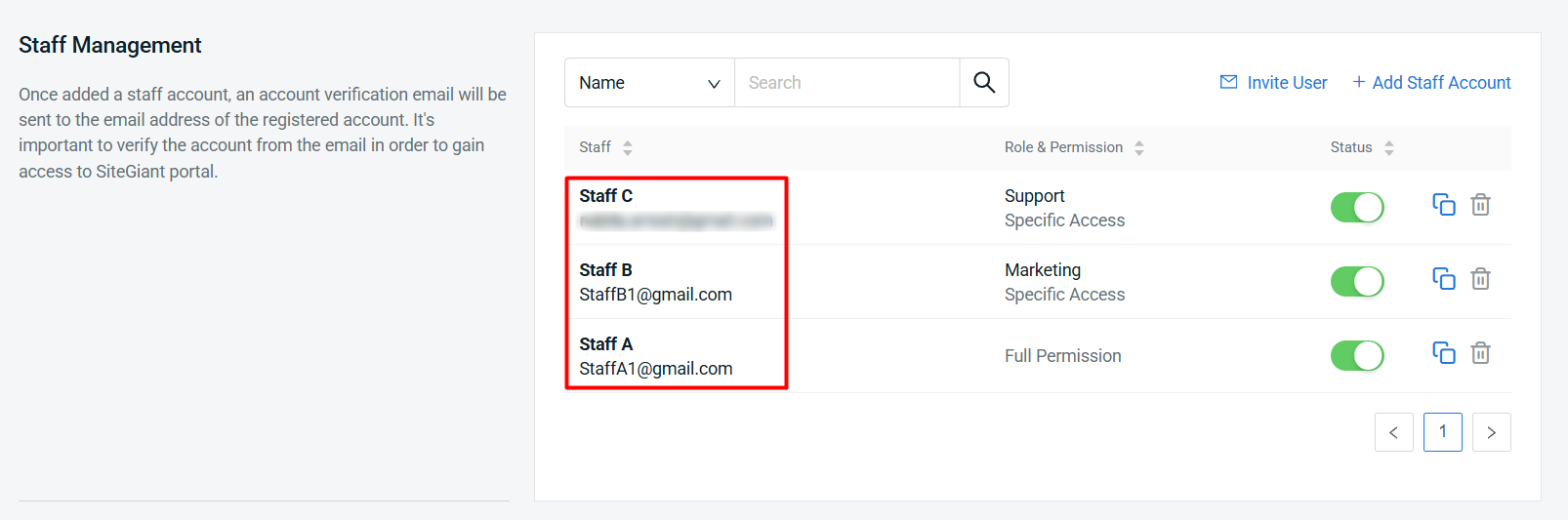
Step 2: Click inside the Staff Username.
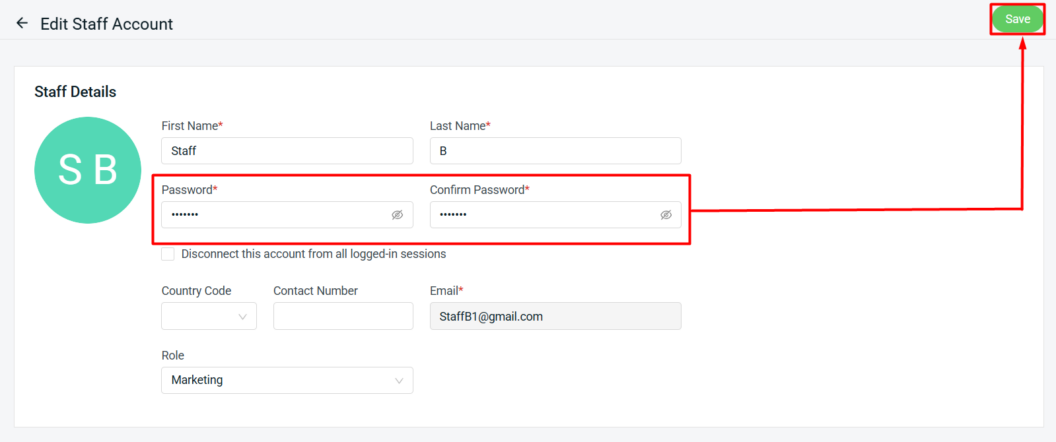
Step 3: Update Password and Confirm Password > Save.