1. Introduction
2. Retrieve Stripe API Keys
3. Set Up Stripe Payment Gateway
4. Test Checkout Via Stripe (From Customer Perspective)
1. Introduction

Stripe is an international system that allows businesses and sellers to accept payments and manage their businesses online. Stripe allows buyers to pay with credit cards when checkout orders from your SiteGiant store.
📌Note:
Make sure that you have a registered account with Stripe. If you do not have a Stripe account yet, kindly register a Stripe account here.
2. Retrieve Stripe API Keys
Live Key
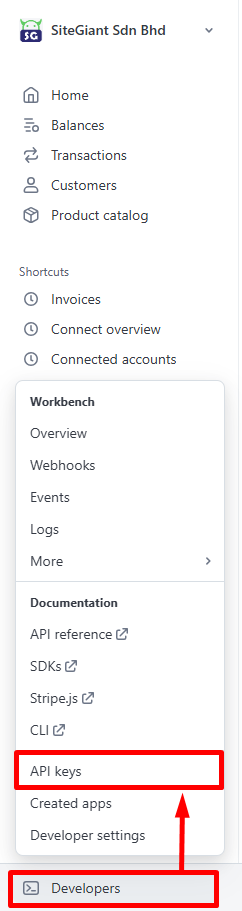
Step 1: Log in to your Stripe Global Payment account > navigate to Developers on the bottom left > click API Keys.
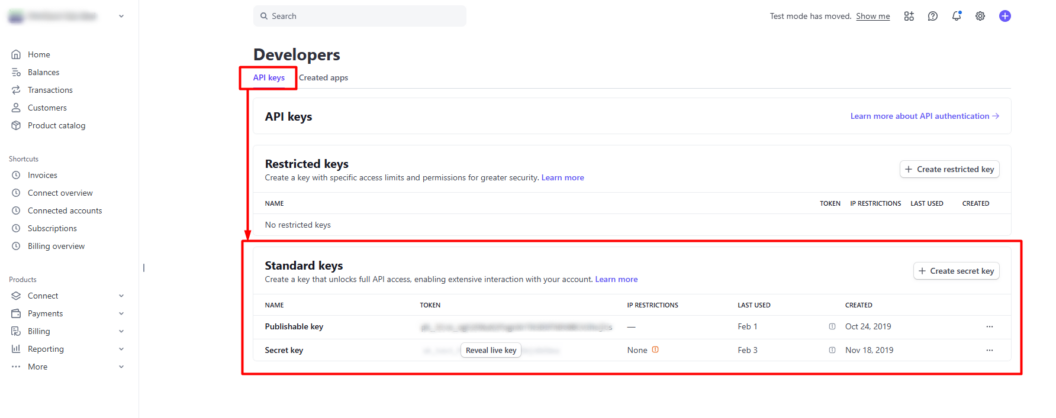
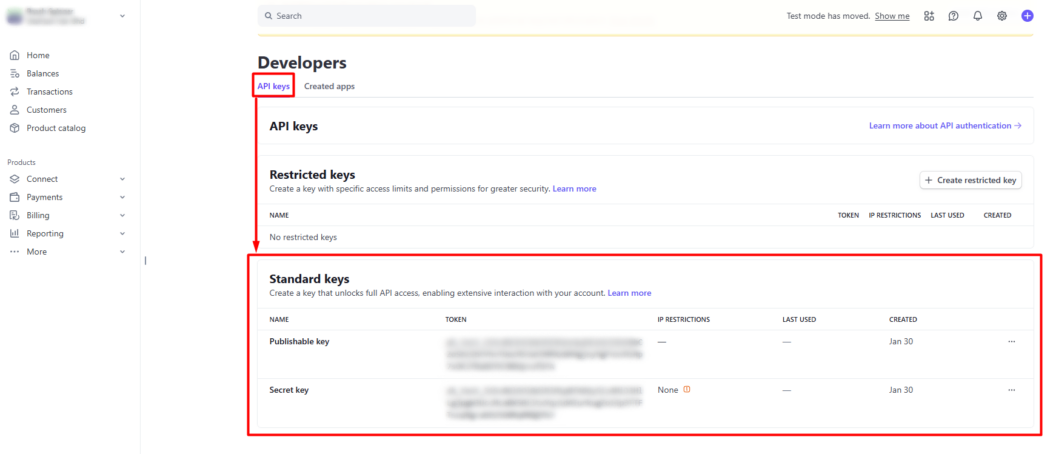
Step 2: Click the API Keys tab > copy the Publishable key and Secret key for later use.
Test Key
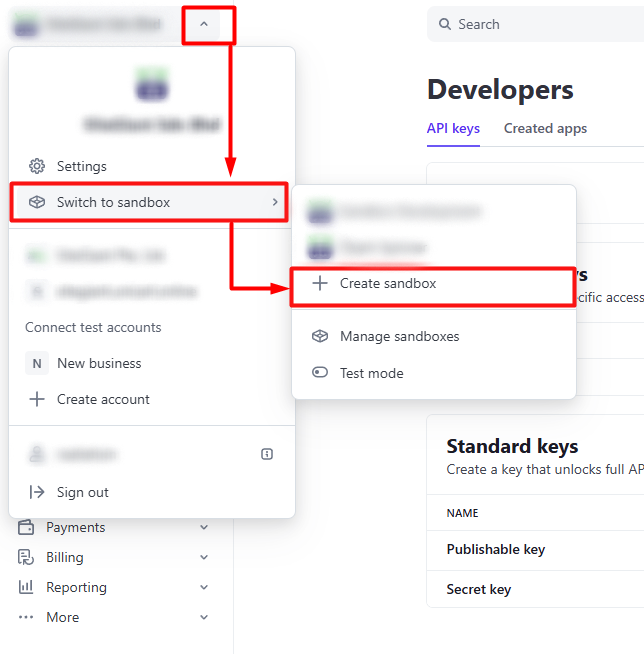
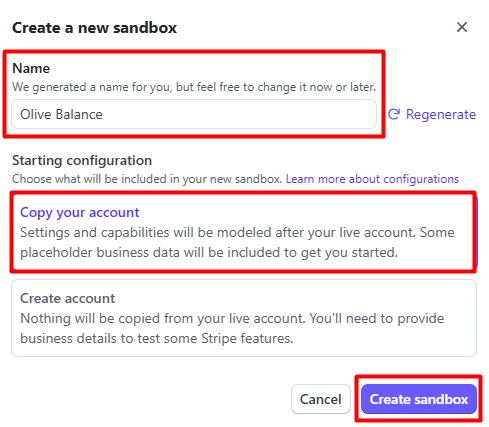
Step 3: Click the account dropdown icon at the top-left corner > select Switch to sandbox > click Create sandbox.
Step 4: Enter the Sandbox Name > select Copy your account > Create Sandbox.
Step 5: Click the API Keys tab > copy the test Publishable key and Secret key for later use.
3. Set Up Stripe Payment Gateway
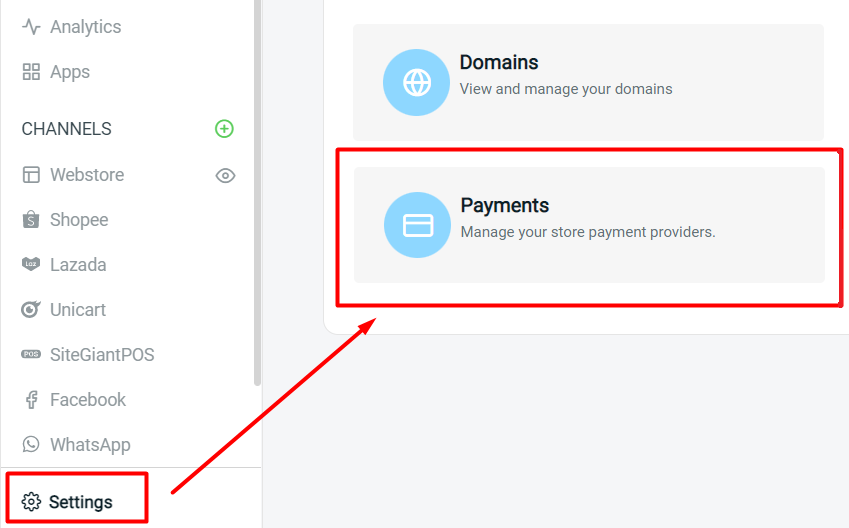
Step 1: Go to Settings > Payments
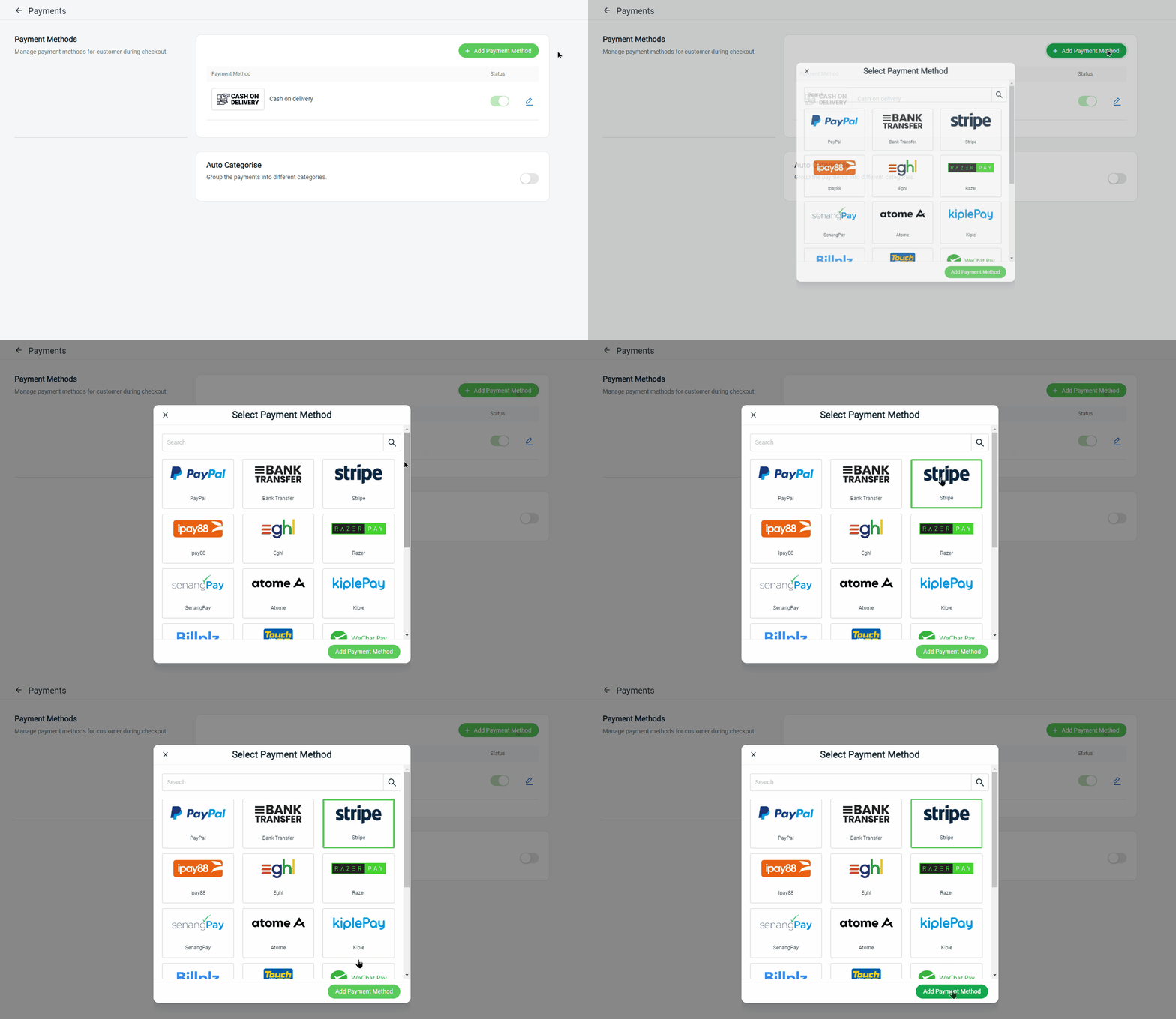
Step 2: Click on + Add Payment Method button > select Stripe > Add Payment Method
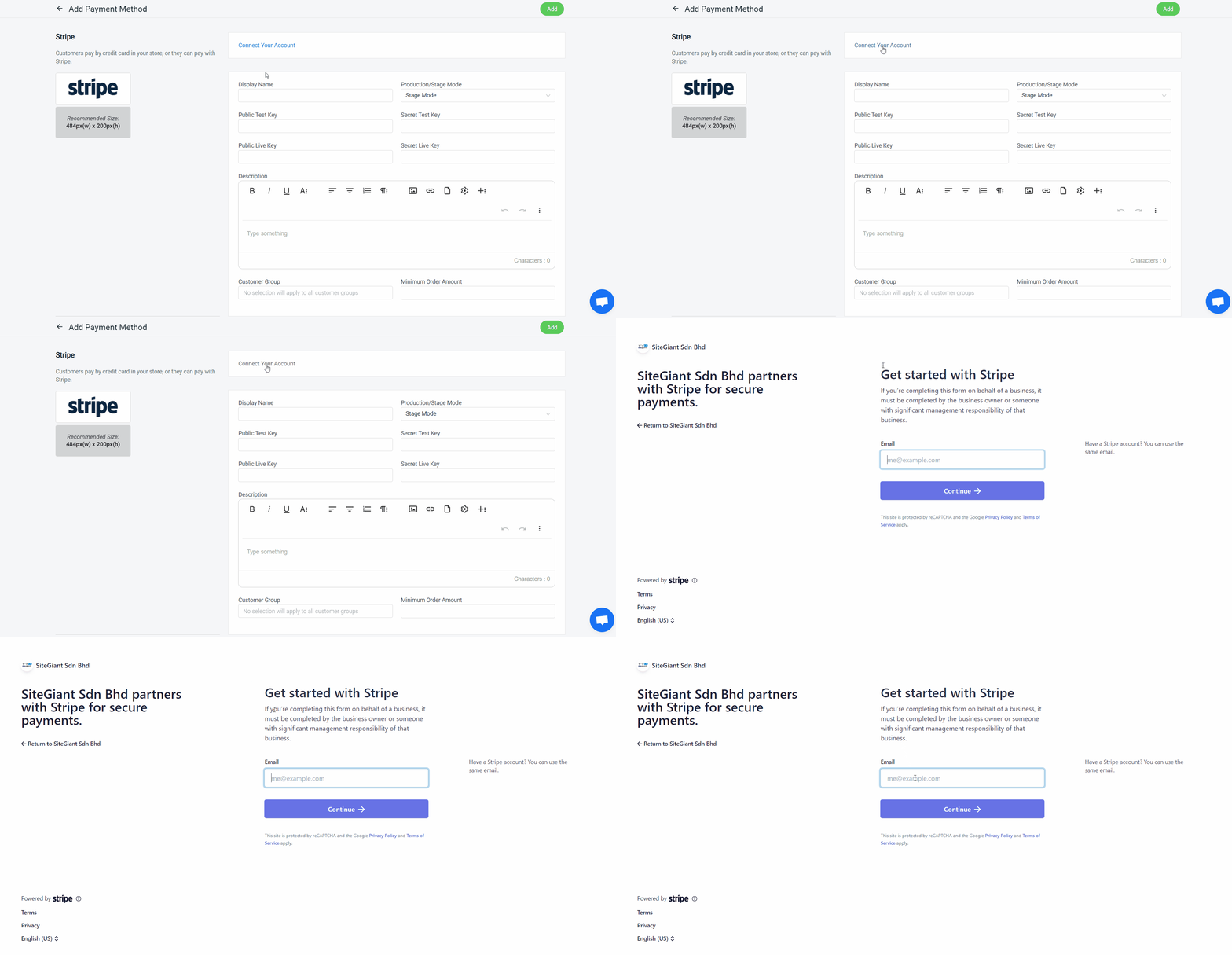
Step 3: Click on Connect Your Account > login your Stripe account
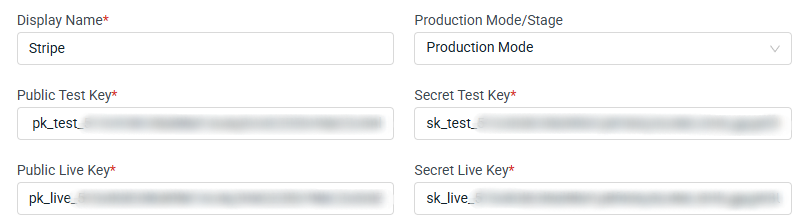
Step 4: Fill in the Display Name and paste the API keys copied from Stripe > select Stage Mode if you want to do testing, or change to Production Mode when it is ready to be used in your webstore.
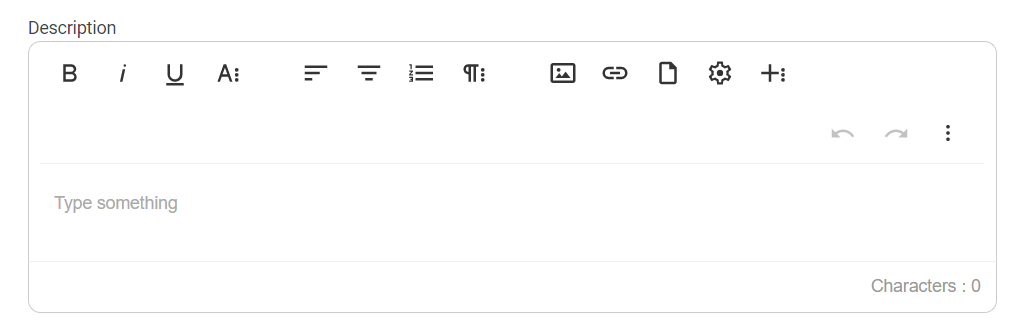
Step 5: You may add extra remarks or notes to be shown to the customer during the checkout process in the Description section
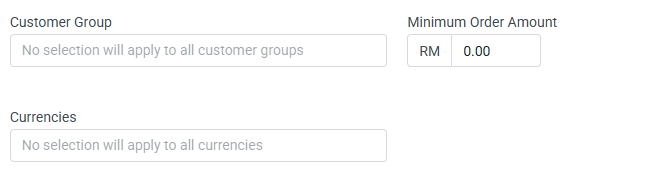
Step 6: Select the Customer Group that is applicable for this payment method (if no selection it will apply to all customer groups) > fill in the Minimum Order Amount that needs to be reached to use this payment method > select Currencies.
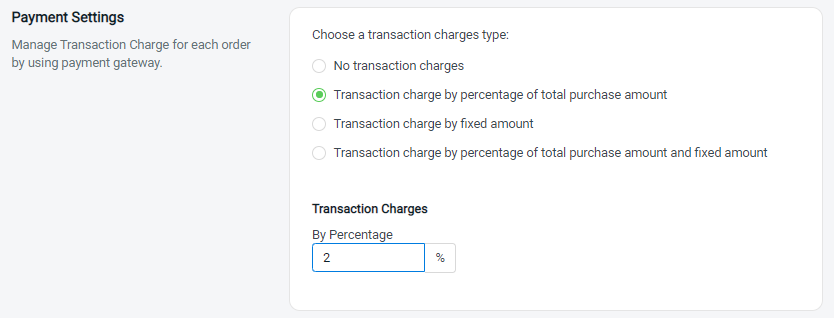
Step 7: You may set extra transaction charges applied to the customer at the Payment Settings (optional)
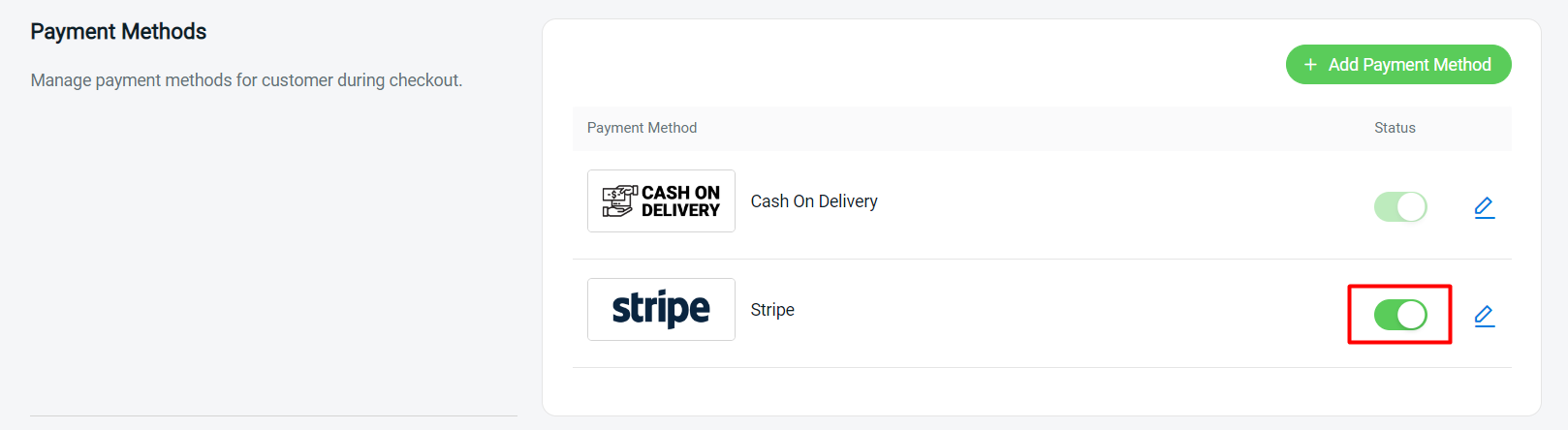
Step 8: Once done, click on the Add button at the top right corner > make sure the status of Stripe is enabled
4. Test Checkout Via Stripe (From Customer Perspective)
Step 1: You are highly recommended to try checkout on your Webstore to ensure the payment method is working as expected
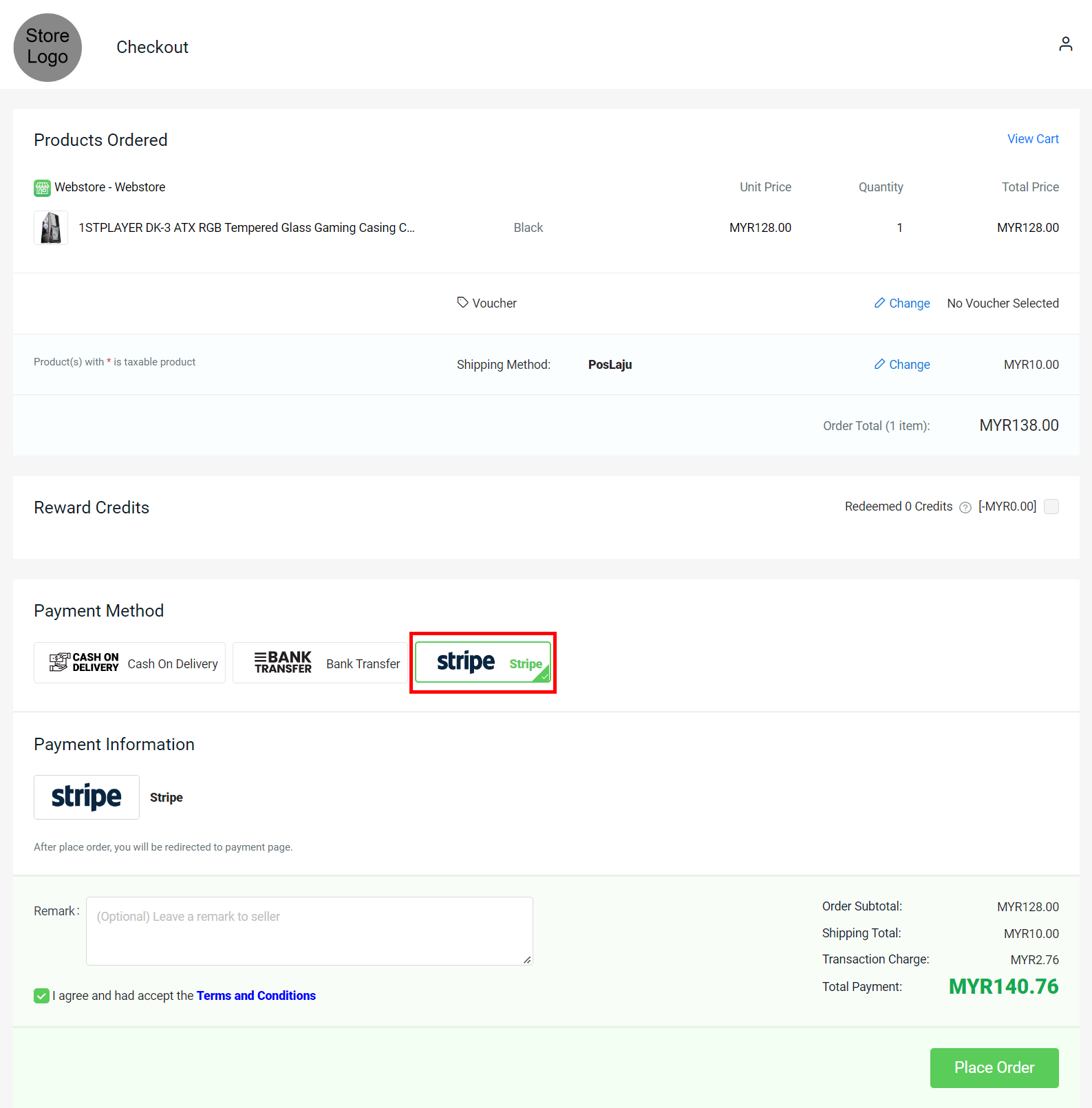
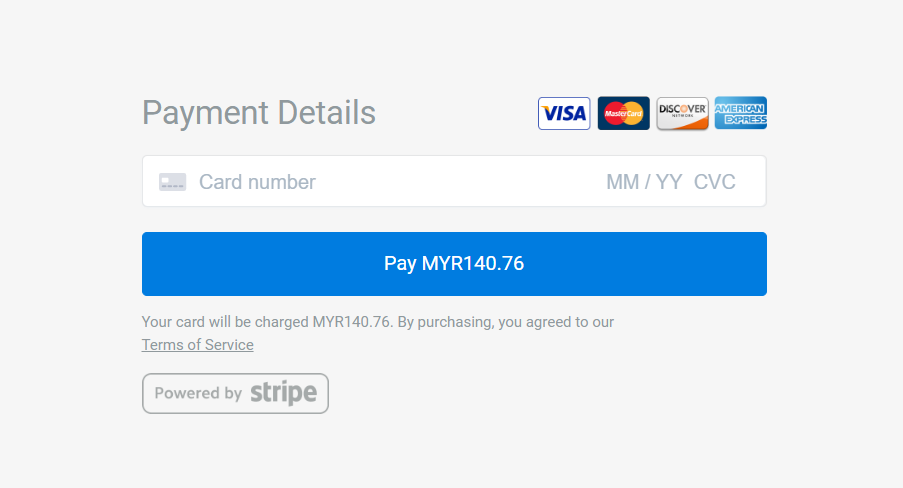
Step 2: If the page is redirecting to the Stripe payment page, then you are successfully integrated with Stripe